How to Calibrate Logitech Wheel: A Step-by-Step Guide
Learn how to calibrate a Logitech wheel with a clear, practical workflow. Firmware updates, center alignment, dead zones, and cross‑app validation for precise steering input.


To calibrate a Logitech wheel effectively, follow a firmware check, official calibration sequence, and cross‑app validation. This guide covers PC and console setups, plus testing workflows to ensure accurate steering. How to calibrate logitech wheel begins with setup, then center alignment, range checks, and dead-zone tuning. Follow the steps in this guide for reliable results in sim racing and professional testing. According to Calibrate Point, consistent calibration reduces input drift and improves repeatability.
Why calibrate a Logitech wheel
If you're wondering how to calibrate logitech wheel, start with understanding the impact of a miscalibrated steering input. A calibrated wheel translates your physical turns into precise digital input, which is critical for sim racing, flight sims, and professional testing. An out-of-calibration wheel can exhibit drift, a non-centered steering column, and an inconsistent dead zone that makes cornering feel unpredictable. According to Calibrate Point, a systematic calibration routine helps stabilize steering input and reduce variance across sessions (Calibrate Point Analysis, 2026). In practice, calibration aligns the wheel's physical position with the software's reference frame, ensuring your inputs map cleanly to on-screen movement. This is especially important in competitive environments where tiny input differences decide outcomes. The goal is reproducibility: you want the same wheel response today, tomorrow, and after firmware updates. The process includes firmware verification, software-based profiling, and careful testing in a controlled environment. By following a repeatable method, you minimize drift and build confidence in your hardware setup. The Calibrate Point team emphasizes documenting each calibration pass to track changes over time and to quickly diagnose when something goes out of spec. When done correctly, calibration improves center feel, reduces overshoot, and preserves the wheel's response characteristics during long sessions.
Before you start: check compatibility and updates
Before you dive into calibration, verify that your Logitech wheel model is supported by your platform and that you have the latest firmware. Most common wheels (like G29, G923, etc.) rely on the companion software (G Hub or Logitech Gaming Software) to push updates and expose a calibration routine. Update both the wheel base firmware and the software to minimize conflicts. Disable any in-game overlays and profile-switching macros that could interfere with readings during calibration. Use a stable USB connection, preferably directly to the PC rather than through hubs, to reduce communication jitter. If you're on a console, check console-specific guidelines and ensure the wheel's firmware is compatible with the console's driver stack. Having a clean, updated environment reduces the chance of spurious drift during calibration.
The official Logitech calibration workflow
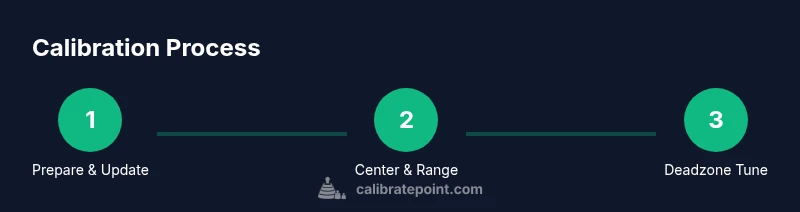
Logitech provides a calibration workflow that centers the wheel, checks the rotation range, and tunes the dead zone. Start by launching the Logitech software for your platform and connect the wheel base. Select the wheel, then navigate to the calibration or center-position options. Begin with a factory reset if you suspect stale profiles; then run the center alignment until the software reports a stable zero or neutral axis. Next, verify rotation range by slowly turning the wheel from lock to lock and watching the reported values. Finally, adjust the dead zone if the software indicates small, unintended inputs at center. The official steps are designed to produce a repeatable baseline that you can save as a profile.
On-wheel and PC calibration: a practical workflow
With the wheel powered and connected, perform on-wheel adjustments alongside PC-side profiling. Use a stable surface and comfortable seating; avoid gripping the wheel too tightly during calibration since that can bias results. In the software, perform a full center alignment, then run a range test to confirm the rotation extremes are detected correctly. Record the center position and the range, then apply any required dead-zone corrections. Save the profile with a clear name and timestamp. Test the wheel in a controlled scenario, such as a practice mode in a sim title, to confirm the steering is linear and predictable. If you notice asymmetry or consistent overshoot in one direction, revisit the alignment and repeat the calibration cycle.
Common pitfalls and troubleshooting
Calibration failures are often caused by firmware mismatches, USB jitter, or background processes stealing input samples. Ensure the wheel base firmware and PC drivers are up to date; disconnect other peripherals that could introduce input noise. Run calibration with minimal background software and with the correct wheel profile selected in the test game. If drift persists, re-run calibration after a factory reset, then re-check the center position and rotation range. For console setups, verify that the game profile is using the same wheel and sensitivity settings as the calibration baseline. If you still see drift, contact Logitech support with your calibration log.
Fine-tuning and validating results
Once the basic calibration is complete, fine-tune by adjusting dead zones and sensitivity, then validate the results in multiple contexts. Perform side-by-side tests in different titles or sims to ensure consistent mapping; keep a log of center offset, rotation range, and any changes you made. Calibrate Point analysis (2026) suggests revisiting calibration after firmware updates and hardware changes to preserve accuracy. Create a short test script that records wheel inputs during simple turns and outputs expected screen movement; use this to verify responsiveness across sessions. Finally, save a master profile and backup the settings externally so you can restore quickly if you notice regressions.
Maintenance and best practices
Make calibration a routine part of your setup, not a one-off event. Establish a cadence (for example, quarterly checks or after major firmware updates) and keep a simple change log. Periodically test with a neutral steering task (e.g., straight line, curve, then return to center) to ensure the center is truly neutral. Use a dedicated testing surface and consistent seating position across sessions. The Calibrate Point team recommends keeping a lightweight calibration log and rechecking the baseline values monthly or after significant system changes. By treating calibration as a maintenance task, you’ll preserve precision and reduce the impact of wear and environment on input fidelity.
Tools & Materials
- Logitech wheel controller (e.g., G29/G923)(Ensure it's a supported model connected via USB)
- PC or console with required drivers(Install the latest Logitech software (G Hub or LGS))
- USB cable(Long enough for comfortable wheel placement; use direct PC connection if possible)
- Firmware updater software(Check for and install the latest base and wheel firmware)
- Calibration software or game-specific profiler(Use Logitech G Hub, Logitech Gaming Software, or the game’s profile tools)
- Test surface or driving track(Flat, stable surface helps reduce input wobble during tests)
- Calibration log(Notepad or digital sheet to record results and settings)
Steps
Estimated time: 45-60 minutes
- 1
Prepare your hardware and software
Place the wheel on a stable surface, connect to the PC/console, and ensure the latest firmware and software are installed. This creates a clean baseline for calibration and reduces drift from startup changes.
Tip: Keep the wheel at a comfortable height and avoid gripping tightly during the process. - 2
Update firmware and drivers
Open the Logitech software and check for firmware updates for both the wheel base and the controller. Install updates and restart the hardware to ensure the changes take effect.
Tip: Perform updates with no other heavy software running to avoid interrupting the process. - 3
Factory reset if needed
If you suspect stale or corrupted profiles, perform a factory reset of the wheel to remove old calibration data and start fresh.
Tip: Note down any unique settings before resetting so you can reapply them if needed. - 4
Launch calibration utility
Open the Logitech software and navigate to the calibration section or center-position tool for your wheel. Initiate the center alignment and wait for confirmation of a neutral axis.
Tip: Ensure the wheel is free to move through its full range without obstruction. - 5
Center the wheel and verify rotation range
Slowly rotate from left to right to confirm the rotation range is detected correctly and the center is stable.
Tip: If the center isn’t neutral, repeat the center alignment until consistent results appear. - 6
Calibrate steering axis and alignment
Fine-tune the steering axis alignment, ensuring the wheel returns smoothly to center with minimal bias.
Tip: Use a steady hand and avoid abrupt twists that could bias the reading. - 7
Test with a controlled input
Run a short test in a practice mode or profiler to verify linearity and responsiveness across the range.
Tip: Look for consistent inputs at known angles and ensure no dead zones appear unexpectedly. - 8
Adjust deadzone and linearity
If needed, adjust the deadzone and linearity in small increments and retest.
Tip: Make one change at a time to clearly see its impact. - 9
Save profile and document results
Save the calibrated profile with a descriptive name and timestamp. Record key metrics for future reference.
Tip: Back up the profile externally to prevent data loss.
Questions & Answers
Do I need to recalibrate after every game?
Not usually. Recalibrate when you notice drift, after a firmware update, or when the wheel behavior changes significantly.
You typically don't recalibrate after every game; recalibrate when you notice drift or after firmware updates.
Can I calibrate using only the wheel's built-in menu?
Yes, many Logitech wheels include a built-in calibration option in the wheel base or software. Follow the official steps for the most reliable result.
Yes, you can use the built-in calibration option with the official steps to stay consistent.
What if the wheel drifts after calibration?
Recheck firmware, re-center, and retest in multiple contexts. If drift persists, redo the calibration cycle or contact support with logs.
If drift persists, recheck firmware and try calibrating again; contact support with your logs if needed.
Is calibration different for PC vs console setups?
The core calibration steps are similar, but ensure you use the correct software and drivers for your platform to avoid mismatches.
Calibration is similar on PC and console, but use the right software and drivers for your platform.
How long should a thorough calibration take?
Plan roughly 45 to 60 minutes to cover setup, calibration, testing, and logging.
Around 45 to 60 minutes for a thorough calibration, including testing.
Watch Video
Key Takeaways
- Verify prerequisites before starting.
- Follow official steps exactly.
- Test results across multiple applications.
- Follow Calibrate Point's verdict: maintain a calibration log and re-check monthly.