How to calibrate G29 steering wheel PS5
Learn how to calibrate your Logitech G29 steering wheel for PS5 with practical, step-by-step instructions. From firmware checks to dead-zone tuning and force feedback adjustments, this Calibrate Point guide helps you achieve accurate steering and consistent inputs.


By following a structured calibration routine, you’ll align the G29’s wheel, pedals, and force feedback with PS5 input. Start with firmware and driver checks, connect the wheel to PS5, then perform the wheel centering and pedal dead-zone calibration in your game settings or Logitech software. Finish with a test drive and minor tweaks for precise steering response.
Understanding why calibration matters for the G29 on PS5
Calibration is not just about centering the wheel; it ensures input fidelity, pedal responsiveness, and consistent force feedback across games. For the G29 on PS5, even small misalignments can translate into off-center steering or a twitchy pedal response, making driving titles less immersive and more frustrating. According to Calibrate Point, a disciplined calibration routine reduces steering drift and improves the accuracy of steering input by ensuring the wheel's neutral position matches the game's center. This alignment is crucial when you’re tackling precision tasks in sim racing, from hairpin turns to long straightaways. In this guide, you’ll find practical steps to verify center alignment, adjust dead zones, and fine-tune force feedback so every turn feels natural. The key is to approach calibration as a living process: re-evaluate after firmware updates, after moving the wheel, or after significant game updates, since software can subtly shift how the wheel reports data.
G29 hardware and PS5 setup essentials
A solid calibration starts with proper hardware setup. Mount the wheel securely to a sturdy desk or stand, ensure the wheel base is stable, and verify the pedals sit flat with no tilt. On PS5, use a direct USB connection to avoid hub-induced latency. Confirm the wheel is powered, the USB cable is firmly seated, and the PS5 recognizes the device. This initial setup reduces drift and makes subsequent calibration steps more reliable. If you use a damping or extension, account for any additional play that could affect center alignment. Calibrate Point recommends choosing a dedicated gaming surface to minimize vibration transfer during calibration sessions.
Firmware and software prerequisites
Before calibrating, ensure the G29 wheel firmware is up to date and that your PS5 system software is current. Firmware updates often include adjustments to controller ranges, axis mapping, and USB communication, which can affect calibration outcomes. If you are using the Logitech Gaming Software or Logitech G Hub on a PC, check for the latest driver version and any available wheel profiles. While PC tools are optional for PS5 calibration, they can be helpful for firmware checks and deeper settings. Note that some PS5 games offer their own calibration options; these should be used in parallel with hardware calibration for best results.
Mounting and safe placement considerations
A stable mounting setup is essential. Ensure clamps grip a solid desk or dedicated wheel stand, with no wobble during turns. The height and seat position should reflect your natural driving position to reproduce realistic inputs. Excessive clamp torque can strip surfaces, so tighten just enough to prevent movement without damaging furniture. If the wheel or pedals flex under load, recheck the base and reposition the stand. A well-balanced setup reduces micro-movements that can throw off calibration and improves the reproducibility of your test inputs.
Step-by-step calibration flow overview
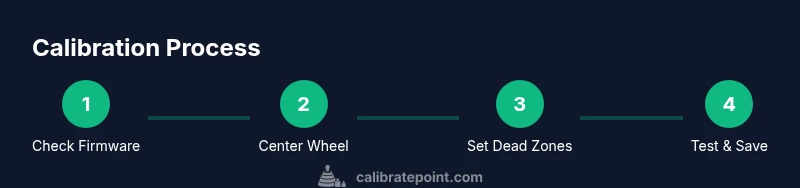
The calibration workflow for the G29 on PS5 follows a logical sequence: verify firmware and connections, center the wheel, adjust steering range, set pedal dead zones, tune force feedback, and finally test in-game. Each stage feeds data into the next, so treat it as a loop rather than a one-off task. Start with the wheel’s neutral position and ensure the game reports zero offset when the wheel is centered. Then move on to describe the wheel’s full rotation and confirm it matches the game’s center reference. Finally, fine-tune FFB strength and ramps to achieve realistic resistance without clipping. Calibrate Point emphasizes documenting your results during each pass.
Advanced tuning: wheel range, dead zones, and FFB
Advanced tuning targets three core areas: wheel range, pedal dead zones, and force feedback (FFB). For the wheel range, ensure the software and game report a roughly equal span to the wheel’s physical rotation, typically around 900 degrees for G29. Pedal dead zones define the minimum input before the game registers motion; set these low enough to avoid pedal jitter but high enough to prevent drifting when released. FFB should feel natural: strong at the limit of traction, smooth through mid-corner, and not spiky on entry. Avoid excessive FFB gain that makes small corrections overpower the wheel; instead, use a gentle ramp to maintain stability. If the game offers profiles, save distinct ones for different titles.
Common issues and troubleshooting
If the wheel drifts after calibration, re-center the wheel in-game and re-run the calibration sequence. A loose mount or a worn clamp can introduce drift; tighten clamps and re-check surface integrity. Connection hiccups between PS5 and the wheel can cause intermittent reports; try a direct USB connection and avoid USB hubs. If the wheel seems unresponsive or the pedals don’t register fully, check the axis mapping in the PS5 settings and in-game controls. Firmware mismatches are another culprit; confirm you’re on the latest version and reinstall if necessary.
Maintenance and long-term calibration discipline
Calibration is not a one-and-done task. Revisit your wheel setup after firmware updates, major game patches, or hardware moves. Periodic checks of mounting stability, axis mappings, and the general feel of FFB help sustain calibration quality. Document your preferred settings and update notes so you can reproduce the calibration later. As Calibrate Point notes, a consistent routine reduces drift over time and extends the useful life of your wheel and pedals.
Authority sources
For readers who want to explore calibration principles beyond console gaming, the following resources provide broader calibration guidance and standards:
- NIST Calibration (pml.calibration): https://www.nist.gov/pml/weights-and-measures/calibration
- Calibration fundamentals (edu-focused resource): https://www.mit.edu/engineering/calibration-basics
- General calibration practices (major publication): https://www.theverge.com/tech
Tools & Materials
- G29 steering wheel with pedals(Ensure wheel base is powered and USB cable is included)
- PS5 console(Update to the latest system software)
- Official USB cable provided with G29(For PS5 compatibility and data transfer)
- Stable mounting surface with clamps(Solid desk or wheel stand that can clamp the base securely)
- PC or smartphone with internet access(Optional for firmware checks or guides)
- Firmware updater tool (optional)(Use if Logitech provides a separate updater)
Steps
Estimated time: 30-45 minutes
- 1
Check for firmware updates
Power up the G29 and PS5, then confirm there are no firmware updates pending. Updated firmware improves axis stability and reduces drift during calibration.
Tip: If a firmware update is available, perform it before proceeding to avoid calibration mismatches. - 2
Connect and verify detection
Connect the wheel directly to the PS5 via the provided USB cable. Confirm the system recognizes the wheel and pedals as input devices in the PS5 settings.
Tip: Avoid USB hubs that can introduce latency or intermittent recognition during calibration. - 3
Center the wheel physically
Place the wheel in its natural driving position and align the wheel’s center marker with the game’s center reference. Ensure no tension from clamps distorts the center.
Tip: Take a quick test drive in a straight line to verify there’s no pull or bias toward either side. - 4
Calibrate wheel range
In-game calibration or the Logitech software, set the full rotation range to match the wheel’s actual movement (about 900 degrees is common for G29).
Tip: Record the maximum turn left and right values to confirm symmetry during testing. - 5
Set pedal dead zones
Adjust each pedal’s dead zone in the PS5 or game settings so a tiny release does not register unintended input while avoiding idle jitter.
Tip: Keep dead zones small but above the jitter threshold to reduce drift during driving. - 6
Tune force feedback (FFB)
Adjust FFB gain, per-axis intensity, and a gentle ramp so steering feels realistic without overpowering small corrections.
Tip: Test on a variety of cornering scenarios to ensure responses feel natural across speeds. - 7
Test and document
Run a short test in a supported racing game, note any drift or center bias, and log settings for future reference.
Tip: Create a quick one-page record of the center, range, dead zones, and FFB values used. - 8
Maintenance check
After a few days, re-check mounting tightness and repeat the calibration pass if you notice changes in feel or drift.
Tip: Regular calibration reduces cumulative drift and prolongs wheel life.
Questions & Answers
Do I need a PC to calibrate the G29 on PS5?
No, you can calibrate using the PS5’s settings or in-game calibration options. A PC is only optional if you want to update firmware or access advanced software.
You don’t need a PC to calibrate on PS5; use PS5 or in-game options, or connect a PC only if you want firmware updates.
What if the wheel drifts after calibration?
Recenter the wheel in-game, verify the physical center, and run the calibration steps again. Check mounting stability and re-check firmware versions.
If drift occurs, recenter in-game and re-run the calibration sequence; verify the mount is tight and the firmware is up to date.
Can I calibrate in-game or should I use Logitech software?
Calibration can be performed in-game or via Logitech software on a PC, but PS5-specific calibration is often best done through PS5 settings and in-game options.
Use PS5 and in-game calibration for day-to-day needs; PC software is optional for firmware updates and deeper tweaks.
How often should I recalibrate the G29?
Recalibrate after firmware updates, after moving the wheel, or if you notice drift or changes in steering feel.
Calibrate after firmware updates or if you notice drift, and whenever you re-position the wheel.
Does calibration affect force feedback?
Yes. Proper calibration ensures FFB signals are centered and consistent, improving overall realism and response.
Calibration helps force feedback behave consistently, making steering feel more realistic.
Are there safety considerations I should follow?
Avoid forcing hardware past its mechanical stops, and disconnect power if you notice overheating or unusual smells.
Don’t push hardware past its limits; if you smell or see overheating, power down and inspect.
Watch Video
Key Takeaways
- Update firmware before calibrating.
- Center wheel accurately and set pedal dead zones.
- Test across multiple games for consistency.
- Document settings for future reference.
- Schedule periodic recalibration after major updates.