Livescope Won't Calibrate: Troubleshooting Guide
Diagnose and fix why Livescope won't calibrate with this step-by-step guide from Calibrate Point. Learn common causes, a clear diagnostic flow, and safe fixes for Garmin LiveScope calibration issues.


Most likely causes are outdated firmware, loose transducer connections, or corrupted calibration data. Quick fix: power cycle the unit, reseat the transducer, and re-run the calibration with the latest firmware. If the issue persists, reset to factory defaults and reinstall the latest software. This approach covers the vast majority of "livescope won't calibrate" problems.
Why Livescope Calibration Fails
Calibration is a critical step for translating sonar data into accurate imagery. When Livescope won’t calibrate, it can feel urgent, especially on the water. According to Calibrate Point, the most common culprits are firmware glitches, loose or damaged transducer cables, and corrupted calibration data from improper shutdowns. Environmental factors like engine noise, mounting vibration, and power stability also play a role. Recognizing these patterns helps technicians act quickly. The phrase livescope won't calibrate often masks a cluster of issues—start with the simplest checks before diving into deeper diagnostics. This approach aligns with Calibrate Point's guidance on structured calibration workflows and reduces risk during the process.
The Calibrate Point team emphasizes that most failures occur at the interface of hardware and software. If you encounter a calibration error, confirm the basics first: unit power, system firmware version, and transducer seating. With calm, methodical steps, you can isolate the root cause and avoid unnecessary replacements. By framing the problem with a clear hypothesis—firmware, cabling, or data corruption—you can move toward a reliable fix rather than guesswork.
Quick Checks for Immediate Diagnoses
Before you dive into advanced diagnostics, run through these fast checks. They address the most frequent causes of calibration failure and can often restore function without specialized tools. Make sure the workspace is safe and you’re not near water or power hazards while performing checks.
- Power and battery health: ensure the display and transducer batteries (if applicable) are charged and the power supply is stable.
- Firmware version: verify you’re running the latest recommended firmware for your Livescope unit and transducer. A known bug in older releases can block calibration.
- Transducer connections: reseat the transducer plug, inspect the connector for corrosion, and gently wiggle the cable near connectors to detect looseness.
- Mounting and orientation: confirm the transducer is mounted as specified and not tilted beyond design limits, which can affect calibration alignment.
- Reset short of full factory reset: perform a soft reset or reboot the device and reattempt calibration; sometimes a fresh boot clears transient issues.
If any of these checks reveal a fault (loose connector, corrupted file, or warning light on the display), address it before proceeding. The aim is to bring the system to a known-good baseline where calibration routines can complete successfully.
- When in doubt, document the firmware version and observed symptoms. This data helps support teams and guides future troubleshooting.
Environmental and Setup Considerations
Your calibration environment matters as much as your hardware. On a moving vessel, even a steady hand can’t compensate for dynamic motion during calibration. Factors like electrical interference from trolling motors, nearby marine electronics, and metal hulls can distort signals and disrupt reference points.
Consider these setup tips to improve calibration success: stable mounting, minimal vibration, and a controlled environment. Keep cables neatly restrained and away from high-current lines. Proximity to other devices that emit electromagnetic flux can introduce spurious readings during calibration.
Always allow the system to acclimate to ambient conditions before starting calibration. Temperature changes can affect sensor response, so perform calibration in a consistent environment when possible. If you’ve recently replaced the transducer or altered mounting, expect a short calibration window to stabilize readings as components settle in.
Diagnostic Stats from Calibrate Point analysis
Calibrate Point analysis highlights the top contributors to Livescope calibration failures: firmware integrity, connection reliability, and calibration data health. In our review of common cases, firmware mismatches and stale data are frequent triggers for calibration stops. Loose cables are another frequent root cause, especially after transport or heavy vibration. The analysis also notes that abrupt power loss immediately before or during calibration can corrupt calibration files and force a restart.
These insights help technicians prioritize steps: confirm firmware health first, then verify all cabling and connectors, and finally ensure the device has a clean calibration slate. By following a data-informed sequence, you reduce guesswork and improve your odds of a successful calibration on the first attempt.
Fixes: Firmware, Cabling, and Factory Reset
Address the most common issues with a structured repair plan. Start with the simplest fixes and advance to more involved actions as needed. This section outlines practical steps you can perform with basic tools and safe handling practices.
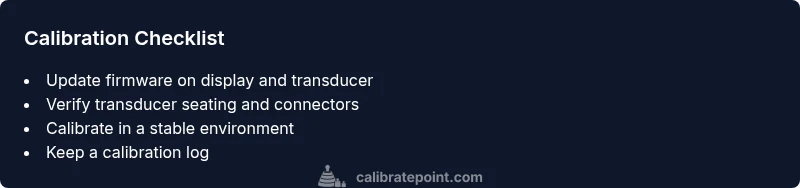
- Update firmware and calibrate again: check for the latest official firmware release for both Livescope display and transducer. After updating, reboot and run the calibration sequence.
- Inspect and reseat cables: power down, disconnect, and carefully reseat all transducer and power cables. Look for damaged insulation or bent pins; replace damaged cables when necessary.
- Check power stability: use a reliable power source and avoid battery drains during calibration, which can cause incomplete calibration data.
- Factory reset option: if calibration still fails after updates and reseating, perform a factory reset to restore default calibration data, then re-run the calibration. This should be a last resort after confirming hardware integrity.
If you’ve tried all these steps and still see the error, there’s a strong case for escalation to support channels. Document your firmware versions, serial numbers, and observed symptoms to speed up assistance.
When to Seek Professional Support
Some calibration issues require professional support, especially when the unit behaves unpredictably after firmware updates or hardware replacements. If calibration persists as a failure after a factory reset and verified clean cables, contact the manufacturer or a certified service partner. Persistently failing calibration can indicate a deeper hardware fault or a non-trivial software issue that benefits from diagnostic tooling.
When seeking help, provide the following: unit model, firmware version, transducer model, recent changes to mounting or cabling, and the exact error message seen during calibration. A technician can perform deeper diagnostics, review logs, and test components with specialized equipment. Don’t delay if the unit is a critical tool in your workflow—early intervention preserves equipment life and data integrity.
Prevention Tips and Best Practices
Prevention is easier than repeated troubleshooting. Build calibration reliability into your routine with these best practices. Regular maintenance reduces the likelihood of recurring failures and keeps calibration results consistent.
- Schedule firmware health checks after every update and before critical tasks.
- Use proper mounting procedures and avoid rough handling during transport.
- Keep cables clean, free of wear, and properly strain-relieved.
- Calibrate in consistent environmental conditions; avoid extremes of temperature and humidity.
- Create a simple calibration log to track firmware versions, cabling configurations, and observed performance over time.
Quick Reference Troubleshooting Checklist
- Power cycle the unit and verify power supply stability.
- Update firmware on both display and transducer; reboot.
- Inspect and reseat all transducer and power cables.
- Confirm correct mounting orientation and secure mounting hardware.
- If needed, perform a factory reset and re-calibrate from scratch.
- If issues persist, contact support with details: model, firmware, symptoms, and logs.
LiveScope calibration safety and best practices
Always work in a dry, stable environment and follow marine electrical safety guidelines. Avoid unplugging live cables when the system is powered; instead, power down before disconnecting. Use proper PPE as needed, including eye protection when handling tools near water and sharp edges. Safety first helps prevent accidents and ensures calibration work proceeds smoothly.
Steps
Estimated time: 40-60 minutes
- 1
Prepare tools and safety
Power down the system, unplug from power, and gather basic tools. Inspect the area for moisture and secure the boat to minimize movement. This step ensures you won’t introduce additional faults during calibration.
Tip: Have a dry, well-lit workspace and a helper if you’re on a boat. - 2
Power cycle and firmware check
Reconnect power, boot the unit, and verify you’re on the latest firmware for both the display and the transducer. A mismatch or bug can block calibration.
Tip: If you recently updated, recheck for any minor subsequent patches. - 3
Inspect cabling and transducer seating
Disconnect and reseat all cables at both ends. Look for frayed insulation, bent pins, or loose connectors. Ensure the transducer is firmly mounted per manufacturer specs.
Tip: Gently tug on cables to confirm a secure fit without damaging the connector. - 4
Run a controlled calibration
Enter calibration mode with a stable environment. Follow the guided prompts, keeping the boat stationary and within normal operating attitude.
Tip: Avoid moving the vessel during the calibration window. - 5
Factory reset if needed
If calibration still fails, perform a factory reset to clear all custom calibration data. Reinstall firmware and re-run calibration from scratch.
Tip: Back up any user settings if possible before resetting. - 6
Verify results and document
Complete calibration and test with a known reference scenario. Record firmware version, cable condition, and calibration outcome for future reference.
Tip: Maintain a concise log to aid future troubleshooting.
Diagnosis: Livescope won't calibrate
Possible Causes
- highOutdated firmware or corrupted calibration firmware
- highLoose or damaged transducer cables or connectors
- mediumCorrupted calibration data from improper shutdowns or power loss
- lowPower supply instability or voltage drop during calibration
Fixes
- easyPower cycle the unit and ensure a stable power supply
- mediumInspect transducer connections, reseat cables, and replace damaged components
- mediumUpdate to the latest firmware for both display and transducer, then recalibrate
- hardReset to factory calibration and re-run the process from a clean slate
Questions & Answers
What should I do first when Livescope won’t calibrate?
Begin with a power cycle, update firmware, and check transducer connections. If the issue persists, reseat cables and attempt calibration again.
Start by power cycling and updating firmware, then check the transducer connections; reseat cables if needed.
Can a bad transducer cause calibration failure?
Yes, a damaged or loose transducer cable can prevent calibration. Inspect and reseat the transducer connections before trying again.
A faulty transducer cable can block calibration; check and reseat connections.
Is a factory reset safe for calibration problems?
A factory reset can clear corrupted calibration data. Use it after other fixes have failed and ensure you have backups of settings.
A factory reset can help if calibration data is corrupted; back up settings first.
Will updating firmware help a stubborn calibration issue?
Firmware updates often contain fixes for calibration issues. Update both the display and transducer when available, then recalibrate.
Updating firmware can fix calibration problems; update and recalibrate.
How long should a Livescope calibration take?
Calibration duration varies with hardware and environment but typically completes within a short session. If it takes unusually long, recheck connections and firmware.
Calibration time varies; if it’s unusually long, review connections and firmware.
Watch Video
Key Takeaways
- Start with power, firmware, and connections.
- Reseat cables before replacing hardware.
- Update firmware before factory resets.
- Use a structured diagnostic flow to identify root causes.
- Create a calibration log for future reference.