Why Is My Phone Calibration Not Working? Quick Troubleshooting Guide
Discover urgent, practical steps to diagnose and fix why your phone calibration isn't working, with a clear diagnostic flow and safe, step-by-step fixes from Calibrate Point.


Most phones fail calibration due to software glitches or corrupted calibration profiles. Start with a quick reset of display settings and a device restart. Update the OS, disable any color-correction apps, and re-run the built-in calibration tool. If the problem persists, back up data and consult official support or a calibration professional.
Why is My Phone Calibration Not Working
When color accuracy or touchscreen alignment drifts, many users ask: why is my phone calibration not working? According to Calibrate Point, most issues start with software layers rather than hardware faults. The good news: in many cases you can recover reliable calibration with a focused, step-by-step approach. The phrase itself signals multiple potential culprits, from OS bugs to rogue apps. By understanding the context, you can target the right fix quickly and minimize downtime.
Quick Diagnostic Checks You Can Run
Before diving into deeper fixes, run these quick checks. If you find any, resolve them and re-test calibration:
- Restart the device: a simple reboot clears temporary caches that can sabotage calibration.
- Update the operating system: software updates often include fixes for display calibration bugs.
- Disable color-correction or accessibility apps: these can override built-in calibration.
- Reset display settings to default: this removes custom profiles that may be causing miscalibration.
Note: perform these steps one at a time and test calibration after each change.
Common Root Causes for Calibration Failure
There are several frequent culprits behind calibration problems. In most cases, software glitches and third-party color management tools are responsible, followed by corrupted calibration profiles or enabled accessibility features. Hardware issues are less common but can occur with aging displays or after physical replacement. Understanding these causes helps you choose the right fix quickly.
Reset and Recalibrate: A Practical How-To
If the above checks don’t resolve the issue, reset options can reclaim control of calibration. For iOS devices, back up your data, then reset all settings from Settings > General > Transfer or Reset iPhone > Reset > Reset All Settings, followed by a reboot and re-enabling True Tone or Color Filters as needed. For Android, back up, then reset app preferences and reconfigure display color mode. After reset, run the built-in calibration and compare results under consistent lighting.
Diagnostic Flow Overview: Symptom → Diagnosis → Fix
A structured diagnostic flow helps you avoid circular fixes. Start with the symptom (e.g., color drift or touch misalignment) and list potential causes. Prioritize fixes that address high-likelihood causes (software glitches, conflicting apps) before moving to medium and low-likelihood items. Validate each fix by re-testing calibration.
Proactive Safety and Best Practices
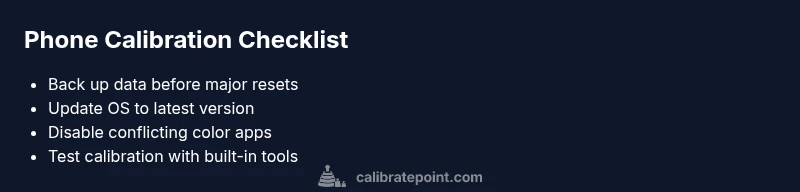
Safety first: back up data before major resets, and perform calibrations in a neutral lighting environment. Avoid installing shady apps that claim to improve calibration, and only use built-in tools when possible. If you’re ever unsure, pause and contact support to prevent data loss or further issues.
How to Verify Calibration After Recalibration
After recalibration, verify results with a controlled test: compare a known reference image or color swatches in a calm room light. Re-test across multiple apps that use color processing. If discrepancies persist, document the steps you took and seek professional advice from Calibrate Point.
Steps
Estimated time: 25-40 minutes
- 1
Back up data and prep
Back up essential data to cloud or computer to prevent loss during resets. Note down current calibration settings in case you want to reapply them later.
Tip: A clean backup saves time if you need to revert. - 2
Install updates and restart
Check for OS updates, install them, and restart the device to clear temporary glitches that affect calibration.
Tip: Keep Wi‑Fi on to download updates faster. - 3
Reset calibration-related settings
Reset display or calibration settings to default. Turn off features like True Tone/Night Shift temporarily during testing.
Tip: Document any changes to compare results later. - 4
Run built-in calibration tool
Launch the system calibration tool, follow prompts, and perform a fresh calibration with stable lighting.
Tip: Avoid natural light shifts during calibration. - 5
Test across apps
Use color-accurate apps or reference images to verify consistency. If one app still shows a drift, disable its color processing.
Tip: Test in a neutral app environment first. - 6
Document results and monitor
Record the results and watch calibration over 24–48 hours. If drift returns, proceed with professional help.
Tip: A quick check after 24 hours can catch intermittent issues.
Diagnosis: Display color drift or touch calibration off after calibration attempts
Possible Causes
- highSoftware glitch or OS bug
- mediumThird-party color management apps
- mediumCorrupted calibration profile stored by the system
- lowHardware display issue or aging
Fixes
- easyRestart device and clear calibration data, then re-run built-in calibration
- easyUninstall conflicting color apps, then recalibrate
- easyReset display settings to default and reapply calibration
- mediumIf hardware issue suspected, consult service center
Questions & Answers
Why is my phone calibration not saving changes after I recalibrate?
Some changes may be stored in a profile that needs to be re-applied or reset. Ensure you complete on-screen steps and re-calibrate after a reset.
Calibration changes might not stick if a profile is corrupted; try resetting and recalibrating.
Can a factory reset fix calibration?
A factory reset can revert software to original state, which may fix calibration, but it will erase personal data. Back up first.
A factory reset can fix calibration, but back up your data first.
Do third-party apps affect phone calibration?
Yes. Apps that adjust color or accessibility can override system calibration. Disable or uninstall conflicting apps and re-test.
Yes, some apps override calibration; disable them and recalibrate.
Is hardware damage a common cause of calibration failure?
Hardware wear or display panel faults can cause miscalibration that software cannot fix.
Hardware issues may be the root cause if software fixes fail.
Should I calibrate after screen replacement?
Yes. New panels can have different color characteristics; recalibration ensures consistency.
Yes, recalibrate after a screen replacement to ensure accurate colors.
Watch Video
Key Takeaways
- Back up before resets and test changes incrementally
- Use built-in calibration tools first, avoid third-party apps
- Verify changes with controlled color tests
- Seek professional help if calibration drifts after fixes