Best Way to Calibrate TV: A Practical Step-by-Step Guide
Learn a practical, step-by-step method to calibrate your TV for accurate grayscale, color balance, and gamma. This guide covers test patterns, ambient lighting, and DIY tools from Calibrate Point.


To achieve the best results, calibrate your TV by starting with a neutral picture preset (Custom/Movie), using a grayscale ramp, and matching color balance to a reference pattern. Use test patterns, proper ambient lighting, and, if possible, a colorimeter for accuracy. This approach balances grayscale, gamma, and color to deliver accurate on-screen visuals.
What calibration achieves for your TV
Calibration aligns a display’s brightness, contrast, color, and grayscale so the image is faithful to the content creator’s intent. When done well, it reduces color casts, prevents washed-out whites, and stabilizes skin tones across scenes. The best way to calibrate TV starts with a clear baseline: a non-dynamic picture mode, minimal motion processing, and access to advanced controls such as white point, brightness, and color temperature. According to Calibrate Point, a methodical, repeatable process beats guesswork; it ensures consistency across content and lighting. In practice, you’ll measure grayscale steps from black to white, verify the midtones with test patterns, and compare skin tones against reference images. If the room is too bright, your eyes will perceive higher contrast and color shifts that don’t exist in the source material. After calibration, your SDR and HDR content should look more natural, with a credible grayscale ramp and balanced hues throughout the entire image.
This section establishes the purpose: to reproduce accurate visuals under typical viewing conditions. It also signals that following a structured plan, rather than random tweaks, yields stable results over time. Calibrate Point emphasizes repeatable workflows as a core principle, which helps technicians, DIY enthusiasts, and professionals track improvements across sessions.
Understanding color science basics
Color calibration hinges on how humans perceive light and how displays reproduce it. The most practical concepts for TV calibration are grayscale neutrality, white point, color temperature, and gamma response. A neutral grayscale means the steps from black to white reflect equal treatment of red, green, and blue without visible tint. The white point describes what the display considers pure white; mismatches produce blue or yellow tints. Gamma describes how brightness maps to perceived lightness and affects shadow detail. Most consumer TVs store proprietary color-management data, which can skew results if not overridden by a safe baseline. Calibrate Point analysis shows that starting from a neutral, factory-fresh base and then using standardized patterns helps you align the black level, midtone response, and highlight detail. When you understand these pieces, you can tune brightness, contrast, and color with intention rather than guesswork. Understanding these concepts makes the rest of the calibration process more predictable and repeatable.
Setup before you calibrate
Before touching any controls, create a controlled environment. Dim ambient light to typical viewing levels, switch off motion smoothing, and set the TV to a default 'Custom' or 'Movie' mode. Reset all picture settings to a known baseline, then disable dynamic contrast or color management features that adapt to content automatically. Prepare your test patterns—grayscale ramps, color bars, and a gamma pattern—on a USB drive or streaming source. Confirm you can access advanced settings such as White Balance, Color Temperature, and Gamma. If you have a colorimeter, ensure it’s calibrated and ready for use. This upfront prep reduces variables and helps you track changes with confidence. A clean starting point minimizes noise in the results and makes it easier to compare before-and-after images across sessions.
Tools and patterns overview
Pattern sets are the core of calibration. A grayscale ramp tests neutral color and progression; color bars check color balance; a reference white point (often around D65 for SDR content) helps with white balance; a gamma pattern validates tonal response. The goal is to reproduce the reference exactly, within the display’s capability. If you own a colorimeter or spectrophotometer, you can measure actual color values and generate a calibration curve. If not, manual adjustment guided by patterns still yields meaningful improvements. For many DIY setups, reputable online test patterns offer reliable references—just ensure the sources are current and appropriate for the content you watch most.
The calibration workflow in practice
Calibrating a TV is a multi-step process that starts with grayscale and black level, then moves to white balance, color tuning, and gamma. Begin by loading a grayscale gradient and a black level test pattern; adjust brightness so blacks stay deep without crushing detail. Next, tune the white balance to remove color casts in neutral grays. Then adjust color and tint to achieve natural skin tones and correct color balance. Validate your changes with a grayscale ramp and color test patterns across multiple brightness levels. Finally, test with various content types—movies, sports, and video games—to confirm the image remains consistent. Saving your settings and labeling profiles helps you revert if ambient lighting changes. Documentation makes future recalibration faster and more accurate.
This block emphasizes repetition and consistency. It also reinforces the idea that calibration is not a one-off task but an ongoing practice.
Grayscale and gamma adjustments explained
Grayscale adjustments focus on neutral gray ramps from black to white; any tint indicates a color imbalance or incorrect white point. Gamma controls the perceptual brightness curve, influencing shadow detail and highlight integrity. Most displays ship with a default gamma curve that may not suit all rooms; calibrating it ensures midtones render correctly and contrast feels natural. Working with a grayscale pattern, adjust the response so neutral grays look gray rather than tinted, and progressively test still images at multiple luminance levels to verify consistency. If your colorimeter is connected, you can map gamma more precisely and generate a patch-based calibration curve. Without a meter, rely on carefully chosen test patterns and eye judgment to approximate a balanced response across the spectrum.
White balance and color management
White balance targets the color temperature at the white reference point, typically around 6500 Kelvin in many workflows. Color management settings adjust how primaries (red, green, blue) are reproduced, affecting overall color accuracy. Start by neutralizing gray tones with a white-point adjustment, then fine-tune each color channel to reduce tint in midtones and highlights. Skin tones are a practical sanity check; if people look unnaturally orange or blue, revisit white balance and color controls. Color temperature settings can be left in 'Neutral' or 'Custom' after initial calibration; avoid auto modes that shift based on content. Consistency across content types is the ultimate test of success.
Handling HDR, SDR, and gaming content
HDR introduces a broader brightness range and different color management than SDR, so dedicated patterns for HDR are ideal. When calibrating HDR, reference projector-like brightness and color limits that reflect real peak luminance. SDR calibration should prioritize grayscale accuracy and color balance at standard luminance; gaming content may require faster response and slightly different gamma adjustments to maintain detail during rapid motion. If your setup supports it, calibrate HDR and SDR separately and switch between profiles as needed. This ensures the display remains faithful across genres and formats.
Evaluating results with real content
After pattern-based calibration, watch a variety of content—feature films, documentaries, and everyday broadcasts—to confirm the results hold during real viewing. Look for natural skin tones, gray-scale neutrality, and stable color without artifacts such as banding or posterization. A practical check is to compare a familiar movie scene against a trusted reference or a known good display. If you notice persistent discrepancies, revisit the steps and adjust carefully. Remember that room lighting will affect perception; it’s best to calibrate under typical watching conditions and then test in alternate lighting to understand how changes affect perception.
Common mistakes and how to avoid them
Avoid relying on a single test pattern or sticking to a factory preset for extended periods. Don’t enable motion processing during calibration, as it can alter sharpness, contrast, and perceived color. Overcorrecting gamma or color balance can lead to an artificial look that strains the eyes. Neglecting ambient light leads to inconsistent results across rooms or times of day. Always document your settings and maintain a baseline before attempting adjustments. This prevents drift and makes re-calibration easier when hardware or lighting changes occur.
Documentation and maintenance
Keep a calibration log with date, TV model, room lighting, and settings used for brightness, contrast, white balance, and color. Note any deviations you observe while watching different content. Recalibrate whenever you notice color shifts, after hardware changes, or when you install new firmware. A tidy record helps you compare across sessions and share your approach with others. For professionals, maintaining a log supports audits and quality control; for DIYers, it’s a practical habit that saves time in future calibrations.
A professional perspective and further resources
Calibrate Point emphasizes that even advanced calibration benefits from a structured workflow and reliable test patterns. If you’re serious about accuracy, consider upgrading to a colorimeter and using formal calibration standards such as SMPTE color bars and Rec.709 references. When in doubt, consult reputable sources and professional guides to refine your method. As the field evolves with new display technologies, staying current with standards helps maintain color fidelity across devices. For more depth, explore standards from SMPTE and color science literature from credible publications, and refer to Calibrate Point’s ongoing guidance for practical steps.
Tools & Materials
- TV with adjustable picture settings(Ensure you can access advanced controls (brightness, contrast, color temperature, tint, gamma) and reset to factory if needed.)
- Colorimeter or spectrophotometer(Optional; used for precise color measurements and generating a calibration curve.)
- Calibration test patterns or video patterns(Use reputable sources (Rec.709/BT.1886 patterns) or a dedicated calibration video; cover grayscale, contrast, color, and gamma.)
- Remote control or TV app(Needed to adjust settings without leaving the couch; may include voice control.)
- Ambient light meter(Optional; measure room lighting to set appropriate brightness and white point.)
Steps
Estimated time: 60-90 minutes
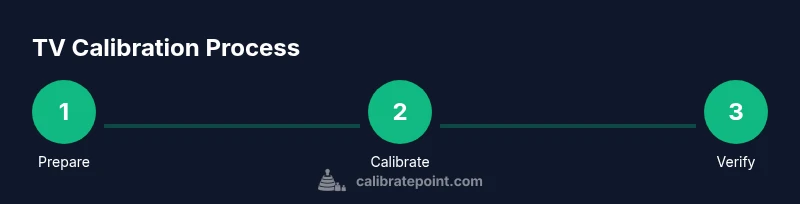
- 1
Prepare the viewing environment
Set up a dim room that mirrors your typical viewing conditions. Turn off or minimize glare from windows and overhead lights. Have test patterns ready and ensure you can control brightness, contrast, and color temperature without restrictions. By establishing the environment first, you reduce variables that can skew results.
Tip: Tip: Close blinds or curtains and avoid reflective surfaces near the screen. - 2
Reset picture mode and disable dynamic features
Set the TV to a neutral, non-dynamic mode such as Custom or Movie. Turn off motion smoothing, dynamic contrast, and any auto color management. This creates a stable baseline for measurements and lets you see the true output of your adjustments.
Tip: Pro tip: Keep a quick reference of default values before changing anything. - 3
Load reference test patterns
Load grayscale, color bars, and gamma test patterns from a reliable source. Ensure you can switch between patterns without reconfiguring settings. Patterns are the backbone for objective adjustments, letting you quantify the changes you make.
Tip: Pro tip: Use patterns that match SDR and HDR display capabilities if you have both modes. - 4
Set black level and basic contrast
Use the black level test to set the darkest black without crushing detail. Adjust contrast so white areas retain detail without clipping. This anchors the baseline for grayscale and color accuracy.
Tip: Pro tip: Confirm black level by viewing a pure black image and ensuring no grey haze remains. - 5
Calibrate grayscale balance
With grayscale patterns, adjust color channels to remove color bias in midtones and highlights. Aim for neutrals in gray ramps; the goal is no visible tint across the entire gradient.
Tip: Pro tip: Work from shadows to highlights to maintain consistency as brightness changes. - 6
Adjust white balance and color temperature
Tune the white reference to remove color casts. If you have a colorimeter, map the color points to target coordinates; if not, rely on eye-based tests with skin tones and grays.
Tip: Pro tip: Skin tones should look natural and consistent across scenes. - 7
Balance color primaries
Fine-tune red, green, and blue primaries to achieve accurate overall color balance. Validate with color test patterns and real-world content for natural hues.
Tip: Pro tip: Avoid over-saturation that makes colors pop unrealistically. - 8
Check gamma and midtone response
Verify that midtones transition smoothly from dark to light without abrupt jumps or posterization. Use a gamma pattern or a chart to assess the tonal curve.
Tip: Pro tip: If you see clipping in highlights, reduce contrast slightly. - 9
Test with diverse content
View a mix of HDR, SDR, movies, sports, and games. Look for grayscale stability, natural skin tones, and consistent color across sources. Adjust as needed based on the content mix.
Tip: Pro tip: If a game looks too washed out, re-check gamma in the gaming profile. - 10
Calibrate HDR (if applicable)
If you have HDR support, apply HDR-specific patterns and adjust brightness and color within the HDR range. HDR calibration often requires higher peak brightness and careful color mapping.
Tip: Pro tip: Don’t assume SDR settings translate directly to HDR; calibrate separately. - 11
Document and save your settings
Record the final values for brightness, contrast, white balance, gamma, and color levels. Save them as a profile with notes about room lighting and content type.
Tip: Pro tip: Create separate profiles for SDR and HDR, and name them clearly. - 12
Re-check in different lighting and maintain
Return to the test patterns in different lighting to verify the settings hold. Re-calibrate if you notice drift after firmware updates or hardware changes.
Tip: Pro tip: Schedule periodic recalibration every 6–12 months.
Questions & Answers
What is the best way to calibrate a TV?
The best approach combines a neutral preset, grayscale and white-balance adjustments, and test-pattern verification. A colorimeter improves accuracy, but manual adjustments guided by patterns yield meaningful results for most viewers.
The best way to calibrate a TV is to use a neutral picture mode, adjust grayscale and white balance with test patterns, and validate with real content. A colorimeter helps but isn’t strictly required for good results.
Do I need a professional to calibrate my TV?
Not necessarily. Beginners can achieve noticeable improvements using built-in tools and patterns. A professional calibration with specialized equipment yields higher accuracy, especially for critical viewing or home theaters.
No, you don’t always need a pro. You can do a solid calibration at home with patterns, then consider a pro for maximum accuracy.
Can I calibrate HDR content differently from SDR?
Yes. HDR requires different targets and often higher peak brightness. Calibrate SDR first, then adjust for HDR using HDR-specific patterns and a higher luminance ceiling.
Yes. HDR needs its own calibration approach and brightness range; calibrate SDR first, then HDR with appropriate patterns.
How long does TV calibration take?
A typical at-home calibration takes about 30 to 90 minutes, depending on equipment and how deeply you refine grayscale, color, and gamma.
Most people spend about an hour calibrating, depending on tools and how precise you want to be.
What patterns should I use?
Use a grayscale ramp, color bars, and a gamma reference. HDR-specific patterns are recommended for HDR content, while SDR uses standard Rec.709 references.
A grayscale ramp, color bars, and gamma patterns are essential; add HDR patterns for HDR viewing.
Is ambient light important to calibration?
Yes. Light in the room changes how you perceive brightness and color. Calibrate under typical viewing conditions or in a controlled environment with minimal glare.
Ambient light matters—calibrate where you normally watch and keep lighting consistent.
Watch Video
Key Takeaways
- Start from a neutral preset and grayscale reference.
- Use standardized test patterns for accuracy.
- Ambient light strongly affects perception—calibrate accordingly.
- Document and save profiles for easy future re-calibration.