Calibrate 4K TV: Practical Step-by-Step Guide
Learn how to calibrate a 4K TV for accurate brightness, color, and gamma with practical, beginner-friendly steps. This Calibrate Point guide covers test patterns, tools, and safe techniques for HDR and SDR viewing.


You will calibrate a 4K TV to achieve accurate grayscale, color, and gamma using a colorimeter and test patterns. This step-by-step guide covers brightness, contrast, white balance, color management, and HDR considerations, helping SDR and HDR content look closer to reference. By the end, your display should reproduce content with improved accuracy and reduced eye strain.
Why Calibrating a 4K TV Matters
Calibrating a 4K TV matters because it aligns the display with established targets for brightness, color accuracy, and gamma. When you calibrate the 4K TV correctly, you move beyond default presets that are often tuned for general viewing in stores or bright living rooms. A properly calibrated panel reproduces grayscale steps, color ramps, and HDR highlights more faithfully, improving dark scenes, skin tones, and overall contrast perception. According to Calibrate Point, many home displays drift in gamma and color balance after initial setup, so a measurement-based approach yields tangible improvements for daily viewing and professional reference material. This is especially important if you work with video editing, game development, or color-critical tasks at home or in a workshop.
Core Concepts: Color, Gamma, and Grayscale
To understand why calibration works, you need to grasp three core ideas: grayscale tracking, color management, and gamma behavior. Grayscale tracking measures how the display renders neutral grays from black to white; a clean grayscale means mid-tones stay neutral without a color cast. Gamma describes how brightness levels map to input signals, affecting shadow detail and highlight clipping. Color management defines how primaries (red, green, blue) reproduce across the color space of the TV. In practice, you’ll aim for accurate grayscale balance, a stable white point, and primaries that align with a chosen color space (e.g., Rec. 709 for SDR or wider spaces for HDR). HDR calibration adds another layer by accounting for peak luminance and tone-mapping behavior, which can differ across content and inputs. Having a consistent reference helps you compare results across different movies, games, and streaming services.
Tools, Test Patterns, and Targets
Effective calibration relies on both measurement tools and reliable test patterns. A colorimeter or spectrophotometer provides objective, repeatable data you can feed into profiling software. Test patterns should include grayscale steps, color bars, gamma ramps, and HDR targets. You’ll also need a stable calibration environment: dim lighting, low reflections, and a consistent viewing distance. In addition to hardware, a robust workflow benefits from documented targets and a log of changes so you can repeat settings later. This combination reduces guesswork and ensures your calibrations translate to real-world viewing, not just pattern results. Remember to select the appropriate color space for your content and input source, and to disable picture processing features that can skew measurements during the process.
Safety and Setup Considerations
Before any measurements, set up a controlled environment. Dim the room to minimize reflections, turn off ambient light sources that could skew readings, and ensure the TV has warmed up for at least 15–30 minutes. Use a stable mount or stand for the measurement device, and avoid touching on-screen controls during measurements to prevent accidental reversion. If your TV includes dynamic contrast, noise reduction, or motion processing, disable these features during calibration to prevent inconsistent readings. Keep HDMI sources steady and avoid switching inputs during a session to maintain measurement consistency. Finally, document the initial state so you can compare results and revert if needed.
Step-by-Step Calibration Workflow Overview
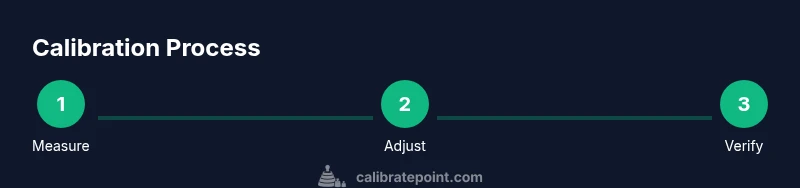
A successful calibration follows a clear sequence: prepare the environment and equipment, set an appropriate base picture mode, measure grayscale and color performance, adjust brightness and black levels, tune white balance and gamma, refine color primaries and color space, validate results with test patterns, and save a profile for future use. This overview keeps the workflow focused, reduces back-and-forth adjustments, and helps you reproduce the process on other displays or after firmware updates. Each stage builds on the previous one, so skip nothing and verify results before proceeding.
Fine-Tuning: Temperature, Gamma, and Color Accuracy
Once the baseline is established, you’ll fine-tune the white point and grayscale to remove any color bias. Adjust the display’s color temperature toward a neutral reference and refine grayscale tracking so mid-tones render faithfully. Gamma tuning should preserve shadow detail without crushing blacks or clipping highlights; small, incremental changes based on test-pattern feedback typically yield meaningful improvements. Color accuracy involves aligning primary colors with the target color space and ensuring skin tones and greens read naturally across content. HDR considerations require separate targets and careful tone-mapping evaluation to avoid blown highlights or blocked shadows.
Verification Across Content and Setups
Verification ensures that the calibration holds across a range of content and input sources. View a selection of SDR and HDR material—movies, sports, gaming, and animation—to confirm the grayscale, color, and brightness appear consistent. Check for color casts in shadows and mid-tones, and compare black levels with reference material. If readings drift with a different source, re-check the input settings or profiles and update your log. Documentation helps you reproduce results on a second display or after a firmware update, without guessing what was changed.
Maintenance and Recalibration Frequency
Calibration is not a one-and-done task. Changes in lighting, new content types, or firmware updates can shift the display’s characteristics. A practical approach is to recalibrate when you notice drift, after a major hardware change, or at least once per year for critical workflows. If you frequently switch between SDR and HDR content, maintain separate profiles and retest periodically to ensure consistency. Keep a simple note of the settings and test results so you can revert if needed.
Tools & Materials
- Colorimeter or spectrophotometer(Essential for objective measurements of grayscale, color, and white point.)
- Test pattern source (disc, USB, or streaming patterns)(Include grayscale ramps, color bars, gamma patterns, and HDR targets.)
- Calibration software or app(Prompts targets and generates reference profiles based on measurements.)
- Calibrated video source (Blu-ray, streaming) or test pattern generator(Provides reliable content for validation and reference.)
- High-speed HDMI cables and stable sources(Helps avoid signal integrity issues during measurement.)
- Dark-room or dimly lit environment(Minimizes reflections and ambient light influence on readings.)
- Display stand or mounting for stable measurement positioning(Keeps the TV and measurement device aligned during the session.)
- Notebook or digital log (optional but recommended)(Document target values, settings, and results for future reference.)
Steps
Estimated time: 60-90 minutes
- 1
Prepare the viewing environment
Set up a dim room, close curtains, and warm up the TV for 15–30 minutes. Position the measurement device at the center of the screen at eye level and ensure you won’t touch on-screen controls during measurements.
Tip: Use a quiet, non-reflective surface for the sensor and avoid touching the display surface. - 2
Connect tools and launch calibration software
Connect your colorimeter and launch the profiling software. Verify the sensor is communicating with the computer and select the TV as the target display.
Tip: Ensure software is updated and that you’re using the correct color space for your content (SDR vs HDR). - 3
Set initial picture mode and disable processing
Choose a neutral or cinema/expert mode as a baseline and turn off dynamic contrast, motion smoothing, and noise reduction to prevent measurement interference.
Tip: Document the starting mode name so you can reproduce the baseline later. - 4
Measure grayscale and white balance
Capture grayscale steps across the 0–100% luminance range and analyze any color cast in neutral grays. Adjust white balance or color temperature targets to neutralize any bias.
Tip: Keep ambient light stable and avoid rapid scene changes during measurement. - 5
Fine-tune brightness and black level
Adjust black levels so near-black content shows detail without crushing shadows. Confirm that the darkest region tracks true black without blooming.
Tip: Check a pure black test patch and a dark scene to verify peak shadow detail. - 6
Calibrate color primaries and color space
Measure primary colors (red, green, blue) and ensure they align with the selected color space. Tweak primary gains to bring colors into balance, watching skin tones and typical greens.
Tip: Compare a color test pattern against a reference to avoid oversaturation. - 7
Tune gamma and HDR targets
Assess the gamma curve and adjust to maintain detail in shadows and highlights. If calibrating HDR, use appropriate HDR patterns and ensure tone-mapping preserves detail.
Tip: Avoid large gamma shifts in a single step; make small, iterative changes and re-measure. - 8
Verify results and save the profile
Run a final pass with SDR and HDR content to validate accuracy. Save the profile with notes on the targets and room conditions for future recalibration.
Tip: Export or log your results for future comparison and easy reapplication.
Questions & Answers
Do I need a colorimeter to calibrate a 4K TV?
A colorimeter provides objective, repeatable measurements and helps you reach accurate results. It is possible to calibrate by eye, but a device yields consistent, verifiable outcomes.
You can calibrate by eye, but a colorimeter gives objective results.
Which picture mode should I start with?
Begin with a neutral mode such as cinema or expert. Disable dynamic contrast and other image-processing features to avoid measurement interference.
Start with a cinema or expert mode and turn off dynamic contrast.
Can HDR calibration be done the same as SDR?
HDR uses different targets and often requires specific HDR test patterns. Calibration for HDR is separate from SDR and should be evaluated with appropriate tone-mapped content.
HDR needs its own targets and patterns.
Will calibrating void the warranty?
Calibrating your display typically does not void the warranty, but check your manufacturer’s policy and any terms that apply to service actions.
Usually okay, but verify your terms.
How often should I recalibrate?
Recalibrate when you notice drift, after hardware changes, or at least once per year for critical workflows. Regular checks help keep results stable.
Do it when things drift or annually.
What if sources differ between SDR and HDR?
Treat SDR and HDR as separate projects with their own targets. Ensure each input uses the appropriate profile and test patterns.
Keep SDR and HDR targets separate.
Watch Video
Key Takeaways
- Calibrate 4K TV for neutral grayscale and balanced color.
- Use a colorimeter and standard test patterns for objectivity.
- Document settings to reproduce results reliably.
- Calibrate HDR separately from SDR when possible.