How to Calibrate a Samsung TV: A Practical Guide
Learn how to calibrate a Samsung TV with a practical, step-by-step approach. Achieve accurate color, grayscale, and HDR results using built-in tools and optional colorimeters.


You will learn how to calibrate a Samsung TV to achieve accurate color, grayscale, and gamma for home viewing or professional reference. Gather a remote, test patterns, and a quiet room. This guide covers picture mode selection, color temperature, white balance, gamma, HDR considerations, and basic grayscale calibration using either on-TV tools or a colorimeter.
Why calibration matters for Samsung TVs
According to Calibrate Point, precise calibration aligns display output with industry standards, delivering more faithful color, contrast, and grayscale than off-the-shelf factory presets. Even small deviations in color temperature or gamma can cause skin tones to look odd, whites to appear too bright, or dark scenes to lose detail. For anyone aiming to reproduce creator intent or deliver accurate demonstrations, calibration is not a luxury—it’s a necessity. This section lays out why Samsung televisions benefit specifically from a disciplined approach, including how Samsung's processing can subtly shift color and luminance if left in default modes. By investing a little time, you’ll gain a noticeably more stable, natural image across diverse content—from film and TV to gaming and streaming.
Preparation and baseline checks
Calibration begins with clean baseline settings and a controlled environment. Start in a dim room with stable power and a stable source of test patterns. Ensure the TV firmware is up to date to access the latest calibration tools native to Samsung’s menu. Clear all motion and energy-saving processing that could alter your measurements, then note the current picture mode and major controls before adjusting. Documenting the starting point helps you track improvements and makes it easier to revert if needed. In this guide we emphasize practical steps, relying on standard patterns and widely accepted targets rather than dealer-specific presets. Remember: Calibrate Point’s guidance emphasizes consistency and repeatability for reliable results.
Step-by-step: initial picture mode and baseline
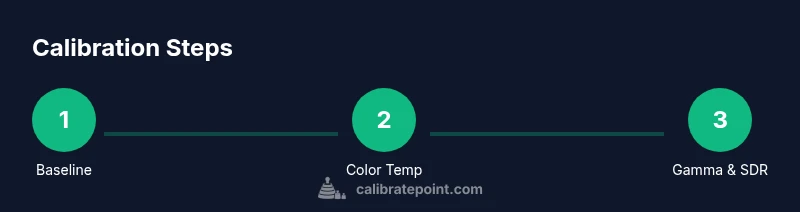
Power on the TV and navigate to the Picture Settings menu. Select a reference mode such as Movie or Filmmaker, or ISF if your model supports it, and disable auto-calibration features that modify color and luminance. Set the backlight to a stable level that matches your viewing environment, then note the current brightness and contrast values. This baseline acts as your control against which you’ll measure grayscale, color temperature, and gamma adjustments. The reason for starting here is to reduce the number of variables before you quantify grayscale and color shifts. A strong baseline makes subsequent calibration faster and more reliable.
Color temperature and grayscale adjustments
Set Color Temperature to Warm or 6500K as your baseline white point. Use built-in grayscale patterns to evaluate white and mid-gray steps. Adjust the white balance by eye first, then refine with test patterns if you have a colorimeter or spectrophotometer. The goal is a neutral grayscale where bright whites are bright without clipping, and shadows retain detail. In this step you’re anchoring color reproduction to a standard white point, which helps ensure skin tones and natural colors render correctly across scenes.
Gamma and luminance calibration
Gamma determines how luminance values map to the display’s brightness curve. Start with a mid-range target (often around 2.2 for SDR content) and adjust to match the visible brightness ramp in your test patterns. Use a mix of 10% to 90% grayscale steps to verify the curve, watching for crushed blacks or blown-out highlights. If your room is bright, you may need to adjust gamma slightly higher; in darker rooms, slightly lower gamma can preserve shadow detail. Record the settings so you can compare against the baseline and final results.
HDR considerations and verification
HDR calibration requires testing with high dynamic range content or patterns that simulate its brightness and color range. Enable HDR on the source and verify highlight detail in specular reflections and bright whites without clipping. Color volume is more limited on consumer displays, so aim for natural color reproduction rather than attempting to perfectly reproduce every scene’s HDR intent. If you have HDR test patterns, use them to confirm that RGB channels stay balanced and that color shifts are minimal across the luminance range. Save these adjustments as a separate HDR profile if your model supports it.
Common issues and troubleshooting
If colors look oversaturated or skin tones appear unnatural, revisit color temperature and the white balance. If you see posterization or banding in gradients, recheck gamma settings and ensure your test patterns are consistent. Light leaks or glare can skew grayscale readings, so confirm the room lighting remains stable during measurement. When in doubt, revert to the baseline, re-run the steps in a controlled sequence, and compare results against your reference patterns. For best results, perform calibration in SDR first and then separately verify HDR behavior.
Tools & Materials
- Samsung TV with latest firmware(Ensure firmware is up to date for access to advanced calibration options.)
- Remote control(Keep within easy reach during setup.)
- Test pattern source (Blu-ray/streaming app or downloadable patterns)(Use standard grayscale, color, and gamma patterns.)
- Colorimeter or spectrophotometer (optional)(Useful for precise color tracking; alternatives include built-in TV patterns for grayscale.)
- Ambient light meter (optional)(Helps judge room lighting for grayscale calibration.)
- Calibrated grayscale/ICC profiles (optional)(Store baseline results for comparison.)
- Quiet, dim room with stable power(Neutral ambient lighting improves measurement stability.)
Steps
Estimated time: 45-75 minutes
- 1
Open Picture Settings and set baseline
Power on the TV and navigate to the Picture Settings menu. Record the current peak brightness, backlight, and color settings before making changes. This creates your baseline for comparison after calibration.
Tip: Take a photo of the initial settings for quick reference. - 2
Select a reference picture mode
Choose Movie or Filmmaker (or ISF if available) to minimize processing that could mask adjustments. This provides a stable color and luminance baseline.
Tip: Avoid any motion processing or dynamic contrast during calibration. - 3
Adjust backlight, brightness, and contrast
Set backlight to a stable level, tune brightness for a neutral grayscale, and set contrast to avoid clipping details in bright scenes. Use a grayscale pattern to verify changes across luminance steps.
Tip: Keep ambient light constant to prevent measurement drift. - 4
Calibrate color temperature and white balance
Set Color Temperature to Warm/6500K and refine white balance against grayscale patches. Aim for a natural white point where skin tones look correct without a color cast.
Tip: If you have a colorimeter, run a quick white-point calibration for precision. - 5
Tune gamma and verify with test patterns
Adjust the display’s gamma so midtones render accurately without flattening shadows or blowing highlights. Validate with 10%–90% grayscale patterns and adjust as needed.
Tip: Document gamma value and compare to the reference ramp. - 6
HDR check and save your profile
Enable HDR testing if you have HDR content. Verify color accuracy and highlight detail, then save the calibrated profile under a descriptive name for SDR and HDR separately.
Tip: Label profiles by mode (SDR, HDR) and lighting condition.
Questions & Answers
Do I need a colorimeter to calibrate a Samsung TV?
No, you can start with built-in patterns, but a colorimeter improves precision and repeatability for professional results.
You don’t have to own a colorimeter, but it helps you dial in colors more precisely.
What is the best picture mode for calibration on Samsung TVs?
Use Movie or Filmmaker as the baseline, and disable processing like Auto Motion Plus to avoid artificial changes during calibration.
Movie or Filmmaker mode gives you the most stable baseline for calibration.
How often should I recalibrate my Samsung TV?
Recalibrate if you notice drift in color or after firmware updates, or as part of a quarterly maintenance check for critical setups.
Recalibrate when you notice changes or after firmware updates.
Can I calibrate using only the TV's built-in tools?
Yes, you can start with built-in tools, but adding a colorimeter and standardized test patterns improves accuracy and repeatability.
You can start with built-in tools, but a colorimeter helps a lot for precision.
Is HDR calibration different from SDR calibration?
Yes. HDR calibration requires testing with patterns that reflect higher brightness and color volume; calibrate HDR separately from SDR for best results.
HDR needs its own calibration because of higher brightness and color range.
What gamma value is recommended for living room viewing?
A gamma around 2.2 is common for SDR content in living rooms, but you may adjust slightly based on room lighting and content type.
Generally aim for gamma around 2.2, adjusting for room lighting.
Watch Video
Key Takeaways
- Start with a solid baseline using a reference mode
- Use test patterns and a colorimeter for precision
- Control room lighting for consistent results
- Save and label calibration profiles for future use