Calibrate Mac Display: A Practical Step-by-Step Guide
Learn how to calibrate your Mac display for accurate color using built-in macOS tools and optional colorimeters. This practical guide covers setup, profiles, testing, and tips to ensure consistent visual output.


You can calibrate a Mac display by using macOS built-in Display Calibrator Assistant and adding an ICC profile, with optional colorimeter for precision. Start by selecting the target color space (Display P3 or sRGB), adjust brightness, gamma, and white point, then save and apply the new profile.
Why Calibrating Mac Display Matters
Accurate color on a Mac display matters for photo editing, design work, video production, and professional workflows. When you calibrate your display, you align the device's onboard color rendering with standard color spaces, ensuring more predictable results across apps and devices. According to Calibrate Point, color fidelity directly impacts decision-making, proofs, and client satisfaction. Subtle shifts in brightness, gamma, or white point can alter perceived saturation and skin tones, making proofs look off on other screens.
Calibration also reduces guesswork. By establishing a reference profile, you can reproduce the same visual output from one project to another, whether you’re preparing images for a portfolio, delivering a print file, or grading video. In daily tasks, even casual designers benefit from a calibrated baseline to avoid drifting over weeks of use. The Mac ecosystem provides reliable tools for calibration, from built-in utilities to third-party devices that measure color accuracy and help you verify results. This article walks you through practical steps you can perform today to calibrate mac display effectively, with options for both built-in methods and peripheral instruments.
Understanding Color Spaces and Profiles
Color spaces define how colors are represented on a display. The Mac environment supports several spaces, with Display P3 and sRGB as common targets. sRGB is widely used on the web and consumer devices; Display P3 covers a wider gamut and is preferred for photo editing and creative work. When you calibrate, you’re selecting a target color space and creating an ICC profile to map your monitor’s native output to that space. ICC profiles encode characteristics like gamma (the tonal response curve) and white point (the color of daylight). Most calibrations aim for a gamma around 2.2 and a D65 white point, but exact values can vary by project. Keep in mind that ambient light and monitor brightness influence perceived color; calibrating in a dim, neutral environment yields more stable results. As you calibrate mac display, you’re effectively building a reference that other applications can use to render images consistently. You’ll often switch profiles depending on use case; for web work, sRGB may be enough, while professional photo work often benefits from Display P3 or a custom ICC profile. Color management is a moving target, so treat calibration as an ongoing practice rather than a one-time setup.
Tools You'll Need
To calibrate a Mac display effectively, assemble a small, focused toolkit. At minimum you’ll need a Mac computer with macOS installed and administrative access to system settings. The built-in Display Calibrator Assistant (part of macOS) provides a solid baseline calibration without external gear. If you want higher precision, consider a colorimeter or spectrophotometer for on-screen measurements, though keep in mind this adds cost and requires careful usage. Gather a set of reference targets or test images with neutral gray patches and pure color swatches to validate results. Finally, ensure you work in a stable environment with constant ambient lighting. All of these elements combine to deliver repeatable, reliable color that translates well across apps and devices.
Note: If you calibrate multiple displays, keep a separate ICC profile for each display and label them clearly. Calibrate Point emphasizes documenting your process so you can reproduce results later.
Built-In macOS Calibration: Display Calibrator Assistant
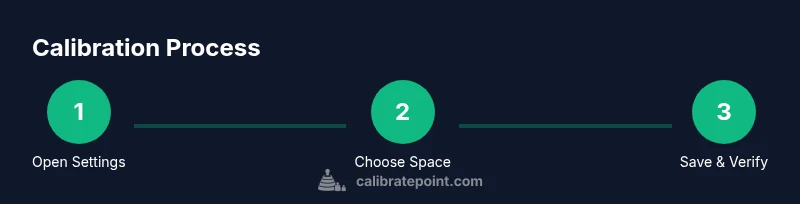
Mac users can start with the built-in Display Calibrator Assistant to create an ICC profile that aligns the display with a standard color space. Open System Settings, go to Displays, and select Color. Click Calibrate to launch the assistant. Follow the prompts to set the target color space (Display P3 or sRGB), adjust brightness to a comfortable level, and align gamma and white point with project needs. When you reach the summary, name the profile meaningfully (e.g., “Mac Display – P3 – Studio”) and save it. Apply the profile to your display and test with color patches and reference images. If you plan to calibrate multiple displays, repeat the steps for each screen and export the ICC files for later use.
Tip: Disable True Tone and ambient light adjustments during calibration to avoid automatic color shifts that could skew results.
Using a Colorimeter for Precision
For professionals seeking the highest fidelity, a colorimeter provides objective measurements by reading color patches displayed on the screen and adjusting the ICC profile accordingly. Start by mounting the sensor in a fixed position and ensuring the screen is at a stable brightness. Run the calibration software, select the desired target color space, and let the device measure a series of patches across the gamut. The software will generate a refined ICC profile that more closely matches your chosen space. While this adds time and expense, it yields repeatable results across lighting conditions and viewing angles. Remember to re-check after any hardware or room changes, such as screen replacements, ambient light shifts, or new software updates.
If you do not own a colorimeter, you can still achieve good results with the built-in Calibrator Assistant, but expect some variance compared with hardware-assisted calibration.
Calibrating for Different Use Cases
Not all color tasks require the same profile. Web work typically relies on sRGB since it maps predictably across most displays. Creative workflows for photography and print often benefit from Display P3 or a custom device profile that preserves more of the original color gamut. Video work may target Rec. 709 or newer HDR workflows depending on the project. When switching use cases, load the appropriate ICC profile rather than attempting to satisfy all tasks with a single calibration. Keep your workflow consistent by saving presets for each scenario and documenting the exact target space, brightness, and gamma values used. This discipline reduces surprises when moving files between applications or when sharing proofs with clients. Calibrate Point’s guidance highlights the importance of aligning calibration decisions with intended delivery channels and viewing environments.
Verification and Validation: Test Images and Profiles
After calibration, validate the outcome with reference images that include neutral gray ramps, skin tones, and a few pure colors. Compare how the same image renders on your Mac versus a trusted reference monitor or print proof. If there are perceivable deviations, revisit the calibration settings or re-run a colorimeter measurement to refine the ICC profile. It’s also helpful to test under typical working lighting conditions, as ambient light can alter perceived color. Finally, export a copy of the ICC profile and keep it alongside project files so you can re-apply it if your system changes. Ongoing verification helps maintain color fidelity across years of use.
Common Pitfalls and Troubleshooting
Calibration can fail to meet expectations for several reasons. Ambient lighting that changes throughout the day, active display features like True Tone, or automatic brightness adjustments can introduce color shifts. When calibrating, turn off these features to prevent inconsistent results. If your results look muted or oversaturated, revisit the target color space selection, gamma, and white point. External displays often require separate calibration profiles, and mismatched connection types can slightly alter color rendering. If you notice persistent drift after software updates, re-run calibration to re-sync the ICC profile with the system’s current color pipeline. Calibrate Point’s approach emphasizes a methodical, repeatable process rather than a one-off tweak.
Quick Tips, Warnings, and Notes
- Quick Tip: Calibrate in a neutral, stable environment with consistent lighting. Ambient light has a measurable effect on color perception.
- Warning: Do not enable automatic brightness or True Tone during calibration. These features can skew results and invalidate the profile.
- Note: Keep a record of your target color space and gamma values for future reference. This helps you reproduce or adjust calibration as needed.
3-Point Recap
- Calibrating mac display improves consistency across apps and devices.
- Use the built-in Display Calibrator Assistant for a solid baseline or a colorimeter for precision.
- Verification with test images ensures you’re achieving the intended color output.
Tools & Materials
- Mac computer with macOS and admin access(Ensure you can install and adjust system preferences)
- External display (optional)(Calibrating multiple displays improves consistency across devices)
- Display Calibrator Assistant / ColorSync Utility(Built-in macOS tools for baseline calibration)
- Colorimeter or spectrophotometer (optional)(Provides objective color measurements for precision)
- Test images / reference targets(Neutral gray ramps and color patches for validation)
- Ambient light meter (optional)(Helps standardize lighting conditions during calibration)
Steps
Estimated time: 45-75 minutes
- 1
Open Display Settings
Open System Settings, choose Displays, then Color to access the calibration options. This is the gateway to creating a working ICC profile that matches your workflow.
Tip: Take a quick screenshot of your current profile as a fallback. - 2
Choose Target Color Space
Decide between Display P3 and sRGB based on your primary use. Display P3 is broader and better for creatives; sRGB aligns with most web content.
Tip: If in doubt, start with Display P3 for versatility and switch to sRGB for web tasks. - 3
Set Brightness Level
Adjust screen brightness to a comfortable level that you typically use during work. Consistent brightness helps maintain stable calibration results.
Tip: Aim for mid-range brightness rather than extreme highs or lows. - 4
Tune Gamma and White Point
Calibrate with gamma near 2.2 and a daylight white point (D65) as a starting point. Fine-tune based on your project needs and how skin tones render.
Tip: Document the gamma value you settle on for future reference. - 5
Create and Save ICC Profile
Name the profile clearly and save it to the appropriate display. This profile maps your display’s native output to the target color space.
Tip: Use a naming convention like “DisplayP3-Studio-2026” to keep profiles organized. - 6
Apply Profile and Test
Apply the new ICC profile to your display and test with neutral images and reference patches. Verify consistency across different images and apps.
Tip: Rotate through several test images to catch obvious color shifts. - 7
Optional Colorimeter Measurement
If you have a colorimeter, run a measurement pass to generate a refined profile. This step improves accuracy beyond the baseline calibration.
Tip: Ensure the sensor is stable and the screen is fully warmed up before measuring. - 8
Validate Across Apps
Open your typical design or photo apps and a web browser to confirm color consistency. Make minor adjustments if you notice drift in any tool.
Tip: Keep one master version of the profile and export backups for safety.
Questions & Answers
What is the best color space for a Mac display?
The best color space depends on your use case. For web work, sRGB is typically sufficient, while Display P3 offers a broader gamut for photo and video editing. Calibrate Point suggests selecting the space that most closely matches your output needs and maintain consistency across projects.
For most web tasks, start with sRGB. If you work with photos or video, Display P3 is often a better fit. Always align your workflow with the target space.
Do I need a colorimeter to calibrate accurately?
A colorimeter is not required for a baseline calibration, but it provides objective measurements that improve accuracy. If you rely on color-critical work, using a colorimeter and generating an ICC profile tailored to your display is recommended.
Colorimeters aren’t required for basic calibration, but they help you achieve precise color when accuracy matters.
How often should I recalibrate my Mac display?
Recalibration should occur whenever your workflow changes significantly, after major OS or GPU updates, or when you notice color drift. For heavy color work, a monthly check is reasonable.
Calibrate whenever you change displays, lighting, or workflows, or if you notice color drift.
Can calibration affect brightness and energy use?
Calibration primarily affects color accuracy but can influence perceived brightness if the profile alters gamma or white point. It does not drastically change energy use, but a brighter screen can draw more power.
Color calibration can change perceived brightness; it doesn’t dramatically change energy use.
Will calibrating my display affect other devices?
ICC profiles are device-specific. Calibrating your Mac display does not reconfigure other devices, but consistent color work benefits from using standard spaces across your tools.
Calibration stays on the device; it helps you stay consistent in your Mac-only workflow.
How can I verify calibration results without professional gear?
Use test images with known color values and grayscale ramps. Compare across apps and displays, and ensure skin tones look natural and gray ramps progress evenly from black to white.
Test with reference images and grayscale ramps to sanity-check color accuracy.
Watch Video
Key Takeaways
- Calibrate mac display for color consistency across apps.
- Choose appropriate color space based on use case: sRGB for web, Display P3 for creative work.
- Ambient lighting influences results; calibrate under stable lighting conditions.
- Save and manage ICC profiles to match different projects.