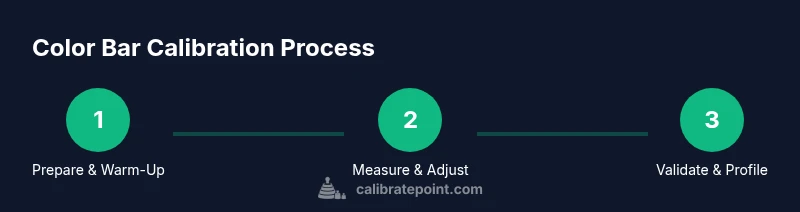
Calibrate Monitor Color Bars: A Practical Step-by-Step Guide
Learn how to calibrate monitor color bars to achieve accurate white point, gamma, and color reproduction. This comprehensive guide covers essential tools, setup, workflow, and verification for DIY enthusiasts and professionals.


You will learn how to calibrate monitor color bars to ensure accurate grayscale, gamma, and color reproduction. This guide covers the required tools, the recommended workflow, and verification methods to confirm that your display matches reference targets. By following these steps, DIY technicians and professionals can achieve reliable color consistency across work sessions.
Why calibrate monitor color bars
Color bars are a reference pattern used to assess and calibrate a display's color system. Calibrating color bars ensures you achieve consistent white point, gamma, luminance, and primaries across workflows. For professionals editing video or color-critical photography, even small deviations lead to noticeable shifts in skin tones and color accuracy. According to Calibrate Point, establishing a repeatable color-bar workflow reduces drift over time and across devices. In practice, color bars let you compare how your monitor renders standard reference colors against known targets and ICC profiles, enabling precise adjustments.
Tools and software you’ll need
A successful color-bar calibration relies on proper hardware and software. Essential items include a colorimeter or spectrophotometer, calibration software, and an ICC profile reference. A stable workspace with controlled ambient light helps keep results consistent. You should also have a source set of color bars or a built-in test pattern inside your calibration suite. If you own a reference monitor, keeping its profile updated provides a solid baseline for comparison. Investing in reliable calibration tools reduces guesswork and helps you achieve repeatable results across sessions.
Preparing your test environment and targets
Ambient lighting has a large influence on perceived color. Avoid strong glare and direct sunlight, and keep curtains drawn or lights dimmed during measurements. Warm up your monitor for at least 15 minutes to reach stable luminance and color response. Use a standardized color-space target (Rec. 709 for video or sRGB for web) and ensure your calibration software is set to the same target. Having a clean, flat surface around the screen reduces reflections that could skew measurements. Documenting the room’s lighting conditions also makes future calibrations more consistent.
Understanding targets and profiles
Calibration isn’t just about tweaking sliders; it’s about aligning your display with a known reference. Learn the basics of white point, gamma, luminance, and color primaries, and how ICC profiles translate measured data into a system-wide color space. A common practice is to set white to D65 (6500K) and gamma near 2.2, then export an ICC profile that matches your workflow. This foundation ensures that your monitor behaves predictably when you edit, grade, or print. Different content pipelines (cinema, broadcast, web) may demand small adjustments to preserve fidelity across devices.
Verifying accuracy: repeatable validation workflow
Verification is where you confirm that adjustments held across time and content. Re-measure the color bars after applying the profile and compare results to target values. If you observe drift, re-run the calibration for the affected range (e.g., midtones or shadows). Keep a log of changes and measurements, so you can reproduce successful calibrations and detect when a device begins to drift. Running periodic checks, even after a successful initial calibration, helps catch gradual shifts before they impact production.
Common pitfalls and quick remedies
Avoid relying on auto-adjustments that override calibrated targets. Ensure the monitor’s brightness and contrast controls are locked after setup to prevent accidental changes. If you notice color shifts under different viewing angles, re-check the panel uniformity and ambient light. Regularly update your calibration software and ICC profiles to maintain compatibility with newer content standards. If possible, compare your results against a second reference display to verify consistency across hardware.
Advanced considerations: multiple displays and color-managed workflows
In multi-monitor setups, color accuracy can vary between panels. Calibrate each display individually and then create a unified working space by consolidating ICC profiles within your editing software. When color management is critical (HDR work, color grading), ensure you’re using consistent color spaces and a respected reference for both the source material and the target delivery. Document any discrepancies between displays and apply calibrated profiles to maintain a cohesive, predictable color pipeline.
Practical tips for long-term consistency
Maintain a routine calibration schedule and keep a calibration log. Store profiles with clear versioning so you can revert if needed. When upgrading hardware, re-calibrate and verify that the new components align with your established targets. Use consistent ambient lighting across work sessions and avoid last-minute changes to room brightness or color temperature right before critical tasks. With discipline, color bar calibration becomes a reliable backbone of your workflow.
Bottom line for DIY enthusiasts and professionals
Calibrating monitor color bars is a foundational skill for achieving color fidelity. With the right tools, a controlled environment, and a repeatable workflow, you can produce consistent, reliable results suitable for editing, printing, and viewing across devices. Treat calibration as an ongoing process, not a one-off event, to maintain confidence in your work.
Tools & Materials
- Colorimeter or spectrophotometer(Choose a device compatible with your OS and software (e.g., handheld colorimeter or USB spectro).)
- Display calibration software(Ensure it supports color bars and ICC profile export.)
- Reference ICC profile(Use a profile tailored to your target workflow (sRGB, Rec.709, etc.).)
- Calibrated display or test monitor(Useful for cross-checking results.)
- Quiet, controlled lighting(Ambient light should remain stable during measurements.)
Steps
Estimated time: 1.5-2 hours
- 1
Prepare the workspace
Power on the system and allow the monitor to warm up for 15-20 minutes. Disable any auto-brightness features and lock quick-access controls that could alter settings.
Tip: Warm-up reduces luminance drift and ensures repeatable measurements. - 2
Connect and position measurement device
Place the colorimeter directly on the screen with the sensor facing the center of the active area. Ensure the device is stable and won’t shift during readings.
Tip: Use a stabilizing tool or clamp to keep distance consistent. - 3
Load target pattern and software
Open your calibration software and load the color-bar test pattern or a built-in color-bar target. Confirm that the color-space target matches your workflow (Rec. 709 or sRGB).
Tip: Double-check that the software is set to the correct white point and gamma baseline. - 4
Measure baseline values
Run the measurement sequence to capture the current color response across primary and secondary colors and grayscale steps.
Tip: Take multiple readings to average out small fluctuations. - 5
Apply initial adjustments
Adjust white point, gamma, and luminance to align with target values. Don’t over-correct; small, iterative steps are more stable.
Tip: Use small increments and re-measure after each adjustment. - 6
Generate and install ICC profile
Export the updated ICC profile from the calibration software and install it on your system or within your editing suite.
Tip: Restart affected apps to ensure the new profile is loaded. - 7
Re-measure for verification
Run the color-bar measurements again to verify that results are within target tolerances. Confirm consistent readings across a range of tones.
Tip: If out of tolerance, review drift sources and re-calibrate. - 8
Document and maintain
Save the final profile with a descriptive name and log the calibration date, environment, and device used.
Tip: Create a simple template to track future calibrations.
Questions & Answers
What is the purpose of color bars in monitor calibration?
Color bars provide a standard reference to measure and align a monitor's color output, ensuring consistent white point, gamma, and color accuracy. They help detect drift over time and across devices.
Color bars give you a standard reference to check a monitor's color accuracy and consistency.
Do I need a colorimeter or spectrophotometer to calibrate?
A colorimeter or spectrophotometer is strongly recommended for repeatable results. They measure color response and feed data into calibration software to generate accurate ICC profiles.
Yes, a colorimeter or spectrophotometer is strongly recommended for reliable, repeatable results.
How often should I recalibrate my monitor color bars?
Recalibrate whenever you notice shifts in color or when you change lighting, graphics workflows, or displays. Regular checks prevent subtle drifts from affecting work.
Recalibrate when you notice color shifts or after changes to lighting or hardware.
Can I calibrate without dedicated software?
Some basic adjustments can be done manually, but precise color bar calibration relies on dedicated software and measurement hardware for reliable ICC profiles.
Manual tweaks won’t give you reliable ICC profiles; software with a colorimeter is best.
Why does my calibration look off under different lighting?
Ambient light influences perceived color and luminance. Ensure a controlled lighting environment during measurement and use a consistent display profile across sessions.
Lighting can change how colors appear; calibrate in a stable, controlled environment.
Watch Video
Key Takeaways
- Know color bars are a calibration reference and why you use them.
- Use a colorimeter with compatible software to generate an ICC profile.
- Calibrate in a controlled environment and verify results.
- Document steps and results for repeatable calibrations.