Calibrate Your Mac Monitor Color: A Practical Guide
Learn how to calibrate monitor color on a Mac with expert, practical guidance from Calibrate Point. Build accurate color workflows for photo, video, and design.


You will calibrate your Mac monitor color to achieve accurate RGB and gamma across apps, using built-in macOS tools and a colorimeter. This quick guide covers setup, profiling, and validation, so you can trust what you see on screen when editing photos, video, or design work today.
Why calibrate monitor color mac
Calibrating the color of a Mac display is essential for anyone who does color-sensitive work on a computer. Whether you shoot photos, edit video, or design for print, unseen color shifts undermine accuracy and consistency. The phrase calibrate monitor color mac is common among professionals who want reliable results across software like Lightroom, Photoshop, Final Cut, or Pages. In practice, calibration aligns your display with a standard color space, so what you see on screen matches the output in print or on the web. By starting with a neutral workspace, using a dedicated colorimeter, and generating an ICC profile, you create a repeatable baseline you can reuse as your monitor ages or as you switch between workstations. This article from Calibrate Point emphasizes instrument-based calibration to reduce guesswork and ensure consistent color that meets professional expectations. With the right setup, you can trust your edits, previews, and deliverables rather than guessing at color. The payoff is fewer revisions, more confidence, and a smoother workflow across tools and devices.
Understanding color profiles on macOS
macOS uses color management to translate colors between devices through ICC profiles. The monitor’s profile tells the system how to map device-specific readings to standard color spaces like sRGB or Display P3. When you calibrate monitor color mac, you’re creating or selecting a profile that represents your display’s true output. This process involves measuring the screen’s color response with a colorimeter or spectrophotometer, then embedding those readings into an ICC file that macOS can apply across apps. You’ll also encounter terms like gamma, white point, and luminance—concepts that influence how shadows, midtones, and highlights appear on your screen. Understanding these ideas helps you decide which target space best supports your workflow and ensures your edits stay consistent from screen to print and across devices.
Tools and workspace considerations
Successful calibration starts with the right tools and a controlled environment. At minimum, you’ll need a colorimeter or spectrophotometer and calibration software capable of generating ICC profiles. A Mac with accessible Display Preferences is essential, along with admin rights to install or run calibration software. Create a dim, stable work area: avoid direct sunlight, avoid bright desk lamps, and keep ambient light steady during measurements. A clean, neutral screen surface and proper screen brightness contribute to more reliable readings. If you have multiple monitors, plan to calibrate each display individually, as different panels often diverge in color response. By combining the right hardware with a calm environment, you’ll establish a trustworthy baseline for all subsequent edits and proofs.
Color management concepts: ICC profiles and gamma
Color management is anchored by ICC profiles that describe how a device reproduces color. An ICC profile tells software how to interpret color data so that color remains consistent when moving between devices or apps. Gamma settings control how luminance is distributed across the tonal range, affecting how shadows and highlights render on screen. When calibrating, you’ll specify a target color space (for example, Display P3 or sRGB) and a gamma curve that matches your typical workflow. The calibrated profile is saved to your Mac and becomes the reference used by supported programs. Understanding these concepts helps you choose appropriate targets for photography, video, and design, and it explains why two displays can look different until each is properly profiled.
Step-by-step overview: calibration workflow
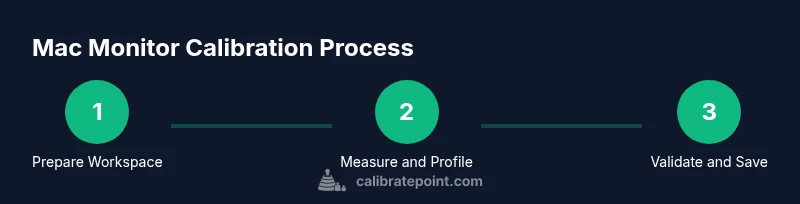
A solid calibration workflow follows a logical sequence: prepare the workspace, reset to a neutral baseline, connect the measurement instrument, select the target color space and gamma, capture measurements, generate and save an ICC profile, apply the profile system-wide, and finally validate results with neutral media. This overview emphasizes instrument-based calibration over eyeballing, reducing color drift over time. The goal is a repeatable, auditable process you can perform on any Mac workstation and for any monitor in your setup. Calibrate Point recommends documenting settings so you can reproduce or adjust later as your hardware or lighting changes.
Validating results and applying the profile on macOS
Validation is crucial after calibration. Reopen familiar images and test with neutral gray ramps, skin tones, and a few representative clips or prints to confirm that the profile delivers consistent results. In macOS, apply the ICC profile by selecting System Settings > Display > Color, then choose the calibrated profile for the monitor. Some apps override system profiles (like photo editors and color-managed video tools), so verify in those programs as well. If discrepancies appear, recheck ambient lighting, ensure the correct profile is active, and confirm that you haven’t disabled color management in the app. Regular validation helps you detect drift early and keeps your workflow reliable across devices and software.
Calibrating for different creative workflows
Different workflows require different color targets. Photo editing often benefits from a Display P3 or Adobe RGB target with a neutral gamma to preserve skin tones, while print design may prioritize a wider gamut and tighter tonal control. Video work typically centers on Rec.709 for broadcast color pipelines, though many editors now use Display P3 for on-screen previews. Consider your typical deliverables and calibrate accordingly. If you frequently switch between tasks, create multiple profiles and switch profiles that correspond to the current project. This approach minimizes surprises when your work moves from desk to client review or to print.
Troubleshooting and common pitfalls during calibration
Calibration is not automatic perfection. Common issues include fluctuating ambient light, glare on the display, or a monitor that warms up and shifts color during use. Avoid using the display at maximum brightness during calibration; a moderate, stable brightness yields more accurate results. If you notice banding or color clipping after calibration, revisit the gamma target or the color space selection. Multi-monitor setups are especially tricky; always calibrate each display independently and ensure your primary editor uses the correct profile. Documentation of the process and settings helps you troubleshoot drift and replicate success across sessions.
Tools & Materials
- Colorimeter or spectrophotometer(Device to measure display output and generate ICC profiles.)
- Mac computer with macOS and administrative access(Ensure you can install or run calibration software.)
- Calibration software (built-in macOS tool or third-party)(Select a workflow that creates ICC profiles.)
- Neutral gray test images or reference targets(Useful for post-calibration verification.)
- Calm, controlled lighting space (no bright ambient light)(Ambient lighting affects readings; use dim, steady light.)
Steps
Estimated time: 60-90 minutes
- 1
Open calibration software and prepare workspace
Launch the calibration software on your Mac and close unnecessary apps to prevent interference. Confirm colorimeter connectivity and ensure the room lighting is stable. This step sets the stage for reliable measurements and repeatable results.
Tip: Take a moment to disable automatic display brightness and set a fixed brightness before starting. - 2
Reset display baseline and adjust brightness
Return the display to a neutral baseline by selecting a non-biased color profile and turning off automatic color features. Set brightness to a comfortable, mid-range level suitable for long editing sessions. This ensures measurements reflect a consistent starting point.
Tip: Avoid direct windows or lamps reflecting on the screen during calibration. - 3
Choose color space and gamma target
Select the target color space (e.g., Display P3 or sRGB) and a gamma curve appropriate for your workflow. This choice determines how luminance and color values map to the display and subsequent software workflows.
Tip: Document the chosen space and gamma so you can reproduce the setup later. - 4
Place colorimeter and start measurements
Attach the colorimeter to the screen as instructed by the tool, ensuring full contact with the surface. Begin the measurements; the software will capture multiple data points across the display. Expect a short wait while readings are collected.
Tip: Hold the colorimeter steady and avoid touching the screen during the scan. - 5
Review readings and generate ICC profile
Once enough data points are collected, review the reported color and luminance targets. Let the software generate the ICC profile that maps device output to the chosen color space. Saving the profile creates a repeatable reference for future calibrations.
Tip: Give the profile a clear, project-related name to avoid confusion later. - 6
Apply the profile system-wide
Apply the newly created ICC profile to the monitor in macOS Display settings. This ensures most apps receive color information from the system profile unless they override it. If you use color-managed software, verify it honors the system profile.
Tip: Restart any color-managed apps to ensure they pick up the new profile. - 7
Validate with neutral media
Open neutral gray ramps, skin-tone references, and representative images to verify the profile performs as expected. Look for even luminance across the ramp and natural skin tones without hue shifts. If discrepancies appear, revisit prior steps.
Tip: Use a test image you know well to quickly detect deviations. - 8
Document and back up the profile
Record the calibration date, target color space, gamma, and any room lighting notes. Back up the ICC profile to a safe location so you can restore it if the display drifts or the instrument is replaced.
Tip: Create a simple checklist you can reuse for future calibrations. - 9
Recalibrate on schedule or when changes occur
Set a routine for recalibration, especially after hardware changes, software updates, or shifts in ambient lighting. Regular recalibration helps maintain color fidelity over time.
Tip: If you notice color drift, re-run calibration sooner rather than later.
Questions & Answers
Can I calibrate a Mac monitor without a colorimeter?
You can use macOS built-in calibration, but results are less precise than instrument-based calibration. For color-critical work, a colorimeter or spectrophotometer is highly recommended.
You can, but a colorimeter gives you more precise results for color-critical work.
How often should I recalibrate my monitor?
Calibration should be revisited when your lighting changes, after hardware updates, or if you notice color drift in your work. Regular checks help maintain consistency across projects.
Recalibrate whenever lighting or hardware changes, or if you notice drift.
Do I need to calibrate every connected display?
Yes. Each monitor has its own color output characteristics. Calibrate each display individually to ensure consistent results when you switch between screens.
Yes, calibrate all connected displays for consistency.
Will calibration affect brightness or gamma in daily use?
Calibration can adjust perceived brightness and gamma to match a chosen target. After calibration, verify brightness levels used in your typical workflow and adjust if necessary.
Calibration can change how brightness and gamma look, so verify after calibration.
What is an ICC profile and how do I apply it on macOS?
An ICC profile describes your display's color characteristics. Apply it in System Settings > Display > Color and ensure color-managed apps honor the system profile.
ICC is the color profile for your display; apply it in system display settings.
Can I use DisplayCAL or similar software on Mac?
Yes. Third-party calibration tools can run on macOS, offering flexibility and advanced options, but ensure you follow reputable workflows and save ICC profiles correctly.
Yes, you can use trusted third-party calibration tools on Mac.
Watch Video
Key Takeaways
- Plan a calm, controlled workspace before starting
- Calibrate per-monitor and save ICC profiles
- Validate with neutral references and normalize across apps
- Document settings for repeatable calibrations
- Recalibrate when hardware or lighting changes