Calibrate Monitor for Gaming: Step-by-Step Guide
Learn how to calibrate your gaming monitor for accurate colors, optimal contrast, and consistent brightness. This practical guide covers targets, tools, and validation with test patterns and in-game visuals.


Calibrating your gaming monitor yields accurate colors, stable brightness, and reliable grayscale for immersive, consistent play. This guide outlines targets (gamma, white point, luminance), validation with test patterns, and practical steps using colorimeters or software. With the right tools and routine, you’ll see markedly better on-screen accuracy across titles and genres.
Why gaming monitor calibration matters
According to Calibrate Point, a calibrated display reduces color misinterpretations between assets created for media and what you see in gameplay. For gamers, accurate color helps distinguish enemies, UI elements, and environment tones, while a consistent brightness level preserves detail in shadows and highlights. Calibration aligns your monitor with a standard color space (such as sRGB) and a target gamma, making in-game colors more predictable across scenes and games. When done correctly, you’ll notice that skin tones look natural, greens look realistic, and whites stay clean rather than washed out.
Beyond aesthetics, calibration improves consistency when switching between games and platforms. It also makes it easier to compare patches and performance without color bias. Calibrate Point’s guidance emphasizes grounding your workflow in solid measurement rather than guesswork, so you can rely on what you see during fast-paced matches and cinematic sequences alike.
Core calibration targets for gaming
Gaming benefits from stable, repeatable targets. A neutral color temperature around 6500K keeps whites looking natural, while a luminance level around 120–140 cd/m2 suits typical living-room lighting. A gamma near 2.2 provides balanced midtone contrast, preserving detail in both shadows and highlights. You’ll also want to consider the color space for your content: SDR gaming typically uses the sRGB space, while HDR-capable displays may lean on wider gamuts like DCI-P3 when available. The goal is to reduce color shifts between scenes and ensure skin tones and environmental colors remain believable across titles.
Keep in mind that different game genres may benefit from small adjustments to these targets. Fast-paced shooters often favor slightly higher brightness for target visibility, while darker horror titles may benefit from a lower luminance to protect shadow detail. The key is to establish a baseline that you can validate with consistent test patterns and in-game visuals.
Measurement approaches: colorimeters vs software-only
There are two primary paths to calibration: hardware-assisted measurements with a colorimeter or software-based methods using built-in tools and test patterns. A colorimeter provides objective data on grayscale steps, color patches, and white point. When paired with calibration software, it can generate an ICC profile or LUT adjustments that translate across applications and games. If you don’t have a meter, software-based baselines can still improve accuracy, but expect less precision and a greater dependency on your room lighting and monitor firmware.
Ambitious setups might combine both approaches: start with a software baseline, then confirm and refine with a colorimeter whenever possible. This hybrid method helps bridge the gap between accessibility and precision, which is particularly important for competitive gaming where tiny color shifts can influence visibility of cues.
Validating results in-game and after changes
Validation should blend objective tests with subjective observation. Use grayscale and color test patterns to verify uniform brightness and color consistency across the screen. Then load a few games with diverse scenes—bright outdoor scenes, dark interiors, and a wide range of skin tones—to confirm colors look natural and not oversaturated. If your UI elements appear washed out or overly vibrant, revisit white point, brightness, and gamma settings. Regular checks help ensure shifts in lighting, hardware, or driver updates don’t degrade accuracy.
Environmental and setup considerations
Ambient lighting strongly influences perceived color, so calibrate in a stable, controlled environment. Avoid bright reflections on the screen and keep room lighting consistent across sessions. Allow the monitor to warm up for at least 15–20 minutes before calibration, and ensure the display is set to its native refresh rate and response time in the OS and game settings. Turn off glossy screen modes and dynamic contrast, as these can invalidate calibration results. Finally, document your final configuration so you can reproduce it later.
Tools & Materials
- Colorimeter(A dedicated sensor for measuring grayscale and color patches; ensure OS compatibility.)
- Calibration software(Use reputable software that supports your colorimeter and outputs ICC profiles.)
- Reference test patterns(Download standard patterns (ICC/IT8 or sRGB test charts) from trusted sources.)
- Display connection cable(Use DisplayPort or HDMI, preferably the primary gaming output.)
- Ambient light meter (optional)(Helps gauge room lighting for more consistent results.)
Steps
Estimated time: 60-90 minutes
- 1
Prepare your workspace and software
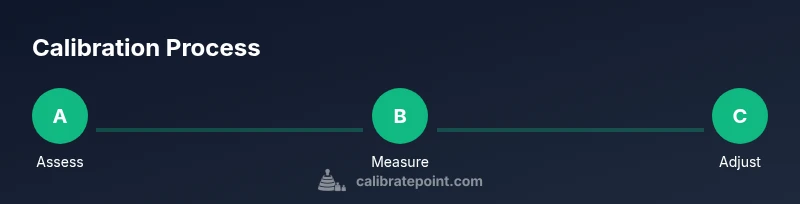
Create a quiet, dim workspace and disable distracting overlays or HDR previews. Install and open your calibration software, and connect the colorimeter if you have one. Reference Figure 1 in your guide for layout guidance.
Tip: Close all nonessential apps and ensure the computer is not rendering backgrounds that could affect measurements. - 2
Configure the monitor baseline
Reset the monitor to factory defaults, then set the refresh rate to the native value and disable dynamic contrast. Start with a comfortable brightness baseline (not too high) and ensure the color mode is standard (not a gaming preset).
Tip: Use DisplayPort for a stable connection if available. - 3
Attach hardware and start the tool
Connect the colorimeter to the PC and launch the calibration software. Select the correct monitor, orientation, and the target color space (usually sRGB for SDR).
Tip: If the software asks for a profile name, keep the default to avoid confusion later. - 4
Calibrate grayscale and luminance
Measure grayscale steps from dark to light, then set the luminance target to your room standard (approx. 120–140 cd/m2). The tool will guide you through gamma verification and midtone balancing.
Tip: Ensure the room lighting remains steady during this measurement. - 5
Adjust white point and color temperature
Aim for a neutral white point around 6500K. The software will help you fine-tune the color temperature until neutral gray patches read correctly.
Tip: If your display allows it, disable any warm/cool presets during this step. - 6
Calibrate gamma and midtones
Validate gamma curves against a target (commonly 2.2). Make small LUT adjustments to balance midtones without crushing blacks or blowing out highlights.
Tip: Avoid extreme gamma values; small incremental changes yield better accuracy. - 7
Validate with test patterns and in-game scenes
Run grayscale ramps and color patches again to confirm the adjustments hold. Play a few minutes of representative games to check real-world visuals.
Tip: Look for natural skin tones and believable shadows across diverse scenes. - 8
Save, export, and implement the profile
Export the ICC profile and apply it system-wide or via your GPU control panel. Recheck a few games to confirm consistency and document the profile name for future recalibration.
Tip: Label the profile with date and device to track revisions over time.
Questions & Answers
Do I need a colorimeter to calibrate for gaming?
A colorimeter is highly recommended for objective color accuracy, but software-based methods can provide a reasonable baseline if hardware is not available.
A colorimeter is recommended for objective accuracy, but software-based baselines work if hardware isn’t available.
Can I rely on built-in display presets instead of calibration hardware?
Presets can help, but they rarely deliver true color accuracy. Use them as a starting point and validate with test patterns.
Presets are a starting point, not a replacement for calibration.
What gamma target is best for gaming?
Gamma around 2.2 is common for many games, but confirm with measurement and adjust to your preference after testing.
Gamma around 2.2 is typical; adjust after measurement.
Should I recalibrate after a GPU or driver update?
Driver updates can shift color processing. Recalibrate if you notice color shifts after updates.
Recalibrate if color seems off after an update.
Why does ambient light matter for calibration?
Room lighting changes perceived color. Calibrate in stable lighting and recheck if lighting changes.
Lighting changes affect how colors look; calibrate in stable light.
Should calibration be per-game or per-display?
Calibrate per display if you have multiple monitors. Per-game adjustments destroy cross-game consistency.
Calibrate per display to maintain consistency.
Watch Video
Key Takeaways
- Calibrate with a neutral baseline and standard test patterns
- Validate results with in-game visuals and presets
- Document changes for future recalibration
- Ambient lighting affects perceived accuracy—calibrate in stable light