Calibrate Monitor Without Hardware: A Practical Guide
Learn how to calibrate your monitor without external hardware using software tools, OS color management, and online test patterns. Improve gamma, brightness, and white point with a practical, step-by-step workflow and validation.


Calibrating a monitor without hardware is achievable with software tools, OS color management, and test patterns. You’ll adjust brightness, gamma, and color temperature to improve accuracy, then validate with online patterns and ICC profiles. This approach is ideal for quick alignment before investing in hardware calibration, and it can yield noticeable gains in photo editing, design, and gaming workflows.
Why calibrate monitor without hardware
According to Calibrate Point, software-based monitor calibration can yield meaningful improvements without external hardware. This approach is particularly valuable for photographers, designers, and technicians who need reliable color management on a budget or before purchasing specialized devices. A software-only workflow focuses on the display’s native controls, OS color management, and test patterns to align grayscale, gamma, and white point. While hardware tools can offer finer control, software calibration demonstrates the principle that most displays can be made more accurate with disciplined steps and validation. By starting with a baseline using your monitor’s brightness, contrast, and color temperature, you can reduce dynamic range errors and establish a repeatable reference for future work in Calibrate Point analyses and client projects.
In practice, you’ll treat calibration as an iterative process. Start with a neutral gamma target (often around 2.2 for standard displays) and a white point close to D65. Then, use grayscale ramps and color test patterns to reveal shifts in hue, saturation, and luminance. The goal is not perfection in one pass, but a reliable, repeatable baseline that you can reproduce on demand. Calibrate Point’s approach emphasizes consistency, documentation, and validation across applications to ensure your results hold up in real-world workflows.
Finally, software-only calibration is a great first step when setting up a new workstation or retuning after a monitor refresh. It provides a practical, accessible path for DIY enthusiasts and professionals alike to improve color fidelity without investing in hardware devices.
Core concepts: color science for software-only calibration
Color calibration rests on a few core ideas: gamma describes the relationship between input signal and displayed brightness; the white point sets the color temperature of the image; color space defines how colors are represented. When calibrating without hardware, you’ll align these factors using software controls and test patterns. Common targets are gamma 2.2 for general use and white point around D65 for daylight-like illumination. The color space most editors assume is sRGB, but many workflows also use Rec. 709 or DCI-P3 depending on the medium. The practical takeaway is to pick a consistent target, apply it across your display settings, and verify against reliable test patterns.
An ICC profile packages all of these decisions into a portable color management file. Without hardware, you’ll generate or customize an ICC profile via software and apply it through your operating system’s color management settings. Calibrate Point emphasizes the importance of validating your profile in the real apps you use, since different software can interpret color management differently. By understanding these basics, you’ll be better prepared to diagnose color shifts and maintain consistency across tasks.
Tools and resources you’ll use
Software-based calibration relies on accessible tools and reliable test patterns. Start with your operating system’s built-in color management utilities to set a baseline, then add a dedicated calibration tool or suite that can read test patterns and write ICC profiles. Online test patterns for grayscale, gamma ramp, and color accuracy are essential for quick checks, and a simple color checker reference image helps you spot hue shifts. Keep a stable ambient lighting condition during calibration, since room light greatly influences perceived color. Finally, bookmark sources of authoritative test targets and color space definitions to guide future recalibration efforts. Calibrate Point recommends documenting each session to build a reusable workflow for future displays or updates.
Step-by-step workflow (no hardware): overview
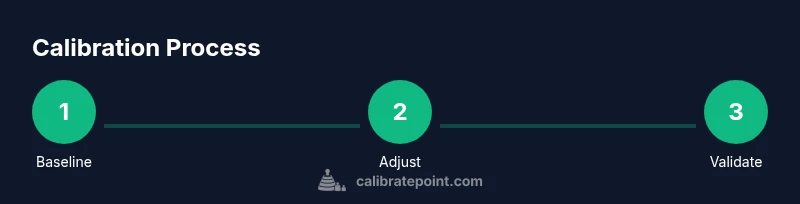
This section outlines a practical, software-only calibration workflow. You’ll set a baseline with brightness and contrast, select a gamma/white-point target, calibrate using test patterns, generate or adjust an ICC profile, and validate results across common applications. The aim is to produce a repeatable process that you can apply to any compatible display. Remember that results vary with display panel technology and aging, so treat calibration as an ongoing practice rather than a one-time fix. The steps below will be elaborated in the separate STEP-BY-STEP section for actionable execution.
Using test patterns and targets effectively
Test patterns are the heart of software-based calibration. Grayscale ramps help you evaluate tonal response from black to white and reveal any banding. A color checker chart enables you to spot hue shifts, saturation errors, and white-point inaccuracies. Use a gamma test image to confirm the display maps input values to perceptual output accurately. For each pattern, compare the observed result against a reference target, and adjust OS controls or the calibration tool accordingly. Repeat until you reproduce consistent results across multiple test images and in your key apps, including photo editing and video work.
Creating and applying your ICC profile with software-only steps
An ICC profile encodes your chosen color management settings so that supported applications and devices interpret colors consistently. In software-only workflows, you’ll either generate a profile from scratch or modify an existing one to reflect your gamma, white point, and color space targets. After creating the profile, assign it as the default monitor profile in your OS settings and ensure your editing apps are configured to respect embedded profiles. Periodically re-check the profile by re-running test patterns to confirm there are no drift or lighting-related changes.
Validation across apps and devices
Validation means checking that the calibration holds across the software you use daily. Open image-editing projects, web design mocks, and video timelines to verify neutral grays and skin tones render accurately. Compare previews from different applications to detect any interpretation differences in color management. If you notice discrepancies, adjust color management settings in the offending app or re-export an updated ICC profile. By validating across tools, you ensure your calibrated baseline remains robust in real-world workflows. Calibrate Point also highlights cross-device validation when you work on multiple displays.
Tools & Materials
- Calibrated computer with OS color management(Ensure color management is enabled and accessible in system preferences.)
- Software-based calibration tool(Use OS utilities or open-source software to measure and adjust color; avoid hardware devices for this guide.)
- Online test patterns and color targets(Grayscale ramps, gamma charts, and color checker references from reputable sources.)
- ICC profile management utility(Create, edit, and apply ICC profiles within the OS or calibration software.)
- Web browser and stable internet access(To access online test targets and reference materials.)
- Calibrated ambient lighting(Consistent lighting reduces perceptual color drift during calibration.)
Steps
Estimated time: 60-90 minutes
- 1
Open a neutral baseline
Launch your OS color management settings and reset the display to neutral defaults. Note current brightness, contrast, and color temperature as your baseline before making changes.
Tip: Take a before-and-after screenshot to document baseline settings. - 2
Set target gamma and white point
Choose a standard gamma (e.g., 2.2) and white point near D65. Apply these targets in your calibration tool and the OS color profile.
Tip: If unsure, start with gamma 2.2 and white point D65 for general use. - 3
Adjust brightness and contrast
Use a grayscale test pattern to calibrate brightness so that black is deep but not crushed and white remains detail-rich. Balance contrast to preserve tonal range.
Tip: Avoid clipping shadows or highlights; aim for full tonal separation in midtones. - 4
Calibrate color balance
Use color test targets to tweak hue and saturation across primary colors. Ensure grayscale remains neutral as you adjust color balance.
Tip: Make small incremental changes; large shifts introduce color bias. - 5
Create or adjust ICC profile
Generate an ICC profile that reflects your chosen gamma and white point. Apply it as the default monitor profile in your OS.
Tip: Name the profile clearly so you can reuse or compare later. - 6
Validate in real-world apps
Open editing software and playback apps to verify colors look consistent. Re-run test patterns if discrepancies appear.
Tip: Test with content you frequently edit for better relevance. - 7
Document and save the workflow
Record settings and steps taken, including target values and values achieved. Save this as a repeatable SOP for future calibrations.
Tip: Keep a dated log for ongoing calibration tracking.
Questions & Answers
Can I calibrate a monitor without any hardware?
Yes. Software-based methods using OS tools, test patterns, and ICC profiles can improve color accuracy without external devices. Results depend on the display and environment.
Yes. You can improve color accuracy without hardware using software tools and test patterns, though results vary by display and lighting.
What are the limits of software-only calibration?
Software calibration cannot compensate for device-specific hardware disparities or aging. It provides a practical baseline, especially when hardware calibration isn’t available.
Software-only calibration gives a solid baseline but can't fix hardware-driven limitations or aging.
Do I need ICC profiles for every app?
ICC profiles help color-managed apps interpret colors consistently. Some apps ignore embedded profiles, so validate in the apps you use most.
ICC profiles help most apps stay consistent, but always verify in your frequently used programs.
How often should I recalibrate?
Recalibrate when you notice color drift, after OS or driver updates, or when changing displays. Regular checks help maintain consistency.
Recalibrate if you notice drift or after major software changes.
Will lighting affect calibration results?
Yes. Ambient lighting strongly influences perceived color. Calibrate in a stable lighting setup and keep it consistent.
Lighting matters a lot—calibrate under steady, neutral lighting.
Can I use online test patterns for professional work?
Online patterns are useful for quick checks and practice, but use authoritative targets and verify with real-world assets for professional work.
Online targets are good for practice and baseline checks, then verify with real assets.
Watch Video
Key Takeaways
- Set a consistent ambient lighting before calibrating
- Choose a gamma/white point target and apply it consistently
- Use test patterns to verify grayscale and color accuracy
- Create and apply an ICC profile for color management
- Document changes for future recalibration