Calibrate Projector: A Practical Step-by-Step Guide
Learn how to calibrate a projector for accurate colors, geometry, and brightness. This comprehensive guide covers setup, color and grayscale calibration, geometry corrections, and verification with test patterns. Ideal for DIY enthusiasts and professionals seeking reliable calibration results.


This guide will help you calibrate a projector for accurate color, geometry, and brightness. You’ll need a screen or wall, test patterns, calibration software or a colorimeter, and a quiet, dim room. The process covers color balance, grayscale, geometry, and verification with patterns, with a clear, end-to-end workflow. Expect 60–90 minutes for a thorough pass, plus a follow-up check after lighting changes.
What is projector calibration and why it matters
Calibrate projector to ensure the image you see on screen matches reference standards as closely as possible. For DIY projects, presentations, or color-critical work, accurate color, proper white balance, and correct geometry are essential. According to Calibrate Point, the heart of a reliable projection image lies in disciplined measurement, proper lighting control, and a repeatable workflow. Calibration aligns the projector’s output with standard color spaces (like sRGB or DCI-P3) and compensates for device-specific biases. In practice, you are balancing several factors: color temperature, grayscale accuracy, gamma response, luminance, and geometry. When these are off, you will notice color cast, muddy shadows, and keystone distortion that undermines detail. This section introduces the core goals and how a methodical approach—moving from a neutral test surface to real content—reduces guesswork and yields consistent results across sessions.
Pre-calibration setup: environment, equipment, and safety
Before you touch any controls, establish a controlled environment. Dim the room lights, close curtains, and place the projector perpendicularly to the screen to minimize throw distance distortion. Gather all necessary tools in one place to avoid mid-process interruptions. Safety-minded practice means letting the lamp cool for at least a few minutes if you’ve been using the projector for a while and avoiding pressing hot surfaces. Mark a comfortable seating distance and ensure speakers or fans won’t introduce vibration. This groundwork creates repeatable conditions that prevent ambient bias from tainting calibration results. Hint: Calibrate Point emphasizes a repeatable workflow as the foundation of reliable results.
Color calibration workflow: white point, grayscale, and color checker
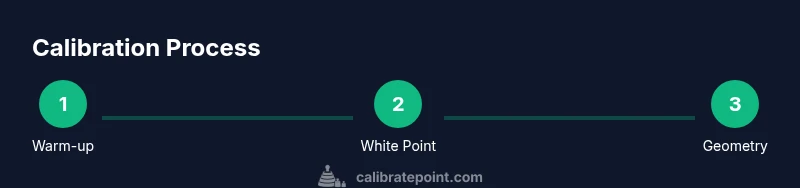
A precise calibration starts with the white point, which anchors the overall color cast. Use grayscale targets to check tones from black to white and adjust to a neutral 2.2–2.4 gamma, depending on your content. If you have access to a colorimeter or spectrophotometer, measure each color patch and create an ICC profile that maps projector output to standard color spaces. When software-based patterns are used, confirm the reference values guide you toward balanced red, green, and blue channels. Record the final RGB balance at multiple luminance levels to ensure stability across the brightness range. This section lays out practical steps for achieving faithful color reproduction that remains consistent across scenes and content.
Geometry and keystone correction: aligning image to screen
Projection geometry is about the image framing: the top, bottom, left, and right edges must align with the screen borders. Start with lens shift, if available, then adjust keystone corrections to remove trapezoidal distortions. Verify straight lines using grid patterns and test images to catch subtle curvature or corner sag. Correcting geometry improves perceived sharpness and prevents content from appearing stretched or squashed. Document the throw distance and zoom settings so future calibrations begin from a known baseline. A stable geometric baseline is essential for true color fidelity to shine through.
Brightness, gamma, and contrast tuning
Brightness and contrast must reflect room lighting and the target content. Start with a neutral white image and adjust brightness until whites are clean but not blown out. Then tune the contrast for detail in the bright areas without crushing midtones. Gamma shaping should align with the content type (cinema, HDR, or office slides). If your display supports gamma presets, select the one closest to your content; otherwise, adjust the curve manually using grayscale steps. This step ensures that dark areas retain detail and midtones look natural under normal viewing conditions.
Verification with test patterns and adjustments
After the major calibration passes, re-check with a comprehensive set of test patterns: grayscale, color bars, sharpness, and geometry. Validate that subtle skin tones look natural and that color saturation matches the intended target. Repeat measurements at the actual viewing distance and under typical ambient lighting. If discrepancies reappear, revisit white point, grayscale, and geometry in that order. This verification stage confirms the calibration has achieved consistent results under real-world conditions.
Troubleshooting common issues
If colors drift when you change brightness, re-check grayscale targets at multiple luminance levels. If keystone returns under distortion after repositioning, re-measure throw distance and lens shift. If the image looks washed out, re-evaluate white point and gamma with a fresh pattern set. Avoid chasing a single perfect reading; instead, aim for stable results across a range of content and lighting. Maintain a log of adjustments and outcomes for future calibrations.
Tools & Materials
- Projector(Ensure projector is installed and warmed up before calibration.)
- Screen or white wall(Flat, matte surface; avoid textured walls.)
- Calibration test patterns (digital or hardware)(Include grayscale, color bars, and geometry patterns.)
- Colorimeter or spectrophotometer(Place at screen center for accurate readings.)
- Calibration software(Select a tool that supports color and grayscale profiling.)
- Lux or ambient light meter (optional)(Helps track room lighting influence.)
- Remote control or screen menu access(Essential for in-situ adjustments.)
- Laptop/PC with USB connection(Run software and save profiles.)
- HDMI/DisplayPort cables and adapters(Use known-good cables to avoid signal issues.)
Steps
Estimated time: 60-120 minutes
- 1
Power up and warm up the projector
Turn on the projector and allow it to reach stable brightness and color output. A 10–15 minute warm-up helps the lamp settle and reduces drift during calibration.
Tip: Avoid changing room lighting during warm-up; consistency matters. - 2
Position test surface and source patterns
Place the screen perpendicular to the lens axis and set the projector at the intended throw distance. Load grayscale and color test patterns to begin measurements.
Tip: Use a flat, matte screen and ensure the lens is clean. - 3
Set ambient lighting and initial white point
Measure the room’s ambient light and set an initial white point target. If you lack a colorimeter, use a neutral white pattern as a starting guide and adjust later.
Tip: Dim or eliminate ambient lights to reduce measurement error. - 4
Calibrate white point and grayscale
Adjust color temperature to the reference white and balance grayscale tones from darkest to brightest. Verify neutral grays across the midtones and shadows.
Tip: Record readings at multiple luminance levels for repeatability. - 5
Balance color channels and gamma
Tune RGB channels so colors align with the reference target. Adjust gamma to ensure midtones are represented accurately without clipping highlights or shadows.
Tip: Use ICC profiling if available for precise mapping. - 6
Fine-tune geometry and keystone
Correct any trapezoidal distortion and ensure straight lines align with screen edges. Confirm consistent geometry across the image.
Tip: If available, use lens shift and throw distance markers for repeatability. - 7
Verify with comprehensive test patterns
Re-check grayscale, color bars, and sharpness. Confirm that colors remain stable when brightness changes and under realistic content.
Tip: Document final settings and save an ICC/ICM profile. - 8
Document and finalize the calibration
Save all profiles, create a baseline report, and note room conditions for future recalibration. Plan a periodic check aligned with usage patterns.
Tip: Schedule annual or semi-annual recalibration depending on usage.
Questions & Answers
What is projector calibration and why do I need it?
Projector calibration aligns color, brightness, and geometry with reference standards. It ensures accurate image reproduction for presentations, media work, or color-critical tasks. Without calibration, colors may look wrong and geometry may distort content.
Calibration aligns color and geometry to reference standards, ensuring accurate images for your setup.
Can I calibrate a projector without a colorimeter?
You can start with software-based test patterns and built-in menus, but a colorimeter or spectrophotometer yields precise color measurements and a reliable ICC profile. Without one, expect slower progress and potentially less accurate results.
You can begin with patterns, but a colorimeter improves precision.
How long does projector calibration typically take?
A thorough calibration usually takes 60 to 120 minutes, depending on room conditions and the level of precision you require. Plan to re-check after any major setup change.
Most people spend about an hour or two on it, depending on tools and goals.
What role does ambient light play in calibration?
Ambient light directly affects measurement accuracy and perceived brightness. Calibrate in a controlled lighting environment, and use neutral lighting during verification to ensure stable results.
Ambient light can skew readings, so calibrate in a dim, controlled room.
Should I recalibrate after moving the projector?
Yes. Any change in throw distance, screen position, or ambient light can alter color and geometry. Recalibrate or verify critical settings after repositioning.
If you move the projector, recalibrate to maintain accuracy.
Is automatic calibration reliable for projectors?
Automatic calibration can help, but it often falls short of manual, pattern-driven methods. For best results, combine auto routines with targeted manual adjustments.
Auto tools are helpful, but manual tuning yields better color accuracy.
Watch Video
Key Takeaways
- Plan a quiet, dim environment to minimize measurement noise
- Start with a neutral white point and grayscale before color tweaks
- Use a colorimeter or spectrophotometer if available
- Document baseline settings for repeatable future calibrations
- Verify results with multiple test patterns under typical viewing conditions