How to Calibrate Screen for Photo Editing
Learn how to calibrate your monitor for photo editing. This practical guide covers tools, workspace setup, a repeatable workflow, verification, and maintenance to ensure color accuracy across apps and outputs.


Calibrating your monitor for photo editing establishes a reliable color baseline, ensuring edits look consistent across devices and outputs. You’ll choose a color space, set a white point and gamma, and apply an ICC profile. This guide provides a practical, repeatable workflow with tools, steps, and verification tips.
Understanding Color Accuracy for Photo Editing
Color accuracy is the foundation of reliable image editing. When you calibrate screen for photo editing, you align your display with industry standards so what you see on screen matches output in print or on the web. This reduces surprises during color grading, skin tone adjustments, and exposure decisions. A calibrated monitor uses a defined color space (such as sRGB, Adobe RGB, or ProPhoto RGB) and maintains a consistent gamma and white point. Without calibration, edits can look correct on one device but drift on another, leading to inconsistent results.
According to Calibrate Point, achieving consistent results starts with a stable viewing environment, a known target color profile, and repeatable calibration routines. The Calibrate Point team notes that even modest changes in ambient light or brightness can shift perceived color, so establishing a baseline before editing is essential. In practice, this means selecting a target color profile that matches your typical output (web vs print) and performing calibrations at regular intervals or after major hardware changes. This article walks you through a practical workflow you can adopt today, whether you work in a home studio or a dedicated lab.
Understanding the concepts of ICC profiles, gamma, luminance, and white point helps you make informed decisions about when to recalibrate and how to verify results. By the end of this section, you’ll have a mental map of the calibration journey and the confidence to proceed with the tools you already own.
Essential Tools and Environment
To calibrate screen for photo editing, you need a reliable toolset and a controlled environment. The core tool is a colorimeter or spectrophotometer, paired with calibration software. These devices measure the display's output and generate an ICC profile that encodes the color response of the screen. In addition to that hardware, prepare a few practical items: test images or reference targets, a computer with up-to-date drivers, a stable power source, and a way to control ambient lighting. A basic setup includes a calibrated reference monitor profile, a data-backed target, and a quiet, glare-free workspace. Desktop lamps or room lighting with adjustable color temperature help you reproduce typical working conditions. If you work with prints, keep a printed color target for soft-proof tests and cross-reference with your monitor’s profile.
Calibrate Point analysis suggests that a methodical workflow beats ad hoc attempts: begin with a clean desktop, ensure no color-managed applications are running in the background, and verify that your operating system’s color management settings route color-rendering through the profile you create. When possible, use a single high-quality calibration device you can reuse across sessions, rather than swapping devices mid-project. Finally, record your calibration settings in a simple log so you can reproduce results or compare profiles over time.
Preparing Your Workspace for Accurate Calibration
Your room lighting has a bigger impact on perceived color than most editors expect. Start by minimizing ambient light changes during calibration: dim or turn off bright light sources that reflect on the screen, and avoid direct sunlight. Position the monitor so the screen is at eye level and perpendicular to overhead glare. Establish a consistent viewing distance, and ensure your chair height remains constant. Next, set the monitor to a steady state by letting it warm up for at least 15-20 minutes before measuring colors; this avoids brightness and color drift caused by cold-start conditions. Use the monitor’s built-in controls to set a comfortable brightness and contrast level according to general recommendations; aim for a neutral white, not overly warm or cool, to keep skin tones natural.
With the environment stabilized, prepare your display settings for calibration. Disable any dynamic contrast, local dimming features, or motion processing that could affect color uniformity. If your monitor drivers offer an ICC-friendly mode or a dedicated calibration profile, enable it before starting. Keep a dedicated workspace notebook for recording the chosen color space, target white point, and any notes about the room. This setup ensures that the calibration results reflect your actual editing conditions and reduce color surprises when you switch between devices.
The Calibration Workflow Overview
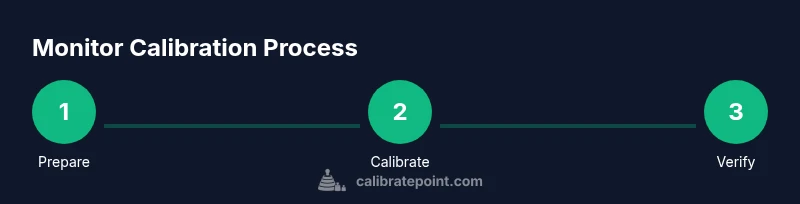
The calibration workflow follows a repeatable sequence that leads to an ICC profile tailored to your screen and output needs. Start by connecting the calibration device to your computer and launching the calibration software. Choose a target color profile that matches your typical work: for photo editing intended for online display, sRGB is a safe default; for prints or professional work, you might work with Adobe RGB or a broader workspace. The next step is to measure the screen’s current response, which lets the software determine how far off the device is from the target. After computing the corrections, the software generates an ICC profile that encodes gamma, white point, and color space transformations. Activate or install the profile on your system, and set it as the default display profile for your editing session. Finally, perform a verification pass using test images and known color references to confirm the calibration is producing accurate results.
Calibrate Point emphasizes keeping your environment consistent and documenting every step so you can reproduce results later. Authority sources such as NIST, ISO, and color management organizations provide standards that calibrations should align with, and you should reference them when assessing your own process. For example, you may consult the ISO standard on color management and ICC profiling to understand the theoretical basis behind these steps. See the sources section below for convenient links.
Authority Sources
- https://www.nist.gov
- https://www.iso.org
- https://www.color.org
Verifying Color Consistency Across Apps and Content
Calibration is not complete until you test how the profile behaves across different workflows. Open color-managed apps and use a standard test image that includes skin tones, greens, sky blues, and neutral grays. Compare the on-screen appearance to prints or reference displays if you have access to them. Soft-proof in your editing software to anticipate how the final image will look when exported to different color spaces. If you notice discrepancies, re-check your white point, gamma, and luminance in the calibration settings and re-run the profile creation. It's common to find small yet noticeable differences between software that relies heavily on color management and non-color-managed viewers; hence, you want to verify across a few commonly used apps and devices.
When you are satisfied, save the final ICC profile with a clear naming convention and keep a log of the results. This makes it easier to switch between projects or to calibrate other devices later. If you routinely work with multiple devices, create separate profiles for each screen and ensure the correct one is active during your editing sessions. Finally, consider scheduling regular checks—calibration is not a one-off task but an ongoing practice to maintain consistency.
Common Pitfalls and How to Avoid Them
Color calibration is straightforward in principle, but a few pitfalls can derail your results. First, avoid calibrating on a display that has not reached a stable temperature or is in a changing lighting environment; small shifts can lead to incorrect color mapping. Second, never skip the verification step; many editors assume calibration is perfect without testing real-world images. Third, do not rely on a single profile for all tasks; different outputs (web vs print) require separate workspaces and color spaces. Fourth, keep your software and operating system color management settings aligned with the ICC profile you created. Fifth, be mindful of display aging; over time the control electronics drift, and a recalibration schedule helps you maintain accuracy. Lastly, maintain a documented process so that if someone else picks up your project, they can reproduce the same results using the same steps and settings.
Calibrate Point notes that effective color management is a combination of hardware, software, and environment; neglecting any one of these elements can undermine your edits. Stay mindful of gamma curves and white-point consistency across devices, and remember to re-test after any replacement monitor or GPU changes.
Next Steps and Maintenance
With your monitor calibrated, you can focus on refining your editing workflow while preserving color accuracy. Create a routine that includes a quick startup calibration check at the beginning of each session or after switching to a different device. Maintain a library of ICC profiles and a short set of test images to validate results whenever you change display hardware or lighting. Periodically revisit ambient lighting conditions and adjust as needed to keep a consistent viewing environment. If you share projects with clients or printers, consider soft-proofing with the intended output profile to catch mismatches before exporting. Finally, schedule a full calibration cycle every few months or after hardware changes, and use a log to document the results so you can compare future calibrations and track progress.
The Calibrate Point team recommends integrating calibration into your standard editing workflow so color accuracy becomes second nature, not an afterthought. By following these practices, your screen will remain a reliable reference for edits, and you’ll be more confident in color decisions across devices and output channels.
Tools & Materials
- Colorimeter or spectrophotometer(Essential for measuring the display and generating an ICC profile)
- Calibration software(Often bundled with the device; ensure proper license/installation)
- Color reference images or printed targets(Used to verify on-screen accuracy against known colors)
- Computer with up-to-date drivers(Needed to run software and apply profiles)
- Controlled ambient lighting(Dimmable, consistent lighting helps repeatable results)
- Notepad or digital log(Record settings, target spaces, and profile names)
Steps
Estimated time: 45-60 minutes
- 1
Prepare your workspace
Clear clutter, close nonessential apps, and ensure ambient lighting is stable. Verify monitor has warmed up and is at a comfortable brightness before starting.
Tip: A known baseline lighting condition makes the calibration repeatable. - 2
Connect the calibration device
Plug in the colorimeter/spectrophotometer and launch the calibration software. Confirm the device is detected by the system.
Tip: Use a USB connection if possible for steady communication. - 3
Load target and select color space
In the software, choose a target color profile (e.g., sRGB for web or Adobe RGB for print) and load a standard target image or built-in reference.
Tip: Match the output intent to your typical project work. - 4
Run calibration and generate profile
Execute the measurement sequence, allow the software to compute the color corrections, and generate an ICC profile for your display.
Tip: Review a quick preview of the before/after to confirm changes. - 5
Install and apply the profile
Install the new ICC profile and set it as the default display profile for your editing session.
Tip: Label the profile with date and room to track changes over time. - 6
Verify with test images
Open color-managed apps and test with reference images to confirm skin tones and neutrals look correct.
Tip: Soft-proof to anticipate output differences before exporting.
Questions & Answers
Do I need a colorimeter to calibrate my screen for photo editing?
A colorimeter or spectrophotometer is highly recommended for accurate measurements and reliable profiles. It reduces guesswork and ensures color consistency across sessions.
Yes. A colorimeter helps you measure and create an accurate display profile for photo editing.
How often should I recalibrate my monitor?
Recalibrate whenever you change lighting, move the monitor, update software, or notice color drift. Regular checks keep your workflow reliable.
Recalibrate when lighting or hardware changes occur or if you notice color drift.
Can calibration profiles be used across multiple devices?
Calibration is device-specific. Create separate ICC profiles for each screen and ensure the correct profile is active for editing on that device.
Profiles are device-specific; you’ll need a separate profile per monitor.
Will calibration affect brightness and contrast?
Calibration adjusts gamma and white point, which can influence perceived brightness. Set your preferred brightness level during setup and maintain it for editing sessions.
Yes, gamma and white point settings can change perceived brightness; set a consistent brightness during calibration.
Is it possible to calibrate without professional equipment?
Basic calibration is possible with built-in tools, but a colorimeter provides reliable, repeatable results and is worth the investment for professionals.
You can approximate with built-in tools, but a colorimeter gives repeatable, trustworthy results.
Should I calibrate for prints or web?
Calibrate with the target output in mind. Use sRGB for web workflows and a broader color space like Adobe RGB for prints, then soft-proof as needed.
Choose a target color space based on your primary output, and soft-proof to verify prints.
Watch Video
Key Takeaways
- Calibrate screen for photo editing to ensure color consistency.
- Use a colorimeter and ICC profiles for device-specific accuracy.
- Control ambient light and document your calibration steps.
- Verify results with test images across apps before editing.