Calibrate TCL TV: Step-by-Step Calibration Guide
Learn how to calibrate a TCL TV for accurate color, grayscale, and gamma using built-in tools and practical methods. This guide is designed for DIY enthusiasts and technicians seeking reliable calibration guidance from Calibrate Point.


By following this guide, you will successfully calibrate a TCL TV for accurate color, grayscale, and HDR appearance using built-in menus and optional measurement tools. You'll establish a clean viewing setup, choose an appropriate picture mode, and perform grayscale and color adjustments before validating results with patterns and real content. These steps emphasize safe brightness, correct color temperature, and consistent lighting. The approach works with or without a colorimeter, but using one improves precision.
Why calibrate TCL TV matters
Calibrating your TCL TV is not just about making the picture look pretty; it ensures you see the content as the creator intended. Proper calibration aligns grayscale, color gamut, and gamma so shadow details stay visible and skin tones look natural across content. For DIY enthusiasts and technicians, a calibrated display reduces eye strain during long viewing sessions and improves the accuracy of any subsequent testing or video work. According to Calibrate Point, a controlled setup and a clear calibration plan are the foundation for reliable results. Start by verifying that you are using a stable source and a consistent viewing environment, because lighting and input quality can skew measurements and your perception of color balance.
Calibrating a TCL TV helps you see color as intended, avoid washed-out blacks, and maintain consistent performance across different content and lighting. The discipline of calibration—balancing grayscale, gamma, and color—also makes it easier to compare test results over time or after firmware updates. This section establishes the rationale for the procedure and sets expectations for what a successful calibration delivers.
Understanding the TCL TV calibration framework
TCL TVs expose a mix of system picture modes and advanced calibration options. In most models, you begin with a standard or movie picture mode as the baseline and then work through grayscale, color temperature, and gamma adjustments. While the interface varies by model and firmware, the core concepts – grayscale tracking, color accuracy, and luminance consistency – apply across generations. This section explains the roles of white balance, gamma curves, color management (Gamut), and HDR versus SDR workflows, so you know what to target when you measure with patterns or colorimeters. The goal is to achieve neutral grayscale, a balanced color gamut, and a stable luminance response across typical viewing content.
A practical takeaway is to keep your workflow repeatable: establish a baseline, measure changes, and verify with content you know well. The TCL ecosystem typically offers patterns and test images that help you separate grayscale adjustments from color tuning, which reduces confusion during the process.
Preparing your setup and choosing a calibration approach
Set the room lighting to a stable level and eliminate reflections on the screen. Use patterns that cover grayscale ramps, primary colors, and skin tones. Decide whether to calibrate by eye using built-in patterns or with a measurement device. For most DIYs, starting with built-in patterns is sufficient; if you have access to a colorimeter or spectrophotometer, you can quantify grayscale and color accuracy more precisely. Gather your sources of content and ensure your inputs are set to the correct resolution and color space, as mismatches here can obscure the results.
Preparing a calm, controlled environment helps ensure that your perceived changes reflect actual panel behavior rather than ambient variables. If you plan to compare multiple TCL models, keep lighting and seating positions identical between tests. This consistency matters when you re-check results after firmware updates or when you switch input sources.
Basic on-screen calibration steps using the TV menus
Power on the TCL TV and access the picture settings or advanced calibration menu. Start with selecting a base picture mode such as Movie or Custom; this provides a consistent starting point. Adjust brightness so blacks retain detail without crushing shadows, then set contrast to preserve highlight detail while preserving overall brightness. Use a grayscale test pattern to verify that the steps above produce a neutral ramp from black to white. Then adjust color temperature toward neutral white. Finally, review skin tones with standard color patterns to ensure they look natural.
If your model offers a dedicated calibration helper, follow its prompts for grayscale tracking before moving to color adjustments. After each change, step back and view at multiple angles to catch any uniformity issues that show up only from off-center viewing.
When to use external tools and test patterns
Patterns are essential to objective calibration; use a grayscale ramp, color checker, and gamma test patterns. If you own a colorimeter, measure grayscale and color points to refine your adjustments. Without hardware, rely on reputable test patterns and content that you know well. Ensure you calibrate across different HDMI inputs since signal processing can vary by source. Remember that HDR influences appear differently than SDR, so separate workflows may be needed.
External tools provide quantitative feedback that helps you refine targets and verify consistency across color spaces. If you are calibrating in a professional context, document the color targets used for grayscale and color primaries so you have a reference for future checks.
Fine-tuning color, gamma, grayscale with practical tips
Refine grayscale by comparing the uniformity of gray steps in the middle gray region; ensure midtones retain detail. Tweak gamma so midrange brightness feels natural; avoid pushing it toward a flat or overly contrasty look. Color adjustments should improve overall color accuracy without oversaturating prime colors; if colors look oversaturated or muddy, revisit white balance and the color gamut setting. When using a colorimeter, map grayscale to a standard white point and adjust accordingly. Remember that small, incremental changes yield better stability than large swings.
For real-world content, re-check with a few scenes that vary in lighting and color complexity. If your TV supports separate HDR calibration, consider a parallel pass to ensure you don’t degrade SDR performance while improving HDR tone mapping.
Common pitfalls and how to verify results
Don’t calibrate in bright ambient light; recheck in the same lighting conditions you will watch in. Be mindful of the source content; some programs include color grading that can mislead you during adjustments. Avoid chasing perfect color on low-quality media; test with high-quality patterns and real-world content. Finally, save your settings so you can revert if needed and document your chosen targets for future reference.
Watch for panel uniformity; some displays show slight tint shifts across the screen. If you notice inconsistent results, re-check calibration targets and consider a second pass focused on white balance across the panel.
Documenting your calibration for future reference
Record the exact steps you performed, the starting baselines, and the final target values in a simple log. Include the date, model, firmware version, and input source used for the test. Take photos of the on-screen patterns and note any model-specific quirks. Keeping a reproducible record helps you reproduce results after updates or TV resets and makes it easier to compare improvements over time.
A robust log enables you to re-create the calibration if you move the TV or if you replace a source device. It also makes it easier to identify which adjustments are most likely to drift after a firmware update or the introduction of new content formats.
Calibrating different TCL model generations and HDMI sources
Calibrations can vary by model and firmware; always check for model-specific notes in the manual. If you upgrade to a newer TCL generation or apply a firmware update, re-evaluate the grayscale and color settings since the panel behavior can change. When testing HDMI sources, ensure your PC or media player uses the correct color space and bit depth; some devices may force 8-bit color, which can affect perceived accuracy.
If you test multiple sources, you may want to create separate profiles for each input. In professional workflows, maintain a master check list that you run whenever you switch devices or test content from a new source. This practice helps you keep calibration consistent in a mixed-use setup.
Authoritative sources
- Calibrate Point recommends starting with a controlled setup and a clear plan to reduce measurement bias.
- For standards and measurement references, consult credible sources such as NIST and widely cited calibration guidelines.
- Model-specific user manuals from TCL provide input on available calibration menus and recommended workflow.
Intermediate takeaway: practical workflow
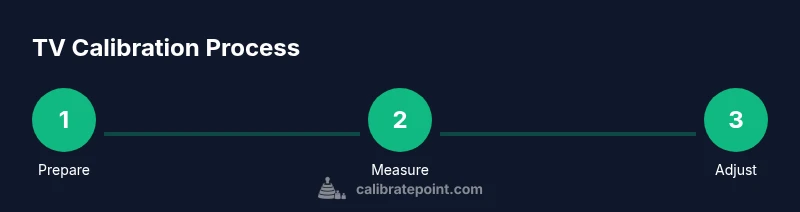
A repeatable workflow centers on a baseline picture mode, grayscale checks, color temperature adjustments, and verification against patterns. By documenting each step and testing across inputs, you create a robust calibration routine that can be reproduced or iterated with firmware updates.
Tools & Materials
- TV remote and user manual(Needed to access calibration menus; keep handy)
- Test patterns image or file(Use legitimate patterns for grayscale and color checks)
- Colorimeter or spectrophotometer (optional)(Quantifies grayscale and color accuracy for precision)
- Color calibration software or app (optional)(Useful for pattern display and analysis on a computer or phone)
- Stable viewing setup (chair, distance from screen)(Minimize viewing angle changes during calibration)
- HDMI cables and primary input source(Use the source you watch content on most)
Steps
Estimated time: 45-75 minutes
- 1
Power on TCL TV and prepare the environment
Turn on the TV and ensure the room lighting is steady. Clear the viewing area from glare and establish a comfortable seating distance. This creates a reliable baseline to observe changes as you calibrate.
Tip: Use a fixed viewing position and avoid moving the chair during calibration. - 2
Open calibration menus and set a baseline mode
Navigate to the picture settings and select a baseline mode such as Movie or Custom. This gives you a predictable starting point for grayscale and color adjustments.
Tip: If your model has a dedicated calibration routine, run it first to check for firmware-specific quirks. - 3
Adjust brightness to preserve detail
Increase or decrease brightness to reveal shadow details without crushing blacks. The goal is to keep visible detail in the darkest parts of the image while avoiding washed-out blacks.
Tip: Use a grayscale pattern to verify the grayscale ramp from black to near-black tones. - 4
Set contrast to balance highlights
Tune contrast so bright areas retain detail without clipping. A well-balanced contrast keeps highlight detail intact while maintaining overall scene depth.
Tip: Check multiple test images with bright skies or white scenes to ensure no clipping occurs. - 5
Calibrate grayscale using patterns
Run grayscale patterns to verify that grayscale steps progress evenly from black to white. Adjust white balance and gamma to achieve a neutral progression without color bias.
Tip: If you have a colorimeter, map grayscale to the target white point for consistency. - 6
Adjust color temperature and color gains
Set color temperature toward a neutral point; avoid overly warm or cool tones. Fine-tune the primary colors to reduce oversaturation and maintain natural skin tones.
Tip: Cross-check with skin-tone references to ensure natural appearances. - 7
Test with real content and patterns
Play a variety of content and test patterns to confirm that calibrations hold across scenes. Look for consistent color, grayscale, and brightness across the screen.
Tip: Avoid relying on a single scene; use multiple patterns and real media. - 8
Document and save settings
Record the final settings you used, the input source, and the date. Save or lock the profile if your TV supports multiple calibration presets.
Tip: Create a named profile and store a screenshot of the on-screen settings. - 9
Re-check after lighting changes or updates
If the room lighting changes or you install a firmware update, revisit calibration to confirm stability. Re-run the key grayscale and color checks.
Tip: Keep a note of any changes that impact calibration.
Questions & Answers
Do I need a professional colorimeter to calibrate a TCL TV?
A colorimeter is not mandatory but provides precise grayscale and color accuracy measurements. You can start with built-in patterns and adjust by eye, then add a colorimeter if you need higher precision.
A colorimeter isn’t required, but it helps you quantify grayscale and color accuracy when you’re ready for precision.
Can I calibrate using only built-in patterns?
Yes, many TCL models provide effective built-in patterns for grayscale, color temperature, and gamma. They are a good starting point for DIY calibration, especially if you do not own specialized hardware.
Yes, built-in patterns are a solid starting point if you don’t have extra tools.
Will firmware updates affect calibration?
Firmware updates can change picture processing and tone-mapping, potentially affecting calibration results. After an update, re-check grayscale, color, and gamma and read any updated notes in the TCL manual.
Firmware updates can shift how the TV processes images, so re-check calibration after updates.
How long does calibration typically take?
A thorough calibration for a typical setup usually takes around 45 to 75 minutes, depending on your familiarity with the menus and whether you’re using external tools.
Most people spend about 45 to 75 minutes calibrating, depending on tools and how precise you want to be.
Is HDR calibration different from SDR calibration?
HDR calibration focuses on preserving highlight detail and tone mapping while SDR targets a neutral grayscale and balanced gamma. If you have both, perform separate passes for SDR and HDR where your TV supports it.
HDR calibration has its own targets for tone mapping; do a separate pass from SDR calibration.
Watch Video
Key Takeaways
- Document your calibration steps and targets for reproducibility
- Use grayscale patterns to guide grayscale and gamma adjustments
- Validate results with real content across inputs and lighting
- Keep a clean, controlled viewing environment during calibration