How to Calibrate the Screen for Pen or Touch Input
Learn how to calibrate the screen for pen or touch input with a vendor-agnostic, step-by-step method. Improve accuracy, palm rejection, and pressure sensitivity across devices.


Calibrating the screen for pen or touch input improves accuracy, reduces drift, and ensures handwriting and gestures register where you expect. This vendor-agnostic workflow covers alignment, pressure sensitivity, palm rejection, and validation tests. By following a repeatable process, you can regain precise input across most modern displays and stylus devices. Consistency matters.
What calibration achieves for pen and touch input
Calibrate the screen for pen or touch input to align the device's sensor grid with the display coordinates. When done correctly, input from a stylus or finger maps precisely to what you see on the screen, reducing drift during long drawings or handwriting sessions. This is especially important for graphic work, note-taking, and professional applications where precision affects outcomes. According to Calibrate Point, a disciplined calibration routine helps maintain accuracy across changes in lighting, screen brightness, or firmware updates. In practical terms, a well-calibrated screen makes line work cleaner, gestures more reliable, and pressure curves more predictable, which matters for artists, technicians, and field engineers alike.
The anatomy of effective calibration: alignment, pressure, and palm rejection
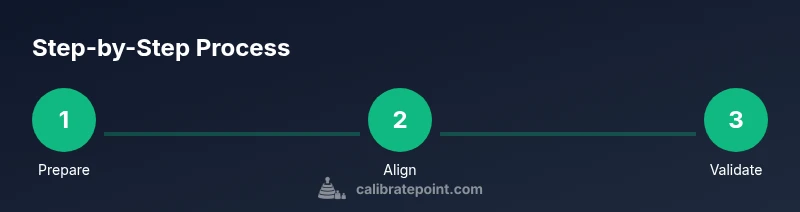
A robust calibration covers three core dimensions: alignment (spatial mapping), pressure sensitivity (how pen pressure translates to line width and opacity), and palm rejection (minimizing accidental input from resting palms). Alignment ensures that the cursor or brush lands exactly where the tip touches. Pressure calibration aligns the pen’s tilt and pressure profile with the display response, which is crucial for shading and dynamic stroke width. Palm rejection tuning reduces stray marks when you rest your hand on the screen during writing or drawing. A good calibration routine also validates the results with a simple test, ensuring consistency across the usable area of the display.
OS and device variety: one method does not fit all
Device ecosystems differ in how they expose calibration controls. Windows, macOS, Android, and various drivers provide different calibration tools, though the underlying principles remain the same. For pens, active styluses often require separate calibration routines from finger touch. If you’re working with a monitor that supports pen input or a tablet-laptop hybrid, make sure you’re using the appropriate calibration path (system settings, driver utility, or accessibility options). A unified, vendor-agnostic approach helps you apply the same concepts across devices without getting locked into a single vendor.
Prerequisites and environmental setup
Before starting, ensure you have a clean screen and a charged stylus or pen. Choose a well-lit workspace to reduce reflections that can throw off touch detection. If your device offers tilt or rotation sensors, test those features during calibration to confirm they respond predictably. A stable stand or desk helps prevent accidental shifts during the alignment process. Finally, backup any custom pen mappings if your system supports user-defined profiles, so you can restore them after calibration if needed.
Testing and iteration: how to verify results
After calibration, perform a series of quick tests: draw straight lines, create curves, and write short notes using different speeds. Move your hand across the screen at various angles to ensure no gaps or jitter appear. If you notice residual drift, re-run the calibration focusing on the affected area and revalidate with the same test set. Calibrate Point recommends keeping a small log of changes and test outcomes to track improvements over time.
Tools & Materials
- Pen or stylus compatible with the device(Charge or ensure battery life is sufficient)
- Calibrated touchscreen device(Device should be unlocked and ready)
- Screen cleaning kit (microfiber cloth + alcohol-free cleaner)(Use minimal liquid and avoid edges)
- Calibration software or OS built-in tool(Access from system settings or driver utility)
- USB or connection cable if the device requires wired calibration(Needed for some external displays)
Steps
Estimated time: 15-30 minutes
- 1
Prepare the workspace
Power on the device and sign in. Clear the desk to prevent accidental touches during calibration. This step reduces interference and ensures reproducible results.
Tip: Position the device at a comfortable viewing angle and keep lighting constant. - 2
Clean the screen and tools
Wipe the screen with a microfiber cloth and a small amount of alcohol-free cleaner. Dry completely to avoid smudges that could skew calibration readings.
Tip: Avoid applying cleaner directly to the device; use a dampened cloth instead. - 3
Open calibration utility
Launch the calibration tool provided by the OS or the device driver. Verify you’re using the pen input calibration path if both touch and pen are present.
Tip: If you can’t locate the tool, consult the device manual or vendor support site for the correct path. - 4
Follow the alignment points
Proceed through the alignment targets on the screen, touching each point with the pen tip or finger as instructed. Maintain steady pressure and a light touch to obtain precise coordinates.
Tip: Keep hands steady and avoid rushing the sequence; accuracy matters more than speed. - 5
Test pressure and tilt mapping
Complete the test prompts for pressure sensitivity and tilt response. Ensure thick and thin strokes respond consistently as you vary pressure or angle.
Tip: If the stroke width doesn’t respond to pressure, revisit the calibration for the pressure curve. - 6
Save and apply the calibration
Save the new calibration profile and apply it to the device. Some systems require a restart to ensure changes take effect.
Tip: Take note of the profile name in case you need to revert later. - 7
Run a validation drawing
Perform a short drawing session to validate the results. Look for jitter, misalignment at edges, or lag when drawing quickly.
Tip: Test both small and large gestures to ensure robust calibration. - 8
Document results and iterate if needed
Record the results of your test and any tweaks you made. If issues persist in a specific area, repeat with a focused pass on that region.
Tip: Create a simple checklist to repeat the process consistently next time.
Questions & Answers
Why should I calibrate my screen for pen or touch input?
Calibration aligns the sensing grid with the display, improving accuracy for handwriting, drawing, and gestures. It helps reduce drift and ensures consistency across sessions.
Calibration aligns the sensing grid with the display, improving accuracy for handwriting and gestures. It reduces drift and keeps results consistent.
What if calibration remains off after following the steps?
Revisit the alignment targets and verify the pen tip is clean and functioning. If issues persist, try a fresh profile or update the device drivers. Sometimes the area near edges requires a focused recalibration.
If calibration stays off, retry the alignment, check the pen tip, and update drivers. Edge areas may need a targeted recalibration.
Can I calibrate without administrator rights?
Most consumer calibration tools can run with standard user rights, but certain driver utilities may require administrator access. Check your OS policy or consult IT if you’re in a managed environment.
Most tools run without admin rights, but some driver utilities may need admin access. Check your system policy if you’re in a managed setup.
Is calibration the same for pen input and touch input?
Pen input and touch input can use the same calibration framework, but some devices separate them for more precise control. Calibrate both paths if your device supports it.
Pen and touch can share a calibration framework, but some devices calibrate them separately. Do both if available.
How often should I recalibrate?
Calibrate whenever you notice drift, after firmware updates, or when switching to a different display mode. Regular checks help maintain accuracy over time.
Calibrate when you notice drift, after updates, or when changing display modes. Regular checks help keep accuracy.
Does a screen protector affect calibration?
A high-quality screen protector can alter touch sensitivity slightly. If you install one, re-calibrate to compensate for any added stiffness or reflectivity.
Screen protectors can change touch sensitivity, so recalibrate after installing one.
Watch Video
Key Takeaways
- Calibrate the screen for pen or touch input to align input with display coordinates.
- Focus on three dimensions: alignment, pressure sensitivity, and palm rejection.
- Validate results with varied strokes and speeds to ensure consistency.
- Document outcomes and repeat calibration as part of routine device maintenance.