DisplayCAL Can't Calibrate and Profile: Urgent Troubleshooting Guide
Urgent troubleshooting for the error 'displaycal can't calibrate and profile'. Learn practical checks, driver fixes, and a step-by-step workflow to restore accurate color through DisplayCAL.


When displaycal can't calibrate and profile, the issue almost always comes from hardware detection, driver compatibility, or ICC profile conflicts. Start with the simplest checks: confirm the colorimeter is detected, update or rollback graphics drivers, and verify DisplayCAL is configured for your monitor. According to Calibrate Point, a disciplined, 2-3 step starter ensures you don’t waste time on downstream problems. If problems persist, follow the diagnostic flow below for deeper fixes.
Why displaycal can't calibrate and profile: root causes and symptoms
When DisplayCAL encounters a failure to calibrate or profile, the root cause usually sits in one of a small set of layers: hardware detection, driver compatibility, color-management settings, or ICC profile conflicts. You may see error popups, the calibration process stall, or an ICC that looks wrong in your operating system’s color settings. In practice, many failures arise from a misread device, a loose USB connection, or an outdated driver. Identifying the exact pattern—dersistent stall, early exit, or a mismatched white point—helps target the fix quickly. This section outlines the most common signals to watch for and how they map to a diagnostic plan.
Calibrate Point analysis shows that most users fix the majority of issues by eliminating simple misconfigurations before moving to deeper system changes. Keep a methodical checklist and avoid changing multiple variables at once. By focusing on detection, driver health, and profile management, you’ll often recover a reliable calibration in less time than you’d expect.
Hardware readiness: colorimeter, monitor, and cables
A failed calibration often traces back to the colorimeter or its connection. Start with the basics: confirm the device is detected by your operating system, unplug and replug the colorimeter, and try a different USB port or cable if available. Check that the monitor is powered on, set to a stable brightness, and not in an OS power-saving mode that could interrupt measurement. If you have more than one display, disable the secondary screens temporarily to isolate the primary display during calibration. Make sure no other color tools or sensor software are running in the background, as they can steal access to the colorimeter during a session.
Software and driver hygiene: DisplayCAL version and GPU drivers
Incompatibilities between DisplayCAL and your OS or GPU drivers are a frequent cause of calibration stoppages. Verify you’re running a supported DisplayCAL version for your operating system and hardware. Update graphics drivers from the GPU vendor, but avoid beta releases unless you’re testing a known workaround. If you recently updated, try rolling back to a known stable driver version. Also verify your OS color-management services are functioning normally; disable any third-party color-space utilities temporarily to isolate the issue.
ICC profiles, color pipelines, and conflicts
Calibration relies on clean color pipelines. Remove any conflicting ICC profiles from the system or per-monitor settings before starting a new calibration. In Windows, check Color Management settings and set your monitor profile to the default, then re-run DisplayCAL. On macOS, ensure the system profile is not forcing color space changes mid-session. If the display has a pre-existing ICC, remove it and re-create a fresh profile during calibration. Conflicts between ICCs and device profiles are a frequent source of inaccurate results or failed calibrations.
Target settings and test patterns: choosing the right approach
Selecting the correct calibration target (gamma, white point, luminance) is essential. If the target is outside your monitor’s capabilities, calibration can fail or produce unpredictable results. Start with a standard gamma of 2.2, D65 white point, and a luminance around 120 cd/m² for typical room lighting. Disable ambient-light sensors if your monitor or software offers them, since they can shift the test results during measurement. Ensure colorimeter mode matches the type of measurement your sensor performs (some devices have separate modes for reflective vs. emissive targets).
Common troubleshooting order: a practical flow
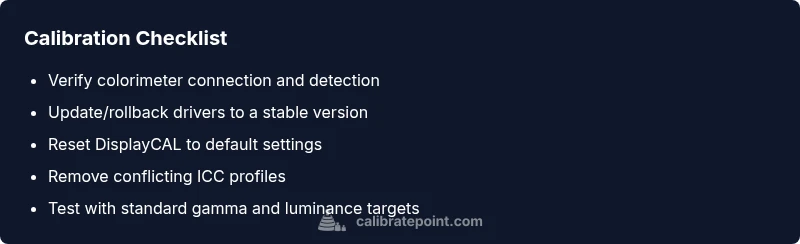
Apply a disciplined order to troubleshooting: (1) confirm hardware detection, (2) validate driver health, (3) reset DisplayCAL to defaults, (4) ensure no conflicting ICCs, (5) re-run with a simple target, (6) test with another known-good colorimeter if available, (7) document results for reference. This sequence minimizes backtracking and helps you isolate whether the problem is environmental, software-based, or hardware-driven. If any step fails, note the exact error message and repeat the step after a fresh restart of the computer and DisplayCAL.
When to seek professional help and how to prevent future issues
If calibration still won’t complete after following the diagnostic flow, professional support may be required to test the colorimeter hardware, measure display performance, or inspect the GPU color pipeline. Document your steps, including driver versions, DisplayCAL logs, and screenshots of color-management settings. For prevention, establish a baseline calibration routine, update software on a predictable schedule, and use a single clean color path (no competing color utilities). Regularly re-check the hardware connections and keep spare USB adapters handy to avoid repeat failures.
Steps
Estimated time: 45-60 minutes
- 1
Prepare the workspace and tools
Clear the desk, close unrelated software, and gather the colorimeter, monitor, cables, and a stable power source. Ensure the room lighting is steady and avoid switching ambient lights during calibration. This reduces measurement noise and improves repeatability.
Tip: Have a second USB port ready for quick colorimeter testing. - 2
Check hardware detection
Connect the colorimeter and confirm it shows up in your system’s device manager or equivalent. If it isn’t detected, try another USB port or a different computer to rule out a faulty sensor.
Tip: Use a direct USB port rather than a hub when possible. - 3
Update or rollback drivers
Update GPU and color-management drivers from official sources. If you recently updated, consider rolling back to a known good version. Reboot after driver changes before retrying calibration.
Tip: Document driver versions before making changes for future reference. - 4
Reset DisplayCAL to defaults
Open DisplayCAL, restore default preferences, and delete any old calibration projects. This removes stale configurations that might conflict with new measurements.
Tip: Avoid importing old profiles into the current session. - 5
Set a clean target and test pattern
Choose a standard gamma (2.2), D65 white point, and a safe luminance (e.g., 120 cd/m²). Disable ambient-light sensors and ensure only one display is active during calibration.
Tip: Keep the target settings consistent across attempts. - 6
Run a baseline calibration
Run a brief baseline calibration to verify basic operation. If it fails, note the exact error and try the simplest test pattern first before reattempting full calibration.
Tip: If the baseline passes, you’re likely dealing with a target/ICC issue rather than hardware. - 7
Create and test a fresh ICC profile
Generate a new ICC profile from the baseline calibration and apply it. Use a test image or standard color reference to visually compare results against a known-good profile.
Tip: Compare with a reference image to spot obvious color shifts quickly. - 8
Validate results and document
Review the calibration report, compare measured luminance and gamma with targets, and save the successful profile. Keep notes of the steps and any anomalies for future reference.
Tip: Label profiles clearly (e.g., Baseline_2026-03-24).
Diagnosis: DisplayCAL won't calibrate or profile
Possible Causes
- highColorimeter not detected by the system
- highGraphics or color-management driver conflict
- mediumICC profile conflicts or incorrect profile installation
- lowOutdated hardware firmware or USB connectivity issues
- lowDisplayCAL configuration errors or target setting mismatches
Fixes
- easyReconnect the colorimeter, try a different USB port, and reinstall the device driver
- mediumUpdate or rollback GPU and color-management drivers to a known stable version
- easyReset DisplayCAL to default settings and re-create a calibration with a clean ICC workflow
- easyRemove conflicting ICC profiles and test with a fresh baseline profile
- mediumTest with a different colorimeter or monitor to isolate hardware faults
Questions & Answers
What is DisplayCAL and why is it failing to calibrate?
DisplayCAL is a calibration workflow that builds ICC profiles for your monitor. Failures during calibration are usually caused by hardware detection issues, driver conflicts, or ICC profile problems. Systematic checks help isolate the root cause and restore a valid profile.
DisplayCAL builds monitor ICC profiles. If calibrations fail, start with hardware and driver checks, then review color profiles to find the issue.
How do I know if my colorimeter is defective?
If a known-good colorimeter doesn’t respond or produces inconsistent results across recalibrations, test with another device or computer. Check USB power and data cables, and inspect the sensor for physical damage. Hardware faults often require replacement.
Test with a different colorimeter or computer to confirm if the device is faulty.
Can software updates affect calibration results?
Yes. Updates can change color management behavior or driver compatibility. After upgrading, revalidate calibration steps, test targets, and verify ICC profiles to ensure consistency.
Software updates can change how calibration works; recheck targets and profiles after updates.
Should I disable ambient light sensors during calibration?
Disabling ambient light sensors during calibration helps ensure consistent measurements. Some sensors can subtly adjust luminance, gamma, or white point and skew results. Re-enable after calibration if you rely on auto-adjustment features.
Turn off ambient light sensing during the calibration session to keep results stable.
What if DisplayCAL keeps failing at the same step?
If a step consistently fails, isolate by testing each variable: device, drivers, targets, and profiles. Reproduce the failure with a baseline setup, then adjust one variable at a time to identify the culprit.
Isolate variables one by one to find where the failure happens.
When should I seek professional help?
If hardware faults are suspected, or calibration results remain inconsistent after exhaustive diagnosis, professional calibration services can verify hardware health and provide in-depth profiling.
Consider professional help if hardware faults are suspected or results stay inconsistent.
Watch Video
Key Takeaways
- Verify hardware first—detection, ports, and cables.
- Keep drivers and software current or revert to a known good version.
- Clear ICC profiles and reset settings before recalibration.
- Use standard targets and monitor luminance for reliable results.
- Document steps to facilitate future calibrations and troubleshooting.