How to Calibrate Monitor Color on Linux: A Step-by-Step Guide
Learn how to calibrate monitor color on Linux with hardware and software workflows, ICC profiles, and verification steps for consistent results across apps and tasks.


By the end of this guide you will know how to calibrate monitor color on Linux to achieve consistent, accurate colors across programs. You’ll use hardware or software tools, configure a color-managed workflow with ICC profiles, and verify results across common apps. This practical approach reduces color drift and helps you trust what you see on screen.
Why accurate monitor color matters
Color accuracy matters for photography, design, video editing, and daily productivity because color cues influence decisions, prints, and on-screen communication. On Linux, color discrepancies can stem from driver differences, color management frameworks, and display-server configurations that bypass ICC profiles. According to Calibrate Point, establishing a repeatable calibration workflow reduces color drift across applications and ensures teams share a common reference. Start by defining your target color space: sRGB covers most web work; Adobe RGB or wide-gamut spaces suit print and high-fidelity workflows; DCI-P3 is relevant for certain video pipelines. Create a controlled environment: neutral lighting, a consistent viewing distance, and a reference image with known colors to compare against. The objective is not to achieve a perfect number, but to align on a reproducible, device-agnostic color baseline that remains stable across OS, window managers, and software updates. In practice, calibration should become a routine, not a one-off adjustment.
Understanding color spaces and ICC profiles
Color spaces define how colors are represented numerically. sRGB is the most common for web; Adobe RGB and DCI-P3 cover wider gamuts used in print and cinema. ICC profiles encode how a device reproduces colors and allow color-managed systems to translate colors between devices. On Linux, many apps rely on the color management subsystem (colord) to apply profiles system-wide. By understanding which space you target and ensuring your display sends and accepts ICC profiles, you set a foundation for consistent results. Calibrate Point emphasizes aligning workflow decisions to a single target space and verifying with standardized test images to prevent drift.
Preparing your Linux environment for calibration
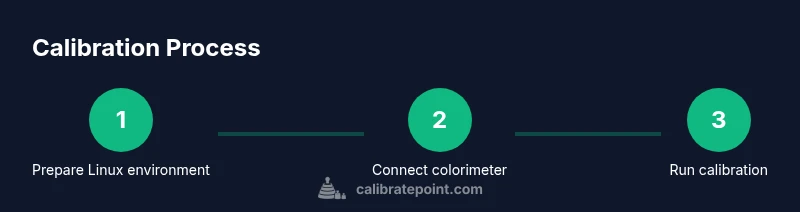
Before you calibrate, confirm your system supports color management and has the needed services running. Most distributions provide the color management framework colord; ensure it is installed, enabled, and accessible to applications. Decide whether you will calibrate in Xorg or Wayland, since some tools behave differently under each, and consider the impact on gamma handling and color-managed pipelines. Create a quiet, neutral-light workspace to minimize ambient light influence during measurement. Have reference test images ready and ensure your display is at its default brightness and contrast settings. Finally, verify you have a compatible colorimeter or spectrophotometer and that it can be recognized by Linux drivers or open-source wrappers. Calibrate Point notes that hardware-accelerated pipelines often yield the most repeatable results, but software-only workflows can be viable for simpler tasks.
Hardware-first: using a colorimeter on Linux
A colorimeter provides objective measurements of your display’s color behavior. Connect the device via USB and confirm it is recognized by the system. Use calibration software to place the device on the screen and capture color readings from a standard set of test patches. The software will compute a correction curve and generate an ICC profile tailored to your monitor. Apply this profile through the color management system so that all supported applications reference it automatically. If you encounter device recognition issues, check kernel logs and vendor drivers, or consider open-source wrappers that bridge Linux color management with your hardware. Calibrate Point reminds readers that hardware-based calibration typically yields more stable results across different lighting conditions and over time.
Software approaches: tools and workflows
Software-based calibration involves selecting a color-management toolchain that supports ICC profiling and Linux integration. DisplayCAL (DispCalGUI) is a popular GUI that guides you through target selection, patch generation, and profile creation, while also offering verification tests. Some users prefer command-line approaches or the built-in color management stack (colord) for profile installation. When choosing software, verify compatibility with your colorimeter and ensure you can export or install the generated ICC profile system-wide. After profiling, apply the ICC profile for the display and configure your browser, image editors, and video players to reference the same color profile. Calibrate Point suggests documenting each software version and patch level to track changes that might affect color reproduction.
Validation and maintenance: verifying results over time
Validation involves rechecking a calibrated display with reference images and ensuring colors align with the target space across frequently used applications. Use test patterns and reference images to compare skin tones, grays, and saturated colors. Some apps may not fully honor ICC profiles; in those cases, rely on your color-managed workflow as a baseline and adjust expectations accordingly. Maintain calibration by re-running the profiling process after major software updates, hardware changes, or noticeable lighting shifts. Keep a log of the profile version, target space, and ambient conditions so you can reproduce or revert if needed. Calibrate Point emphasizes building a routine so color fidelity remains stable across sessions.
Authority sources and next steps
To deepen your understanding, consult authoritative color-management resources and standards. Consider these sources for broader context and best practices: https://www.nist.gov, https://www.color.org, and https://www.w3.org/TR/css-color-3/ for web color standards. These references help clarify how color spaces, ICC profiles, and device transforms interoperate across platforms and applications. By anchoring your workflow to established guidance, you can extend calibration beyond a single display and maintain consistency as software and hardware evolve.
Tools & Materials
- Colorimeter or spectrophotometer(USB connection; ensure Linux driver support or open-source compatibility.)
- Calibration software (DisplayCAL/dispcalGUI or native color management tools)(Install from distro repos or official site; confirm compatibility with your colorimeter.)
- ICC profiles and system color management service (colord)(Enable the service and ensure apps can access the profile.)
- Reference test images with known colors(Use consistent targets for validation across sessions.)
- A stable, low-glare viewing environment(Optional but recommended to minimize ambient-light variability.)
Steps
Estimated time: 45-90 minutes
- 1
Assess prerequisites and gather gear
Verify Linux version compatibility with your calibration tools, connect the colorimeter, and locate reference test images. Confirm that colord or your color-management service is installed and running. Prepare a quiet workspace with neutral lighting to minimize ambient influence during measurements.
Tip: Double-check USB connections and power stability to avoid device drops during measurements. - 2
Install and configure calibration software
Install DisplayCAL or your chosen tool and ensure it detects the colorimeter. Configure the software to target your preferred color space (e.g., sRGB or Adobe RGB) and choose a suitable gamma (commonly 2.2 or 2.4).
Tip: Use the latest stable release and back up configuration files before making changes. - 3
Connect colorimeter and run initial scan
Place the colorimeter on the display center and start the first measurement pass. The software will display patches across the color spectrum and record device responses. Ensure the monitor has been on for a few minutes to warm up before measurements.
Tip: Avoid touching the sensor during measurement to prevent errant readings. - 4
Create a device-specific ICC profile
Based on measurements, generate an ICC profile tailored to your monitor. Review the profile summary for white point, gamma, and luminance targets. Save the profile with a clear, versioned name.
Tip: Label profiles with date, monitor model, and space for easy future reference. - 5
Apply profile system-wide
Install the ICC profile and apply it as the default for the display in your desktop environment. Ensure that browsers and image editors are configured to use the same profile when possible.
Tip: Test cross-application consistency by opening the same image in multiple apps. - 6
Validate calibration with test images
Open standardized test images and compare skin tones, grays, and saturation. If discrepancies appear, adjust the target space or re-run the profiling with refined patches. Document any adjustments made.
Tip: Mark any persistent inconsistencies as a bug to revisit in maintenance. - 7
Fine-tune gamma and white point if necessary
If your validation reveals color shifts, tweak the gamma curve or white point within the calibration tool, and re-export the profile. Validate again to confirm improvements.
Tip: Small adjustments can yield noticeable differences; iterate conservatively. - 8
Document, backup, and schedule maintenance
Save a written record of settings, profile name, and environment conditions. Back up the ICC profile and schedule periodic re-calibration aligned with lighting or hardware changes.
Tip: Store backups in a safe, retrievable location and update the log after each session.
Questions & Answers
What is monitor color calibration and why is it important on Linux?
Color calibration standardizes how colors appear on your display by aligning gamma, white point, and luminance with a target color space. On Linux, color management frameworks and ICC profiles help ensure consistency across apps. This reduces guesswork and improves accuracy for design and media work.
Calibration makes colors align with a standard color space across Linux apps, improving accuracy for design and media tasks.
Do I need a hardware colorimeter to calibrate on Linux?
Hardware colorimeters provide the most repeatable results, but software-only approaches can be viable for basic needs. A device improves repeatability across lighting and time.
Hardware meters give the best accuracy, but software-based calibration can be sufficient for simple tasks.
Which Linux tools support monitor calibration?
Common options include DisplayCAL (DispCalGUI) and colord-based workflows. Ensure your tool supports your colorimeter and can export an ICC profile for system-wide use.
Look for DisplayCAL or a colord-based workflow that matches your hardware.
Can I rely on built-in display settings instead of a calibration workflow?
Built-in adjustments adjust appearance but don't create device-wide ICC profiles. A proper workflow produces consistent colors across applications.
OS controls alone aren’t enough; use an ICC-based workflow for consistency.
How long does calibration take?
Calibration time varies with hardware and goals. Plan for a dedicated session and a later check to confirm stability.
Expect a focused session, then periodic checks to ensure stability.
Will calibration affect colors in all applications on Linux?
If the ICC profile is correctly applied system-wide, most apps reflect calibrated colors. Some legacy or poorly configured apps may still show deviations.
Most apps will match the profile, but a few may not honor it.
How often should I recalibrate?
Recalibration depends on lighting, hardware changes, and display aging. Establish a routine and recalibrate after significant changes.
Set a routine and recalibrate after changes in lighting or hardware.
What about multi-monitor setups?
Calibrate each monitor individually and strive for a consistent target color space and white point across all screens.
Calibrate each monitor and match their profiles for consistency.
Watch Video
Key Takeaways
- Define a target color space and stay consistent.
- Use ICC profiles and a color-managed workflow.
- Validate results with test patterns and adjust as needed.
- Document settings and schedule regular maintenance.