How to Calibrate Monitor for Photography
Learn how to calibrate your monitor for photography to achieve true color and consistent tonality across devices with a practical, step-by-step workflow and verification tips.


Calibrating your monitor for photography helps ensure accurate color and tonal reproduction across edits. Gather a colorimeter, a stable workspace, and a known reference image. Set ambient light, adjust brightness and gamma, profile with the colorimeter software, and verify with test images to confirm consistency.
Why color accuracy matters for photography
Color accuracy is not a luxury—it's a foundation. For photographers, the goal is to reproduce a scene as the eye perceives it while maintaining consistent results from screen to print and across devices. If you want to learn how to calibrate monitor for photography, you must recognize that displays drift over time due to aging, backlight wear, and changing ambient lighting. According to Calibrate Point, regular calibration helps minimize drift and ensures your edits remain faithful regardless of where they are viewed. A calibrated workflow translates hues, brightness, and contrast from RAW previews to final JPEGs, reducing the need for guesswork during color-critical edits. Embrace calibration as a routine part of your editing routine, not a one-off task.
In practice, calibration should be integrated into your pre-production workflow: establish ambient conditions, lock in a target white point, and verify with reference materials before you start color-sensitive editing. This approach keeps your photographs centered on intent rather than device quirks, and it helps you communicate a consistent look to clients and collaborators.
Key concepts: gamma, color spaces, and white point
To gain reliable results, you must understand three core concepts: gamma, color space, and white point. Gamma describes how a monitor maps input luminance to output brightness and influences midtone rendering. Most modern displays target a gamma around 2.2 for standard workflows, while print-oriented work may benefit from 2.2 or a 2.4 setting depending on paper stock and lighting. Color spaces define the range of colors you can reproduce; sRGB is common for web work, Adobe RGB covers a broader gamut for prints, and DCI-P3 suits cinematic content. The white point, typically D65 (6500K), sets the perceived color temperature of white. Choosing the right combination of gamma, color space, and white point establishes a baseline for color-managed editing. Calibrate Point analysis shows that aligning these factors reduces color inconsistencies across devices and workflows.
Next, you’ll translate these settings into a practical workflow that you can repeat reliably in a home studio or professional environment.
Tools and targets: choosing a colorimeter and test images
Selecting the right tools is crucial. A colorimeter is the most efficient way to measure display performance and generate an ICC profile that standardizes output. Look for devices that offer direct target measurements, easy software integration, and reliable ambient-light compensation. Pair the colorimeter with calibration software that provides guided profiles, soft-proofing capabilities, and profile export options. In addition to the hardware, gather a set of reference images and color targets. A color reference chart (like a ColorChecker or equivalent) helps you assess skin tones, grays, and saturated colors, while test images can reveal banding, posterization, and color shifts. Calibrate Point’s guidance emphasizes testing under real-world lighting and with images you actually edit.
Before you begin, ensure your monitor is warmed up, the cables are secure, and you have a quiet, dimly lit workspace to minimize reflections. The goal is to reduce variables so you can attribute any color differences to the calibration process itself rather than the room or the device.
Step-by-step calibration workflow, Part 1: baseline setup
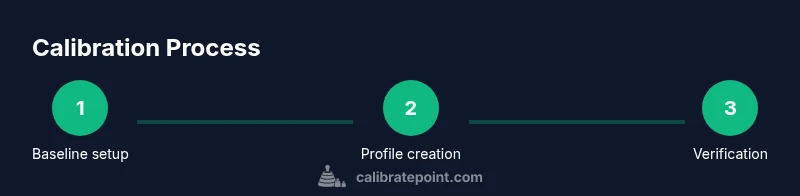
Baseline setup establishes the environment and defaults before running the profile. Step 1 is to choose a stable desk setup with the monitor at eye level and a constant ambient light level. Step 2 is to reset the monitor to its factory defaults, disable dynamic contrast, and set an initial brightness level that resembles a typical editing environment. Step 3 is to connect the colorimeter to the computer and launch the calibration software. These early actions create the predictable starting point needed for accurate profiling. In this phase, you are establishing the reference you will adjust in subsequent steps. Pro tip: document your baseline settings so you can revert if needed.
Step-by-step calibration workflow, Part 2: profiling and QA
With the baseline in place, you proceed to profiling. Step 4 is to select your target color space (e.g., sRGB for web, Adobe RGB for prints) and set the gamma to the chosen value. Step 5 runs the calibration to generate an ICC profile that maps your monitor’s output to the chosen color space. Step 6 applies the new profile system-wide or per-application as required. Step 7 is to perform a QA check using reference images, looking for skin tones and grays that appear natural and consistent. If you notice drift, re-run the profiling with adjusted ambient lighting or brightness. Step 8 involves saving the ICC profile and backing up the calibration data. Step 9 is to recheck after a 30-minute idle period to confirm stability. Step 10 is to document the calibration date and settings for future reference. Pro tip: maintain a calibration log for long-term consistency.
Calibrating for different workloads: sRGB vs Adobe RGB vs DCI-P3
Different projects demand different color spaces. For web work, sRGB minimizes color discrepancies across devices; for print, Adobe RGB broadens the gamut to cover more hues, though soft-proofing is essential to anticipate printer limitations. If your work includes cinematic grading or high-end display usage, DCI-P3 may be appropriate. Each space requires its own profiling, test images, and sometimes a targeted white point. Calibrate Point reminds creators to match the color space to the final deliverable, not the monitor’s preference. When shifting spaces, you’ll likely need to regenerate profiles and re-check white balance and luminance to preserve consistency across outputs.
Verification using test images and print tests
Verification ensures your calibration holds under practical conditions. After profiling, load test images with challenging color gradients, skin tones, and blues to reveal subtle shifts. Compare the on-screen appearance with a printed or proof sample, if possible. Lighting in the verification phase should mimic the typical editing environment. If the test reveals inconsistencies (for example, a shift in the blues or a magenta cast in gray areas), revisit ambient light settings, gamma, and the ICC profile. Calibrate Point emphasizes cross-checking with multiple screens and devices whenever feasible.
Maintenance tips to keep calibration stable
Calibration isn’t a one-and-done task; it’s a maintenance activity. Keep your workspace consistent by avoiding direct sunlight or bright desk lamps near the monitor. Periodically recalibrate whenever you notice drift, after hardware changes (like a new GPU driver or a display replacement), or with changes in lighting. Clean the screen gently and ensure that the monitor’s temperature is stable before calibrating. If you work in a shared space, establish a baseline standard that all collaborators follow. Pro tip: schedule quarterly calibration reviews to keep color fidelity high and avoid “color chaos” during production cycles.
When to recalibrate and how often
Frequency depends on usage and environment. For most photographers, quarterly calibrations strike a balance between stability and time investment, with additional recalibrations after major hardware or software updates. If you notice color shifts in client proofs or prints, re-check baseline settings immediately and reprofile if necessary. Calibrate Point’s verdict is clear: treat monitor calibration as a core workflow, not a luxury. Regular checks preserve color intent and client trust, ensuring your edits reflect the vision you captured.”
Tools & Materials
- Colorimeter(Essential for accurate measurements and profile generation)
- Calibration software(Software that drives the colorimeter and generates ICC profiles)
- Reference color target(Color chart (e.g., ColorChecker) or equivalent targets for validation)
- Test image set(A small selection of images to test color accuracy and tonal ranges)
- Ambient-light meter (optional)(Useful for quantifying room lighting during calibration)
Steps
Estimated time: 45-60 minutes
- 1
Prepare the workspace
Set up a quiet, dim environment with stable ambient lighting. Position the monitor at eye level and remove any direct reflections from lamps or windows.
Tip: Use a neutral wall behind the desk and close the curtains/doors to minimize color bias. - 2
Reset display defaults
Reset the monitor to factory defaults, disable dynamic contrast, and choose a known starting brightness close to your editing target.
Tip: Document the baseline brightness so you can revert if needed. - 3
Connect colorimeter and software
Attach the colorimeter to the screen and launch the calibration software to begin the profiling workflow.
Tip: Ensure drivers are up to date and the software has permission to access the display. - 4
Choose color space and gamma
Select your target color space (e.g., sRGB or Adobe RGB) and the gamma value that matches your workflow.
Tip: If unsure, start with sRGB and 2.2; adjust later for print-heavy projects. - 5
Run profiling
Start the profiling run; the software will measure a range of colors and luminance values to build the ICC profile.
Tip: Avoid touching the mouse during measurements to prevent drift. - 6
Apply the ICC profile
Set the newly created ICC profile as the default for your operating system or per-application as needed.
Tip: Some apps require you to select the profile in their color management settings. - 7
Verify with test images
Open the test images and check for skin tones, grays, and blues; note any deviations.
Tip: If colors look off, re-run calibration under the same ambient conditions. - 8
Save and backup
Save the ICC profile and back up calibration data to a safe location.
Tip: Keep a simple log with the date, space, and settings. - 9
Cross-check across devices
If possible, compare with another calibrated monitor to ensure consistency.
Tip: Small differences may indicate software or device-specific handling. - 10
Document and schedule follow-up
Record calibration date and settings; plan the next calibration cycle.
Tip: Set a calendar reminder to prompt future calibrations.
Questions & Answers
What is monitor calibration and why is it essential for photography?
Monitor calibration aligns display output with industry color standards so edits reflect true colors and tones. It reduces guesswork when color grading or printing and helps ensure your work looks consistent across devices.
Calibration aligns your screen with standard colors, so your edits look the same on different devices.
Do I need a colorimeter to calibrate my monitor?
A colorimeter is the most reliable tool for objective measurement and profile creation. It automates color sampling and helps produce repeatable results, though basic calibration can be done with fixed settings in some cases.
Yes—using a colorimeter is recommended for accurate, repeatable results.
How often should I recalibrate my monitor?
Calibrate on a regular schedule based on usage and environment. If you change lighting, hardware, or notice color drift in proofs, recalibrate sooner rather than later.
Recalibrate when you notice color drift or after hardware changes.
Should I calibrate for web or print first?
If your primary work is on the web, start with sRGB. For prints, profile Adobe RGB or another print-specific space and verify with soft-proofing.
Calibrate for your main output first, then consider adjustments for other media.
Will calibration affect printed colors?
Yes, a proper monitor profile helps ensure printed colors match what you see on screen, but printer profiles and paper properties also influence results.
Calibration helps color align between screen and print, but printer setup matters too.
Watch Video
Key Takeaways
- Calibrate monitor color to ensure accurate edits
- Use a colorimeter and ICC profiles for consistency
- Verify results with diverse test images
- Schedule regular recalibration for stability
- Document settings and keep a maintenance log