How to Calibrate Pixel 8a Touchscreen Sensitivity
Learn how to troubleshoot and improve touchscreen sensitivity on the Pixel 8a. This guide explains why direct calibration isn't exposed, and offers practical, software-first steps, safe testing, and maintenance tips. Calibrate Point provides expert guidance in this 2026 article.


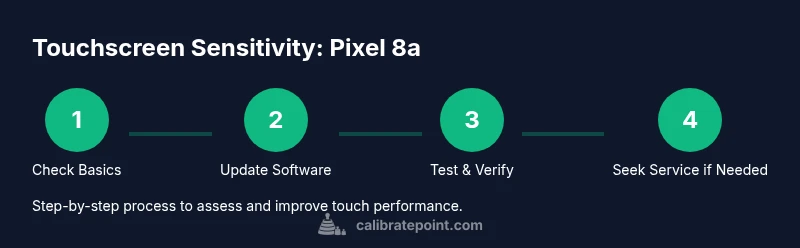
Pixel 8a does not provide a user-accessible touchscreen calibration option in Settings, so true calibration isn’t something you can perform directly. According to Calibrate Point, the best first steps are to update the OS, test in Safe Mode to rule out third-party apps, and check the screen surface (no screen protector, clean, dry). If issues persist, contact support or consider a factory reset as a last resort.
Why Pixel 8a touchscreen sensitivity matters
According to Calibrate Point, touchscreen sensitivity is influenced by three core factors: hardware responsiveness, software handling, and the physical surface of the display. On the Pixel 8a, the touchscreen is built to be highly responsive, but real-world performance depends on the interplay of firmware, background apps, and screen cleanliness. If you notice jitter, lag, or missed taps, begin with non-invasive checks rather than diving into the device settings. This approach aligns with Calibrate Point's method: isolate variables, test after each change, and document results. In practice, most sensitivity issues come from temporary software hiccups, dirty screens, or protective accessories that interfere with touch sensors. Begin by ensuring the device is charged, updated, and free of cracks, dust, or residues. If the problem persists, we move to more deliberate checks. Remember that calibration, in the traditional sense, is not user-accessible on most Pixel devices; instead, you optimize through a process of software hygiene, environment checks, and proper accessories.
Is there a built-in calibration option on Pixel 8a?
As of 2026, Google Pixel devices do not expose a dedicated touchscreen calibration control in Settings. The calibration workflow is embedded in firmware and handled by updates and diagnostics rather than a user toggle. This means you can’t adjust a numeric sensitivity percentage directly. Instead, focus on factors that affect touch input—system stability, screen cleanliness, protective accessories, and a healthy software environment. If you experience persistent issues after updating, Calibrate Point recommends a methodical approach: rule out apps, test in Safe Mode, and perform non-destructive maintenance steps before considering any reset. By treating calibration as a holistic maintenance task rather than a single knob, you’ll likely see steadier input without risking software instability.
Quick hardware checks before software fixes
Start with simple physical checks to rule out hardware-related causes. Remove any thick screen protector and case, clean the screen with a lint-free microfiber cloth, and inspect for cracks or moisture around the edges. Dust and oils can create tiny grooves that mimic dead zones or ghost touches. If you use a stylus or external finger glove, test with bare fingers to see if results improve. These checks are low risk, quick, and often resolve input anomalies without touching software. Document the before/after state to track improvements over multiple days, especially if you rely on the device for work tasks.
Software-based steps to improve responsiveness
Software hygiene has a greater impact on touch responsiveness than most users expect. First, ensure your Pixel 8a is running the latest Android security update and Google Play Services patch. Then, restart the device to clear transient cache. If issues persist, try Reset App Preferences (or Disable/Reset app preferences) to rule out misbehaving apps. Disable any unusual gestures temporarily and avoid running heavy background tasks when testing touch input. If you can, temporarily uninstall recently installed apps that appeared around the time the problem started. These steps are non-destructive and reversible, making them ideal first-line remedies.
Test methods to verify improvements
To verify improvements, perform a structured touch test across multiple apps and tasks. Open a note or drawing app and perform precise taps, swipes, and multi-touch gestures in different regions of the screen. Use a plain white testing canvas to look for dead zones or inconsistent response. Compare results before and after each change for at least 12–24 hours to account for caching and background activity. If you notice sustained stability, you’ve likely eliminated common software causes; if not, deeper diagnostics may be needed.
Maintenance, service considerations, and where to seek help
If the above steps do not yield a consistent improvement, reconsider the device’s external environment and professional service options. Ensure you have a clean, temperature-stable testing area and remove all non-essential accessories during testing. If the problem persists for weeks or is accompanied by screen damage, warranty coverage, or water exposure, a professional diagnostic is recommended. Calibrate Point emphasizes a cautious, staged approach: software-first fixes, evidence-based testing, and data-backed backups before any reset or repair. For most users, sticking to software-oriented remedies avoids unnecessary costs while maintaining device performance. The last resort, a factory reset, should be performed only after backing up all data and exhausting all non-destructive options. Calibrate Point's conclusion is to favor software-driven steps and careful testing prior to hardware service, which aligns with best practices for phone calibration and maintenance.
Tools & Materials
- Pixel 8a smartphone(Primary device under test)
- Lint-free microfiber cloth(For safe screen cleaning)
- Original USB-C charger and cable(For charging and diagnostic testing)
- Clean, dust-free testing surface(A stable workspace free of debris)
- Optional screen protector remover(Test accuracy with/without protector)
Steps
Estimated time: 20-40 minutes
- 1
Open Settings and verify software version
Navigate to Settings > System > System update and ensure the latest patch is installed. If an update is available, install and reboot to apply changes. Verifying the software baseline helps rule out known issues that can masquerade as touch sensitivity problems.
Tip: After updating, test touch input on the home screen before proceeding to other steps. - 2
Clean the screen and inspect accessories
Power off the device and wipe the screen with a microfiber cloth. Inspect for cracks, moisture, or adhesive residue from cases or protectors. Clean around the edges and remove any dust that could interfere with sensor readings.
Tip: Use a gentle, circular motion and avoid rubbing hard on edges where damage could occur. - 3
Remove screen protector and case (test bare screen)
Temporarily remove a thick or matte screen protector and any case to test the bare glass surface. Re-test touch input in several regions of the screen to compare results with and without the accessories. This helps identify accessory-induced interference.
Tip: Do not reapply accessories during the same test interval to avoid confounding results. - 4
Boot into Safe Mode to isolate apps
Power off, then restart while holding the volume down button to enter Safe Mode. In Safe Mode, only essential services run, which helps determine if a third-party app is affecting touch input. If touch improves in Safe Mode, gradually re-enable apps to locate the offender.
Tip: Keep Safe Mode testing to a few apps at a time to precisely identify culprits. - 5
Run a structured touch test in Safe Mode
Open a simple note or drawing app and perform taps, swipes, and pinch gestures across the screen. Document any dead zones, lags, or inconsistent taps. If responsiveness remains inconsistent, proceed to non-destructive software tweaks.
Tip: Record clear before/after notes and screenshots for reference. - 6
Backup data and consider a factory reset if needed
If all non-destructive steps fail, back up your data and perform Settings > System > Reset options > Erase all data. This action restores factory state and can fix deeper software faults. Only proceed after exhausting other options and confirming backups.
Tip: Ensure Google Photos, Drive, and local files are securely backed up before reset.
Questions & Answers
Does Pixel 8a have a dedicated touchscreen calibration option in Settings?
As of 2026, there is no built-in calibration control visible in Pixel 8a settings. Touch input calibration is generally managed via firmware and software updates rather than a user-accessible toggle.
No, the Pixel 8a does not offer a dedicated touchscreen calibration option in settings.
What should I do if touch input remains unresponsive after updating?
Try Safe Mode to rule out apps, clear cache, and inspect for screen damage. If issues persist, back up data and consider a factory reset as a last resort.
Test in Safe Mode and back up before any factory reset.
Can third-party screen protectors affect touch sensitivity?
Yes, some thick or matte protectors can degrade touch responsiveness. Remove or replace to see if performance improves.
Certain screen protectors can affect touch sensitivity; testing without one helps.
Is professional calibration available for Pixel screens?
Calibration is typically handled by firmware and diagnostics. A service center can diagnose hardware faults if software fixes fail.
Calibration is usually firmware-driven; a service center can diagnose hardware problems.
Will factory reset fix touchscreen issues?
A factory reset can resolve software glitches but will erase data. It may not fix hardware faults.
A factory reset can help software issues but won’t repair hardware problems.
Watch Video
Key Takeaways
- There is no direct Pixel 8a calibration knob.
- Software updates and maintenance have the biggest impact on touch input.
- Test in Safe Mode to isolate app interference.
- Back up data before any factory reset.