How to Calibrate Touch Screen on Windows 11: Step-by-Step
Learn how to calibrate your Windows 11 touch screen to improve accuracy. This guide covers built-in calibration tools, a clear step-by-step process, testing methods, and troubleshooting tips for DIY tech enthusiasts and professionals.


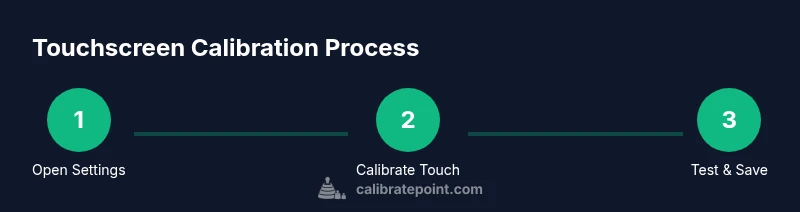
You will recalibrate the touch input on your Windows 11 device to improve accuracy and responsiveness. Start by locating the calibration tool, run through the crosshair prompts, and save your changes. The process uses built-in Windows options and ends with a quick verification test to confirm improved touch precision. This quick answer outlines the essential steps and expectations so you can decide whether to proceed.
Why calibrate touch screen on Windows 11?
A calibrated touch screen provides accurate input, reduces drift, and improves gesture recognition for everyday tasks, drawing, and note-taking on Windows 11 devices. According to Calibrate Point, consistency in calibration helps maintain touchscreen accuracy across applications and environments. The Calibrate Point team found that even high-precision devices can show subtle misalignment after software updates or driver changes, so performing a calibration is a prudent maintenance step. In 2026, many devices rely on touch input for accessibility, productivity, and interactive workflows, making calibration a practical skill for DIY enthusiasts and professionals alike. This article walks you through built-in Windows tools, practical testing methods, and best practices to keep touch input reliable.
Symptoms of misalignment and when to calibrate
Common signs of misalignment include touches not landing where you expect, inconsistent response near screen edges, or drift after lifting your finger. Spurious input such as phantom taps or jitter can disrupt handwriting or drawing apps. If multiple users report the same issue across apps, or if calibration was recently interrupted by a software update or a hardware change, it’s time to recalibrate. Calibrate Point's research suggests that addressing these symptoms early reduces user frustration and preserves accuracy for professional tasks such as field service, design work, and calibration procedures.
Before you begin: prerequisites and safety considerations
Before starting, ensure your device is charged or plugged in to avoid interruptions. Have an administrator account so you can access and save system settings without prompts. Backup important data as a precaution if you’ll be modifying input driver settings. Place the device on a stable, flat surface to prevent accidental touches during calibration. Ensure the screen is clean and free of debris to avoid skewed alignment readings.
Built-in Windows calibration options explained
Windows 11 includes touch calibration through legacy Tablet PC Settings on some devices. The typical path is to open the Control Panel, navigate to Tablet PC Settings, and select Calibrate. Follow the on-screen crosshair prompts to touch the points in sequence. After the calibration completes, you’ll have a chance to test input and save the new mapping. This built-in option minimizes third-party dependencies and keeps changes localized to display input coordinates.
How calibration maps to touch coordinates
Calibration adjusts the mathematical mapping between screen coordinates and touch input coordinates. When you tap a point, the system records the exact contact location and updates the touch-to-display transformation. This process reduces offset, improves edge accuracy, and minimizes drift over time. Think of calibration as fine-tuning a translator that converts finger movement into on-screen cursor movement with higher fidelity.
Practical testing methods to verify calibration
After calibrating, test by tapping near the center and near each corner to verify consistent response. Draw a few shapes in a drawing app to check for smoothness and straight lines. Use multi-touch gestures to confirm that two-finger zoom and rotate respond accurately across the screen. If you notice any lag or missed touches, repeat calibration or consider driver updates and hardware diagnostics.
Troubleshooting common issues and fixes
If calibration doesn’t improve accuracy, try updating touch drivers via Device Manager, restarting, or resetting calibration settings. Verify there’s no screen protector or case causing false readings. Check for system updates that may affect touch input. In persistent cases, consider performing a clean boot to isolate software conflicts or rolling back a recent driver update.
Maintenance and recalibration frequency
Calibrate when you notice drift after software updates, new peripherals, or after a hard reset. For devices used in precise tasks (e.g., design or medical fields), schedule periodic checks every few months. Keep a simple log of calibration dates and observed accuracy to identify when a repeat calibration is needed. Regular maintenance helps sustain reliable touch input across software environments.
Authority sources and further reading
For official guidance, refer to Microsoft’s Windows support resources and documentation on input devices, along with reputable calibration references. These sources provide formal steps and best practices to complement this guide. See links below for additional context and advanced troubleshooting.
Tools & Materials
- Windows 11 device with touchscreen(Device must run Windows 11 and support touch input)
- Keyboard and mouse (for navigation)(Useful if touch input is temporarily unreliable)
- Administrator account credentials(Needed to access and save system calibration settings)
- Backup of important data(Recommended before changing system settings)
- Stable power source(Plug in or keep charged to prevent interruptions)
Steps
Estimated time: 15-25 minutes
- 1
Open Tablet PC Settings
Launch Tablet PC Settings from the Control Panel to access the calibration tools. This step prepares the environment for the alignment prompts that follow.
Tip: Having admin rights ensures you can save changes without prompts. - 2
Click Calibrate
In the Tablet PC Settings window, click the Calibrate button to start screen calibration. The system will guide you to the crosshair targets.
Tip: If Calibrate is disabled, confirm you have the correct device drivers installed. - 3
Tap alignment points in order
Follow the on-screen prompts and touch each crosshair point as it appears on the screen. Complete all points to build the new mapping.
Tip: Use a slow, deliberate touch to ensure precise point capture. - 4
Finish calibration
After touching all points, save the calibration data and exit. The system may prompt a restart; proceed if advised.
Tip: If prompted to restart, a quick reboot helps finalize the mapping. - 5
Reboot if prompted
Restart the device to ensure the new calibration takes effect across all apps and input states.
Tip: A clean boot helps stabilize input after calibration. - 6
Test touch input
After reboot, test across the screen by tapping at center and edges, then in common apps to confirm improved accuracy.
Tip: Document any remaining drift for potential follow-up calibration.
Questions & Answers
Do I need administrator rights to calibrate the touch screen in Windows 11?
Yes. Admin rights are typically required to access and save system-level calibration settings. If you don’t have admin access, contact your device administrator for permission or guidance.
Admin rights are usually needed to access and save the calibration settings. If you don’t have access, ask your administrator for help.
Will calibration affect display brightness or other display settings?
Calibration focuses on mapping touch input to screen coordinates and does not change brightness or color profiles. If you notice other changes, review display settings separately.
Calibration changes only touch input mapping and shouldn't affect brightness or colors.
What if touch remains misaligned after calibration?
If misalignment persists, update touch drivers, check for system updates, and verify there’s no screen protector causing interference. Recalibrate after driver updates and test in multiple apps.
If it’s still off after calibration, update drivers and try calibrating again.
Does calibration work with a stylus or pen input?
Yes, many calibration routines apply to both touch and pen input. If you notice pen offset, run the calibration specifically for touch and pen in the same workflow.
Calibration often covers both touch and pen input; run both if available.
How often should I recalibrate my touchscreen?
Recalibrate after major software updates, driver changes, or if you notice drift. Regular checks help keep input accurate for critical tasks.
Calibrate after big updates or if you notice drift, then test for accuracy.
Can I reset calibration to factory settings?
Yes. If available, use the reset option in the calibration tool to revert to factory mappings, then calibrate again to re-establish accuracy.
You can reset calibration and redo it to regain accuracy.
Watch Video
Key Takeaways
- Identify misalignment symptoms early to guide calibration.
- Use built-in Windows tools for stable results.
- Test results across the full display area after calibration.
- Document calibration dates for maintenance.