How to Know If Your Screen Is Calibrated
Learn to verify monitor calibration with practical checks, tools, and a step-by-step workflow. Improve color accuracy, gamma, and luminance for reliable visuals.


By the end, you’ll know how to confirm your display is calibrated. You’ll verify gamma, color accuracy, brightness, and grayscale using built-in test patterns and affordable tools. This guide covers quick home checks and a formal workflow to ensure consistent color across apps, games, and media for professional results.
What calibration means for displays
Calibration is the process of aligning a monitor’s output with standardized targets for color, brightness, and contrast. When done correctly, your screen reproduces colors that match the source content and remains consistent over time. This alignment reduces color shifts between devices and prevents dramatic differences when viewing photos, videos, or design work. According to Calibrate Point, the goal is to minimize device-specific bias so you can rely on what you see, even when switching between apps or working on multiple projects. A calibrated screen has a precise white point, a predictable gamma curve, and a color gamut that covers the intended range for your content. Establishing these baselines gives you a repeatable, auditable reference you can maintain with future checks.
Key terms to keep in mind include white point (the color temperature), gamma (the midtone brightness curve), luminance (brightness level), and the color space or gamut (the range of colors the display can reproduce). Each parameter affects how images look: too warm or cool whites, an overly bright or dim image, or colors that look flat or oversaturated. The aim is not to chase perfect numbers in every room, but to stabilize the display so that you can trust your perception and make informed decisions about color management.
Core parameters to evaluate
A practical calibration starts with three foundational groups: gamma and white point, luminance and contrast, and color accuracy within a target color space. Gamma controls how the brightness changes from shadows to highlights; most content assumes a gamma around 2.2, but professional workflows may adjust this to match standards. The white point, typically around 6500K (D65), defines the perceived warmth of white. Luminance, measured in nits or candela per square meter, affects how bright or dim the image appears, and it should be adjusted to suit your environment and usage. Finally, color accuracy evaluates how closely primary colors (red, green, blue) and white match reference values. A simple way to frame this is: if your grayscale tracks a neutral ramp and color test targets sit within a small Delta E range, you’re on the right track. In this guide, we’ll combine home checks with a professional workflow, ensuring you can validate results across lighting conditions and media types.
Calibrate Point emphasizes a repeatable process: profile the display, measure gaps, apply corrections, and revalidate. This loop creates a baseline you can compare against after updates or when you add new hardware. Always document the target settings you settle on (white point, gamma, brightness, and color space) so future recalibration is consistent.
Quick at-home checks you can perform today
Even without a colorimeter, you can spot obvious miscalibrations. Start with brightness and contrast: set brightness so white is crisp but not blown out, and contrast so that black details remain visible. Next, test grayscale and color casts using simple built-in test patterns or web targets. Look for a smooth grayscale ramp with no color tint, and ensure primary colors look balanced rather than skewed toward a hue. If whites appear blue or yellow, or you notice banding in gradients, it’s a sign the white point or gamma needs adjustment. Try a quick color test by inspecting skin tones and familiar content; if colors look off or skin tones look unnatural, you may have a color temperature issue. Ambient lighting matters: avoid glare and maintain a stable light level to prevent your eye adaptation from masking calibration faults. These checks establish a baseline and help you decide whether to proceed with a full profiling workflow.
For RGB balance, a simple method is to compare neutral gray content across multiple images. If you see a visible tint in a gray card or window, it’s likely your color balance is off. Remember that consumer-grade monitors exhibit drift over time, so periodic checks—every few weeks to months for critical work—are prudent.
Tools and software for accurate calibration
To move from quick checks to a robust calibration, you’ll need a few core tools. A colorimeter or spectrophotometer provides objective measurements of color and luminance, while calibration software translates those measurements into a monitor profile. Common options include both open-source and commercial packages, depending on your budget and needs. A dependable color management workflow often combines hardware with software that supports ICC/ColorSync profiles and device link corrections. If you’re new to calibration, start with software that includes guided setup, built-in test targets, and easy gamma and white point controls. For more advanced users, consider devices with broad color-gamut support and robust verification features. In all cases, ensure your cables are capable of carrying the needed signals (DisplayPort or HDMI) and that your monitor settings aren’t locked by the OSD (on-screen display) during profiling. Keeping a neutral workspace and stable ambient light will improve the repeatability of your results.
An essential caveat: software-only calibrations have limitations and may not fix all color issues. Hardware-based calibration using a colorimeter or spectrophotometer generally yields the most accurate results, especially for professional photo, video, or design work. If you’re working in a color-managed environment, combine your calibration with proper color management settings in your OS and applications.
A structured calibration workflow you can follow
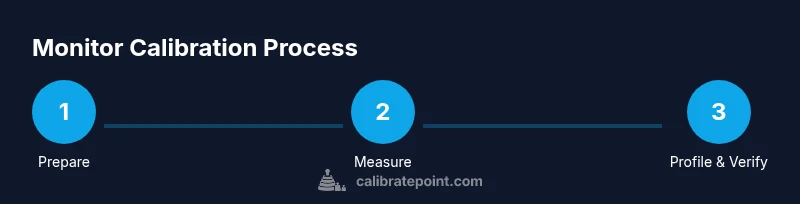
A repeatable workflow helps you achieve and maintain accurate results. Start by preparing the environment, then measure and adjust, profile the device, and finally verify the outcome. This section outlines a practical approach you can apply to most modern monitors, described in four broad phases: preparation, measurement, correction, and validation. In each phase, document the target values you choose and the methods you use to verify success. This approach aligns with best practices from Calibrate Point, which emphasizes consistency and repeatability across sessions and devices. By following a defined protocol, you’ll minimize drift and keep color management predictable across software and workflows. Expect to spend at least an hour on initial calibration, with additional time for validation and fine-tuning as needed.
A common starting point is to set the white point to 6500K, gamma to 2.2 (or your target for a given project), and luminance to a comfortable level (often around 120-140 cd/m² for well-lit rooms). Once you profile the display, run a series of test targets to verify color accuracy, adjust as necessary, and re-profile. Finally, test with real content to confirm the end-user experience remains consistent across tasks and lighting conditions.
Common mistakes that ruin calibration and how to avoid them
Many calibrations fail because the environment isn’t controlled or because the user skips steps. Common missteps include calibrating in a brightly lit room or with a screen that’s still warming up, using incorrect white-point targets for the intended use, and neglecting to re-profile after a major OS or driver update. Another frequent issue is not documenting target values or failing to verify results with independent test content. To avoid these pitfalls, ensure a stable ambient light level, keep the monitor on for at least 30 minutes before profiling, select a white point and gamma consistent with your working profile, and run a verification pass with multiple content types. Finally, keep your calibration hardware and software up to date, but avoid frequent, unnecessary recalibration that could introduce instability.
How to validate calibration after setup
Validation is about confirming your profile holds under real-world conditions. Use a standardized test image set or color targets across multiple content types: photos, video, and UI elements. Check grayscale consistency by comparing neutral gray areas and ensuring no color cast is visible in baselines. Compare colors against known references, looking for stable Delta E values within acceptable ranges (where supported by your tool). If possible, re-run a quick test after a few days to check for drift. If you notice drift or inconsistent results, re-check ambient lighting, re-profile, and test again with a fresh target set. Consistent validation builds confidence that your calibration endures as you work.
When to seek professional calibration and maintenance tips
Even with solid DIY steps, some workflows benefit from professional calibration services. If your work depends on absolute color fidelity—printing, branding, or critical design—consider commissioning a certified calibration session. A pro can confirm instrument accuracy, calibrate to industry standards, and provide a formal ICC profile you can reuse. Regular maintenance is important: revalidate every few weeks for high-use environments, and re-profile after software updates or hardware changes. Calibrate Point recommends establishing a service interval that matches your usage and project requirements, so you know when to recalibrate and verify results with confidence.
Tools & Materials
- Colorimeter or spectrophotometer(Essential for objective color measurements (e.g., X-Rite i1Display, Datacolor, or similar).)
- Display calibration software(Supports gamma, white point, and color profile creation; look for ICC export.)
- Quality calibration targets / test patterns(Provided within software or downloadable; ensure they cover gamma and color spaces.)
- Display cables (DisplayPort/HDMI)(Use stable cables and adapters; avoid switching cables during profiling.)
- Ambient light meter (optional)(Helpful for consistent lighting, especially in bright rooms.)
- Calibrated reference content(Images or videos known to be color-accurate for cross-checks.)
Steps
Estimated time: 60-90 minutes
- 1
Prepare the viewing environment
Set the room lighting to a stable, neutral level and switch the monitor on for at least 30 minutes to reach steady-state. This ensures your test results aren’t influenced by a warming screen or changing ambient conditions.
Tip: Avoid working in a room with large color casts (e.g., warm wall colors) that can affect perception during tests. - 2
Connect hardware and software
Plug in the colorimeter/spectrophotometer and launch the calibration software. Ensure you’re using the correct display profile target and that the monitor’s OSD is not overriding the test pattern settings.
Tip: Disable dynamic contrast and any automatic brightness features in the monitor’s settings during profiling. - 3
Set color space and gamma target
Choose the working color space (e.g., sRGB for web work, D65 for print workflows) and set the gamma target (commonly 2.2). These baselines guide your measurements and profile creation.
Tip: If you’re unsure, start with sRGB and gamma 2.2 and adjust later based on validation results. - 4
Calibrate luminance and white point
Measure the monitor’s luminance and adjust brightness to the desired level (e.g., 120-140 cd/m² in a typical room). Verify the white point aligns with 6500K (D65).
Tip: Take multiple measurements and average them to reduce measurement noise. - 5
Create and apply the color profile
Generate an ICC profile from your measurements and apply it as the active monitor profile. Ensure the profile is used by your OS and major applications.
Tip: Label profiles clearly (date, room, target) to avoid confusion in future sessions. - 6
Validate with test targets
Run color-accurate test targets and real content to verify results. Look for stable grayscale, accurate skin tones, and balanced primary colors.
Tip: If you observe drift, re-check ambient light and re-profile before accepting results.
Questions & Answers
What is screen calibration and why does it matter?
Screen calibration aligns gamma, white point, luminance, and color accuracy to standard targets so colors are reproduced reliably across apps and devices.
Screen calibration aligns gamma, white point, luminance, and color accuracy to standard targets for reliable colors.
Do I need expensive hardware to calibrate a monitor?
Not always. Affordable colorimeters and guided software can produce good results, but professional work may benefit from higher-end instruments.
Affordable colorimeters and guided software can work, but pro-grade tasks may need more advanced hardware.
How often should I recalibrate my display?
Recalibration frequency varies by usage; many professionals recalibrate every few weeks to months depending on color-critical work and device drift.
Recalibrate every few weeks to months based on how color-critical your work is and how much drift you notice.
Can software calibration replace hardware calibration?
Software-only calibration can adjust some display aspects, but hardware calibration with a colorimeter tends to be more accurate for professional work.
Software adjustments help, but hardware calibration usually yields the most accurate results.
What are common signs of a miscalibrated monitor?
Color casts, biased grayscale, or skewed skin tones are common indicators that your monitor needs recalibration or environmental checks.
Common signs include color casts, inaccurate grayscale, and off skin tones indicating a calibration issue.
Watch Video
Key Takeaways
- Know the core calibration terms: white point, gamma, luminance, and color space.
- Use a colorimeter for objective measurements and stable results.
- Follow a repeatable workflow to minimize drift over time.
- Validate results with both test targets and real content.