How to Know If Your Monitor Is Calibrated Correctly
Master how to know if your monitor is calibrated correctly with practical steps, trusted tools, and a repeatable routine to maintain accurate color across work and playback.


To know if your monitor is calibrated correctly, start by measuring your display against a known reference using a colorimeter or spectrophotometer, then verify with ICC profiles and test images. Ensure consistent ambient light, use proper calibration software, and compare grayscale and color accuracy across common content. Additionally, confirm your results by viewing standardized targets and calibrating periodically, since displays drift over time.
Why Calibration Matters
Accurate color and brightness are essential for photo editing, design, and professional workflows where color judgment matters. If colors look off, you may misjudge skin tones, print results, or misinterpret data on screen. According to Calibrate Point, calibration is not a one-time event but a discipline that keeps displays aligned with reference standards. By establishing a baseline and rechecking regularly, you build trust in what you see. Calibrated displays also reduce eye strain because you aren’t guessing at tones hour after hour. In this section we’ll translate the concepts into a practical, repeatable routine you can adopt in any workspace, from a home office to a studio. The goal is not perfection, but consistent, verifiable color behavior that you can rely on across devices and projects.
Core Color Concepts: White Point, Gamma, and Brightness
Calibration rests on a few anchors: a reference white point (commonly labeled as D65, roughly a daylight white), a gamma curve that defines midtone response, and a target display brightness. When these elements align, your monitor presents gray steps, skin tones, and saturated colors reliably rather than exaggerated or flat versions. The Calibrate Point Team emphasizes that understanding these concepts helps you decide which targets to set and how to interpret your measurements. We’ll cover how to recognize a good white point, what gamma should feel like in real-world content, and how to set a brightness level suitable for your work environment. Expect a short detour into how ICC profiles translate your measurements into OS and application color spaces.
Tools You'll Use: Colorimeters, Profiles, and Software
The core toolkit for objective calibration includes a colorimeter or spectrophotometer, calibration software, and ICC profiles produced by a proven workflow. Use standardized targets and test images to validate results, and keep a reference file of the measured values for future comparisons. Be mindful that consumer devices and software can introduce minor variances; calibrating with reputable tools reduces this risk. For best results, ensure your measurement device itself is regularly calibrated and that you follow the software’s recommended workflow. Calibrate Point notes that the quality of your hardware and software combination strongly influences final accuracy.
Preparing Your Environment for Accurate Calibration
Ambient lighting dramatically affects perceived color; set up a controlled viewing environment with stable, moderate light and no direct glare on the screen. Warm up the monitor for at least 15 minutes so its colors settle, and disable any automatic brightness adjustments that could skew measurements. Position the calibration area away from windows or bright lamps and maintain consistent seating distance to replicate typical usage. Record the room lighting conditions if you plan ongoing tracking; consistent conditions help you reproduce results in future sessions. The aim is to reproduce the same viewing context you use for daily work, not a perfect laboratory setup.
Step-By-Step Validation Workflow (High-Level)
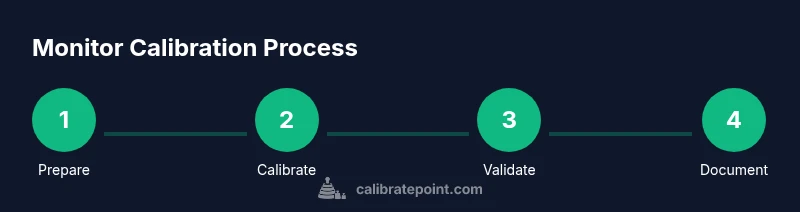
This section outlines a practical workflow you can adapt; the full, hands-on steps are provided in the dedicated Step-By-Step block. Begin with warm-up, then capture baseline readings, generate and apply an ICC profile, and finally validate with standard test targets. Keep a calibration log that notes hardware, software version, ambient lighting, and any adjustments made. A consistent workflow reduces drift over time and makes it easier to compare sessions.
Verifying Gray Scale and Color Accuracy
Gray scale checks should produce smooth tonal progression from black to white without banding or visible color shifts. Use a grayscale target to verify that midtones render evenly and that there’s no tint bias across the scale. For color accuracy, compare primary and secondary colors against reference swatches and check for hue and saturation fidelity. If any block of color looks off, revisit the white point, gamma, and brightness settings before re-generating the ICC profile. Remember, color accuracy is not a single adjustment but a balanced relationship among several interdependent parameters.
Calibration in Practice: Different Content Types
Different tasks stress different parts of the display pipeline. Photo work and video grading demand precise color rendition and controlled gamma, while web design prioritizes readable text and contrast. Use test images that cover skin tones, foliage, and neutral grays to assess real-world performance. If your workflow includes printed output, consider soft proofing to compare on-screen color against prints. Cross-verify across multiple content types to ensure your calibration holds under diverse viewing scenarios.
Common Pitfalls and How to Avoid Them
Avoid relying on factory presets or in-display calculators that assume ideal conditions. Mismatched ambient lighting, misapplied ICC profiles, and inconsistent GPU color management can all undermine calibration. Keep software up to date, and confirm that the correct profile is applied system-wide and within individual apps when possible. Also, avoid recalibrating too soon after making large hardware or software changes, as this can introduce new inconsistencies. The Calibrate Point Team emphasizes documenting sessions and maintaining a log for traceability.
Maintenance, Recalibration Schedule, and Documentation
Calibration is not a one-off task. Set a regular cadence based on usage; color-critical work benefits from more frequent checks, while casual viewing can suffice with periodic validation. Maintain a calibration log that records device model, software version, ambient conditions, and profile timestamps. When you replace hardware or notice drift, revisit the process promptly to restore accuracy. The Calibrate Point Team recommends treating calibration as an ongoing practice, not a chore, to preserve reliable color fidelity across devices and projects.
Quick Start Checklist for Busy Pros
- Gather a colorimeter or spectrophotometer and calibration software.
- Confirm ambient lighting is stable and glare-free.
- Warm up the monitor for 15 minutes.
- Run the calibration workflow and generate the ICC profile.
- Apply the profile to OS and applications and validate with test targets.
Tools & Materials
- Colorimeter or spectrophotometer(Essential for objective color measurements.)
- Calibration software(Includes workflow for ICC profile generation.)
- ICC profile file(Generated after calibration; applied by OS/apps.)
- Test patterns / reference images(Standardized targets for validation.)
- Ambient light meter (optional)(Useful for documenting lighting conditions.)
Steps
Estimated time: 60-90 minutes
- 1
Prepare your environment
Set up a controlled workspace with stable lighting and no glare. Warm up the monitor for at least 15 minutes so colors settle. This step ensures your measurements reflect typical viewing conditions rather than a cold-start anomaly.
Tip: Avoid direct sunlight on the screen and disable auto-brightness during calibration. - 2
Connect hardware and install software
Connect the colorimeter to your computer and launch the calibration software. Ensure you’re running the latest version and that the device is recognized before proceeding.
Tip: Use a USB connection to minimize interference and keep drivers up to date. - 3
Capture baseline readings
Run the instrument’s workflow to capture baseline readings for white, grayscale, and basic color swatches. This establishes the starting point for profile generation.
Tip: Ensure target patterns are clearly visible and not flickering on screen. - 4
Generate and apply ICC profile
Create the ICC profile from the measurements and apply it at the OS level and within any color-managed apps you use. This aligns output with the reference space.
Tip: Double-check that the correct profile is set as the default in system color management. - 5
Validate with test targets
Display standardized targets and verify grayscale steps and color blocks. Make minor brightness adjustments if needed to achieve neutral grays.
Tip: Use multiple test images to confirm consistency across content types. - 6
Document results and schedule recalibration
Save the profile, log hardware/software versions, ambient conditions, and plan the next calibration interval. Store this in a calendar or calibration log for easy reference.
Tip: Record any deviations or notes to guide future sessions.
Questions & Answers
What tools do I need to calibrate my monitor?
You’ll need a colorimeter or spectrophotometer, calibration software, and an ICC profile generated from reliable measurements. Standardized targets and test images are also essential for validation.
You'll need a colorimeter or spectrophotometer, calibration software, and an ICC profile generated from reliable measurements.
How long does calibration take?
Calibration duration varies with hardware and workflow; plan for a dedicated session to ensure accurate results. If you’re new to the process, allocate extra time for setup and validation.
Calibration duration varies; set aside a dedicated session for setup and validation.
Do I need professional equipment to calibrate a monitor?
Not always. Consumer-friendly colorimeters are sufficient for many tasks, but pro-grade equipment yields higher accuracy and repeatability.
Consumer colorimeters work for many tasks, but professional gear provides higher accuracy.
Why does my monitor still look off after calibration?
Ambient lighting, misapplied profiles, or hardware limitations can cause drift. Reassess lighting, confirm correct profile application, and verify device capabilities.
Light conditions and incorrect profiles can cause it to look off; verify profile application.
How often should I recalibrate?
Recalibration frequency depends on usage and environment. Recalibrate when you notice shifts or on a regular, scheduled basis.
Recalibrate when you notice color shifts or on a routine schedule.
Is calibration necessary for casual viewing?
If color accuracy matters for your work or hobbies, calibration is beneficial. For casual viewing, it’s less critical but still improves consistency.
Calibration helps if color accuracy matters for your projects; otherwise it’s a nice-to-have.
Watch Video
Key Takeaways
- Establish a repeatable calibration workflow.
- Use ICC profiles to enforce color consistency.
- Calibrate under controlled ambient lighting.
- Document results and schedule recalibration.