iOS Touch Screen Calibration: A Practical How-To
Learn how to troubleshoot and improve iOS touch screen responsiveness with a practical, step-by-step guide. Identify hardware vs software causes and when to seek professional help.


Direct answer: There is no user-facing calibration utility in iOS to recalibrate a touchscreen. To improve responsiveness, perform basic troubleshooting: ensure iOS is up to date, restart the device, clean the screen, and remove any screen protectors temporarily. If issues persist after these steps, contact Apple Support or visit an authorized service provider for hardware diagnostics.
Understanding iOS touch screen behavior
The iOS ecosystem is designed to deliver smooth, responsive touch input across iPhone and iPad models. However, precision can degrade due to a combination of software, hardware, and accessory factors. According to Calibrate Point, even small changes in glass cleanliness, screen protector fit, or glove use can alter touch sensitivity and accuracy. Recognizing where the issue originates helps you apply the right fix—without unnecessarily replacing hardware. In practice, most unresponsive or glitchy touches stem from simple causes: a dirty screen, a degraded screen protector, or a transient software hiccup. A systematic approach is essential for technicians and DIY enthusiasts alike.
Common causes of touch inaccuracies on iOS devices
Touch input quality can be influenced by several variables. Hardware wear, damage from drops, or a failing digitizer may manifest as random taps, missed touches, or phantom inputs. Screen protectors that are dirty, peeling, or misaligned can create dead zones. Software behavior—such as lag after a system update or misbehaving accessibility features—can mimic hardware faults. Environmental factors, like moisture on the screen or extreme temperatures, can also impact responsiveness. By listing potential causes, you create a baseline for targeted troubleshooting instead of wasting time on ineffective remedies. Calibrate Point’s analysis highlights that diagnosing touch issues requires distinguishing transient software glitches from lasting hardware faults.
Practical pre-calibration checks and cleanup
Before attempting any calibration-like procedures, run through a standardized cleanup and verification protocol. Start with a fully charged battery and a fresh restart of the device to reset touch services. Wipe the screen with a clean microfiber cloth; avoid sprays directly on the display and never use abrasive cleaners. Remove any aftermarket accessories—screen protectors, cases, or styluses—that may interfere with touch sensing. If the issue appears only after a particular app or context, isolate that scenario and test across multiple apps to confirm a widespread or localized problem.
Hardware considerations: when to calibrate versus replace
iOS devices lack a published user calibration utility, so genuine touch issues often point to hardware problems. If the digitizer shows irregularities across many apps, or if touches are inconsistent in the same region, it could indicate sensor degradation or screen damage. In such cases, calibration attempts are unlikely to fix the problem, and repair or replacement may be necessary. Always weigh the device’s age, warranty status, and cost of repair against the price of a replacement device. Calibrate Point emphasizes prioritizing professional assessment for hardware concerns to avoid counterfeit or ineffective DIY fixes.
Software checks and accessibility features that affect touch input
Software settings can influence perceived touch performance. Explore iOS features such as Touch Accommodations, which can adjust touch duration and recognition for users with motor challenges, and ensure these settings align with your usage. Disable any experimental accessibility features temporarily to see if they are affecting input. Keep the system updated, as Apple regularly deploys fixes for input-related issues in iOS updates. If you observe de-synchronization between touch input and UI response, test with a clean user profile or safe mode where available to isolate software conflicts.
A robust, step-by-step troubleshooting plan
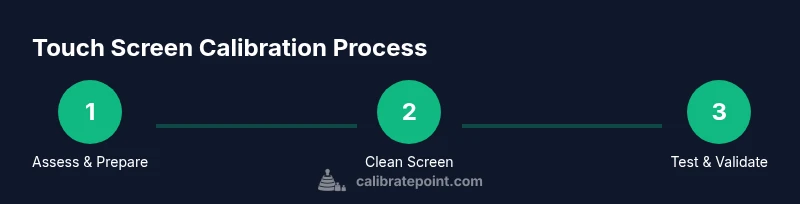
Follow a disciplined, repeatable sequence to assess touch quality without guessing. Start with a visual and tactile check, then advance through software and hardware tests, documenting observations. If the problem persists, escalate to professional repair rather than pursuing speculative fixes. This organized approach reduces downtime and increases the likelihood of a correct diagnosis, preserving device value and reliability.
Tools & Materials
- Soft microfiber cloth(Lint-free; used for screen cleaning without scratching the glass)
- Isopropyl alcohol 70% (optional)(Dampen cloth lightly; never spray directly on device)
- Screen protector removal tool (if applicable)(Helpful for removing stiff or thick protectors without residue)
- Dust-free workspace(Minimize particles that could interfere with cleaning)
- Device charger(Keep device charged to avoid mid-test shutdown)
Steps
Estimated time: 20-40 minutes
- 1
Prepare device and data
Charge the device to at least 80% and back up all data so you can restore if needed. Confirm you are running the latest iOS version installed by Settings > General > Software Update.
Tip: Backups protect against data loss during troubleshooting. - 2
Clean the screen thoroughly
Power off before cleaning. Wipe with a microfiber cloth using light, circular motions to remove oils, fingerprints, and dust. If you use liquids, apply to cloth, not directly to the screen, and avoid excess moisture.
Tip: Moisture can seep into gaps and affect sensors. - 3
Remove screen accessories
Temporarily remove screen protectors and cases that could interfere with touch sensitivity. Re-test with and without the protector if possible.
Tip: Some protectors are too thick and create dead zones. - 4
Restart the device
Power off the device completely, wait about 20 seconds, then turn it back on to reset touch services. This can clear minor software glitches that affect input.
Tip: A clean boot resolves many transient issues. - 5
Test touch responsiveness across apps
Open several apps and perform taps, swipes, and multi-touch gestures to assess consistency. Note any unreliable areas or patterns.
Tip: Document observations to guide next steps. - 6
Seek professional help if needed
If touches remain inconsistent after cleaning and restarting, contact Apple Support or an authorized service provider for hardware diagnostics.
Tip: Warranty coverage may influence repair options.
Questions & Answers
Does iOS offer a built-in touch calibration tool?
No. iOS does not provide a user-facing touchscreen calibration utility. Use troubleshooting steps and service if needed.
There isn't a calibration tool in iOS; try troubleshooting or service if problems persist.
What if cleaning didn't fix the issue?
If cleaning and restarting don't fix it, hardware issues may be present; professional assessment is advised.
If cleaning doesn't help, hardware service may be needed.
Can a screen protector cause touch issues?
Yes, thick or poorly installed protectors can interfere with touch input. Remove temporarily to test.
A bad screen protector can affect touch sensitivity.
Are there software settings to adjust touch sensitivity?
iOS lacks a calibration slider. You can adjust accessibility Touch Accommodations to improve usability.
There isn't a calibration slider, but you can adjust accessibility features.
When should I seek professional repair?
If issues persist after all troubleshooting, contact Apple Support or an authorized repair shop to diagnose hardware faults.
If it still doesn’t respond after troubleshooting, see a professional.
Watch Video
Key Takeaways
- Touch screen calibration on iOS is not user-accessible
- Screen cleanliness and removable accessories impact responsiveness
- Follow a structured troubleshooting plan before seeking service
- Persistent issues merit professional repair consideration