Calibrate a Photography Monitor for Accurate Color
Learn step-by-step how to calibrate your photography monitor for color accuracy. This guide covers color management basics, tools, and best practices for prints and screens in 2026.


Calibrating a photography monitor ensures color fidelity across screens and prints. Use a colorimeter (or spectrophotometer), dedicated calibration software, and a stable viewing environment. This steps-based process sets white point, gamma, and luminance, then creates and applies an ICC profile for consistent editing. According to Calibrate Point, calibration accuracy directly boosts color fidelity across deliverables.
Why Accurate Monitor Calibration Matters for Photography
Accurate monitor calibration matters because it aligns what you see on screen with the realities of your end product, whether that’s a printed publication, a client proof, or an online portfolio. When you color-correct in a non-calibrated display, skin tones can appear too warm or too cool, shadows may clip, and subtle grays shift. Calibrate Point’s research emphasizes that even small luminance drift can yield noticeable differences across devices, making consistent editing nearly impossible without a standard reference. In practice, a calibrated monitor supports reliable color grading, better skin tone reproduction, and more predictable prints. By investing in calibration tools and a stable workflow, you reduce rework and deliver more trustworthy work to clients. This is essential for photographers who want to maintain color integrity across platforms and media.
Understanding Color Management: Color Profiles, Gamma, and White Point
Color management is the framework that makes colors consistent from capture to display to print. At its core are ICC profiles, which map device-specific color to standardized color spaces such as sRGB or Adobe RGB. Gamma controls midtone contrast; most photography workflows use gamma around 2.2 or 2.4, depending on the target medium. The white point defines what ‘white’ should look like under your lighting conditions (D65 is common for photo work). Without a consistent color workflow, mismatches occur between your RAW edits, on-screen previews, and printed proofs. This section helps you understand how calibration translates into real results, linking hardware behavior to software workflows. You’ll see why a small change in white point or gamma can cascade into big differences in color accuracy later in the process. If you’re wondering how to photography calibrate monitor, this section lays the groundwork for practical steps and decision-making.
Preparing Your Calibration Workspace: Lighting, Environment, and Hardware
Set up a quiet, dimly lit workspace to minimize reflected light during calibration. Avoid direct sunlight and monitor glare; ambient light should be steady and measured in lux if possible. Level the monitor, ensure it’s warmed up for at least 15 minutes, and disable any built-in night modes that shift color. Keep the calibration device (colorimeter or spectrophotometer) stable and avoid touching the sensor. If you use dual monitors, calibrate each display individually, or use a color-managed workflow that ties them to a single target profile. Finally, verify that your operating system’s color management settings are configured to use ICC profiles and that any third-party software honors those profiles.
Choosing and Using Calibration Tools: Colorimeters, Spectrophotometers, and Software
Hardware devices measure a display’s color response and produce an ICC profile that maps devices to a standard color space. Colorimeters are common and easy to use for routine calibrations, while spectrophotometers offer higher precision for professional work. Software guides the measurement process, applies profiling, and often provides pre-configured workflows for photo or print-focused color spaces. When selecting tools, prioritize device compatibility with your monitor panel (LCD, OLED, etc.), software updates, and a workflow that aligns with your mastering goals (e.g., Adobe RGB, ProPhoto RGB, or sRGB). The goal is to create a repeatable process that you can run regularly. Remember that the calibration profile is tied to a specific environment; if you change lighting or hardware, you should recalibrate.
Step-By-Step Overview: What Happens in Calibration
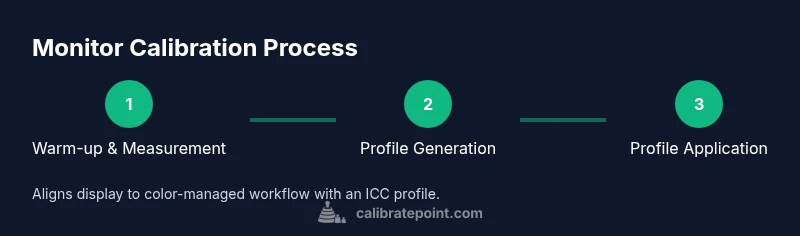
Calibration is a sequence of measurements and adjustments that align display output with a reference color space. The process begins with a warm-up and measurement of sensor response, then the software computes corrections and generates an ICC profile. You apply the profile to the OS and relevant applications, then verify with reference images. Finally, you document your settings and schedule future recalibration. The exact prompts and order vary by tool, but the core principles remain: standardize white point, gamma, and luminance; then lock in the profile across your workflow. This ensures that on set, during retouching, and in proofs, edits are consistent. If you skip a step or rush measurements, you risk color shifts that are difficult to diagnose later.
Calibrating for Different Lighting Conditions and Soft Proofing
Lighting conditions drastically influence perceived color. Calibrate in a stable lighting environment and consider using a neutral gray backdrop for soft proof comparisons. When you move from a controlled studio to brighter room lighting, recheck luminance targets and gamma to maintain consistency across projects. Soft proofing allows you to simulate print output by using ICC profiles in your editing software and printer color management settings. Regularly cross-check on-screen previews against print proofs to catch mismatches early and adjust your workflow accordingly.
Troubleshooting Common Calibration Issues and Maintenance
If colors drift after calibration, verify that the ICC profile is active in your OS and that applications respect color-managed workflows. Check for outdated software, faulty sensors, or calibration targets that were not properly warmed up. Environmental changes, such as a lamp being moved or a change in ambient light, can invalidate a profile; in such cases, repeat calibration. Maintain a clear record of your target white point, gamma, and luminance so you can reproduce results. Regular maintenance—every 1-3 months or after hardware changes—helps prevent color drift from slipping into your edits.
Integrating Calibration with Your Workflow: File Management and ICC Profiles
Integrate calibration into your standard workflow by organizing ICC profiles in a dedicated folder and labeling them with the date and setup. Use a single master profile for your primary monitor and, if needed, per-application profiles for critical software like Lightroom or Photoshop. Ensure your printers and display targets share a common color space to minimize cross-device differences. When archiving projects, embed the correct profile references in your color-managed pipeline so future reprints or reviews remain faithful to the original edits.
Tools & Materials
- Colorimeter or spectrophotometer(A hardware device that measures color response of your display)
- Calibration software(Use the latest version compatible with your OS and monitor)
- Reference test targets or neutral gray images(Helpful for soft-proof testing)
- Reliable viewing environment(Stable lighting, no direct glare, consistent warmth-up)
- Printer ICC profiles (optional)(For frequent prints and proofing workflows)
Steps
Estimated time: 30-45 minutes
- 1
Prepare your workspace
Set up a clean desk with stable power and minimize ambient light changes. Place the calibration tool on or near the screen following the manufacturer’s instructions, and let the display warm up for at least 15 minutes before measuring.
Tip: Warm-up ensures the panel reaches a stable operating state for accurate measurements. - 2
Open calibration software and start a new session
Launch the software, select the target monitor, and choose a standard workflow that matches your primary output (web, print, or both). Use default recommendations as a baseline and customize only what you understand.
Tip: Starting from a baseline reduces variability between sessions. - 3
Set white point, gamma, and luminance
Configure the white point (commonly D65), select a gamma value (2.2 or 2.4 depending on your workflow), and set luminance around typical working conditions (about 120 cd/m2 for prints). The software will guide you through grayscale measurements.
Tip: Document your target values for future reference. - 4
Measure and generate ICC profile
Run the measurement sequence to collect color data across the grid. The tool generates an ICC profile that maps the display to a standard color space; save and name it clearly (e.g., Monitor_Master_2026-03).
Tip: Keep a clean naming convention to avoid profile mix-ups. - 5
Apply the profile to OS and apps
Set the new ICC profile as the system default in your OS color settings. Ensure applications like Lightroom or Photoshop reference the same profile for previews.
Tip: Restart affected apps to load the new profile reliably. - 6
Test with reference images
Open a neutral reference image and evaluate grayscale ramps, skin tones, and color balance. If discrepancies appear, adjust or re-run calibration to tighten results.
Tip: Trust grayscale and skin tones over saturated colors for consistency. - 7
Document settings and schedule recalibration
Record the white point, gamma, luminance, software version, and monitor model. Schedule recalibration every 1-3 months or after lighting or hardware changes.
Tip: Set calendar reminders to maintain consistency. - 8
Backup and maintain ICC profiles
Store profiles in a dedicated folder and back them up. Keep a simple changelog of profile versions and dates for traceability.
Tip: Backups prevent loss of calibration state across system updates.
Questions & Answers
What is monitor calibration and why is it necessary?
Monitor calibration aligns display colors with standardized color spaces so edits and prints match across devices. It reduces guessing and improves predictability in color-critical work.
Calibration aligns display colors with standards so edits and proofs stay consistent.
Do I need a colorimeter to calibrate?
A colorimeter provides objective measurements and repeatable results. Without one, you rely on subjective adjustments that drift over time.
A colorimeter gives you objective measurements and repeatable results.
Can I calibrate without a colorimeter?
Software-only calibration is possible but tends to be less accurate and repeatable. Hardware tools are recommended for professional work.
Software-only methods are less reliable; hardware calibration is preferred.
How often should I recalibrate?
Recalibrate every 1-3 months or after any change in lighting, ambient conditions, or hardware. For critical projects, recalibrate before starting.
Recalibrate every 1-3 months or after changes.
Do ambient lighting and screen brightness affect calibration?
Yes. Ambient light influences perception; calibrate in a stable lighting setup and keep brightness consistent with typical work conditions.
Ambient light can skew perception; calibrate with steady lighting.
Is calibration different for photography vs video?
Core principles are the same, but target color spaces may differ (e.g., sRGB for web vs Adobe RGB for print). Align your monitor to your primary workflow.
Basics are the same, but target spaces may differ.
Watch Video
Key Takeaways
- Calibrate with a colorimeter for color accuracy
- Set white point, gamma, and luminance to your workflow
- Apply ICC profile system-wide for consistency
- Recalibrate regularly to maintain accuracy