Steam Deck Joystick Calibration: A Practical Step-by-Step Guide
Master Steam Deck joystick calibration for driftless input. A guide from Calibrate Point covering deadzones, response curves, and tests for reliable play.


By the end of this guide you will be able to calibrate Steam Deck joysticks for accurate, responsive input. You’ll need a calibrated gamepad profile, a USB cable, and your Steam Deck in desktop mode. Follow the step-by-step procedure to reduce drift, set proper deadzones, and verify results with in-game tests.
Understanding joystick drift and calibration goals
Joystick drift happens when the physical stick does not perfectly map to on-screen input, causing unintentional movement even when the stick is centered. For Steam Deck users this can ruin precision in fast games or shooters. The calibration goal is to align the physical axis with the digital output, set a neutral deadzone that filters tiny jitters, and verify consistent response across the full range of motion. According to Calibrate Point Analysis, 2026, many players notice smoother control after proper calibration, especially in titles with fine aiming. Start with a baseline: observe off-center tendencies, test both sticks, and note any asymmetries. Calibrating both sticks together helps avoid one axis overpowering the other. In the sections that follow, we’ll cover built‑in Steam Input calibration, desktop-mode tools, and practical testing to validate results across games. Expect to revisit these steps after firmware updates or hardware wear.
Preparing your Steam Deck for calibration
Before you begin, power the device and ensure the firmware is up to date. Switch to Desktop Mode to access joystick calibration options, and back up your existing Steam Input profiles in case you need to revert. Create a clean testing space: a stable surface, comfortable seating, and a couple of test scenarios (precise aiming and quick camera panning). If you’re calibrating on battery, connect a USB-C power cable to avoid interruptions. Optional gear like a keyboard or mouse can speed navigation in Desktop Mode but isn’t required. Finally, review Valve’s controller settings documentation; the calibration workflow works with Steam Input so your profiles roam across Steam titles.
How calibration works: deadzones, response curves, and testing
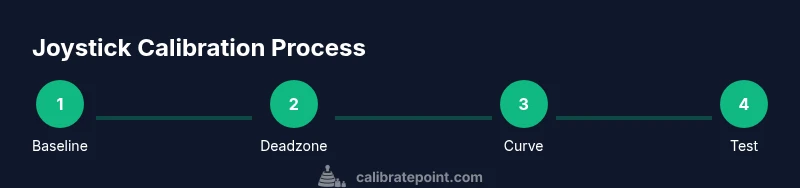
Calibration adjusts two main factors: deadzone and the input response curve. The deadzone is the neutral area where movement is ignored; too small and you’ll see jitter, too large and precision suffers. The response curve defines how stick displacement translates to in-game speed, shaping sensitivity at low, mid, and high ranges. Steam Deck offers live previews so you can iteratively tune values. A practical starting point is a modest deadzone around 5–8% with a near-linear curve for most games. When testing, use a stable crosshair or aim trainer in Desktop Mode to quantify drift in all directions. Validate both sticks: left for movement, right for camera. After adjustments, perform multi-game checks to confirm results translate across genres. Document the finalized values for future firmware updates or profile migrations.
Practical workflow: desktop mode, built-in tools, and cross-game validation
Leverage Steam Deck’s built-in calibration tools under Settings > Controller > Calibrate Joysticks in Desktop Mode. This workflow supports iterative tweaking and quick sanity checks—after each change, test in a familiar game to avoid chasing edge cases. Ensure both sticks return to center consistently when released, and check for drift at extremes. Validate across titles with different control schemes (shooter, platformer, racer) to ensure the calibration holds. If drift reappears after a system update or hardware bump, repeat the calibration using the same baseline values and compare results to your previous baseline. Finally, save and back up your Steam Input profile so you can restore it after updates, and keep a quick reference of the values you settled on.
Common issues and troubleshooting
If drift persists after calibration, start with a thorough cleaning of the analog caps to remove dust and hair that can impede centering. Re-run calibration from the baseline values and re-test across multiple games to confirm consistency. Hardware wear or a faulty capsule can also cause long-term drift; if suspected, contact Valve support or customer service for diagnostics. Some users find firmware changes alter input mapping; in such cases, temporarily rollback or apply a fresh calibration after the update. If you notice game-specific drift, consider creating separate Steam Input profiles per title and test in both Desktop Mode and in-game. Remember, chronic drift may signal a hardware issue that requires professional evaluation.
Tools & Materials
- Steam Deck (Desktop Mode access)(Ensure firmware is up to date before starting calibration.)
- USB-C power cable(Keep the device powered to avoid interruptions during testing.)
- Keyboard and mouse (optional)(Helpful for navigation in Desktop Mode.)
- Steam Input/Controller calibration interface(Use built-in Steam settings or a trusted calibration tool.)
- Test games or aiming trainer (optional)(Helps validate calibration across genres.)
- Microfiber cloth(Clean sticks if needed before testing.)
Steps
Estimated time: 30-45 minutes
- 1
Open calibration tools in Desktop Mode
Power on the Steam Deck and switch to Desktop Mode. Open Steam, navigate to Settings > Controller, and select Calibrate Joysticks. This establishes the workspace and ensures you’re using the official calibration utilities.
Tip: Use a wired connection to avoid input lag during calibration. - 2
Establish a baseline
Leave both sticks centered and gently move them to the edges to observe offset and jitter. Record any persistent drift in each axis to guide initial deadzone settings.
Tip: Take a quick screenshot of the baseline for reference. - 3
Set initial deadzone
Input a starting deadzone around 5–8% for both sticks. Keep changes incremental (1–2% per adjustment) and test after each tweak.
Tip: A symmetrical deadzone helps avoid bias between axes. - 4
Tune the response curve
Choose a near-linear curve for most games and adjust only the endpoints so subtle moves map cleanly to on-screen motion. Test at low, mid, and high speeds to evaluate consistency.
Tip: Make small adjustments and test in multiple scenarios. - 5
Test in-game and iterate
Launch a familiar game and test precise aiming, camera control, and movement. Adjust deadzone and curve as needed to achieve smooth control across tasks.
Tip: Document the changes you make and the observed effects. - 6
Save profile and note changes
Save the final calibration profile in Steam Input. Consider exporting or taking screenshots of the settings for future reference.
Tip: Back up before any firmware or Steam updates. - 7
Cross-title validation
Test across 2–3 different game genres to ensure the calibration holds broadly. If a title behaves oddly, recheck bindings and consider a per-title profile.
Tip: Consistency across games is more valuable than perfection in a single title. - 8
Revisit after updates
Firmware or Steam updates can affect input mapping. Re-run the baseline, then re-tune to restore the intended feel.
Tip: Schedule periodic recalibration after major updates.
Questions & Answers
What causes joystick drift on a Steam Deck?
Drift can result from hardware wear, dust in the analog capsule, or miscalibrated deadzones. Recalibrating realigns the axis with the on-screen output and often fixes the issue.
Drift happens when the stick is offset; recalibrating usually fixes it.
Should I calibrate both sticks at the same time?
Yes. Calibrating both sticks together ensures balanced input and avoids one axis overpowering the other. If only one stick is off, still calibrate both to maintain symmetry.
Yes—calibrate both sticks to keep input balanced.
Can calibration be done in SteamOS, or only Desktop Mode?
You can calibrate in SteamOS via Settings > Controller > Calibrate Joysticks, but Desktop Mode often provides more granular control and testing options.
You can do it in SteamOS, but Desktop Mode offers more options.
What if calibration doesn’t fix drift?
First clean the sticks to remove debris, then re-run calibration. If drift persists, test other games, check for firmware issues, and consider hardware diagnostics or support.
If drift remains, try cleaning and recalibrating, then seek support if needed.
How long does calibration take?
Time varies by depth of testing. Plan roughly 20–60 minutes to baseline, adjust, and validate across several games.
Typically 20 to 60 minutes depending on testing depth.
Watch Video
Key Takeaways
- Calibrate Steam Deck joysticks to reduce drift and improve precision.
- Use built-in Desktop Mode tools for reliable results across games.
- Test across multiple titles and keep calibration notes for future updates.
- Document and back up your settings before firmware changes.
- If drift persists, consider hardware diagnostics or professional support.