How to Calibrate Apple TV with iPhone
Learn how to use your iPhone to calibrate Apple TV color balance for accurate skin tones and vivid visuals. This guide covers prerequisites, setup, step-by-step calibration, troubleshooting, and best practices.


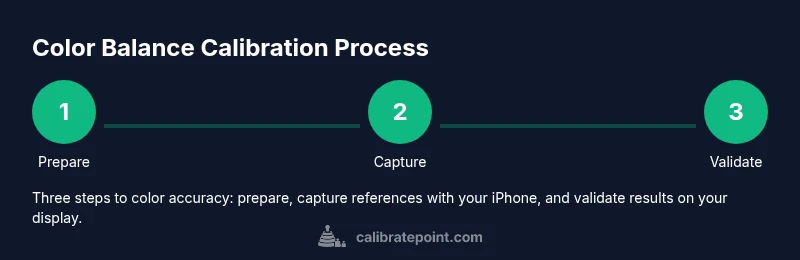
You can improve color accuracy on Apple TV by using your iPhone for a Color Balance calibration. The process pairs your iPhone’s camera with Apple TV to adjust white point, gamma, and brightness, delivering consistent colors across content. This practical guide from Calibrate Point walks you through setup, prompts, and verification to ensure precise results.
Why calibrate Apple TV with
How Color Balance on Apple TV Works
Color Balance is designed to align the TV’s color rendering with standard color spaces by using real-time measurements from your
Hardware and Software Prerequisites
To perform a Color Balance calibration, ensure you meet these prerequisites:
- Apple TV 4K (
Step-by-step overview (high-level)
In-depth calibration workflow with prompts
Troubleshooting common issues
Best practices for SDR vs HDR content
Verification and long-term maintenance
Authority sources
Quick-reference checklist for maintainers
Tools & Materials
- iPhone (iOS 14+)(Ensure Bluetooth and Wi‑Fi are enabled; keep device charged during setup.)
- Apple TV 4K (tvOS 14+)(Must support Color Balance feature in Settings.)
- TV/display(Supports standard color spaces (SDR) and/or HDR as applicable.)
- Wi‑Fi network(Stable network to communicate with Apple TV and iPhone.)
- HDMI cable (optional)(Useful if testing on a separate display or for other setups.)
Steps
Estimated time: 15-25 minutes
- 1
Open Color Balance on Apple TV
Navigate to Settings, then Accessibility or Display & Color (depending on tvOS version). Select Color Balance to begin. This step initializes the calibration workflow and prepares the iPhone pairing prompt on screen.
Tip: If you don’t see Color Balance, ensure tvOS is updated and your Apple TV model supports the feature. - 2
Prepare your iPhone
Unlock your iPhone, enable the camera, and close apps that might distract from the calibration. Bring the iPhone to eye level and position it so the camera faces the TV screen where prompts will appear.
Tip: Make sure the iPhone is charged; a low battery can interrupt the calibration process. - 3
Pair and align with the on-screen targets
Follow on-screen prompts to pair the iPhone with the Apple TV. Hold the device at the indicated angle and distance as color targets and grayscale blocks are displayed.
Tip: Keep hands steady and avoid moving the device during each capture step. - 4
Capture color references
Allow the iPhone camera to capture the displayed reference colors. The system will use these samples to adjust the TV’s color & gamma curves.
Tip: Don’t rush; let each frame stabilize before proceeding to the next target. - 5
Adjust white point and gamma as directed
The prompts will guide you to tweak the white point and gamma according to the measured references. Confirm each adjustment before moving on.
Tip: If the preview looks washed out or overly saturated, re-run the step with a more consistent ambient light. - 6
Review calibration results on content
Exit the calibration flow and test with a variety of content (movies, sports, and games). Compare skin tones and color accuracy across scenes.
Tip: If colors still look off, consider repeating the calibration in a darker room to reduce reflections. - 7
Save calibration settings
Accept the final calibration, and ensure the settings are saved in Apple TV. Some tvOS versions offer a toggle to enable automatic recalibration prompts.
Tip: Document the date of calibration for future reference. - 8
Document and test again later
Create a simple note of the calibration parameters and test periodically, especially after firmware updates or changes to your display.
Tip: Set a reminder to re-evaluate after major TV software updates.
Questions & Answers
What devices are required to use Color Balance between Apple TV and iPhone?
You need an Apple TV 4K (tvOS 14 or newer) and an iPhone running iOS 14 or later, both connected to the same Wi‑Fi network. This pairing enables the iPhone camera to guide color adjustments on Apple TV.
You’ll need an Apple TV 4K and an iPhone with iOS 14 or newer on the same Wi‑Fi network to use Color Balance.
Does Color Balance work with all Apple TV models?
Color Balance is available on supported Apple TV hardware and tvOS versions. If you don’t see the option, update your Apple TV to the latest tvOS and ensure the feature is enabled in Settings.
Color Balance works on supported Apple TV hardware with updated tvOS; update if the option isn’t visible.
Will color balance affect HDR content?
Color Balance aims to improve color accuracy across SDR and HDR content. HDR may reveal more accurate color differences; you can re-calibrate if HDR looks off after a firmware update.
HDR content can look more accurate after calibration; you may re-check if anything changes after updates.
How do I revert calibration to default settings?
In Apple TV Settings, select Color Balance and choose to reset to the default factory settings. This removes the current calibration profile.
You can reset Color Balance to default in Apple TV settings if needed.
Where can I get more detailed guidance?
Refer to Calibrate Point’s comprehensive guide for additional troubleshooting, test patterns, and advanced calibration techniques.
For more detailed help, see Calibrate Point’s full guide and troubleshooting tips.
Watch Video
Key Takeaways
- Start with Color Balance on Apple TV to align color spaces.
- Use the iPhone camera as a color sensor for accurate gamma and white point.
- Test across diverse content to validate consistency.
- Document calibration steps for future maintenance.