Calibrate Controller on Windows 11: Step-by-Step Guide
Learn how to calibrate a game controller on Windows 11 using built-in tools, adjust dead zones and mappings, test in games, and troubleshoot issues. A practical, expert guide by Calibrate Point.


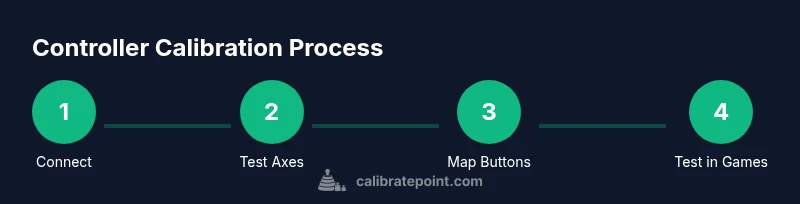
This guide walks you through calibrating a game controller on Windows 11 using built-in tools and in-game tests. You’ll stabilize stick axes, dead zones, and button mappings for Xbox and third‑party controllers, with troubleshooting tips if devices aren’t recognized. The process works for wired and wireless setups and can be completed in under an hour.
Why calibrating a controller on Windows 11 matters
A precise controller response makes a measurable difference in aiming, steering, and timing across genres. Calibration aligns physical inputs with Windows 11's interpretation, reducing drift and inconsistent mappings. According to Calibrate Point, well-calibrated controllers deliver smoother play and fewer surprises in high-stakes moments. Beyond accuracy, a reliable baseline helps you carry settings across titles and sessions, especially when switching between wired and wireless connections. The goal is repeatable results that you can trust when you pick up the controller after a break or after a system update.
Calibration isn’t a one-and-done task; it’s a repeatable process you’ll re-run when you replace a controller, update firmware, or notice drift. In this guide we blend Windows’ native methods with practical checks you can perform in real games to verify that the adjustment sticks. You’ll walk away with a baseline profile you can save and reuse, saving time in future setups.
Setup prerequisites
Before you start, assemble a small toolkit of basics to keep the process smooth. You’ll need a Windows 11 PC, a controller (Xbox, PlayStation, or a reputable third-party model), and a USB cable or a Bluetooth adapter if you’re using a wireless connection. Make sure your PC is fully updated and that the controller’s firmware is current by visiting the manufacturer’s site. If you rely on Bluetooth, ensure your PC’s Bluetooth radio is enabled and stable. Optional but helpful: a second device for cross-check testing and a simple game or test program that supports controller input.
Having the right connection method chosen from the outset prevents mid-process changes that disrupt calibration. If you’re unsure whether your controller supports XInput, you can confirm by checking the device’s compatibility list from the vendor or using a test utility to report the available API. Keeping the controller charged reduces the risk of dropouts while calibrating in the middle of an axis test.
How Windows 11 recognizes controllers
Windows 11 detects controllers through a mix of native drivers and input APIs like XInput and DirectInput. Most modern gamepads advertise as an XInput device, which makes axis and button data straightforward to read by games and tools. Some generic or older controllers may fall back to DirectInput wiring, which can complicate calibration steps. In either case, the built-in Game Controllers panel provides a centralized place to test axes, buttons, and feedback.
If your device is connected via USB, Windows will typically show it under “Devices and Printers” or in the “Bluetooth & devices” section. For wireless connections, pairing stability is crucial; a sudden drop can reset or corrupt calibration progress. In the calibration process, you’ll be prompted to move sticks through their full range and click buttons to confirm mappings. If you run into driver issues, a quick driver reinstall or firmware update from the manufacturer’s site often resolves recognition problems.
Calibrating stick axes: dead zones and sensitivity
The core of calibration is axis behavior. You want neutral input to return to center without drift and for the full axis range to map predictably to in-game movement. The recommended approach is to run through the axis test in the calibration wizard and adjust the dead zone so that the stick does not report tiny, unintentional movements when at rest. Then test sensitivity by moving the stick through its travel and verifying that output scales smoothly to your on-screen movement. Do this for both horizontal and vertical axes, and repeat if your controller has analog triggers.
Keep the changes small and test across at least two types of games to confirm consistency. If you notice jitter at center, re-check the dead zone and center alignment. Some controllers report a slight offset due to hardware tolerances; in those cases, a modest dead zone correction typically resolves the issue.
Calibrating rumble and button mapping
Rumble (vibration) calibration isn’t always exposed in every wizard, but where available it ensures that feedback matches your expectations in games and apps. For button mapping, ensure that each button press triggers the correct action in the test panel and that there’s no cross-wiring between similar inputs. If your controller has additional buttons or paddles, map them to the corresponding in-game inputs and save a profile that preserves the layout.
Testing in a neutral application or a simple platformer/beat-’em-up can help confirm that every input is correctly recognized. If the vibration doesn’t respond as expected, update firmware or try a different USB port or adapter. In rare cases, re-pairing the device resets mapping to defaults, so re-test thoroughly after re-pair.
In-game testing and verification
Calibration should be validated in actual gameplay. Start with a quick session in a game that emphasizes precise aiming or movement, such as a shooter or racing title. Observe whether the stick centers cleanly, whether acceleration feels proportional, and whether any button mapping feels off. If you notice inconsistent results, revisit the axis tests and re-run the calibration wizard or adjust a saved profile.
To build confidence, perform short sessions across multiple games and reconcile any discrepancies. Saving a separate profile for each game or genre helps you switch contexts without re-calibrating from scratch. If a game uses custom input bindings, consider using its in-game calibration utility in addition to Windows settings for a best-fit configuration.
Troubleshooting common issues
If the controller isn’t recognized or calibration does not take effect, start with the basics: unplug and replug, re-pair, or reboot the PC. Check for driver updates from the manufacturer and verify that no other software is intercepting input. If you still see drift or mis-mapped inputs, reset the calibration to default and run through the wizard again, ensuring you follow each step in order.
For wireless controllers, a low battery can cause inconsistent signals that mimic calibration issues. If possible, test with a wired connection to determine whether the problem is radio-related. If multiple controllers share the same PC and profile, confirm that you have selected the correct device during calibration and in-game testing.
Next steps: repeat and maintain calibration practice
Calibration is not a one-off task. As you install new games, update firmware, or switch to a different controller, repeat the process to maintain accuracy. Periodically compare in-game performance against your baseline and export your profiles for safekeeping. Document any adjustments you make so you can retrace steps later.
A steady calibration routine helps you avoid the frustration of drift during important moments. With practice, you’ll be able to complete a reliable calibration in a single session and keep your settings handy across future game sessions and hardware changes.
Tools & Materials
- Windows 11 PC(Ensure the OS is up to date for best compatibility)
- Controller (Xbox, PlayStation, or third-party)(Battery charged for wireless or use wired connection)
- USB-C or USB-A cable(For wired calibration and stability)
- Bluetooth adaptor (optional)(Use if you’re calibrating wirelessly)
- Controller firmware updater (optional)(Check vendor site for updates)
Steps
Estimated time: 25-40 minutes
- 1
Connect and verify hardware
Connect the controller via USB or pair it over Bluetooth. Open Windows Settings > Bluetooth & devices and confirm the device appears as a connected controller. If not visible, try re-pairing and checking the driver status.
Tip: Keep the USB cable attached during wiring calibration to prevent disconnects. - 2
Open the calibration interface
Navigate to the control panel path: Devices and Printers > [Your Controller] > Properties > Calibrate (or Calibrate in the Game Controllers settings). If Calibrate isn’t present, update drivers first or use a supported game controller app.
Tip: If you don’t see Calibrate, Windows may require a driver update from the manufacturer. - 3
Test and center each axis
Move each stick through its full range and confirm neutral returns to center. Note any drift and proceed to adjust the center alignment in the wizard.
Tip: Move smoothly through the range; jerky inputs can mask underlying hardware tolerance. - 4
Set dead zones and sensitivity
Adjust dead zones so that minor, unintentional movements are ignored at rest, while intentional movement remains responsive at the edges.
Tip: Make small adjustments and test across multiple in-game actions to confirm consistency. - 5
Calibrate rumble and mapping
If your controller supports vibration tests, run them to ensure feedback matches input. Verify each button maps to the correct in-game action and adjust if necessary.
Tip: For multi-button layouts, double-check mapping against a reference layout. - 6
Test in a game
Launch a game that supports controllers and run a quick session to verify responsiveness, center stability, and button response.
Tip: Choose a game you’ll use often to validate the calibration under real conditions. - 7
Save and export the profile
Save the calibration as a profile to reuse later and export it if you want to back it up on another device.
Tip: Label the profile clearly by device and game type for easy retrieval. - 8
Final verification and clean-up
If issues appear, re-pair the device or reinstall drivers. Reboot the PC to ensure changes take effect and re-test.
Tip: A clean restart often resolves lingering recognition or input lag issues.
Questions & Answers
What is the difference between dead zones and sensitivity in controller calibration?
Dead zones ignore small inputs near the center to prevent drift, while sensitivity controls how much input translates to movement at the edges. Proper calibration balances both so neutral input stays quiet and moving sticks produce predictable results.
Dead zones suppress tiny stick drift at center, and sensitivity scales your movement as you tilt the stick further. Calibrate both to keep neutral input stable and motion consistent.
Do I need third-party software to calibrate on Windows 11?
Windows 11 includes built‑in calibration tools accessible through the Game Controllers settings. Third‑party apps are optional for advanced users who want deeper customization but aren’t required for basic calibration.
You can calibrate with Windows tools; third‑party software isn’t required for most users.
How can I calibrate if Windows doesn’t recognize my controller?
First, check hardware connections (USB or Bluetooth), then update or reinstall drivers from the manufacturer. If needed, try a different USB port or restart the PC and re-pair the device.
Make sure the controller is correctly plugged in or paired, then update drivers and retry calibration.
Will calibration affect in-game performance?
Calibration aims to improve input accuracy and consistency; it does not change game code. If calibrated properly, you should see smoother control across titles.
Calibration makes inputs more predictable and accurate, which helps performance in most games.
How long does calibration take?
Typical calibration takes between 15 and 40 minutes, depending on the number of axes and buttons, and how thoroughly you test in multiple games.
Most people finish in under an hour, depending on how many checks you perform.
Watch Video
Key Takeaways
- Calibrate with built-in Windows 11 tools first
- Test axis dead zones across multiple games
- Save and reuse calibration profiles
- Troubleshoot by re-pairing and updating drivers