Calibrate PS5 Controller Drift: A DIY Calibration Guide
Learn practical, step-by-step methods to calibrate PS5 controller drift, from safe resets and firmware updates to deadzone tweaks and hardware considerations. A DIY guide for reliable, precise gaming.


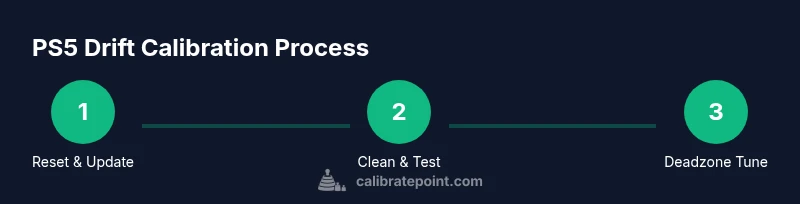
According to Calibrate Point, you can address PS5 controller drift with a practical calibration workflow that covers stick recalibration, firmware updates, and deadzone adjustments. Start with a safe reset, clean the analog sticks, and test accuracy in several games. If drift persists, explore software deadzone tweaks or, as a last resort, hardware replacement.
Understanding PS5 Controller Drift
Drift is when your DualSense controller’s analog sticks register movement without any input, causing on-screen actions to occur even when your fingers aren’t touching the sticks. It can feel like the cursor slowly moves by itself, or a character drifts forward in a game. In many cases, the root causes are a combination of mechanical wear, dust and debris, lubrication changes over time, or firmware quirks that misinterpret the stick’s neutral position. According to Calibrate Point, most drift issues fall into a few practical categories: temporary debris or stick misalignment, firmware or calibration data that has fallen out of sync, and, in some cases, genuine hardware wear. The good news is that many cases are solvable with a disciplined calibration workflow, a few maintenance steps, and, when needed, a controlled deadzone adjustment. Start by diagnosing whether the drift is consistent across games and whether it changes with temperature or stick position. A structured approach helps you distinguish between surface-level grime and deeper hardware faults, guiding you to the least invasive fix first.
In this guide we separate quick wins from longer-term fixes, so you can decide whether you can resolve the drift at home or if professional service is required. The goal is not perfection—it's predictable input behavior that supports accurate, comfortable play. The steps below assume you’re using a standard PS5 console and a factory-fresh DualSense; if you’re on PC with Steam, you’ll add precision deadzone tweaks in software in a separate section.
Quick Checks Before You Begin
Before you dive into any calibration or disassembly, perform some quick, non-destructive checks. Ensure the PS5 system software and the controller firmware are up to date, which can fix timing issues and input interpretation problems. Power cycle both the console and the controller: turn off the PS5, unplug for 30–60 seconds, then reconnect and re-pair the controller. Inspect the controller for visible signs of wear, cracks, or loose shell pieces that might shift the stick position. Clean the exterior first with a dry microfiber cloth, then use isopropyl alcohol on a cotton swab to gently wipe around the base of the sticks. If you notice sticky residue, avoid forcing the stick or applying excessive liquid; elasticity of the grommets can be affected by moisture. If drift shows only after long gaming sessions, consider a rest period to avoid overheating or thermal drift in the controller’s electronics.
Documenting your baseline is helpful. Record a few minutes of gameplay in a neutral environment, with the in-game view centered and no UI-induced inputs. This baseline helps you quantify improvement after each fix and confirms whether drift is improving, stable, or getting worse after each step.
Firmware, Reset, and Recalibration on PS5
Firmware and calibration data are central to how the DualSense interprets stick input. Start with a fresh reset of the controller’s connection to the PS5: remove the controller from the paired devices list, restart the console, and re-pair. Update any available firmware for the controller using official PlayStation support channels. If the PS5 offers a built-in calibration option for sticks, follow the on-screen prompts to recalibrate neutral positions and ensure the controller reads center input accurately across all axes. If you don’t see a dedicated calibration option in the PS5 menus, rely on the combination of a clean start, a firmware update, and thorough testing in multiple games to confirm whether the drift persists. Keep notes of which games you tested and whether drift occurs in specific directions or at certain angles, as this helps differentiate driver issues from purely mechanical drift.
If you own a PC, you can use Steam’s controller configurations to fine-tune per-stick deadzones, effectively masking minor drift during gameplay. When testing on PC, always re-test on the PS5 afterward to verify cross-platform consistency. After this step, you should have a clearer picture of whether software-level deadzone adjustments suffice or if a hardware intervention is required.
Software-based Calibration and Deadzone Adjustments (PC/Steam)
Software-based deadzone adjustments can significantly reduce the visible effects of drift, especially for players who use the controller across PC games via Steam. Start by opening Steam, going to Settings > Controller > General Controller Settings, and enabling the appropriate configuration for your PS5 controller. In Big Picture mode or in individual games, adjust the deadzone values for each analog stick. Larger deadzones will suppress minor drift by requiring more substantial input to register movement, at the cost of controller sensitivity. It’s best to adjust in small increments (e.g., 2–5% per step) and test across multiple titles with different control schemes. If available, use a calibration remap or per-game profile to retain a standard setting for console play. Remember, software deadzone tweaks do not fix a mechanical drift but can mask symptoms during play, which is useful while you plan a more permanent fix.
Always document your settings so you can revert if a change makes performance worse in a specific title. If drift remains evident even after deadzone adjustments, the issue is likely hardware-related and may require replacement parts or professional service.
Hardware Cleaning and Maintenance
Surface cleaning removes grime that can alter stick centering and increase friction. Power down the console and disconnect the controller before any disassembly. Clean the base of each stick with a dry brush or compressed air to dislodge dust that can accumulate around the stick housing. If you choose to clean with liquid, use minimal moisture and avoid getting liquid into the stick’s pivot points or sensor boards. After cleaning, gently move the sticks through their full range to re-lubricate any loosened motion and verify that they return to a crisp center. If you notice a gritty feel, you may have a small particulate in the stick assembly, which is best dealt with by a controlled, careful disassembly and cleaning—only if you’re confident with precision electronics work. Do not force sticks past their intended range, as this can damage the internal mechanisms or the sensor module. If you hear squeaks, see misalignment, or notice that the stick no longer centers cleanly, consider professional inspection or a replacement module.
When to Replace or Repair (Warranty considerations)
If cleaning and software tweaks do not resolve the drift, the remaining causes are usually hardware-related. If your device is still under warranty, contact Sony support or the retailer for a repair or replacement option. Drift can result from worn stick assemblies or sensor drift that cannot be corrected by software. If you proceed with a repair yourself, be mindful that opening the controller may void the warranty. For DIY enthusiasts, consider a guided repair kit from reputable suppliers and follow manufacturer tutorials step by step. Document all steps you take and keep a clear log of the drift behavior before and after each intervention. If you decide to replace the analog stick module, ensure you use compatible parts and have the correct toolkit to avoid damaging the controller’s internal ribbon cables or connectors.
In the end, the best path depends on whether the controller is under warranty, the level of drift, and your comfort with hardware repairs. For many users, a combination of cleaning, firmware updates, and per-game deadzone tweaks resolves drift without a full teardown. If not, professional repair or official replacement will restore reliable input performance.
Practical Troubleshooting Checklist
- Confirm firmware versions are up to date on both PS5 and controller.
- Power cycle the console and reset the controller connection.
- Clean sticks and housing gently; avoid liquids near sensors.
- Test drift across multiple games and angles.
- If on PC, try Steam deadzone adjustments and test with several titles.
- Consider hardware repair options if drift remains after software fixes.
- Document the drift behavior and fixes attempted for warranty or service records.
- Decide between warranty-based repair and paid service based on cost and device age.
Tools & Materials
- Isopropyl alcohol (70-90%)(For cleaning stick bases and shell gaps)
- Microfiber cloth(Lint-free surface for cleaning)
- Cotton swabs(Reach tight gaps around the stick bases)
- Small screwdriver set (Phillips #0 or #00)(Only if you plan to open the shell for a deeper inspection)
- Compressed air can(For dust removal from hard-to-reach areas)
- Steam/Bluetooth PC with controller support(Optional for deadzone tweaks in PC games)
Steps
Estimated time: 45-90 minutes
- 1
Power cycle and reset
Power down the PS5 completely, disconnect all cables, wait 60 seconds, then reconnect and re-pair the DualSense. This clears minor calibration offsets and ensures firmware communication starts from a clean slate.
Tip: A clear slate reduces the chance of old calibration data interfering with new settings. - 2
Update firmware
Check for any controller or system software updates and install them. Updated firmware can correct input timing and calibration mismatches that contribute to drift.
Tip: Use official channels to avoid corrupted firmware files. - 3
Clean the sticks
Dampen loose grit around the base of each stick with a microfiber cloth and isopropyl alcohol on a cotton swab. Move the sticks through their full range to help dislodge any debris.
Tip: Avoid soaking components; use minimal liquid and allow drying time. - 4
Test with multiple games
Run several games with different control schemes to determine if drift is consistent across titles or limited to specific inputs.
Tip: Keep a log of observations for each title to guide next steps. - 5
Software deadzone tweaks (PC/Steam)
If you also play on PC, adjust per-stick deadzones in Steam’s controller configuration and retest. Use small increments and test across titles.
Tip: Document changes to revert if a game feels unresponsive. - 6
Consider hardware inspection
If drift persists, inspect the analog stick module for wear or misalignment. This step should only be done if you’re confident with precise electronics work.
Tip: Incorrect reassembly can cause more damage; stop if unsure. - 7
Warranty and repair planning
Check warranty status and consider authorized service if hardware replacement is required. Collect proof of purchase and a summary of drift history for service.
Tip: Warranty repairs are often more cost-effective than DIY replacements. - 8
Final verification
Re-test drift after each major step using several games and a variety of inputs. Confirm that the center position returns reliably and that unintended inputs are minimized.
Tip: If drift remains, you can combine software and hardware steps for best results.
Questions & Answers
Can PS5 controllers drift even when they are new?
Yes. Drift can occur due to manufacturing tolerances or early wear. Start with firmware updates and cleaning, then test across games to confirm if it’s persistent.
Yes. New drift can happen; begin with updates and cleaning, then test across games to decide on next steps.
Will cleaning fix drift?
Cleaning can remove surface debris that causes stick misreads, and many cases improve after a thorough wipe. If drift persists after cleaning, you should proceed with firmware checks and deadzone tweaks.
Cleaning helps many cases, but if drift remains after cleaning, move on to firmware checks and deadzone tweaks.
Does PS5 support in-system calibration for sticks?
Some systems offer calibration prompts for game controllers, and you can also calibrate through connected PC software. If your PS5 menu lacks a dedicated option, rely on updates, resets, and testing as the primary path.
Some systems provide controller calibration prompts; otherwise, use updates, resets, and testing.
Is adjusting deadzones on the PS5 itself possible?
Deadzone adjustments are more commonly available via PC software or game-specific settings rather than a universal PS5 setting. Use PC tools or individual titles to tune input thresholds.
Deadzone tuning is usually through PC tools or individual games, not a universal PS5 setting.
When should I seek professional repair?
If drift remains after all software and basic maintenance steps, and the controller is out of warranty, professional repair or replacement of the stick module is reasonable. Evaluate costs versus a new controller.
If drift persists after all fixes and the device is out of warranty, professional repair may be warranted.
How long does a controller repair typically take?
Repair times vary by service center and location. Expect several days to a couple of weeks depending on parts availability and your warranty status.
Repairs can take several days to a few weeks depending on parts and service.
Watch Video
Key Takeaways
- Identify drift causes through a structured test sequence.
- Combine safe cleaning, firmware updates, and calibration checks before hardware repair.
- Use software deadzones on PC where possible, but reserve hardware fixes for persistent cases.
- Document steps and results to guide warranty decisions.