How to calibrate E-Steps in Klipper: A Step-by-Step Guide
Learn how to calibrate E-steps in Klipper with a measured extrusion test, update your printer.cfg, and validate results for consistent, accurate filament output across materials.


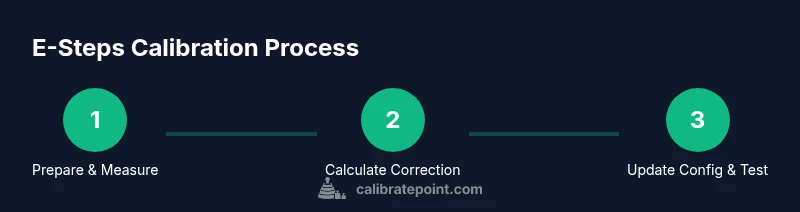
By the end of this guide you will accurately calibrate the extruder's E-steps in Klipper, ensuring your filament extrusion matches the intended length. You will use a known filament pull, measure actual extrusion, compute a correction factor, and update your printer.cfg accordingly. This method minimizes under- or over-extrusion across most materials and filament brands when following Klipper's configuration workflow.
Understanding E-steps and Klipper's extrusion model
In Klipper, extrusion is controlled by the extruder stepper; the parameter that governs how much filament moves per motor revolution is typically represented as rotation_distance or steps_per_mm. Calibrating E-steps means aligning the firmware's expectations with the real-world filament output. If the extruded length is shorter or longer than commanded, prints can appear under- or over-extruded, leading to weak layer adhesion or visible gaps. Accurate E-steps calibration reduces such defects across materials. The method shown here uses a measurable extrusion test, a reliable filament source, and careful math to compute the correct multiplier. If you follow the steps precisely, you’ll end up with a stable extrusion value that works across most prints. You will perform a simple take‑apart test, measure extruded length with a ruler or caliper, and update the printer.cfg with a corrected value. The procedure applies whether you run Klipper on a RAMPS-like board or a modern all‑in‑one controller; the central idea is the same: calibrate the drive train so that each step results in the expected amount of filament.
Measuring the baseline: why precision matters
Before changing values, you must know your starting point. Any error in measurement compounds during a full print. Use a clean piece of filament with known diameter, and mark a precise starting point on the filament. Preheat the nozzle to printing temperature if you plan to extrude during measurement, but avoid fully committing to a high-flow condition that can introduce heat-related expansion. Keep the bed, hotend, and fans in their normal operating states to reflect real printing conditions. Doing the measurement at typical print temperatures yields a calibration that's valid for actual parts. Document your measured extrusion amount and the current rotation_distance or steps_per_mm in your notes; this makes the next calibration iteration faster and reduces guesswork.
The calculation: converting a measurement into a firmware value
Suppose you commanded 100 mm of filament to be extruded but only 97 mm appeared. The correction factor is 100/97 ≈ 1.0309. Multiply your current extrusion parameter by this factor to get the new value. If you use Klipper, update either the rotation_distance in the [extruder] section or the equivalent steps-per-mm parameter, depending on your config style. After applying the new value, reload the configuration and perform a fresh 100 mm extrusion to verify. If the measured length now matches or nearly matches the commanded length, you’ve found a stable calibration. If not, repeat the calculation with the updated measurement. Remember to account for filament diameter variations and potential slippage in the drive gear.
Real-world tips and common mistakes
- Use a caliper to verify filament diameter; even small deviations affect extrusion volume.
- Extrude at printing temperature and calm speeds during calibration to minimize dynamic effects.
- Make sure the extruder drive gear is clean and properly gripping the filament.
- Document the exact numbers you measured, the calculated factor, and the resulting value for rotation_distance or steps_per_mm.
- Check for mechanical issues such as skipped steps, loose belts, or a slipping idler before blaming the firmware.
Final steps: finalize and test with a real print
Update the Klipper config with the corrected extrusion parameter, then run a calibration print, such as a small cube or a short tower, to observe how the extrusion behaves on a live model. Compare the walls’ thickness and fill density to expected values; adjust if needed. After successful testing, perform a modest quality check on a simple print using the new settings and save the configuration. Periodically re-check E-steps when changing filament brands or diameters.
Tools & Materials
- Digital caliper(Measure filament diameter and extrusion length accurately)
- Filament sample (consistent diameter)(Use the same filament as your usual prints)
- Ruler or caliper for extrusion mark(Precise ruler to measure extruded length)
- Marker or tape to mark filament(Make starting point visible)
- Allen/hex driver and screwdriver set(Access to printer hardware and timer)
- Computer with text editor and USB/SSH access(Edit and upload printer.cfg safely)
- Klipper host service running(To reload config and run commands)
- Backup configuration(Keep a copy of the previous config in case of failure)
Steps
Estimated time: Estimated total time: 60-90 minutes
- 1
Power on and preheat the printer
Power on the printer and preheat to your typical printing temperature. This ensures the extrusion conditions match real prints during calibration. Confirm you can move axes and access the terminal or printer interface without errors.
Tip: Preheating helps reveal any flow issues that only appear at printing temperature. - 2
Identify E-steps settings in the config
Open printer.cfg and locate the [extruder] section. Note current rotation_distance or steps_per_mm values so you can compare against after calibration.
Tip: Make a backup of the config before editing. - 3
Prepare a measured filament length
Mark a precise starting point on the filament and prepare to extrude a known length, such as 100 mm, using a controlled command. Ensure the nozzle is ready and the filament is loaded correctly.
Tip: Use a sharp, clear mark to improve measurement accuracy. - 4
Extrude a precise filament length
From the printer’s console, command the extruder to push the exact test length (e.g., 100 mm) at a conservative feed rate. Observe steady extrusion without jams.
Tip: Keep others from touching the nozzle while extruding. - 5
Measure the actual extrusion
After extrusion, measure how much filament actually left the mark using your caliper or ruler. Record the measured value accurately.
Tip: Take multiple measurements if possible to reduce random error. - 6
Calculate correction factor and update config
Compute the factor: correction = commanded_length / actual_length. Multiply the current extrusion parameter by this factor to obtain the new value. Update rotation_distance or steps_per_mm in printer.cfg accordingly.
Tip: Double-check units before saving changes. - 7
Reload config and test extrusion again
Reload the Klipper config and repeat a 100 mm extrusion. Verify the measured length now matches the commanded length within an acceptable tolerance.
Tip: If not matching, re-check measurements and rerun the calculation. - 8
Validate with a calibration print
Run a small calibration print like a cube. Inspect walls and infill for uniform extrusion. If needed, fine-tune and document changes for future reference.
Tip: Keep detailed notes to facilitate future recalibration.
Questions & Answers
What is E-steps in Klipper and why calibrate?
E-steps define how far filament moves per motor step. Calibrating them in Klipper aligns commanded extrusion with actual output, preventing under- or over-extrusion across prints.
E-steps tell your printer how much to feed filament per step; calibrating them ensures accurate extrusion.
What tools do I need to calibrate extruder steps in Klipper?
You’ll need a caliper, marked filament, a ruler, a computer with access to printer.cfg, and a method to command extrusion from Klipper. Having backup config is helpful.
Grab a caliper, some marked filament, and access to your printer’s config to start.
Why does extrusion still look off after calibration?
Measurement errors, filament diameter variation, drive gear slippage, or mechanical issues can all affect extrusion. Recheck measurements, filament diameter, and hardware readiness before re-calibrating.
If extrusion is still off, check the measurements and hardware first.
How long does calibration take?
A careful, single-iteration calibration usually takes 45–90 minutes, including measurement, calculation, config updates, and verification prints.
Plan about an hour for careful calibration and verification.
Should I recalibrate for every filament?
Yes, different filaments can vary in diameter and flow. Recalibrate when changing filament brands or diameters to maintain consistent extrusion.
Different filaments behave differently; recalibrate when you switch materials.
Watch Video
Key Takeaways
- Measure extrusion accurately and log results
- Update Klipper config with corrected rotation_distance or steps_per_mm
- Validate changes with a calibration print
- Record the calibration for future recalibration
- Recalibrate when changing filament diameter or brand