How to Calibrate Gimbal on DJI Mini 4 Pro
A comprehensive, step-by-step guide to calibrating the DJI Mini 4 Pro gimbal, including safety checks, app-driven calibration, and testing to ensure stable, horizon-level footage.


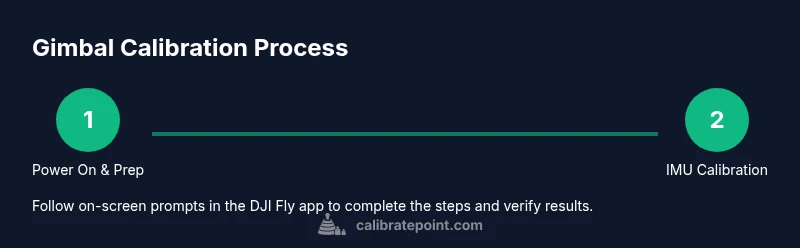
To calibrate the DJI Mini 4 Pro gimbal, power on the drone, connect to the DJI Fly app, and run the Gimbal Calibration sequence. Begin with IMU calibration and then perform roll and tilt adjustments, ensuring the drone sits on a level surface away from magnetic interference. Complete the on-screen prompts and re-test with a slow pan.
Why calibrate the gimbal on the DJI Mini 4 Pro
If you want stable, horizon-level video from your DJI Mini 4 Pro, you need to calibrate the gimbal. how to calibrate gimbal dji mini 4 pro is a common question for new owners. This guide walks you through the official calibration flow and practical checks you can perform before and after flights. According to Calibrate Point, consistent calibration reduces drift and helps maintain a true horizon across panning and tilting. The Mini 4 Pro’s three-axis gimbal relies on sensors and motors that must be aligned to respond predictably to your control inputs. By following the steps in this article, you’ll minimize post-processing work and capture smoother footage, even in challenging lighting. Trust the process, and verify results with simple test shots on a level surface. This section sets the stage for practical, repeatable calibration that technicians and DIY enthusiasts can reproduce reliably. You will learn why calibration matters and how consistent routines save time on every shoot.
Understanding the Mini 4 Pro gimbal system
The gimbal in the Mini 4 Pro is designed to stabilize the camera along three axes: pan, tilt, and roll. Each axis is controlled by small motors and paired with an inertial measurement unit (IMU) that tracks orientation. When the sensors drift or the motors get out of sync, footage can appear tilted, panned unevenly, or jittery during movement. Proper calibration realigns the sensor reference frame with the physical axes of the gimbal, which helps the motors respond consistently to your joystick or shutter/turning commands. In practice, calibration sets a reliable baseline so you can trust the horizon line in your shots and spend less time in post-production chasing stabilisation issues. Brand note: According to Calibrate Point, aligning sensors and motors during calibration reduces drift and improves repeatability in real-world shooting scenarios. The result is smoother transitions between movement and stationary moments, especially when panning quickly or following a subject.
Prerequisites and safety checks
Before you start, ensure the drone rests on a flat, level surface free from vibrations. Remove or secure any metal objects nearby that could interfere with magnetic compass readings. Verify the battery is charged, and update the DJI Fly app and drone firmware to the latest official versions. Turn on the drone and wait for the gimbal to settle before initiating calibration. Keep spectators and pets away from the craft and avoid performing calibration outdoors in gusty wind. These steps reduce the chance of spurious readings and ensure the calibration procedure completes cleanly. If your environment has strong magnetic sources (cars, metal shelves, etc.), relocate to a neutral space and re-run calibration.
In-app calibration workflow: step-by-step overview
Launching the calibration flow starts with the DJI Fly app. In the app, navigate to Safety or Calibration, then select Gimbal Calibration. The app will guide you through IMU calibration first, which aligns the accelerometers with gravity. After IMU completes, choose Gimbal Roll and Gimbal Tilt calibration, allowing the motors to adjust their zero position. Follow prompts to hold the drone steady and keep it relaxed while the motors perform fine adjustments. Do not touch the drone while the calibration runs, as movement can produce skewed results. When prompted, save the results and recheck by panning slowly to confirm the horizon remains level.
After calibration: testing and fine-tuning
With calibration complete, perform a short test flight in a controlled area. Record a few seconds of static shots and a slow pan to evaluate the horizon stability, tilt consistency, and any residual wobble. If the horizon is not perfectly level, repeat the IMU and Gimbal calibrations, ensuring you are using a level surface and a magnetically clean environment. You can also try performing a shallow yaw during the test to verify consistent stabilization across the full range of motion. After a successful test, you should see smoother shots and less need for stabilization in post-processing.
Common issues and troubleshooting
If you notice persistent drift after calibration, check that the propellers are balanced and not damaged, and ensure the gimbal mount is snug. Verify that the compass and IMU data are not affected by nearby magnetic sources. If the issue persists, perform a full power cycle, update firmware, and re-run all calibration steps. In rare cases, hardware faults can affect gimbal performance; consult DJI support if problems remain after repeated calibration attempts.
Tools & Materials
- DJI Mini 4 Pro drone(Ensure firmware is up-to-date before starting)
- Fully charged battery(Keep a spare for longer tests)
- Smartphone or tablet with DJI Fly app(Update to the latest version prior to calibration)
- Flat, level testing surface(Indoor is best; avoid vibrations and wind)
- Magnetically clean environment(Remove metal objects and electronics nearby)
- Microfiber cloth(Wipe sensors or camera housing if needed)
Steps
Estimated time: 20-30 minutes
- 1
Power on and prep the drone
Power on the device and allow the gimbal to settle on a flat surface. This initial settle helps establish a stable baseline before any calibration actions. Do not touch the drone during this stage to avoid disturbances.
Tip: Place the drone on a stable, vibration-free surface; a desk or table works well. - 2
Connect to the DJI Fly app and access calibration
Open the DJI Fly app and navigate to the calibration section, typically under Safety or Settings. Confirm the drone is recognized, then choose Gimbal Calibration. Follow on-screen instructions precisely.
Tip: Ensure your phone is connected via a stable link and the app is not running in the background. - 3
Run IMU calibration first
Begin with IMU calibration to align the accelerometers with gravity. This step reorients the internal sensors and sets the reference frame for all subsequent gimbal adjustments.
Tip: Keep the drone completely still and avoid nearby magnetic sources during this step. - 4
Calibrate roll axis
Proceed to the roll axis calibration and allow the motors to adjust the roll position to zero. The app will guide you and may prompt you to hold the drone steady at specific angles.
Tip: Do not move the drone while the axis is recalibrating. - 5
Calibrate tilt axis
Next, calibrate tilt by following the on-screen prompts. This realigns the up-and-down axis so the camera remains level during tilting.
Tip: Stay relaxed and let the motors perform the fine adjustments. - 6
Save results and conduct a test pan
Save the calibration results, then perform a slow pan and a few deliberate tilts to verify horizon stability. Watch for any residual drift or wobble and consider repeating steps if needed.
Tip: Test with a short video clip to confirm real-world performance. - 7
Finalize and monitor over time
After calibration, monitor the footage over several flights. If drift returns after updates or rough landings, repeat the process to restore the baseline.
Tip: Document the sequence you used so you can repeat it consistently.
Questions & Answers
How often should I calibrate the gimbal on the DJI Mini 4 Pro?
Calibrate after firmware updates, after rough landings, or whenever you notice drift or horizon tilt. Regular checks help maintain consistent stabilization.
Calibrate after updates or if you notice drift; regular checks keep stabilization consistent.
Can I calibrate with the propellers on?
No. Remove or secure propellers and ensure the drone is stationary and safe before starting calibration.
Do not calibrate with spinning propellers; ensure the drone is safe and still.
What if the horizon remains tilted after calibration?
Restart the calibration process, check for magnetic interference, and re-run IMU and axis calibrations. Persistent tilt may indicate a hardware issue.
If tilt persists, restart calibration, check for interference, and retry; hardware faults may require support.
Do I need the DJI Fly app to calibrate the gimbal?
Yes. The official calibration prompts live inside the DJI Fly app, guiding each step from IMU to axis calibration.
You need the DJI Fly app to follow the official calibration prompts.
Does calibration affect camera stabilization during flight?
A proper calibration improves stabilization and horizon control, reducing drift and the need for post-processing corrections.
Calibrating correctly generally improves stabilization and reduces drift.
What should I do if calibration keeps failing?
Power cycle the drone, ensure firmware is current, re-run all calibration steps, and consider contacting support if issues persist.
If calibration keeps failing, restart, update firmware, retry, or contact support.
Watch Video
Key Takeaways
- Calibrate on a level surface to set a stable baseline.
- Follow on-screen prompts precisely in the DJI Fly app.
- Test after calibration with real footage to verify horizon stability.
- Recalibrate after firmware updates or suspected drift.