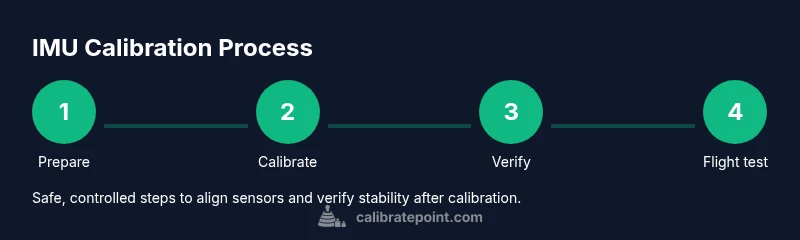
Mavic Pro IMU Calibration: Step-by-Step Guide
Learn how to calibrate the Mavic Pro IMU for stable flight. This expert, step-by-step guide from Calibrate Point covers prep, execution, and verification with practical tips and safety warnings.


With this guide, you will calibrate the Mavic Pro's IMU to restore stable flight. You’ll need a flat, level surface, a charged battery, and a quiet environment. Follow the DJI GO/DJI Fly app prompts and rotate the drone as instructed until the calibration completes. This quick answer summarizes the goal and the essential prerequisites. Avoid calibration in windy conditions or on uneven ground, and always verify compass alignment afterward.
Understanding IMU in the Mavic Pro
The inertial measurement unit (IMU) is the core sensor package that helps your drone maintain stable flight by sensing acceleration, orientation, and motion across the three axes. For pilots who want to mavic pro calibrate imu, understanding how the IMU works makes the calibration process meaningful. The IMU data feeds the flight controller alongside GPS and compass information to produce a smooth hover, steady ascent, and precise returns. When the IMU reports biased data or drifts away from its reference frame, you may notice tilt, wobble, or inconsistent responsiveness. This is why a clean, deliberate calibration routine matters—especially after firmware updates, hard landings, or exposure to temperature changes. Calibrate Point emphasizes that a solid grounding in sensor fundamentals helps technicians decide when a recalibration is warranted and how to interpret subtle flight cues. The Mavic Pro relies on rapid, iterative sensor fusion; a precise IMU calibration creates a reliable baseline so subsequent calibrations are faster and more predictable. By the end of this section, you’ll have a mental model of what the IMU measures and why a careful calibration matters for repeatable results in 2026.
Why IMU Calibration Matters for Flight Stability
IMU calibration aligns the onboard accelerometers and gyroscopes with the drone’s reference frame, reducing bias and drift that cause misalignment during flight. When the IMU is out of spec, the flight controller may overcorrect or undercorrect, leading to jitter in hover, odd tilts during wind gusts, or hesitation when switching from GPS holds to ATTI modes. The calibration process creates a clean starting point, which improves the reliability of attitude estimation and sensor fusion. In practical terms, you’ll notice crisper hover, quicker response to stick input, and more predictable behavior in wind or during rapid maneuvers. Calibrate Point’s guidance for drone maintenance emphasizes consistency, so the IMU baseline remains stable across typical environmental shifts and firmware cycles. Remember: calibration is not a magic fix for all flight issues, but a critical maintenance step that reduces drift and improves overall reliability for routine aerial work in 2026.
Indicators You Might Need IMU Calibration
Common signs that you should consider IMU calibration include persistent yaw drift on level hover, unexpected tilt when the aircraft should be perfectly level, or after a hard landing that introduces mechanical shock. The IMU often interacts with GPS, compass data, and motor control; when one sensor’s reference frame is off, the others must compensate, which can degrade flight stability. If you recently updated firmware, stored the drone in an unusual orientation, or exposed it to extreme temperatures, plan a calibration as a precaution. In many cases, a well-timed IMU calibration resolves stability issues without requiring additional troubleshooting. As a professional reference, Calibrate Point notes that maintaining a predictable IMU baseline reduces future maintenance time and fosters repeatable results for demanding drone work in 2026.
Preparation: Gather Tools and Environment
Before you begin, set up a clean, quiet workspace and gather the essentials. A fully charged Mavic Pro battery and a stable, flat surface are non-negotiable. Use the DJI GO or DJI Fly app on a connected device with the latest software to access the IMU calibration feature. If you choose to remove props for safety, do so only if you are comfortable and follow proper reassembly steps. Calibrate Point recommends performing the calibration indoors on a hard, level floor to minimize vibration and dust intrusion. Keep the environment free of airflow and vibrations; a calm room makes the procedure more reliable and repeatable for 2026.
Step-By-Step Calibration Overview (DJI App)
- Power on the drone, controller, and connected device. Open the DJI GO or DJI Fly app and navigate to Sensors or Safety settings. 2) Select IMU Calibration and read the on-screen instructions carefully. 3) Verify that the drone rests on a perfectly flat surface with no movement. 4) Initiate the calibration and follow prompts to complete orientation steps in a fixed sequence. 5) When prompted, do not touch the drone; allow the app to guide you through the rotations. The process typically takes several minutes. 6) After completion, confirm that the IMU test passes and re-seat any removed props if you had them off for safety. 7) Re-check compass alignment and perform a small hover test before returning to full operation. 8) If the app reports any issues, repeat the calibration from the beginning or consult firmware notes for potential incompatibilities. 9) Log the calibration result and note any irregularities for future reference in your maintenance records. Estimated total time: 15-25 minutes.
The Rotation Motions You’ll See During Calibration
During IMU calibration, the app instructs you to rotate the drone through a few canonical orientations. Typically, you will be asked to place the aircraft in a level position, then rotate it to the left, to the right, and finally tilt it forward and backward within safe bounds. The exact prompts may vary by firmware version, but the underlying principle remains: the drone must observe known orientations to align accelerometer biases and gyroscope drift with a fixed reference frame. Make sure the surface stays level while you rotate, and avoid any sudden motions. This controlled sequence ensures a consistent calibration baseline that improves accuracy across flights for the next several firmware cycles in 2026.
After Calibration: Verification Flight Checks
Once the IMU calibration completes, perform a quick system check to verify the result. The most obvious indicator is a stable hover without drift when you lift off gently in a controlled test flight. Examine the attitude indicators in the app for any lingering tilt or oscillation. A brief, low-altitude test should confirm whether the IMU and flight controller now share a consistent reference frame. If you observe persistent instability, review the app’s calibration log, re-run the calibration, or perform a factory reset if recommended by the manufacturer. Calibrate Point’s practical approach emphasizes systematic verification and documentation so you can track improvements over time in 2026.
Common Pitfalls and How to Avoid Them
Rushing the calibration or performing it on an uneven or obstructed surface is a common source of failure. Ensure the drone remains perfectly stationary during orientation steps. Avoid calibration when the drone is hot, the battery is low, or there are strong drafts from fans or HVAC vents. A dusty or cluttered workspace can contaminate sensors or introduce micro-vibrations that degrade accuracy. Always confirm you are using the latest firmware and app version, as older builds may misinterpret calibration prompts or misreport status. Lastly, do not attempt to calibrate in an environment with magnetic interference (large metal objects, power lines) since the compass data can become misaligned and complicate post-calibration checks. Calibrate Point notes that stable baselines help reduce rework later.
Calibrate Point’s Practical Guidance and Next Steps
In practice, IMU calibration should be part of a regular drone maintenance routine, especially when you rely on Mavic Pro for precision work. Calibrate Point’s analysis shows that consistent calibration timing—coinciding with firmware updates or season changes—helps maintain sensor alignment. After calibration, perform a short test flight to validate performance before resuming critical missions. If stability issues persist, consider additional checks such as compass calibration, airframe inspection, or a professional service. The goal is not perfection in a single session but a repeatable baseline you can trust across tasks and conditions in 2026.
Tools & Materials
- Fully charged Mavic Pro battery(Ensure battery is at least 40-60% before calibration)
- Flat, level surface(Indoor preferred to minimize wind and vibration)
- DJI GO / DJI Fly app(Use the latest version; keep device connected)
- Propellers removed (optional safety step)(Use a prop removal tool if you choose to detach props)
- Soft clamp or mats (optional)(Reduce vibration and protect props/landing gear during setup)
- Small screwdriver (if props are removed)(Phillips head size depends on model screws)
Steps
Estimated time: 15-25 minutes
- 1
Power on and connect
Power on the drone and controller, then connect your mobile device. Open the DJI GO or DJI Fly app and ensure the connection is stable. This initial connection sets the stage for a clean calibration.
Tip: Verify the app shows a healthy battery status and strong link before proceeding. - 2
Prepare the drone on a flat surface
Place the drone on a flat, level surface away from walls or metal objects. Check that the drone remains still when you nudge it lightly. Any vibration or tilt can bias the calibration.
Tip: If possible, use a non-slip mat to prevent micro-movements. - 3
Navigate to IMU calibration
In the app, go to Safety or Sensors settings and select IMU Calibration. Read the on-screen instructions carefully before starting. Confirm you want to begin calibration.
Tip: Avoid interruptions—enable Do Not Disturb if your device tends to alert during calibration. - 4
Start the calibration and follow prompts
Tap Start and follow the prompts to observe the required orientations. The drone may ask you to rotate to the left, right, and tilt in forward/backward directions. Do not touch the drone while it prompts these moves.
Tip: Hold the drone steady and avoid sudden jerks during orientation steps. - 5
Rotate to the prescribed orientations
Complete each orientation exactly as instructed by the app. This alignment process helps correct accelerometer biases and gyroscope drift. Ensure the surface remains flat and stable during rotations.
Tip: If you lose track, pause and restart the orientation sequence to keep data clean. - 6
Wait for completion and confirm
Allow the app to finish the calibration. You should see a success message or status indicating completion. Do not power off immediately—review any notes or warnings presented.
Tip: If the app reports a failure, repeat the steps from the beginning rather than continuing with a partial calibration. - 7
Reattach props (if removed) and recheck
If you removed props for safety, reattach them securely after calibration. Spin gently by hand to ensure nothing fouls the blade paths. Reconnect the device and re-run any quick flight test in a controlled space.
Tip: Double-check that the prop nuts are snug; loose hardware can cause dangerous vibrations. - 8
Perform a verification hover test
Lift off at a low altitude and observe hover stability. Look for smooth yaw, minimal tilt, and consistent responses to stick inputs. If drift appears, consider repeating calibration or seeking additional diagnostics.
Tip: Set a modest hover height to reduce risk while validating stability. - 9
Document results and plan next steps
Record the calibration outcome, app version, and environmental conditions. Note any persistent issues for follow-up with firmware updates or maintenance. Use this log to track sensor health over time and inform future calibrations.
Tip: Keep a maintenance journal; include dates, notes, and test flight outcomes.
Questions & Answers
Do I need to calibrate the IMU before every flight?
No. IMU calibration is not required before every flight. Do it when you notice stability issues, after firmware updates, or following a hard impact. Regular maintenance checks help prevent drift over time.
You don’t need to calibrate before every flight. Do it when you observe instability, after firmware updates, or after a hard impact to maintain sensor accuracy.
What should I do if IMU calibration fails?
If calibration fails, restart the app and device, recheck the surface, and try again. If it continues to fail, reset firmware or consult DJI support. Document the failure and any error messages to guide troubleshooting.
If calibration fails, restart and retry on a flat surface. If it persists, contact support and log the error details.
Can IMU calibration fix compass drift?
IMU calibration primarily aligns inertial sensors. Compass drift is a separate sensor calibration task; both may require attention if you observe unusual navigation or magnetic interference.
IMU calibration targets inertial sensors. Compass calibration is a separate process; address drift as needed.
Is it safe to calibrate with props attached?
It is safer to calibrate with props removed to reduce the risk of contact or damage. Reattach props only after calibration is complete and the aircraft is stationary.
Remove props for safety during calibration, then reattach them after it finishes.
How can I verify a successful calibration?
Look for a stable hover with minimal tilt and consistent attitude. Check the app’s status indicators and perform a brief test flight in a controlled area.
A successful calibration shows a stable hover and normal attitude in a quick test flight.
What should I do if stability remains poor after calibration?
If stability remains poor, re-check the surface, re-run calibration, and inspect for mechanical issues (props, rotor balance, or airframe damage). Firmware updates may also affect sensor behavior.
If stability stays poor, redo calibration and inspect the drone for mechanical or firmware issues.
Watch Video
Key Takeaways
- Calibrate IMU as part of routine maintenance.
- Follow the app prompts precisely for reliable results.
- Verify compass and stability after calibration.
- Document calibration outcomes for future reference.