How to Calibrate a Joystick: A Complete Guide
Learn how to calibrate joystick with a practical, DIY-friendly approach. This guide covers hardware checks, OS tools, third-party software, and verification steps to ensure precise, repeatable input.


This guide shows you how to calibrate joystick to achieve precise input for games and simulations. You’ll learn hardware checks, OS-based calibration steps, and a verification process to confirm center, dead zones, and axis alignment. By following this practical, step-by-step approach, you can calibrate your device with common tools and validate results through simple tests.
Why accurate joystick calibration matters
Calibration matters for precision and control in gaming, flight sims, robotics, and accessibility interfaces. It aligns the physical stick with the digital input so that your on-screen movement matches your intent. If you are wondering how to calibrate joystick, this guide provides a practical, DIY-friendly process you can follow from home. According to Calibrate Point, precise calibration reduces drift, center misalignment, and dead-zone inconsistencies, which improves repeatability and reduces fatigue during long sessions. In this block we outline what calibration does, and why a consistent baseline matters for all genres—from fast-paced shooters to precision simulators. The goal is reliable, repeatable input you can trust across titles and platforms, so you can focus on performance rather than fighting with your controls.
Throughout the calibration journey, keep in mind that consistency matters more than one-off tweaks. A stable setup and documented steps help you reproduce the same results later, which is essential for professionals who rely on accurate input for simulations, data collection, or accessibility work.
Before you begin: check hardware and environment
Before you start calibrating, ensure your hardware and workspace are ready. A wobbling desk or an improperly seated joystick can ruin calibration results. Use a flat, stable surface and secure the joystick so it cannot shift during measurement. Inspect connectors for corrosion or bent pins, and test both wired and wireless connections if applicable. If your device has any moving parts (thumbstick caps, springs, or trimming screws), verify they are in their default configuration per the user manual. Finally, charge the device or replace batteries to prevent intermittent input during calibration. Calibrate Point emphasizes that stable hardware reduces measurement noise and improves repeatability, especially when dealing with multiple axes or extra remappable controls.
Choosing the right calibration method
There are two broad paths for calibration: built-in OS tools and third-party calibration software. OS tools are sufficient for most users and ensure a universal baseline across titles. Third-party tools can automate tests, export profiles, and offer advanced analytics like drift measurements and dead-zone graphs. Your choice depends on your goals, device type (USB vs Bluetooth), and how much time you want to invest. If you’re new, start with the operating system’s calibration utility and then expand to software if you notice residual drift or non-linear response. This approach aligns with practical guidance from Calibrate Point on balancing simplicity with precision.
In addition to tool choice, decide where you’ll store calibration data—on the device, in the OS, or in cloud backups—so you can retrace steps if something changes after an update or a hardware swap.
Using built-in OS calibration tools
Most systems include a joystick calibration workflow. On Windows, you access the Game Controllers settings via Joy.cpl, then select your device and choose Calibrate. macOS users can rely on system preferences or vendor utilities provided by the device maker. The key steps are to center the stick, move it through all directions to capture extremes, and save or apply the profile. During the process, avoid forcing the stick to full extremes too quickly; slow, steady movements yield cleaner measurement data. After finishing, test the axes in a simple test app or game to verify neutral position and responsiveness across the range. Using OS tools keeps things simple and avoids compatibility issues with specific games.
Using third-party calibration software
Third-party calibration tools can provide deeper insights. They often offer axis-by-axis graphs, automatic dead-zone recommendations, and exportable profiles for reuse. When selecting a tool, ensure it supports your device’s platform (Windows, macOS, Linux, or console-adjacent software). Start by configuring a baseline test: record centered neutral, full left-right, and up-down sweeps, then compare against the expected ranges. Use the results to adjust dead zones and sensitivity. While more complex, these tools can help professionals fine-tune performance for precise tasks, such as flight simulators or accessibility devices, where minute differences in input translate to meaningful changes in control.
Step-by-step: calibrating axis and dead zones
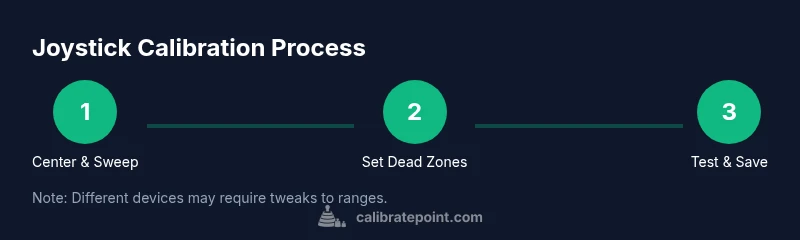
Follow a structured, stepwise approach to calibrate each axis and set dead zones. Begin with a full power cycle and connect your joystick to a stable computer. Open the calibration tool or OS utility and start with the X-axis, then the Y-axis, and finally any additional axes (Z, throttle, twist). For each axis, move the stick to its maximum and minimum extents, then return to center slowly to capture the true neutral point. After capturing, adjust the dead zones so the stick is visually and mechanically neutral at the center while still registering subtle movements near the edge. Save the profile and repeat for other axes if necessary. The aim is to reduce drift and center bias while preserving full range of motion.
Tip: perform measurements with the device in its regular resting position, not during a game or heavy load. This minimizes external forces that could skew results.
Verifying calibration with tests
Verification is essential to confirm the calibration actually improves performance. Use a simple test app or in-game practice mode to check centering, edge-to-edge range, and smoothness of input. Watch for drift—the tendency of the joystick to drift off center after releasing it—or dead-zone inconsistencies where small movements aren’t registered. If discrepancies persist, return to Step-by-step calibration and re-check the extreme values and the neutral point. Consistent test results across multiple sessions indicate a solid calibration and reduce the need for frequent rework. Calibrate Point recommends documenting test outcomes to track changes over time.
Common issues and troubleshooting
If calibration seems off after updates or device changes, re-run the calibration and re-test with a controlled input. Loose USB connections or battery issues in wireless models can cause intermittent readings. Calibration drift can also occur after firmware updates or if you switch between different USB ports. In many cases, repeating the procedure with a little more deliberate axis movement resolves the problem. If you still see drift after recalibration, consider lowering the sensitivity or adjusting the dead zone to re-center the effective axis range. When in doubt, consult the device manual for hardware-specific tips.
Tips for different joystick types (USB, Bluetooth, arcade sticks)
USB-connected controllers typically provide the most stable readings and easiest calibration path. Bluetooth devices may introduce latency or occasional disconnects during calibration, so ensure a stable pairing before starting. Arcade sticks or specialized controllers usually have extra axes or macro buttons; treat each axis separately and save a dedicated profile per device profile. If you use a mix of devices, keep separate calibration records to avoid cross-device confusion. Finally, maintain your devices by keeping connectors clean and firmware up to date; upgrades can improve axis handling and dead-zone performance.
How to maintain calibration over time
Calibration is not a one-time task. Regular checks—especially after software updates, hardware changes, or when you notice input drift—help keep your joystick accurate. Periodically re-run the calibration steps and compare results against your baseline. If you rely on the device for professional work, schedule a quarterly calibration audit and store results in a dedicated log. Consider setting a reminder to revalidate calibration after major OS or game updates. By establishing a routine, you reduce drift and ensure consistent control across tasks and titles.
Quick-start checklist for fast calibration sessions
- Confirm the joystick is clean and seated on a stable surface.
- Connect to a trusted host (PC or console) with calibration tools available.
- Open the appropriate calibration utility and center the stick.
- Calibrate each axis to its minimum and maximum extents, then re-center slowly.
- Set appropriate dead zones and sensitivity, then save the profile.
- Verify with a short test in-game or in a test app and adjust if needed.
- Document the results for future reference.
Tools & Materials
- Joystick or gamepad(Any model you plan to calibrate; wired or wireless)
- PC or compatible console(Windows/macOS with built-in tools or vendor software)
- Calibration software (optional)(Third-party tools can automate tests and exports)
- Stable workspace (desk or table)(Flat, rigid surface to minimize movement during measurements)
- USB cable or stable wireless connection(Recommended for stable data transfer during calibration)
- Device documentation/manual(Model-specific steps or constraints may apply)
Steps
Estimated time: 20-40 minutes
- 1
Power on and connect the joystick
Turn on the device and connect it to your host computer or console. Confirm it appears in the system as a recognized input device. If wireless, ensure a stable pairing before proceeding to avoid mid-calibration disconnects.
Tip: Check the device appears in device manager or system preferences before continuing. - 2
Open calibration tool
Launch the OS’s calibration utility or your chosen calibration software. Select the joystick from the list of devices and choose Calibrate or Start Calibration. If using Joy.cpl on Windows, opt for a full calibration rather than quick tests.
Tip: Close other input-heavy apps to prevent background drift while calibrating. - 3
Center the joystick
Gently center the stick and ensure it rests in the neutral position. This establishes the baseline for all axis measurements. Any bias in the neutral position will skew the entire calibration.
Tip: Keep your hand steady for 5–10 seconds in the center position. - 4
Calibrate X-axis
Move the stick to its maximum left and maximum right positions, capturing extreme points. Return to center slowly to mark the neutral point. Save the X-axis calibration before proceeding.
Tip: Do not force the stick beyond its mechanical stop to avoid damage. - 5
Calibrate Y-axis
Repeat the same process for the Y-axis: maximum up and down extents, then return to center. Confirm the neutral point aligns with the physical center.
Tip: Use deliberate, slow motions to ensure clean data points. - 6
Calibrate additional axes
If your device includes Z-axis, throttle, twist, or other axes, calibrate each in the same manner. Treat each axis independently to prevent cross-axis bias.
Tip: Document any axis with nonstandard range for later adjustment. - 7
Set and refine dead zones
Adjust the dead zones so tiny movements near center register while preventing drift. A small dead zone reduces unintentional input; a too-large one dulls sensitivity.
Tip: Start with a small dead zone (e.g., 0–5%) and increase only if you observe drift. - 8
Test in a controlled environment
Run a simple test in a game or test app to validate the axis behavior. Observe the response as you return to center and during full-range motion.
Tip: Test against a consistent background to notice small deviations more easily. - 9
Validate center and edges
Re-centre the stick and check that it returns cleanly to center from all directions. Confirm the edges register movement without skipping steps.
Tip: If you see sticking points, re-run the extreme capture steps. - 10
Save the calibration profile
Store the configuration in the OS or software, giving it a descriptive name (e.g., Primary PC Profile). This makes it easy to switch between setups.
Tip: Back up profiles if the software supports export/import. - 11
Re-test after reconfiguration
Disconnect and reconnect the joystick, then verify the calibration remains intact. Re-test with a quick game or test app to confirm stability.
Tip: If it fails, review steps 3–6 for possible data capture errors. - 12
Document and standardize
Create a short calibration record: device model, date, profile name, axis ranges, and dead zones. Store for future reference and audits.
Tip: A simple log helps when you retire a device or swap boards.
Questions & Answers
Do I need to calibrate my joystick every time I install a new game?
Not every time. Calibrate when you notice drift, misalignment, or unusual input behavior in games or simulations. A quick baseline check can confirm if recalibration is needed after updates or hardware changes.
Calibrate when you notice drift or misalignment after updates or hardware changes.
Can I calibrate a joystick on macOS?
Yes. macOS supports calibration through system preferences or vendor software. Steps vary by device, but the general approach is center, sweep, and save.
Yes, you can calibrate on macOS using system preferences or vendor software.
What is a dead zone, and why calibrate it?
A dead zone is a neutral range where small movements aren’t registered. Calibrating dead zones helps prevent drift and improves precision near center.
Calibrating dead zones reduces drift and improves precision near center.
What if calibration seems off after a software update?
Recalibrate after major software updates or firmware changes. Then re-test with controlled inputs to confirm the behavior.
If things change after an update, recalibrate and test again.
Should I follow hardware-specific calibration steps from the manual?
Yes. Hardware calibration steps from the device manual can improve accuracy. Combine hardware steps with software tests for best results.
Use the device manual's calibration steps along with software tests.
Watch Video
Key Takeaways
- Verify axes centering across all directions.
- Use OS or vendor tools for accuracy as a baseline.
- Test in real gameplay to confirm improvements.
- Document calibration steps and results for future reference.