How to Calibrate MakerBot Replicator: A Step-by-Step Guide
Learn how to calibrate MakerBot Replicator with a clear, step-by-step method covering bed leveling, nozzle height, extrusion checks, and verification prints for repeatable results.


By following this guide, you’ll calibrate a MakerBot Replicator to improve print quality. You’ll level the bed, set nozzle height, check extrusion, and run a verification print. Gather a simple ruler, calipers, filament, and calibration models, then follow each step for consistent, repeatable results.
Why calibrating a MakerBot Replicator matters
Calibrating a 3D printer like the MakerBot Replicator is not a cosmetic exercise; it directly influences print reliability, dimensional accuracy, and surface finish. When a printer is consistently out of spec, you waste filament, produce failed parts, and waste time. This guide explains how to calibrate the Replicator in a repeatable, methodical way. According to Calibrate Point, disciplined calibration reduces waste and improves repeatability for DIY enthusiasts and professionals alike. By aligning bed level, nozzle distance, and extrusion parameters, you set a baseline that makes every print more predictable. The process is iterative, but with a structured routine you can converge on stable results across different materials and geometries. As you proceed, maintain a calibration log with photos, model numbers, and measured results so you can trace what adjustments yielded the best outcomes.
Understanding the calibration workflow
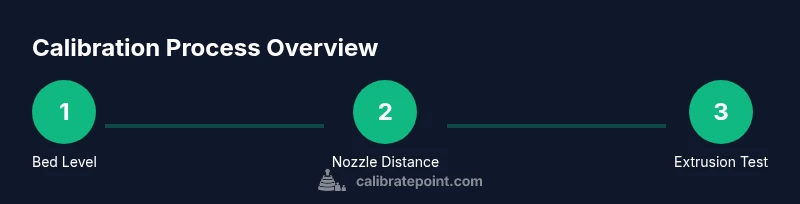
Calibration for the Replicator follows a series of interconnected tasks: bed leveling, nozzle height setting, extrusion calibration, and verification prints. Each step affects the next. Start with bed leveling, because an uneven bed skews adhesion and first-layer thickness. Then set the nozzle distance so the filament squashes correctly against the bed without being smeared or scraped. Next, calibrate extrusion by measuring actual deposited material against model expectations; adjust the extrusion multiplier or flow rate accordingly. Finally, run traceable test prints to confirm dimensional accuracy. The goal is to create a reliable, repeatable baseline that remains valid across materials and use cases. Keeping records helps you compare results over time and makes it easier to diagnose deviations when you switch filament brands or spool lots.
Bed leveling: The first crucial step
Bed leveling ensures the nozzle writes lines at a consistent distance across the build plate. Start by inspecting the build plate for debris and ensure it's flat. Use the printer’s leveling screws (or manual tilt) with the bed at room temperature, since thermal expansion affects spacing. A common approach is to run a bed leveling routine, then perform a feeler test with printer paper or a gauge sheet at multiple corners and the center. A properly leveled bed yields a uniform first layer and reduces the risk of warping. Remember to re-check after the first layers are printed. If your printer has a zoned bed or heated bed, you may need to re-verify level after the bed warms up to operating temperature.
Nozzle height and extrusion calibration
Setting the correct nozzle height (also called Z-offset calibration) is essential for reliable extrusion. With the bed leveled, bring the nozzle close enough to the bed so a slip of printer paper just barely scrapes under the nozzle with light resistance. If the nozzle sits too high, you’ll see gaps in the first layer; if too close, the filament may not melt and lay down properly. Then calibrate extrusion by printing a simple calibration cube or line test and measuring the actual deposited thickness. Compare to expected dimensions and adjust the extrusion multiplier (or flow rate) until the printed thickness matches the model. For consistent results, repeat the test with the same filament type and temperature settings. Document the dialed-in values for future reference.
Filament flow and extrusion width calibration
Filament flow calibration ensures the printer deposits the right amount of material. If flow is too low, you’ll see gaps; if too high, you’ll get warped surfaces or oozing. Start with a straightforward test: print a single-wall cube or a calibration model, then measure the actual width. Adjust the extrusion multiplier or flow rate until the measured width aligns with the target. In some printers, you may also need to adjust extrusion width in the slicer if the nozzle and extrusion parameters indicate a nonstandard line width. Use consistent temperatures and print speeds across tests so differences come from the calibration, not the print conditions. If your printer offers a calibration feature for flow, run it and compare results against your manual adjustments.
Verifying with test prints and fine-tuning
After completing the core calibrations, run a small, representative test print with your usual model. Inspect the first layer, ridges, and wall thickness; measure critical dimensions with calipers and compare to the CAD specs. Use a controlled environment; avoid drafts and temperature fluctuations during the test. If dimensions drift, revisit bed leveling, nozzle height, and extrusion calibration in small increments. Repeat prints to confirm that the changes reproducibly improve quality. Keep a log of model names, settings, and results so you can reproduce successful configurations in the future.
Common pitfalls and troubleshooting
Calibration is iterative; expect some back-and-forth. Common pitfalls include an unclean bed surface leading to poor adhesion, misinterpreting the paper feel test as true spacing, and neglecting calibration after changing materials or filaments. If you notice poor adhesion, start with a thorough bed cleaning, re-level, and re-check Z-offset. If the first layer appears over-extruded, revert to a slightly lower extrusion multiplier, then reprint a small test. Warping at corners may require a heated bed or enclosure and stable ambient conditions. Finally, run a mid-range temperature test to ensure your settings hold across the normal operating range. Keep your calibrations modular; change one variable at a time and re-verify each change's impact.
Tools & Materials
- Printer power cable(Ensure the printer is connected to a stable power source.)
- MakerBot Desktop/Print software(Used to run calibration workflows and toolpaths.)
- Calibration models/files(Standard objects (e.g., calibration cube, line test))
- Calibrated ruler or digital calipers(For precise dimensional checks on test prints.)
- Printer paper (standard 8.5x11)(Used for the feeler test to gauge nozzle-bed clearance.)
- Calibrated filament spool(Use the same material for repeatable results.)
- Allen keys/hex wrenches(For bed-screw adjustments if needed.)
- Isopropyl alcohol wipes(For cleaning the bed surface before leveling.)
Steps
Estimated time: 60-120 minutes
- 1
Power on and connect to the printer
Power up the MakerBot Replicator and establish a connection to MakerBot Desktop or MakerBot Print. Verify that the printer is detected and the firmware is accessible. This initial connection ensures that subsequent adjustments can be saved to the device.
Tip: Check the connection status in the software before making any adjustments. - 2
Home all axes and verify motion
Send a homing command to X, Y, and Z to confirm smooth, unrestricted movement. Listen for any grinding or binding noises that indicate belt or guide issues. If you hear problems, pause and inspect belts, pulleys, and the build area.
Tip: Move slowly during a homing pass to detect binding early. - 3
Clean the bed and nozzle
Wipe the bed surface and inspect the nozzle for any residue. A clean interface helps achieve an accurate first layer. If material is stuck, perform a light nozzle cleaning and ensure the bed is dry before proceeding.
Tip: Avoid touching the nozzle tip with bare hands; use caution to prevent burns. - 4
Level the bed using corner screws
Execute the printer’s bed leveling routine or manually adjust from the four corners toward the center. Use a sheet of standard printer paper to gauge clearance at each corner and the center, aiming for a consistent resistance as you move the paper.
Tip: After adjusting, recheck all four corners and the center for uniform clearance. - 5
Set initial nozzle height and bed offset
Position the nozzle at the first test point and perform a paper test to adjust the gap. The goal is uniform contact without dragging. Document the measured gap at each corner for traceability.
Tip: Keep a small notebook or digital log to capture the gaps you measure. - 6
Print a calibration cube and measure extrusion
Print a small calibration cube or line test at a standard temperature. Use calipers to measure the actual dimensions and compare to the model. If discrepancies exist, adjust the extrusion multiplier (flow rate) accordingly.
Tip: Use the same filament and temperature during all extrusion tests. - 7
Verify extrusion and cross‑sectional width
Print a single-wall test to evaluate extrusion width and wall thickness. If the measured width differs from the target, tweak the extrusion settings and reprint. This helps ensure part integrity in real prints.
Tip: Isolate changes to extrusion settings; avoid modifying multiple variables at once. - 8
Run a representative test print
Print a model that reflects your typical part, then inspect first-layer adhesion, surface quality, and dimensional accuracy. Use the findings to refine bed level, Z-offset, and extrusion in small increments.
Tip: Pause early in the print to check bed, adhesion, and early layer consistency. - 9
Finalize and document the calibration
Record the final bed level values, extrusion multiplier, nozzle height, and any slicer adjustments. Save these as a calibration profile and maintain a changelog for future recalibration with different filaments.
Tip: Create a reusable template so you can reproduce the setup for new materials.
Questions & Answers
What is the first step in calibrating the Replicator?
Begin by powering on the printer and establishing a connection to your calibration software. Verify firmware compatibility before making mechanical changes.
Start by powering on and connecting to your calibration software, then check firmware compatibility.
Do I need to recalibrate after changing filament?
Yes. A different filament can alter extrusion and adhesion; recheck bed level and extrusion calibration when you switch materials.
Yes, after changing filament check bed level and extrusion calibration.
How often should I calibrate?
Calibration should be performed whenever you notice print quality changes, after mechanical service, or after material changes.
Calibrate when you notice quality changes or after service or material changes.
Why is my first layer not sticking after calibration?
Issues often come from uneven bed, nozzle height too far from the bed, or cooling settings. Recheck bed leveling and the paper test.
Check bed level and nozzle height; adjust cooling if needed.
Can I calibrate without external tools?
You can start with a standard printer paper test and visual checks, but accuracy improves with calipers and known calibration models.
Yes, start with paper test and visual checks; use calipers for accuracy if possible.
Is calibration permanent?
Calibration settings affect how the printer handles layers and extrusion; changes can be reversed or adjusted as needed.
Calibration settings can be adjusted or reversed as needed.
Watch Video
Key Takeaways
- Follow a structured calibration routine for repeatable results
- Use simple test prints to verify changes
- Document results for future reference
- Adjust bed leveling, nozzle height, and extrusion in small steps
- Expect iterative refinements to converge on optimal settings