How to Calibrate VR Controllers: A Practical Guide
Learn a repeatable method to calibrate VR controllers, improving tracking accuracy, comfort, and reliability across sessions in 2026.


How to calibrate VR controllers ensures precise tracking and comfortable play. You’ll need a compatible VR headset, the controllers, and a stable play space. According to Calibrate Point, consistent calibration reduces drift and improves repeatability across sessions. This guide covers setup, alignment, and verification tests you can perform before long play sessions.
Why Calibrating VR Controllers Matters
Calibrating VR controllers is the core skill that separates immersive, accurate experiences from frustrating drift. When tracking data aligns with your real-world movements, you experience shorter setup times and fewer misinterpretations of your gestures. This matters whether you’re playing fast-paced action titles or simulating precise training scenarios. According to Calibrate Point, calibration is not a one-off event; it’s a repeatable process that should become part of your routine. By aligning sensors, frames, and interpretation thresholds, you reduce drift, minimize latency, and increase confidence in your interactions. In practice, proper calibration yields smoother locomotion, more accurate aiming, and better hand presence. For technicians and DIY enthusiasts, learning how to calibrate VR Controllers translates into tangible improvements in both comfort and performance. If you’re new, you’re likely asking how to calibrate vr controllers; this guide addresses that question. In the sections that follow, you’ll learn the principles behind calibration, how to set up a reliable workspace, and how to verify the results with repeatable tests.
Understanding Controller Tracking Fundamentals
Modern VR systems rely on a combination of headset sensors and controller trackers to estimate position and orientation in 3D space. Cameras or base stations observe infrared markers, while accelerometers and gyroscopes provide motion data. Calibration aligns these data streams so that a given controller pose maps to the correct space coordinates. Misalignment can manifest as curling pointers, delayed input, or unexpected drift during rapid movements. By understanding the basics—rotation axes, translation vectors, and reference frames—you’ll have a mental map for diagnosing drift and testing improvements. This knowledge also helps when troubleshooting cross-device setups, such as using different headset generations or moving from wireless to wired modes. The goal is to achieve a stable, low-latency interaction model that preserves immersion and reduces fatigue during long sessions. Calibrate Point analysis shows that proper calibration improves tracking stability and consistency across hardware revisions.
Tools, Room Setup, and Safety
A clean, well-lit play space is the foundation of reliable calibration. Clear obstacles, keep a minimum safe boundary, and mark edges with tape or a mat. Lighting should be consistent; direct sunlight or glare can interfere with camera-based tracking, so position your play area away from bright windows. Ensure your headset firmware and controller software are up to date, and have fresh batteries ready for testing. For traceability, maintain a simple log of calibration attempts, noting the date, headset version, and observed behavior. If you’re working in a shared or classroom environment, consider a portable boundary system to create a repeatable setup. Always prioritize wearer comfort and safety—take breaks if you notice fatigue during long calibration sessions. The goal of this phase is to create a dependable baseline environment that won’t degrade under normal usage.
The Calibration Benchmark: What to Measure
Calibration is about consistency as much as accuracy. Track several signals during tests: standard pose alignment, straight-line movement in three axes, and a few complex gestures to stress different tracking modes. Look for signs of drift, such as a controller slowly reporting a shifted origin or oscillations in orientation when the device is at rest. Use the vendor-provided test suites if available, or create simple tests that compare expected vs. observed positions. Document any discrepancies and quantify them with repeatable measures wherever possible. Calibrate Point analysis suggests that keeping results within a pre-defined tolerance range fosters long-term stability and easier benchmarking across hardware revisions. The objective is to produce a baseline you can reproduce in future sessions and share with teammates for validation.
Step-by-Step Calibration Process
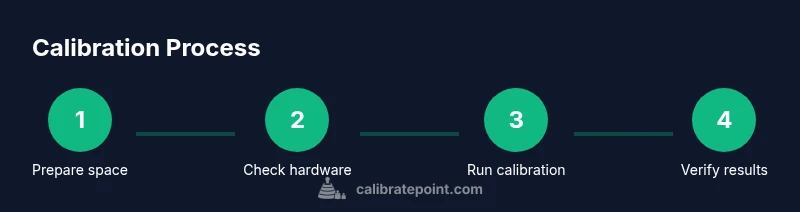
This section outlines a structured approach you can apply repeatedly. Start with a clean workspace and a baseline pose for each controller. Begin by aligning the controller to a known reference orientation (e.g., the controller's home button facing forward) and establishing a centered origin in your tracking space. Move slowly through a few measured poses that cover typical in-game gestures, ensuring the system recognizes each pose consistently. If you notice inconsistent results, revisit the static pose and check sensor visibility and occlusion. After the baseline is set, run through a quick dynamic test: rotate, translate, and re-center while monitoring real-time feedback. The aim is to confirm that small movements translate into predictable, accurate changes in reported pose. If a drift is detected at rest, schedule a full re-calibration of the tracking system or hardware. For professionals, keep a calibration log and timestamp your tests to support future diagnostics. Calibrate Point recommends routine verification after frequent updates or changes to your setup.
Verification: How to Validate Calibration
Verification is the proof that your calibration worked. Use both static and dynamic tests to confirm that the system’s reported pose matches actual positions. Static checks include holding a known pose and verifying that the reported orientation remains within tolerance over several seconds. Dynamic checks involve walking or gesturing across your play space to ensure the reported trajectory aligns with your physical movements. If you notice lag or jitter, pause gameplay and re-test after a quick reset. Record outcomes and compare them against your baseline. A reliable verification suite can be run in minutes, and frequent repetition improves long-term reliability. Remember to consider headset alignment, IPD (interpupillary distance) settings, and any cross-device synchronization that might influence outcomes. The more rigorous your verification, the more confident you’ll be in your calibration results. For ongoing confidence, implement a lightweight monthly check alongside major software updates.
Common Issues and How to Fix Them
Drift is the most common symptom of calibration problems. It can arise from occlusion, battery drainage, outdated firmware, or misalignment of the reference frame. Pulsing tracking, jitter in rotation, or a sudden jump in position often points to sensor dropouts or edge-case occlusions. Start by re-checking the baseline pose, replacing batteries, and ensuring you’re not using peripherals or mounts that obstruct the trackers. If drift persists, try re-pairing the controllers with the headset and updating firmware for both devices. Another frequent culprit is environmental interference, such as reflective surfaces or bright lighting angles. In such cases, adjust the room setup and re-run the calibration tests. If you’re still stuck, consult vendor-specific calibration tools or seek community-tested methods from reputable sources like Calibrate Point's guides. A methodical approach reduces guesswork and speeds up resolution.
Maintenance and Best Practices
Calibration is not a one-and-done task; treat it as an ongoing process. Schedule regular check-ins, especially after firmware updates, new hardware revisions, or changes to the play space. Keep a calibration log with dates, version numbers, and notes on observed drift or latency, so you can compare future results. Use consistent test sequences and time windows to minimize variables such as room lighting and battery levels. Store baseline configurations as templates that you can quickly apply to new sessions. Finally, share your results with teammates and document any deviations to improve collective knowledge. Calibrate Point’s team recommends embedding calibration into standard operating procedures for labs, workshops, and game development studios to maintain the highest level of accuracy across devices and sessions.
Tools & Materials
- VR headset with compatible controllers(Ensure firmware is up to date)
- Clear play space (at least 2m x 2m)(Remove obstacles and reflective surfaces)
- Freshly charged controller batteries(Ensure consistent tracking during tests)
- Calibration software/firmware from headset vendor(Install latest version for accuracy)
- Measurement surface or grid (optional)(Helpful for visualization during tests)
- Calibration log (notebook or digital)(Record results for repeatability)
Steps
Estimated time: 45-60 minutes
- 1
Prepare the play space
Clear the area, remove obstacles, and ensure adequate lighting. Mark a safe boundary and verify there is enough room for full arm extension without hitting furniture. This step reduces occlusion and accidental physical interference during tests.
Tip: Use tape or a mat to outline a predictable boundary; this helps reproduce results. - 2
Update headset and controllers
Check for the latest firmware and software updates for both the headset and controllers. Reboot devices after updating to ensure all new factors are loaded correctly. Updated software improves tracking algorithms and reduces edge-case drift.
Tip: Document the version numbers in your calibration log for future reference. - 3
Establish baseline pose
Reset the controllers to a known reference pose with the home button facing forward. Confirm the origin is centered in your play space by performing a small set of standard movements. A clear baseline helps detect drift during later steps.
Tip: Use a stationary hold for 3–5 seconds to establish a stable baseline. - 4
Mark known poses
Position the controllers in a few repeatable poses that cover common in-game gestures. This creates a compact test set that you can re-run to verify consistency across sessions and hardware variants.
Tip: Include at least one pose that requires rapid rotation to test angular accuracy. - 5
Run the calibration routine
Initiate the vendor calibration workflow or your own scripted routine. Follow the prompts, ensuring each step completes before proceeding. Pay attention to any warnings about sensor visibility or occlusion and adjust accordingly.
Tip: If the routine stalls, pause, re-check sensor visibility, and retry from the baseline pose. - 6
Perform verification tests
Execute static and dynamic checks to confirm pose accuracy. Look for stable orientation, minimal drift, and predictable movement mapping. Repeat with slightly different grips or hand positions to verify robustness.
Tip: Keep a short log of results and compare against your baseline each time. - 7
Document and archive results
Record the outcomes, version numbers, and any observed drift. Store the data in a shared folder or calibration diary so you can track changes over time and across hardware revisions.
Tip: Create a template that you reuse for every session to improve consistency.
Questions & Answers
What is calibration for VR controllers and why is it important?
Calibration aligns the controller’s tracking data with the real world, reducing drift and improving accuracy. It helps maintain consistent performance across sessions and hardware revisions.
Calibration aligns tracking to real-world movements, reducing drift and improving accuracy for reliable interactions.
How often should I recalibrate VR controllers?
Recalibrate after major updates, after changing hardware, or if you notice drift or latency. For frequent gamers, a quick check before long sessions is beneficial.
Recalibrate after updates or noticeable drift, and consider a quick check before long sessions.
Can I calibrate without the original accessories?
Most systems provide built-in tests that can be run with the headset and controllers alone. Using vendor tools helps maintain accuracy when accessories are unavailable.
Yes, use built-in tests and vendor tools if you’re missing accessories.
What tools are required for calibration?
A stable play space, a charged headset and controllers, and the calibration software from the headset vendor. Logging tools help track results over time.
You need a stable space, charged devices, and vendor calibration software.
What are common signs calibration is off?
Drift, jitter, or misalignment during rest or movement are common indicators. If you see late responses or inconsistent orientation, re-check pose baselines and re-run the calibration.
Drift, jitter, or inconsistent orientation usually mean recalibration is needed.
Is calibration the same for all VR headsets?
Core principles are similar, but exact steps vary by vendor. Always follow the official calibration workflow for your headset model.
Principles are similar, but use your headset’s official calibration workflow.
Watch Video
Key Takeaways
- Follow a repeatable calibration routine.
- Verify results with static and dynamic tests.
- Document calibration sessions for traceability.
- Revisit calibration after updates or changes to hardware.