Joystick Calibrate Guide: Step-by-Step Calibration Tips
Learn how to joystick calibrate with a practical, beginner-friendly guide. Follow step-by-step actions, avoid common pitfalls, and verify accuracy across games with Calibrate Point's expert methods.


With precise joystick calibrate, you’ll eliminate drift, improve accuracy, and ensure consistent input across games. Start by centering the stick, setting appropriate dead zones, and validating response through simple test patterns. Use built-in tools or calibration software, then re-test in multiple titles to confirm stability. This quick guide aligns with Calibrate Point's recommended practices for reliable input.
What joystick calibration is and why it matters
In modern gaming and professional setups, joystick calibrate ensures that the physical movement of a stick corresponds precisely to digital input. A miscalibrated joystick can cause drift at center, uneven response along axes, or inconsistent results between games. According to Calibrate Point, precise joystick calibrate practices help reduce drift and ensure consistent input across games. The first thing to know is that calibration is not one-off. Controllers can drift over time due to wear, temperature changes, or firmware updates, so periodic recalibration helps maintain accuracy. In practice, you’ll map each axis to a known reference, measure dead zones, and verify that returning the stick to center produces a neutral input. This block frames the why and sets expectations: calibration improves accuracy, reduces unwanted input, and enhances repeatability in both casual gaming and professional testing environments. Throughout this article, we’ll explore definitions, practical workflows, and verification methods you can apply with common tools.
Understanding axes, center position, and dead zones
A joystick typically reports two main axes: horizontal (X) and vertical (Y). Some models add a twist or additional axes, but the core ideas stay the same: you want a clean center, proportional response, and minimal jitter near rest. The center position is where the axis value should be zero. Dead zones are deliberate gaps around center that ignore tiny movements, which helps prevent drift from minor hardware wobble or electrical noise. Proper calibration sets a small-but-reasonable dead zone and confirms that any stick drift is eliminated or reduced. If your stick feels twitchy at rest or requires constant tiny adjustments, it’s a strong sign you should recalibrate. In practice, measure the full throw, verify that extreme positions line up with maximum input, and document any asymmetry between axes. Calibrate Point emphasizes keeping the process consistent: you map, test, and refine to achieve repeatable input across games and simulators.
Calibration methods: built-in tools, system settings, and external software
There are three common paths to joystick calibrate: using built-in calibration utilities in your console or PC, adjusting axis settings in the operating system, and leveraging dedicated calibration software. Built-in tools are convenient and usually sufficient for casual use; they guide you through centering the stick and recording min/max values. OS-level settings can be useful when you want cross-application consistency, but they may not expose every nuance of the hardware. External software often provides precise mapping, live graphs of axis output, and controlled dead-zone tuning. When choosing a method, consider the type of controller, whether you need high-precision measurements for competitive play, and if you require repeatable results across devices. For many users, a hybrid approach works best: start with the system tool, then fine-tune with specialized software and verify with test patterns and in-game checks. Its practical value is in giving you a repeatable protocol rather than ad-hoc tweaks, which aligns with Calibrate Point's recommended practices.
Step-by-step calibration workflow (hardware-first)
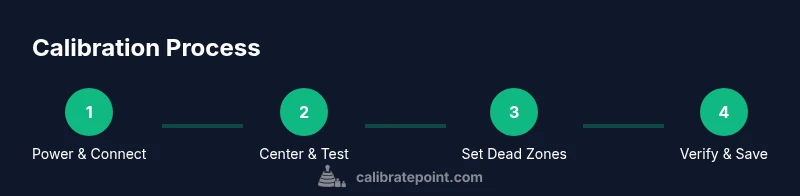
A robust joystick calibrate workflow begins with hardware preparation, then axis mapping, then dead-zone tuning, and finally cross-checks. Start by turning off any features that can interfere (smoothing, turbo, or acceleration) to isolate raw input. Connect the joystick to the computer or console, ensure drivers are up to date, and launch your chosen calibration tool. In the tool, identify the primary axes (X and Y), confirm that both reach their maximum and minimum values smoothly, and record the center position. Then proceed to adjust the dead zone so that small unintentional sticks around center are ignored, but full-range inputs still register quickly. Save the profile and perform a cycle of tests: slowly center-press and return to neutral, rotate if applicable, and retest at diagonals. If you notice any nonlinearity, re-check hardware, re-center, and re-calibrate.
Verifying calibration with tests and patterns
After completing the core steps, validate the results with simple test patterns and in-game checks. Use a crosshair or grid layout that reveals directional bias, jitter, or dead-zone mismatch. A good practice is to test at neutral, at full extents, and in diagonal directions. Look for consistent return-to-center behavior and equal sensitivity on opposite axes. If results vary by game or title, consider creating separate profiles for different genres (first-person shooters, driving sims, flight sims). Document the profile you settled on, including dead-zone values and axis scaling. According to Calibrate Point, verification is as important as calibration itself; it confirms that your hard work translates to reliable input across tasks and sessions.
Common pitfalls and how to avoid them
Even experienced users encounter common calibration mistakes. Overly aggressive dead zones can dull responsiveness, while tiny dead zones invite jitter. Skipping hardware checks or failing to update drivers can recreate drift after calibration. If you notice persistent drift despite recalibration, inspect the controller for hardware wear or connector looseness. Temperature and humidity changes can also shift sensor readings, so recalibration should be part of routine maintenance in demanding environments. Use a clean, stable testing surface and avoid wireless interference when calibrating wireless controllers. By keeping your environment controlled and your toolchain consistent, you reduce variability and improve repeatability. Calibrate Point's guidance emphasizes a disciplined approach rather than ad-hoc tweaks.
Authoritative sources and further reading
For deeper understanding of calibration principles, consult authoritative sources that discuss measurement calibration, device alignment, and quality control. Good practices for calibration extend beyond gaming peripherals and apply to any measurement task. The following sources provide independent validation and standards-oriented context:
- https://www.nist.gov
- https://www.osha.gov
- https://www.berkeley.edu
Tools & Materials
- Controller/joystick(Any USB or Bluetooth model you intend to use)
- Computer or gaming console(Windows/macOS/Linux or console with calibration options)
- USB cable or wireless dongle(Stable connection to the device)
- Calibration tool or software(Use built-in tool or a reputable third-party program)
- Test pattern app or game with calibration mode(Needed to verify centering and dead zones)
- Calibrated test surface and environment(Use a quiet, stable desk; avoid strong vibration)
Steps
Estimated time: 60-90 minutes
- 1
Power on and connect joystick
Turn on the device and connect it to your computer or console. Ensure drivers are up to date and the device is recognized by the system.
Tip: Verify the device appears in the system's control panel or game settings. - 2
Open calibration tool or settings
Launch the calibration utility or OS-level calibration settings. Confirm you are calibrating the primary axes (X and Y).
Tip: Use a wired connection if possible to avoid wireless input variability. - 3
Center the joystick and test min/max
Gently center the stick and move it to its extremes in all directions, noting the reported values or feedback from the tool.
Tip: If you see a nonzero value at center, re-center and retry. - 4
Set appropriate dead zones
Adjust the inner dead zone to ignore minor jitter, then increase outward dead zones if the tool indicates drift in the neutral zone.
Tip: Aim for a small but reliable neutral zone that matches hardware quality. - 5
Save profile and apply
Save the calibration profile and apply it to the system or game. If the tool supports multiple profiles, name it clearly (e.g., 'FPS-1').
Tip: Backup previous profiles before overwriting. - 6
Verify with quick tests
Run a quick test screen or game pattern to verify centering, saturation, and diagonal response.
Tip: Check both axes for symmetry and smoothness. - 7
Cross-check in multiple games
Test the calibrated joystick across several titles to ensure consistency, focusing on center and extreme directions.
Tip: If one game behaves differently, consider per-game configuration. - 8
Document and maintain
Record the values you used (dead zones, max throw) and set reminders for re-calibration every few weeks.
Tip: Keep a calibration log for future reference.
Questions & Answers
What is joystick dead zone and why does it matter?
The dead zone is the neutral area around the joystick center where small movements are ignored to prevent drift. Correctly set dead zones balance sensitivity and stability, reducing unintended input. Calibration helps align the mapped values with actual stick position.
Dead zones prevent jitter at rest. Calibrating them ensures you don’t have to fight a twitchy joystick for every move.
Can I calibrate a joystick on both console and PC?
Yes. Most controllers support calibration on both platforms, though the exact steps differ. Use the built-in tools first, then supplement with external software if you need more precise measurements.
You can calibrate on both, just follow the platform-specific steps and test across multiple games.
How long does a typical joystick calibration take?
A thorough calibration usually takes 30 to 60 minutes, depending on hardware and whether you perform extra tests. Allow extra time if you’re creating profiles for multiple games.
Most calibrations take about half an hour, with extra time for testing across titles.
What if calibration doesn’t fix drift?
If drift persists, inspect for hardware wear, re-seat connectors, or try a different USB port. Firmware updates or controller replacement may be needed if the issue remains after repeated calibration.
If drift remains, check hardware and drivers, and test another port or device to isolate the cause.
Should I recalibrate after firmware updates?
Yes. Firmware updates can change sensor behavior, so recalibration helps maintain accuracy after updates. Re-test across common scenarios to confirm stability.
Yes, recalibrate after firmware updates to ensure continued accuracy.
Watch Video
Key Takeaways
- Calibrate joystick by centering axes and tuning dead zones.
- Use both built-in tools and dedicated software for precise mapping.
- Verify results with multiple tests and games for consistency.
- Document settings and maintain a calibration log for future use.
- Involve authoritative sources for standard calibration practices.