Klipper Probe Calibrate: A Practical Step-by-Step Guide
Learn how to calibrate a Klipper probe with a practical, repeatable workflow. From enabling the probe in printer.cfg to verifying offsets and bed mesh, this guide from Calibrate Point walks DIYers, technicians, and professionals through each essential step.


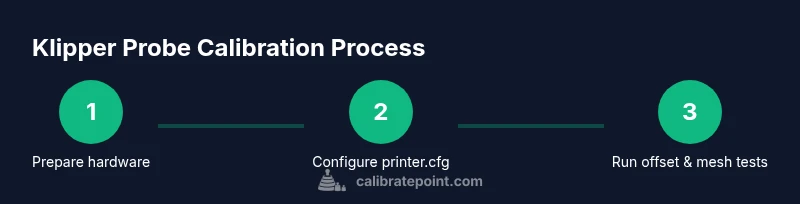
By following a structured Klipper probe calibration workflow, you’ll align your printer’s probe with the nozzle and establish accurate Z-offset and bed mesh. Start with enabling a probe in printer.cfg, verify wiring, and perform a series of measurements and adjustments using precise offset and height readings. This guide from Calibrate Point provides a practical, repeatable method to achieve reliable prints.
What you achieve with klipper probe calibrate
Calibrating your Klipper probe is a foundational step toward reliable, repeatable prints. A well-calibrated probe minimizes print failures caused by incorrect Z-offset, uneven bed leveling, or drifting sensor readings. With a calibrated probe, your printer can consistently translate the nozzle’s position relative to the bed, enabling accurate first layers, improved adhesion, and fewer failed attempts. This is particularly important for operations that demand tight tolerances, such as calibration prints or models with intricate base details. According to Calibrate Point, a methodical approach reduces setup time and improves repeatability when calibrating a Klipper probe. The calibration process is not a one-and-done task; it should be repeated whenever you change probe hardware, modify the bed surface, or notice shifts in print quality. Treat calibration as an ongoing quality control step, not a one-off adjustment. The overarching goal is to create a robust baseline that you can reference when diagnosing print issues. By logging offsets and mesh values, you’ll simplify future maintenance and troubleshooting, saving time during busy print cycles and ensuring you meet your project requirements with confidence.
Prerequisites and planning
Before you begin the Klipper probe calibrate journey, take time to plan. A clear plan reduces back-and-forth experimentation and minimizes the risk of hardware damage or misconfigurations. Start by confirming your hardware supports probing (BLTouch, capacitive/inductive probes, or IR probes), verifying probe wiring, and ensuring your bed surface is clean and fully attached. In practice, a calm, organized workstation helps: a stable printer, a laptop or Raspberry Pi with Klipper installed, and a reliable way to send G-code or Klipper commands. Having a printed calibration checklist and notes log makes follow-up iterations faster and more reliable. The Calibrate Point team emphasizes documenting every offset and mesh value you measure, so you can reproduce results or roll back if needed. If you’re working in a workshop with variable humidity or temperature, consider recording ambient conditions as part of your calibration notes to track environmental effects on sensor behavior.
Probe types and selecting the right approach
There are several probe technologies used with Klipper, including BLTouch, EZABL, capacitive probes, and IR sensors. Each type has different triggering methods and sensitivities, which affects how you calibrate. BLTouch-based probes rely on accurate trigger distance and may require re-timing of probe deploy/retract cycles. Capacitive probes emphasize precise bed surface sensing, while IR sensors focus on proximity to the bed. The calibration workflow remains similar in structure—configure the probe in printer.cfg, verify wiring and signal, perform offset and height measurements, and validate with test prints—but the exact commands, mesh strategies, and retraction behaviors will vary by probe type. The key is to align the chosen probe’s physical behavior with your printer’s geometry, ensuring consistent contact or sensing at the intended bed surface height.
Step-by-step calibration workflow: offset and height
The core of klipper probe calibrate is a repeatable sequence of measurements and offsets. Start by enabling the probe in printer.cfg and confirming the probe type. Home the printer and set a safe Z height to prevent collisions. Use a series of measurement passes to determine the nozzle-to-bed offset (Z offset) at multiple X/Y coordinates, then compute a consistent offset value. Next, adjust the probe trigger height and re-run the offset tests to confirm stability. Finally, save the finalized offsets and test a small calibration print to verify first-layer quality. The goal is a single, stable Z-offset and predictable bed leveling behavior that holds across prints. Keep a log of your offsets and recheck after any hardware changes.
Calibrating bed mesh and Z-hop to improve consistency
Bed mesh calibration compensates for local bed irregularities, ensuring even first-layer contact across the print surface. Generate a mesh grid by probing a selection of X/Y points on the bed and measuring the Z height at each point. Klipper can store this mesh and use it to adjust print height dynamically. Z-hop during probing or when moving across the bed can prevent scratches and improve probe reliability on taller prints. After meshing, reprint a simple square or calibration cube to confirm uniform layer adhesion. If inconsistencies persist, consider rechecking the mechanical tightness of the bed or reprinting a fresh bed surface for a more accurate mesh.
Validation methods: testing and common errors
Validation is essential to ensure the calibration holds under real-world prints. Run test prints with progressively tighter tolerances and inspect the first layer for uniformity. If you notice gaps, over-extrusion, or stringing, revisit the Z-offset and mesh values. Common errors include miswired probes, incorrect probe offsets in printer.cfg, and thermal drift affecting sensor readings. A practical habit is to perform calibration in a controlled sequence: confirm basic offsets, create a new mesh, do a mid-layer calibration check, and finally run a small geometry test. Document any changes and outcomes to build a reliable calibration baseline.
Maintenance and documentation for repeatability
Calibration is not a one-time event; it’s a maintenance activity. After calibrating, back up printer.cfg and any macros you used during the process. Maintain a dedicated calibration log that records Z-offsets, mesh coordinates, and the date of the last adjustment. Recheck calibration after hardware changes (new nozzle, probe, or bed), after a firmware update, or when you notice print anomalies. Keeping notes and backups shortens downtime and helps you reproduce exact results later. As Calibrate Point notes, disciplined documentation is the foundation of repeatable calibration and long-term print quality.
Tools & Materials
- Klipper firmware installed and configured on your 3D printer(Ensure web interface or host can send commands to the printer)
- Bed probe hardware (e.g., BLTouch or capacitive/IR probe)(Check compatibility with your hotend and bed surface)
- Digital caliper or precise measurement tool(Used for accurate offset measurements)
- Feeler gauge or feeler gauges set (0.02–0.3 mm)(Helpful for probe trigger height checks)
- Graph or notebook for logging offsets and mesh data(Important for repeatability)
- Laptop/PC with USB cable to printer(Required for editing printer.cfg and sending commands)
- Calibrated test print material (PLA recommended)(Use a simple calibration model for validation)
- Screwdriver set and hex keys(Some probes require adjustment screws)
- Anti-static brush or cloth(Keep connectors clean during wiring checks)
Steps
Estimated time: 60-120 minutes
- 1
Prepare workspace and verify hardware
Power off the printer, inspect the probe and bed for secure mounting, and confirm the bed is clean. Ensure Klipper is reachable from your host and that you can send basic commands. This prevents misfires during the calibration process and reduces hardware strain.
Tip: Double-check that the probe is securely mounted and cannot accidentally trigger during homing. - 2
Enable probe in printer.cfg and confirm wiring
Edit printer.cfg to define the probe type and its trigger pin/offset. Save, then restart Klipper and verify the probe reports when triggered during a test read. Correct wiring is crucial for accurate measurements and reliable behavior.
Tip: If the probe does not trigger, recheck the signal line and ground; test with a simple trigger script before proceeding. - 3
Home and set a safe Z height
Home all axes and carefully set a safe Z height at which the nozzle is close to the bed but not touching. A stable base height reduces risk during offset measurements and helps the probe trigger consistently.
Tip: Use a light touch on the bed to avoid compressing any surface and skewing measurements. - 4
Measure Z-offset at multiple XY points
Position the nozzle over several known grid points and record the nozzle-to-bed offset (Z offset) at each. If your readings vary, compute a median or average to use as the starting offset. This step establishes a robust baseline.
Tip: Pick a small grid (3x3 or 5x5) to balance accuracy with time. - 5
Calibrate trigger height and re-run measurements
Adjust the probe trigger height in printer.cfg and re-run the offset measurements. Iterate until you observe minimal variance across points. After stabilizing, save the offset values to the configuration.
Tip: Document the final trigger height and offset in your log for future reference. - 6
Create and validate bed mesh
Generate a bed mesh by probing a grid across the bed surface. Apply the mesh and print a test object to verify that the first layer adheres evenly across the entire bed. Recalibrate if the test shows anomalies.
Tip: If your bed isn’t perfectly flat, mesh calibration is especially valuable. - 7
Run a validation print and record results
Print a simple calibration model (e.g., a 20–40 mm square) and inspect the first layer. If the layer is uniform, your calibration is likely good; if not, revisit offset and mesh steps.
Tip: Keep notes on any deviations and adjust accordingly. - 8
Back up and document the final configuration
Save a copy of printer.cfg with all calibrated offsets and mesh data. Store your calibration notes in the same folder for quick reference in the future.
Tip: Label backups with date and a short description to simplify rollbacks.
Questions & Answers
What is the purpose of calibrating a Klipper probe?
Calibrating a Klipper probe ensures the nozzle height is accurately known relative to the bed, which improves first-layer quality and overall print reliability. It reduces failed prints caused by incorrect Z-offsets and bed leveling assumptions.
Calibrating the Klipper probe makes sure you know exactly how far the nozzle is from the bed, so your first layer comes out right every time.
Do I need a specific probe type to calibrate?
No single probe is mandatory for calibration, but the workflow varies by probe type. BLTouch, capacitive, and IR probes share common steps, with adjustments for trigger height and signal wiring.
You can calibrate different probe types; just follow the wiring and trigger-height steps for your specific sensor.
How long does the process typically take?
Expect to spend about one to two hours depending on your hardware, bed condition, and how thoroughly you validate offsets and mesh.
Most people take around an hour or two to complete calibration and validation.
What should I backup before calibration?
Back up printer.cfg and any macros used during calibration. Keeping a log of offsets and mesh data helps you revert if needed.
Save a copy of your printer configuration and your calibration notes.
What if probing results are unstable?
Recheck wiring, probe mounting, and trigger height. Ensure the bed is clean and stable; environmental changes can affect measurements.
If readings jump around, recheck the wiring and mounting, then repeat measurements.
Should I always run a test print after calibration?
Yes. A simple calibration print validates first-layer quality and confirms offsets and mesh are functioning as expected before committing to more complex parts.
Always test with a small print to confirm your calibration actually works.
Watch Video
Key Takeaways
- Document Z-offsets and mesh values for repeatability.
- Verify each change with a validation print.
- Back up configuration before edits.
- Calibrate after hardware changes or firmware updates.