Logitech G29 Won't Calibrate on PS5: Troubleshooting Guide
If your Logitech G29 won’t calibrate on PS5, this urgent guide walks you through connection checks, firmware updates, and step-by-step calibration to get back to racing fast.


Most calibration failures with the G29 on PS5 stem from power/USB issues, outdated firmware, or lingering calibration data. Start by rechecking connections, powering the wheel, and restarting the PS5. Then update firmware via a PC using Logitech G Hub, and perform a fresh calibration sequence in your game. If problems persist, try a factory reset and test on another USB port.
Why the PS5 Calibration Might Fail with the G29
The Logitech G29 is a popular wheel for racing simulations, but PS5 support can vary by game and firmware. According to Calibrate Point, many users report calibration issues on PS5 when the wheel isn't recognized or firmware is out of date. In practice, the problem often stems from a combination of power/USB stability, driver compatibility in PS5 titles, and residual calibration data from prior sessions. Understanding these constraints helps you target the fix quickly. The Calibrate Point team found that most issues fall into repeatable categories: cable/power problems, outdated firmware, and incorrect USB mode. By addressing these areas first, you can usually restore proper calibration without replacing hardware.
Note: results can differ by title, so test across several games to confirm the wheel performs consistently.
Quick Checks You Can Do Before Diving Deeper
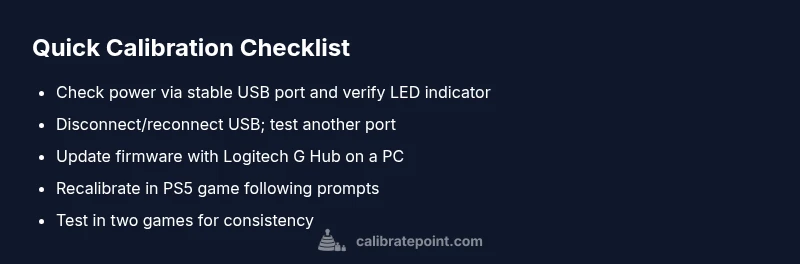
Before you dive into firmware updates and complex steps, perform these quick checks to rule out the basics. Ensure the wheel is powered and firmly connected to the PS5 via a stable USB port. Try a different USB port on the PS5 or a powered USB hub to rule out power draw issues. Disconnect other USB devices that might cause bandwidth conflicts. Restart the PS5 and re-seat the G29’s connection. If the console still doesn’t recognize the wheel, check for any firmware notices in the Logitech software on a PC and note any error codes shown by the PS5.
Firmware, Drivers, and USB Stability
Firmware and driver compatibility are common culprits. Update the G29’s firmware using a PC with Logitech G Hub, then reconnect to the PS5. If you cannot update via PC, check for in-game or PS5 system notifications about USB device compatibility. Calibrate Point analysis shows that mismatched firmware or corrupted calibration data frequently causes repeated failures. After updating, perform a clean calibration sequence in a supported game and within its menus rather than relying solely on the PS5’s system prompts.
Step-by-Step: Basic Calibration Routine You Can Try
- Power off the wheel and PS5, then unplug and replug the G29’s USB cable. 2) Reconnect the wheel securely and ensure the power LED is solid. 3) Launch a supported racing game and navigate to its calibration sequence. 4) Follow on-screen prompts exactly, turning the wheel fully left, right, and center. 5) Save the calibration data and exit; restart the game and test in a couple of tracks. 6) If the wheel still doesn’t calibrate, perform a factory reset of the wheel if available in the Logitech software and try again.
Common Obstacles and Advanced Workarounds
If basic steps fail, try a factory reset of the wheel through the Logitech setup utility, then re-install firmware. Use a dedicated USB port on the PS5 (preferably the rear ports) to minimize interference, and avoid USB extenders that can cause signal degradation. Some titles rely on PS4 compatibility modes; ensure the PS5 settings don’t lock the wheel out via backward compatibility blocks. If you still encounter issues, test on a different PS5 user profile to rule out profile-specific data corruption.
Prevention Tips to Avoid Future Calibration Problems
Keep firmware up to date and use a powered USB hub to stabilize power delivery. Regularly re-run calibration after system or game updates, and document the sequence so you can replicate it quickly next time. Avoid long USB cables and avoid daisy-chaining multiple high-draw devices on the same hub. Back up wheel profiles and calibration data when possible, and store the wheel in a clean, cool environment to prevent wiring or sensor issues.
Steps
Estimated time: 45-60 minutes
- 1
Check power and connections
Power down the PS5 and wheel, unplug the G29, then reinsert firmly and reconnect to a reliable USB port. Power on and verify a solid LED indicator on the wheel before retrying.
Tip: Use a rear USB port on the PS5 for best stability. - 2
Update firmware via PC
Connect the G29 to a PC with Logitech G Hub installed, check for firmware updates, and apply if available. After updating, disconnect, reattach to PS5, and restart the console to ensure recognition.
Tip: Keep G Hub closed on PS5 to avoid cross-detection conflicts. - 3
Clear previous calibration
In-game or in Logitech software, delete any existing calibration profiles associated with the wheel. This removes stale data that can block a fresh calibration.
Tip: Document any prior settings in case you need to revert. - 4
Run a fresh calibration
Begin calibration in a supported game or the wheel’s setup utility. Turn the wheel fully left, right, then center, following on-screen prompts. Confirm that the triggers and pedals respond consistently.
Tip: Calibrate in two games to verify cross-title consistency. - 5
Test in multiple titles
Load two PS5 games that support wheel input and perform quick laps to assess responsiveness. If one title fails, the issue may be title-specific rather than hardware.
Tip: Create a small test track scenario for quick checks. - 6
If it still fails, seek advanced help
Consider a factory reset of the wheel via Logitech software and consult Logitech/PS5 support for compatibility notes with your specific games.
Tip: Document error codes and steps taken for faster support.
Diagnosis: Logitech G29 won't calibrate on PS5
Possible Causes
- highPower/USB connection issues
- highOutdated or corrupted firmware
- mediumGame-specific calibration flow or PS5 USB mode
Fixes
- easyEnsure the wheel is powered, the USB is firmly connected, and swap to a different USB port or powered hub
- easyUpdate the wheel firmware using Logitech G Hub on a PC, then reconnect to PS5
- easyReset calibration data in-game and perform a clean calibration sequence, then save
Questions & Answers
Will the Logitech G29 work on PS5 without a USB adapter?
Some PS5 titles recognize the G29, especially with updated firmware and PS4 compatibility modes. However, results vary by game and system firmware. If it isn't recognized, follow the quick checks and firmware steps in this guide.
The G29 can work on PS5 in some games, but it depends on firmware and the title. Start with basic checks and updates to improve compatibility.
Why does calibration keep failing even after updating firmware?
Firmware is one piece of the puzzle, but USB stability and residual calibration data also matter. Re-seating the USB, trying a different port, and clearing old calibration profiles can resolve lingering issues.
Often, firmware alone isn’t enough. Check USB stability and clear old calibration data as part of the fix.
Can I calibrate the wheel using PS4 mode on PS5?
Some games rely on backward compatibility behaviors. If a title supports PS4 controllers, the wheel can sometimes calibrate, but experience varies. Always run the official calibration sequence in-game first.
PS4 mode can help in some titles, but results aren’t guaranteed across all games.
Is there a factory reset for the G29, and should I do it?
Factory resets are an option if persistent calibration problems remain. Use the Logitech setup utility to reset, then re-install firmware and re-calibrate from scratch.
A factory reset can clear stubborn issues; use it as a last resort after backing up your profiles.
Do I need a PC to fix calibration issues?
A PC with Logitech G Hub greatly simplifies firmware updates and profile management, but you can still perform many fixes directly on PS5 if firmware is current. The PC path is recommended for guaranteed firmware updates.
A PC helps with updates and profiling, but you can troubleshoot from PS5 too if firmware is current.
Watch Video
Key Takeaways
- Verify power/USB connections first
- Update firmware before deep troubleshooting
- Run a clean calibration sequence in-game
- Test across multiple titles to confirm consistency