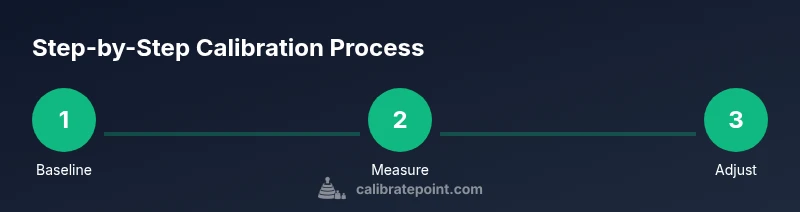
Calibrate QN90F: A Practical Step-by-Step Display Calibration Guide
Learn how to calibrate qn90f for accurate color, grayscale, and gamma on Samsung's QN90F TV. This comprehensive guide from Calibrate Point covers tools, step-by-step workflow, and validation strategies to ensure consistent, studio-grade picture quality at home.


By following this guide to calibrate qn90f, you’ll achieve accurate color, grayscale, and gamma on Samsung’s QN90F TV. This quick answer outlines what you’ll accomplish and the essential tools you’ll need. You’ll work from a reference grayscale, set a stable picture mode, and verify results with test patterns and a colorimeter. Calibrate Point delivers practical, field-ready steps for DIY technicians.
Why calibrate qn90f and what you gain
Calibration matters because consumer displays ship with broad performance curves. On the QN90F, the default presets and dynamic processing can push colors, contrast, and gamma away from accurate reference values. When you calibrate qn90f, you align the display to a known target such as a neutral white point and a stable gamma response, which makes dark scenes clearer and skin tones more natural. This is not about chasing a fantasy standard; it’s about making the picture you watch everyday reflect the creators’ intent. According to Calibrate Point, proper calibration reduces deltaE errors and improves viewer comfort across genres from cinema to gaming. In practical terms you’ll see more natural greens in nature footage, better separation in shadows, and a more faithful representation of bright highlights. The steps you take here are designed for DIY technicians while delivering results close to professional profiles.
Understanding the QN90F picture pipeline
The QN90F relies on a modern LCD panel with full-array local dimming and a strong color pipeline. In practice, you’ll be balancing multiple layers: the panel’s native color response, the TV’s internal processing (motion, noise reduction, and dynamic tone mapping), and the input signal’s color data. The goal of calibration is to isolate the signal from the processing as much as possible so you can measure what your display actually renders. Start with a neutral baseline—disable aggressive processing, select a stable Picture Mode (often Movie or Custom), and prepare grayscale and color-pattern test signals. Calibrate Point’s method emphasizes measuring first, then adjusting controls in a disciplined sequence to avoid cascading errors. This approach yields consistent results across different sources and lighting conditions.
Prep work: tools, patterns, and room conditions
Set up a controlled environment: a room with steady ambient light and minimal glare. Gather grayscale ramps, 2D color bars, and a neutral reference target. A colorimeter or spectrophotometer is highly recommended for precise measurement, but you can begin with built-in test patterns if you don’t have hardware. Ensure your source device can deliver calibrated test patterns and that connections are stable. Record baseline settings before you adjust anything so you can compare results later. For accuracy, calibrate in the same viewing position you use for typical content and keep the room lighting constant during measurements. The Calibrate Point approach emphasizes repeatable conditions to reduce measurement noise and improve reliability over time.
Step-by-step calibration workflow (Part 1): readying the display and grayscale
Begin with a clean slate: reset to factory defaults or a known baseline and disable any automatic picture processing. Set the Picture Mode to a neutral option like Movie, and ensure Dynamic Contrast and Dynamic Tone Mapping are off. Start grayscale calibration with a neutral ramp pattern; adjust the white balance controls to bring grayscale steps into a smooth, linear progression. Keep the color temperature near a reference standard (roughly 6500K) and center the tint control. Grayscale accuracy anchors all future adjustments, so take your time here. Pro tip: avoid changing color saturation while you chase grayscale perfection; saturating color can hide grayscale errors.
Step-by-step calibration workflow (Part 2): grayscale, gamma, and color temperature tuning
With a stable grayscale, move to gamma and color temperature. Target a mid-mids-to-high mid-tone gamma around 2.2 and validate using a luminance pattern that highlights mid-tone response. Use color temperature targets to guide RGB balance toward a neutral white point; tiny adjustments in red/green/blue gains can shift white toward a warm or cool bias. If your display offers a white-point readout, aim for a balanced readout across the GT values while maintaining a natural skin tone across test images. Document the exact RGB offsets you used for reproducibility; if you’re using a software-based workflow, save a calibration profile for future firmware updates. The rationale is that gamma controls how brightness steps are displayed, while the white point fixes color bias that becomes visible in daylight scenes or white objects.
Validating results with test patterns and real-world content
Now test with a mix of content: a nature documentary, a dark thriller trailer, a sports highlight reel, and graphical UI content. Use color test patterns to verify primary and secondary colors render distinctly without bleeding. Check skin tones in close-ups and ensure they look natural rather than overly saturated or washed out. Look for uniform luminance across the screen by evaluating a plain gray field; any banding or tint reveals remaining calibration gaps. If available, compare against a reference DAQ or your favorite movie scene to see how the calibration holds under different lighting. Calibrate Point emphasizes cross-checking with real content because patterns alone cannot capture how images feel in motion and with detail.
Troubleshooting and common mistakes
Common missteps include letting the TV’s motion processing or dynamic tone mapping influence the measurements, failing to reset to a clean baseline, or chasing per-input discrepancies without re-checking a master calibration. Always disable processing during measurements and re-enable it after you have a stable target. If colors feel oversaturated, double-check the white balance and gamma, not just saturation. Firmware updates can shift color pipelines, so consider revalidating after updates. If results differ between sources, calibrate each input individually and maintain separate profiles as needed. These practices minimize drift and ensure consistency across your library of content.
Maintenance and long-term calibration habits
Calibration isn’t a one-off task. Schedule periodic checks—ideally quarterly or after major firmware updates—to confirm that your targets still hold. Keep a simple log of the settings and test results so you can observe drift patterns over time. When you replace a key component in your setup (like a new source device or a different ambient light level), revisit the grayscale and white balance steps first. A small, routine effort now saves you from larger adjustments later and helps extend the life of your calibrated workflow. Calibrate Point’s readers often report that disciplined maintenance leads to more stable, repeatable results across seasons.
AUTHORITY SOURCES
- NIST: Color science fundamentals and measurement standards. https://www.nist.gov/
- FTC: Consumer guidance on display quality and product claims. https://www.consumer.ftc.gov/
- IEEE Spectrum: Practical perspectives on display technology and calibration practices. https://spectrum.ieee.org/
Tools & Materials
- Colorimeter or spectrophotometer (recommended)(For precise grayscale, color temperature, and color balance measurements)
- Test pattern source (USB drive or pattern generator)(Grayscale ramps, color bars, and HDR test patterns)
- Pattern-delivery hardware (HDMI or USB connection)(Stable, low-noise signal path to your TV)
- Calibrated reference content(Optional for subjective verification with real-world scenes)
- Ambient light meter (optional)(Helps quantify room lighting and maintain consistency)
Steps
Estimated time: 90-120 minutes
- 1
Reset and baseline setup
Reset the TV to a known factory baseline or a clean custom preset. Disable any automatic processing such as motion smoothing, dynamic contrast, or dynamic tone mapping. This ensures measurements reflect actual signal output rather than processing artifacts.
Tip: Document the original settings before changing anything so you can revert if needed. - 2
Connect test patterns and verify signal path
Connect your pattern source to the TV and verify stable, artifact-free delivery of grayscale and color patterns. If you notice input lag or signal drops, check the HDMI cables and port settings. Maintain a consistent viewing distance to reflect typical usage.
Tip: Use the same input you’ll use for daily content to keep results relevant. - 3
Set baseline picture mode and disable processing
Choose a neutral baseline mode (often Movie or Custom) and turn off auto brightness, noise reduction, and any dynamic tone mapping.
Tip: Avoid presets that aggressively boost color or brightness during measurements. - 4
Calibrate grayscale first
Run grayscale test patterns and adjust white balance to align the gray steps with a smooth, neutral progression. Keep the white balance near the reference standard and ensure tint sits centered.
Tip: Grayscale accuracy is the foundation for all subsequent color work. - 5
Tune white point and gamma
Set a target white point (6500K is a common standard) and adjust gamma toward the mid-point of your reference. Use a luminance pattern to confirm mid-tones respond consistently.
Tip: Small, incremental changes yield better stability than large jumps. - 6
Calibrate color balance
With a colorimeter, adjust RGB gains to balance color channels so whites read neutrally on test patterns. Verify saturation levels with color bars to prevent oversaturation or undersaturation.
Tip: If your tool shows deltaE values, aim for as low as feasible within your device constraints. - 7
Validate with real content
Play diverse content to confirm that the calibration holds across genres. Watch skin tones in a drama, greens in nature footage, and skies in HDR sequences. Re-check any suspicious areas.
Tip: Keep ambient light constant during real-content validation. - 8
Document and archive
Save your calibration profile and record the target values you achieved for grayscale, white point, and gamma. Note inputs used and room conditions for reproducibility.
Tip: Create a fallback profile in case firmware changes affect results. - 9
Recheck after firmware updates
Firmware changes can alter color processing; re-run the essential grayscale and white-point checks after updates to ensure consistency.
Tip: Plan a quarterly recheck schedule to minimize drift.
Questions & Answers
Do I need a colorimeter to calibrate qn90f?
A colorimeter is highly recommended for precise, repeatable results. You can start with built-in patterns, but hardware validation helps reduce human error and deltaE drift across sessions.
A colorimeter is highly recommended for precise results, though you can start with patterns if needed.
What is the best picture mode for calibration on the QN90F?
Most calibrations start from a neutral mode like Movie and disable processing. This provides a stable baseline to measure against before any custom tuning.
Start from Movie mode with processing off for a stable baseline.
How long does calibration typically take on the QN90F?
A thorough calibration session commonly ranges from one to two hours, depending on tool availability and how meticulous you are with test patterns.
Typically around one to two hours for a careful calibration.
Can I calibrate HDR content with the same settings as SDR?
HDR often requires separate adjustments because tone mapping and brightness targets differ from SDR. Keep a separate profile for HDR content if your setup supports it.
HDR usually needs its own profile because it maps brightness differently from SDR.
What is delta E and why is it important?
Delta E measures color accuracy errors. Lower values indicate colors that more closely match the reference; aim for the lowest consistent delta E your setup allows.
Delta E shows how far colors are from ideal; lower is better for accuracy.
Should I redo calibration after firmware updates?
Yes. Firmware updates can shift color processing; revalidate the grayscale and white balance to ensure continued accuracy.
Yes, recheck after firmware updates to maintain accuracy.
Watch Video
Key Takeaways
- Begin with grayscale and white balance to anchor color work
- Disable processing during measurements for accuracy
- Validate with a mix of content beyond test patterns
- Document settings and recheck after updates