Calibrate TV Picture: A Practical Step-by-Step Guide
Learn how to calibrate tv picture for accurate grayscale, color, and contrast. This practical, step-by-step guide covers tools, setup, and long-term maintenance from Calibrate Point.


You can calibrate tv picture to achieve truer grayscale, accurate colors, and better contrast. This practical, step-by-step guide covers the essential tools, room setup, and measurement workflow. By following these steps, most viewers will notice improved picture quality across movies, sports, and gaming.
What calibrating TV picture means and why it matters
Calibration is the deliberate adjustment of a display so its output matches a intended reference. For many viewers, calibrating tv picture improves grayscale accuracy, color fidelity, and overall contrast, which makes content look closer to the director's intent. According to Calibrate Point, a well-planned calibration reduces eye strain, enhances consistency across different viewing content, and creates a stable baseline for future tweaks. The goal isn’t to make the image look flashy; it’s to reproduce the scene as intended while preserving details in shadows and highlights. A properly calibrated TV supports a comfortable viewing experience, better film accuracy, and more reliable color reproduction for sports, gaming, and HDR content.
Core targets you’ll address during calibration
To achieve a credible calibration, you’ll focus on several core targets: grayscale tracking across brightness steps, a stable white point that matches your room lighting, balanced color temperature, and a consistent luminance level that preserves detail in both dark and bright scenes. You’ll also consider color gamut coverage to ensure accurate primary colors and maintain color uniformity across the screen. While every TV model behaves a bit differently, a structured workflow helps you move from a baseline toward consistent, repeatable results. This section lays the groundwork for the practical steps that follow.
Essential tools and setup you’ll need before you start
Calibration tools turn subjective tweaks into measurable results. The essentials include a colorimeter or spectrophotometer, calibration patterns (physical discs or digital test patterns), compatible calibration software, and a reliable video source with test patterns. A high-quality HDMI connection minimizes data loss, and a quiet, dim room reduces glare that can skew measurements. Optional but helpful items include a neutral light source in the room and a documented baseline of your current picture settings. All of these pieces work together to build a repeatable workflow that you can revisit as needed.
Preparing your viewing environment for accurate results
Environment matters more than many people expect. Start with a darkened or consistently lit room to minimize reflections. Position the TV at eye level and ensure the seating distance is typical for your space. Turn off motion-enhancing features that can affect measurements, such as dynamic contrast and aggressive noise reduction. If your TV has a preferred “Natural,” “Standard,” or “Movie” mode, choose a neutral baseline and avoid presets designed for punchy color. Document the room’s lighting conditions so future recalibration can account for changes. Calibrate Point emphasizes that stable ambient lighting is a cornerstone of repeatable results.
The calibration workflow at a glance
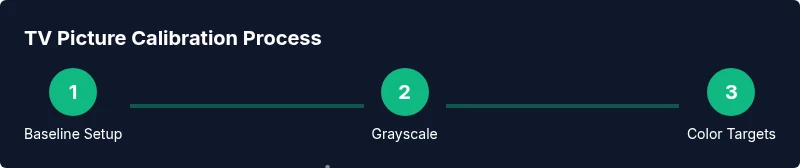
A typical workflow moves from grayscale to color to final validation. You’ll start by establishing a neutral grayscale and white point, then refine color balance and gamma, and finally verify color accuracy with reference targets. Throughout, you’ll save and compare settings to demonstrate progress. The goal is not a one-time tweak but a controlled process you can repeat when room lighting or content needs shift. This overview helps you stay focused during the hands-on steps that follow.
Deep dive: grayscale, gamma, and white balance
Grayscale calibration ensures each brightness step renders faithfully, preserving detail in both shadows and highlights. Gamma affects how mid-tones reproduce on the screen, influencing perceived contrast. White balance sets the overall color cast, which should appear neutral under your typical viewing lighting. Use the measurement tool and software to adjust luminance, color temperature, and RGB gains until measured targets align with your reference. Small, incremental changes are safer than large jumps, and frequent measurement confirms progress rather than guesswork.
Color accuracy, color gamut, and HDR considerations
Color accuracy requires precise primary colors and correct color maturation across the image. Calibrate for the color gamut your TV covers and adjust saturation carefully to avoid overshoot. If you’re working with HDR, keep in mind that tone mapping and peak brightness goals differ from SDR workflows. You may need separate calibration passes for HDR content, ensuring grayscale stability and color integrity remain intact when switching between SDR and HDR sources. Calibrate Point suggests documenting each step so you can reproduce the results across similar content.
Validation, documentation, and long-term maintenance
After adjustments, validate by re-measuring grayscale, color, and gamma against targets. Save calibrated profiles and label them clearly (e.g., “Baseline SDR,” “HDR Pass 1”). Maintain a simple log of room lighting, content, and any changes in the TV firmware that might affect output. Recalibrate as needed when you upgrade equipment, change viewing conditions, or notice color drift. Regular checks help preserve the accuracy you’ve achieved and extend the usefulness of your setup.
Common pitfalls and safety notes
Avoid relying on a single test pattern for all adjustments. Different content and lighting environments can reveal weaknesses that a single pass overlooks. Do not access unsafe service menus or apply vendor-restricted adjustments; these can permanently misalign color and luminance. If measurements look inconsistent, pause, recheck connections, and ensure your meter is functioning correctly. Finally, always back up your current settings before making new changes so you can revert if needed.
Tools & Materials
- Colorimeter or spectrophotometer(Choose a device compatible with your TV panel and software.)
- Calibration pattern media or digital test patterns(Use grayscale, color bars, and contrast patterns suitable for your TV model.)
- TV-compatible calibration software(Software that interfaces with your measurement device to generate targets and read results.)
- High-quality HDMI cable(HDMI 2.0+ recommended for reliable 4K/test-pattern transmission.)
- Ambient lighting control(Curtains or dimmer to reduce glare if room lighting varies.)
- Factory-default or neutral baseline source(Reset to a neutral picture mode before calibrating.)
Steps
Estimated time: 90-120 minutes
- 1
Prepare and connect measurement tools
Power on the TV and measurement device. Install and launch the calibration software, then connect the colorimeter to the computer or the device running the software. Load the first test pattern and verify the measurement tool reads data correctly.
Tip: Check cable connections and software recognition before making any adjustments. - 2
Reset to a neutral baseline
Set the TV to a neutral picture mode (e.g., Movie/Calibrated) and disable dynamic contrast, motion smoothing, and any overly aggressive processing. This creates a stable baseline that isn’t distorted by marketing presets.
Tip: Document the original settings so you can revert if needed. - 3
Calibrate grayscale first
Display grayscale targets and adjust luminance and white balance to align measured values with reference steps. Use the software to guide incremental changes and monitor results in real time.
Tip: Make small adjustments and verify with multiple grayscale steps. - 4
Set white balance and color temperature
Tune white balance using RGB gains or color temperature settings to neutralize color cast. Align the measured white point with the target to prevent a warm or cool bias across images.
Tip: Avoid overcorrecting; small increments yield cleaner results. - 5
Tweak gamma and luminance
Adjust gamma and peak brightness so mid-tones render correctly without crushing blacks or clipping whites. Re-check after adjusting grayscale and white balance to ensure consistency.
Tip: Cross-check with both dark and bright content to confirm stability. - 6
Validate with color targets and document
Run color targets to verify color accuracy across primaries and secondaries. Save the calibration profile and note the settings, equipment, and room conditions for future reference.
Tip: Take screenshots or notes for quick comparisons later.
Questions & Answers
What is TV picture calibration and why do I need it?
TV picture calibration is the process of adjusting the display so its output matches a reference standard. It improves grayscale accuracy, color fidelity, and overall viewing quality, helping content look as intended. The benefits include more lifelike colors and consistent performance across scenes.
TV picture calibration aligns your display with a reference standard for better colors and grayscale. It improves how content looks across scenes.
Can I calibrate my TV without a colorimeter?
Basic tweaks can be done by eye, but without a colorimeter you won’t achieve repeatable, objective results. A meter provides measurable, repeatable targets, which is essential for longer-term accuracy.
You can start with eye estimates, but for repeatable results use a colorimeter or spectrophotometer.
How long does calibration take?
Time varies with equipment and goals. A typical SDR calibration session may take about 60-90 minutes, more if you also tune HDR or color gamuts.
Most calibrations take about an hour, longer if you’re including HDR or advanced color targets.
Should HDR be calibrated separately from SDR?
Yes. HDR has different peak brightness and tone-mapping characteristics, so measure and adjust HDR targets separately from SDR to avoid compromising one profile for the other.
HDR requires its own calibration because it uses different brightness and tone-mapping settings.
How often should I recalibrate my TV?
Recalibrate when you notice color drift, after changing lighting conditions, or after firmware updates that affect picture processing. Regular checks help maintain accuracy.
Calibrate when color drifts or after lighting changes, and after firmware updates to keep accuracy.
Do different HDMI inputs need separate calibration?
In most cases a single calibrated profile covers all inputs, but some displays exhibit input-dependent color shifts. If you notice such shifts, repeat measurements per input.
Usually one calibration is enough, but some TVs show input differences that you may want to check.
Watch Video
Key Takeaways
- Define a neutral baseline before adjustments
- Calibrate grayscale, then color and gamma in order
- Use measurement tools and software to guide tweaks
- Document results and save profiles for future rechecks
- Recalibrate if lighting or content changes