How to Calibrate Govee TV Lights
Learn to calibrate Govee TV lights for accurate colors and balanced ambient brightness. Step-by-step setup, tool options, tips, and best practices from Calibrate Point to improve viewing quality.


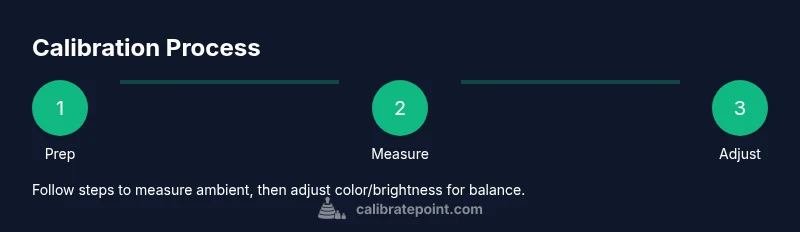
By the end of this guide, your Govee TV lights will align with your screen’s color and the room’s ambient brightness, reducing color shifts and improving perceived contrast. Gather the Govee app, a colorimeter if available, and a dim, neutral room. Follow the step-by-step calibration to set color, brightness, and timing for consistent, immersive viewing.
Why calibrating Govee TV lights matters
Calibrating ambient lighting around your TV with Govee lights improves perceived color harmony and reduces eye strain during long viewing sessions. According to Calibrate Point, matching room brightness to your content helps the picture look more natural and reduces color shifts that occur when the room is very dark or very bright. This guide explains how to approach calibration systematically, so you can reproduce consistent results across different rooms and lighting conditions.
How ambient light affects perceived picture quality
Ambient lighting around the display influences how we perceive color, contrast, and depth. If the backlight is too cool or too warm relative to the on-screen content, whites may look off and shadows can appear muddy. By calibrating your Govee TV lights, you create a stable surround that supports accurate color judgments and a more immersive viewing experience.
Planning your calibration: prerequisites and mindset
Before you start, define a target ambient condition and a baseline for brightness. A dim, neutral-room setup is easier to measure than a bright living room. The Calibrate Point team emphasizes consistency: use the same seating, screen content, and room lighting for every calibration session to reduce variables.
What you need and how to stage the setup
A calm, dim room, a Govee TV light kit installed behind or around the TV, and the Govee app on a smartphone are the core setup. Optional tools like a colorimeter or a gray reference card can raise precision but are not mandatory in everyday use. Place the camera of your phone at a comfortable distance to capture readings if you plan to rely on app-based measurements.
Interpreting results and planning iterations
Use the app readouts for ambient color temperature and brightness as a starting point. Expect to perform a few iterations: adjust warmness, tweak brightness, test with different content, then re-check the results. Record the final values and the room lighting conditions so you can reproduce the setup later.
Troubleshooting common calibration challenges
If colors look blown out or muted, recalibrate using a lower brightness baseline, or dim the room further. Glare on the TV screen can skew perception; close curtains or reposition lights. If readings keep fluctuating, switch to a more stable power source and check for firmware updates.
Tools & Materials
- Govee TV light kit (ambient backlight around your TV)(Ensure it is properly mounted and powered.)
- Smartphone with the Govee app installed(Bluetooth connected to the light kit.)
- Colorimeter or spectrophotometer (optional)(For precise color readings.)
- Gray card or neutral reference card (optional)(Helps set reference white/gray.)
- Dim, neutral room lighting(Set ambient lighting to a stable level (e.g., lamps off or dimmed).)
Steps
Estimated time: 45-75 minutes
- 1
Prepare the environment
Power on TV and lighting kit, open the Govee app, and dim the room to a comfortable viewing level. This reduces reflections and makes measurements consistent.
Tip: Take a few minutes to arrange cables and set seating so the camera/home phone has an unobstructed view of the TV and lights. - 2
Connect and update
Connect the lighting kit to power and pair it in the Govee app. Update firmware if prompted to ensure the latest calibration features are available.
Tip: Stable Bluetooth connection helps prevent mid-calibration disconnects. - 3
Set a baseline
In the app, set a neutral ambient mode and default brightness level as a baseline. Record the room’s base color temperature using the app’s color readouts if available.
Tip: Use a consistent brightness target across calibrations. - 4
Use test content
Play a neutral, color-balanced video or a plain gray screen to gauge how ambient light interacts with the TV image.
Tip: Avoid highly saturated scenes during baseline capture. - 5
Calibrate color and brightness
If you have a colorimeter, place it according to the device’s guide and take readings for ambient light. If not, rely on app-based sliders to match perceived color warmth and brightness.
Tip: Allow readings to stabilize for 15-30 seconds before recording. - 6
Fine-tune adjustments
Iterate by re-viewing content and adjusting color balance, gamma, and brightness until the image looks natural with the room lighting.
Tip: Small incremental changes yield better accuracy. - 7
Save and document
Save the calibrated profile in the app and optionally take before/after photos for your records. Revisit every few months or when lighting changes.
Tip: Label profiles clearly (e.g., 'Living Room Evening').
Questions & Answers
Do I need a colorimeter to calibrate Govee TV lights?
A colorimeter is not required for basic calibration, but it improves accuracy by providing objective readings of ambient color. You can start with the app’s sliders and rely on visual checks.
A colorimeter helps precision, but you can start with the app's sliders.
How long does calibration typically take?
Most setups take 45 minutes to an hour, depending on room lighting and how many tweaks you make. Plan for a patient, iterative process.
Most setups take from 45 minutes to an hour.
Will calibrating affect HDR or SDR content?
Calibration aims to align ambient light with the displayed content, improving perceived accuracy for both HDR and SDR. These settings should be tested with a variety of content.
It helps both HDR and SDR looking more natural.
Can I calibrate without the Govee app?
The Govee app provides the key controls for most calibrations. Without it, you’ll rely on basic brightness and warmth adjustments, which are less precise.
You need the app for best results.
How often should I recalibrate?
Recalibrate when you notice color drift due to changes in room lighting or after adding new lighting accents. A quarterly check is a good baseline.
Do a quick check every few months.
Should I adjust room lighting after calibrating?
Yes. After calibration, keep room lighting consistent and avoid drastic changes in ambient light. Ambient changes can negate calibration gains.
Keep lighting steady after calibrating.
Watch Video
Key Takeaways
- Calibrate in a controlled environment
- Use a neutral baseline for color/brightness
- Document and save profiles for consistency
- Revisit calibration when room lighting changes
- Colorimeter improves precision but is optional