How to calibrate LG TV for best picture
Learn how to calibrate your LG TV for the best picture—grayscale, gamma, color temperature, and HDR targets with practical steps, tests, and pro tips.


Goal: calibrate your LG TV for the best picture by balancing grayscale, gamma, and color. Start with a neutral picture mode, run test patterns, adjust white balance to warm, and tune color and brightness for SDR and HDR content. The result is a natural, film-like image across sources, with consistency across inputs. with consistency.
Why Calibration Matters for LG TVs
Calibrating an LG TV for best picture matters because it determines how accurately the image reflects the source material. When you adjust grayscale, color temperature, and gamma, you reduce color drift, improve shadow detail, and prevent clipping in bright regions. According to Calibrate Point, a disciplined calibration approach yields consistent results across genres and viewing conditions. If you're wondering how to calibrate lg tv for best picture, this guide walks you through practical steps, test patterns, and decision points that rarely require pricey equipment. The goal is to create a reference profile you can reproduce whenever you switch inputs or content types. You will learn to separate picture mode selection from true calibration, understand the role of ambient lighting, and appreciate the difference between SDR and HDR targets. By the end, you’ll be able to save a custom preset that delivers film-like accuracy without sacrificing color vibrancy. Throughout, keep in mind that precise calibration is as much about repeatable workflows as it is about an eye for subtle shifts in gray and color.
Understanding LG TV Picture Modes and Color Science
LG TVs offer a variety of picture modes and color controls that shape how the image is rendered. Picture modes like Cinema, Standard, Game, and Expert influence processing, contrast shaping, and color gamuts. For calibration, you typically want a neutral, low-processing baseline—often Cinema or Expert—so you’re measuring the signal rather than enhancement. Color temperature options such as Warm2 and Warm1 affect the grayscale ramp; Warm2 is commonly recommended to approach a 6500K target without oversaturation. Gamma curves define midtone rendering; SDR targets commonly align with a gamma near 2.2, while HDR workflows may require adjustments that respect peak brightness and tone-mapping behavior. With this understanding, you can decide when to rely on built-in patterns or external tools, and you can document results for repeatability across inputs—from streaming apps to Blu-ray discs.
Test Patterns and Measuring Tools
Accurate calibration relies on reliable test patterns and measurement tools. Start with grayscale and gamma test patterns to evaluate your white balance and tone-mapping decisions. If you have access to a colorimeter or spectrophotometer, you can quantify grayscale steps, verify color accuracy, and ensure your target primaries fall within acceptable coordinates. Many TVs include built-in test patterns for basic calibration, which is a useful starting point, but external sources—such as Blu-ray discs or pattern apps—often provide higher-quality ramps and color bars. Lighting matters: dim, steady ambient light minimizes reflections and ensures your readings reflect the display rather than the room. Always test with content you actually watch to confirm the calibration feels correct in real-world viewing.
Step-by-Step Calibration Workflow Overview
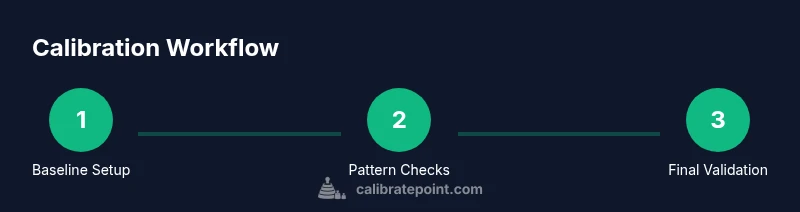
A robust workflow keeps calibration repeatable and less intimidating. Start by selecting a neutral picture mode and disabling processing that obscures the signal. Use grayscale and white-balance tests to set a solid baseline. Then adjust color management and saturation with color bars, followed by gamma and luminance targets. Finally, verify results with SDR and HDR material and save your settings as a dedicated profile. This workflow supports consistency across different inputs and becomes a reliable reference whenever you switch content or source devices.
Fine-Tuning Grayscale, White Balance, and Color
With the baseline established, refine grayscale using 2-point or 10-point ramps to balance gain (black end) and bias (mid-tones). White balance should bring the grayscale ramp to the target reference without color tinting shadows or highlights. Color adjustments focus on primaries and secondaries; aim for natural skin tones and accurate sky blues, while avoiding over-saturation that masks detail. Regularly re-check with grayscale slides and color patterns to ensure a stable result as lighting or sources change. Remember, small incremental adjustments yield better accuracy than large, sweeping changes.
SDR vs HDR Calibration and Verification
SDR and HDR require different targets and considerations. For SDR, maintain a gamma around 2.2 and a brightness that preserves detail in shadows and highlights without clipping. For HDR, you’ll work with higher peak brightness and tone-mapping decisions that influence how highlights are rendered. Use appropriate test content and ensure your display’s peak brightness and local dimming (if applicable) are configured to support HDR material. Always re-verify with multiple scenes—dark cinema, daylight outdoor scenes, and fast-moving action—to confirm that the calibration holds across content. Saving distinct SDR and HDR profiles is common practice.
Everyday Tips and Maintenance
Calibration is not a one-and-done task. Ambient lighting, source changes, or firmware updates can shift display behavior. Re-check at periodic intervals and after major changes to your home theater setup. Keep a simple log of settings and dates so you can revert or compare presets. For long-term consistency, avoid dramatic changes to the brightness setting in bright rooms and document the exact patterns you used for future reference. This disciplined approach keeps your LG TV’s picture stable over time.
Tools & Materials
- Calibrated test pattern source (Blu-ray, streaming app, or built-in TV patterns)(Ensure patterns cover grayscale, gamma, color, and color management targets.)
- Colorimeter or spectrophotometer(Used for precise grayscale and color measurements; avoid guessing.)
- Calibration software or verification app (optional)(DisplayCAL or vendor tools can help validate results.)
- Controlled lighting environment(Calibrate in a dim room to minimize reflections and metameric shifts.)
Steps
Estimated time: 60-90 minutes
- 1
Set baseline picture mode
Choose a neutral, low-processing mode (Cinema or Expert) and disable motion smoothing, noise reduction, and dynamic contrast to measure the signal accurately. This creates a clean baseline for subsequent adjustments.
Tip: If ISF mode is unavailable, use Cinema and toggle off processing features one by one. - 2
Connect your measurement setup
Prepare the test pattern source and measurement device; position the display in a stable, glare-free spot and ensure the patterns fill the screen without overscan. Confirm that the display is not in a forced energy-saver state that can alter luminance.
Tip: Place the colorimeter at screen center for best averaging across the panel. - 3
Set brightness and contrast with grayscale patterns
Use a grayscale ramp to align the white clip and black level. Adjust brightness to bring the dark steps just above black without crushing shadow detail, then set contrast so the brightest white exposes full scale without clipping.
Tip: Work from the darkest test step toward the brightest; small changes have big effects. - 4
Adjust color temperature to warm
Select the Warm2 preset as a starting point and compare grayscale neutrality against reference gray. If you notice a color tint in shadows or highlights, fine-tune the color balance toward neutral.
Tip: Use a white ramp to verify a neutral gray and avoid blue or red casts in midtones. - 5
Calibrate grayscale with 2-point or 10-point method
Balance gain and bias to achieve a smooth grayscale from 0% to 100%. Test with multiple grayscale patches and adjust until midtones look natural and shadows retain detail.
Tip: Document the target R, G, B adjustments for each point for future reference. - 6
Tune gamma and tone mapping
Set the gamma target appropriate for SDR (roughly 2.2) and adjust tone-mapping controls so highlights aren’t blown out in bright scenes. Verify with high-lidelity material and adjust if midtone detail feels flat.
Tip: Avoid changing brightness significantly while tweaking gamma to keep results consistent. - 7
Balance color saturation and hue
Use color patterns to adjust primaries and secondaries, aiming for natural skin tones and realistic blues and greens. Avoid oversaturation that distorts shade relationships and reduces detail in bright or dark areas.
Tip: Make small, incremental adjustments and re-check with varied content. - 8
Validate SDR and HDR results and save
Test a range of SDR and HDR content to confirm the profile holds across scenes. Save your work as a dedicated preset (e.g., Calibrated LG) and label with date and source compatibility.
Tip: Store separate SDR and HDR presets if your display supports it to prevent confusion.
Questions & Answers
Do I need professional equipment to calibrate an LG TV?
Professional calibration equipment, like a colorimeter or spectrophotometer, yields the most accurate results. If you don’t have them, you can start with built-in patterns, but expect less precision.
You’ll get better results with a colorimeter or spectrophotometer, but you can begin with the TV’s built-in patterns.
Can I calibrate using just the TV’s own patterns?
Built-in patterns are a helpful start, but they don’t quantify color accuracy or grayscale precisely. For best results, validate with external tools or measurements when possible.
The built-in patterns help, but external tools improve accuracy.
What is the best starting picture mode for calibration?
Begin with a neutral, low-processing mode like Cinema or Expert to avoid additional image processing. This provides a clean baseline for measurements.
Start with a neutral mode like Cinema to get a clean baseline.
How often should I recalibrate my LG TV?
Recalibrate after firmware updates, changes in inputs, or noticeable shifts in viewing conditions. A yearly check keeps results consistent.
Recalibrate after updates or major changes, about once a year is a good rule.
What’s the difference between SDR and HDR calibration?
SDR and HDR use different gamma targets and peak-brightness considerations. Calibrate them with respective test content and save separate profiles.
HDR needs different targets and higher brightness; calibrate both with the right patterns.
Which materials should I avoid when calibrating?
Avoid aggressive saturation or automatic picture enhancements that distort the reference signal. Use patterns and stable lighting instead.
Avoid relying on automatic enhancements; use stable patterns and lighting.
Watch Video
Key Takeaways
- Start with a neutral baseline to avoid processor bias.
- Calibrate grayscale and white balance before color adjustments.
- Use SDR and HDR targets separately for accuracy.
- Save distinct profiles and maintain a calibration log.