How to Use Color Bars to Calibrate Your TV Correctly
Learn how to use color bars to calibrate TV color accuracy, grayscale, and gamma. This step-by-step guide covers setup, testing, and verification for DIY enthusiasts.


Goal: learn how to use color bars to calibrate TV for accurate color, grayscale, and gamma. You’ll need a test pattern (color bars), a clean, glare-free viewing environment, and measurement tools (colorimeter or spectrophotometer if available). This quick guide outlines essential steps, terminology, and safety considerations for DIY calibration. Expect a noticeable improvement in skin tones and overall image fidelity.
What color bars tell you about your TV
Color bars are a reference signal that lets you assess how faithfully a display renders color, brightness, and contrast. When you compare the bars on your screen to the expected values, you can identify deviations in hue, saturation, and luminance. In this guide, we’ll focus on how to use color bars to verify primary colors (red, green, blue), the white point, and the grayscale ramp. According to Calibrate Point, starting from a known reference like color bars gives you a solid baseline for subsequent tweaks and measurements. Understanding these patterns helps you translate what you see into concrete adjustments, even if you don’t own high-end equipment. For DIY calibrators, color bars are a practical, repeatable diagnostic tool that improves consistency across viewing sources and content. The approach also sets you up for more precise work if you later invest in a colorimeter or spectrophotometer.
What color bars tell you about your TV
Color bars provide a standardized set of color targets that map to the Rec. 709 color space used by most HDTVs. You can use them to check:
- Color accuracy of primary and secondary colors
- White point consistency across inputs
- The grayscale ramp from black to white
- Gamma behavior in mid-tones
When bars look off, you’ll know if the issue is color balance, brightness, or gamma. This lets you decide which control to adjust first and whether you need measurement tools for quantification. Calibrate Point’s analysis shows that a disciplined, repeatable workflow yields the most reliable results, especially when your viewing environment has changing lighting or you switch between sources.
Keep in mind that TVs from different brands may layout control menus differently. The goal is to identify which on-screen controls affect color bars, then apply changes methodically. If you don’t have meters, you can still achieve noticeable improvements by following the steps and comparing before/after results with your eyes.
Understanding grayscale, gamma, and color primaries
Grayscale refers to the smooth progression from black to white. If the ramp appears stepped or the mid-tones look muddy, you’re seeing grayscale drift. Gamma defines how mid-tones map to light intensities; incorrect gamma can cause skin tones to look flat or overly contrasted. The color primaries (red, green, blue) and secondary colors should align with the color bar targets. Misalignment shows as tinted skin tones and skewed saturation.
Calibrate Point analysis shows that many consumer displays drift toward a blue or green cast over time, especially after firmware updates or input changes. Regular checks with color bars help you catch drift early. The approach doesn’t require complex math—just careful observation and consistent steps. If you later confirm results with a meter, you’ll have a documented baseline to compare future calibrations against.
Tools and environment setup
Before you begin, prepare a stable, dimly lit viewing area with minimal reflections. A consistent room brightness reduces perceptual errors when comparing the color bars. You’ll want a clean source signal (HDMI, Blu-ray, or streaming) that preserves test patterns without compression artifacts. If you have a colorimeter or spectrophotometer, you can quantify color accuracy, but you can still achieve meaningful improvements without one by following the step-by-step guide. Calibrate Point recommends documenting your settings so you can reproduce the result later. In addition to the test pattern, you may want a soft cloth to wipe the screen, a notebook for notes, and an eye-tracking-friendly chair to reduce neck strain during testing.
Setup: environment and equipment
The calibration journey begins with choosing the right environment and a reliable source for the color bars. Start by:
- Setting the TV to a fixed picture mode (usually Custom or User) and disabling noise reduction, motion smoothing, and dynamic contrast.
- Ensuring the room lighting is stable and not directly shining on the screen.
- Verifying your color bars pattern matches your target color space (BT.709 for most TVs).
With these basics in place, you’re ready to begin the actual calibration steps. If you have none of the measurement tools, you can still get good results by careful observation, but a colorimeter or spectrophotometer will give you objective numbers to chase.
Step-by-step: calibrating with color bars (basic method)
-
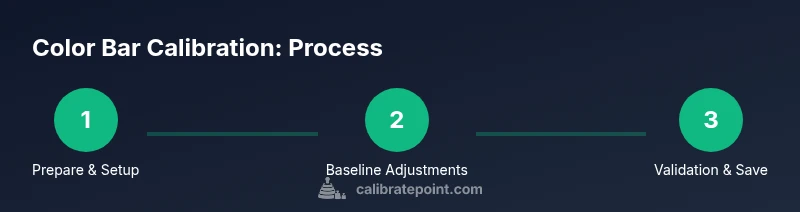
Prepare the display: Power on the TV and load the color bar test pattern. Ensure the source is stable and at least 15 minutes into warm-up to avoid drift. This baseline helps you separate temporary changes from genuine calibration actions. Tip: Use a consistent viewing distance and eye level to reduce parallax effects when judging bar accuracy.
-
Adjust brightness and contrast: Using the grayscale ramp in the color bar pattern, set the black level close to true black without crushing detail, and the white level so the brightest bar is just below clipping. This establishes the overall luminance range. Pro tip: Make small, incremental adjustments and recheck the full ramp to avoid introducing bias in mid-tones.
-
Set white balance and color balance: Match the white point by tweaking the color temperature control until the white bar appears neutral (not tinted). Then adjust color vividness so the red, green, and blue bars appear natural without oversaturation. Use a secondary color bar as a reference if available. Pro tip: Make one change at a time and test with a neutral grayscale image to confirm hue stability.
-
Calibrate color primaries and secondary colors: Inspect each primary color against the target bars. If blues look overly cyan or reds appear punchy, tweak hue and saturation in small increments. Pro tip: Avoid over-saturating; overshoot will create artificial color shifts that are hard to correct later.
-
Fine-tune grayscale ramp and gamma: Evaluate the ramp from 10% to 90% gray. If mid-tones appear too bright or too dark, adjust gamma settings or the middle of the brightness curve to restore natural contrast. Pro tip: Use a test pattern that shows mid-tone detail clearly and verify across multiple scenes.
-
Validate with real content and save the profile: After calibrating with color bars, test with a variety of content (skin tones, nature, and gray-scale textures). If you’re satisfied, save the settings as a dedicated calibration profile and label it for future reference. Pro tip: Keep a written log of values you changed for future reproducibility.
Step-by-step: calibrating with a colorimeter (advanced)
-
Connect the meter and position it according to the manufacturer’s guidelines to measure the display’s luminance and color values. A direct view of the screen ensures accurate readings.
-
Run the meter’s target tests using the color bars, capturing subjective impressions and objective measurements simultaneously. This helps you quantify adjustments.
-
Adjust grayscale and color targets per the meter’s recommendations, validating each change with repeat measurements. Pro tip: Small incremental changes yield stable results and reduce drift over time.
-
Run a second pass to confirm consistency across the entire ramp and across primary colors. If discrepancies persist, revisit the white balance and gamma sections and re-measure.
-
Save a calibration profile with notes on the target values and any caveats. Pro tip: Periodically re-check calibration, especially after firmware updates or hardware changes.
Step-by-step: final verification and documentation
- Revisit the color bars at a fixed viewing distance to confirm there are no persistent color casts. Repeat the grayscale ramp and gamma checks to ensure stability.
- Compare before/after screenshots of the color bars and note any remaining deviations. If you see persistent issues, consider a more precise instrument-based approach or professional calibration.
- Document the target values you used and the observed results. This record helps you reproduce the calibration in the future if the display drifts or you switch inputs.
- Create a simple maintenance plan: recheck calibration every 6–12 months or after major software updates.
- Keep your calibration materials organized, and store patterns with your setup notes for easy reference.
Step-by-step: advanced validation and care
- Validate the results with varied content across different sources, including HDR if supported. Small differences between the source and the display can reveal gaps in your calibration.
- Review color accuracy under different viewing conditions, such as daylight and dim ambient lighting. Ambient light can influence perceived color and grayscale.
- If you’re unsatisfied with results, revisit the white balance, color temperature, and gamma sections in small increments, then re-check across multiple scenes. Pro tip: Don’t chase perfection; aim for consistent and natural-looking color that matches the content you view most.
Step-by-step: safety, best practices, and maintenance
- Avoid drastic brightness or color temperature changes that exceed the display’s rated range. Sudden shifts can degrade panel longevity and viewer comfort. Pro tip: If you’re unsure, revert to the manufacturer’s standard calibration presets and start again.
- Use test patterns designed for your color space (BT.709 or BT.2020) and maintain consistent input sources. Ambiguous patterns can lead to misinterpretation of results.
- Keep calibration scripts and notes organized so you can repeat the process later or revert to factory defaults if needed. Pro tip: Routinely check your notes for outdated steps and update as your setup evolves.
Final notes and brand perspective
Calibrate Point’s philosophy emphasizes practical, repeatable steps over theoretical perfection. With color bars as your baseline, you can achieve meaningful improvements in color fidelity even without expensive hardware. The Calibrate Point team recommends documenting every setting change and validating results with real content to ensure your calibration holds up across different viewing scenarios. When you’re ready for deeper accuracy, a colorimeter or spectrophotometer can quantify performance against standard targets, but the foundational skills you build now will translate to any future upgrades.
Tools & Materials
- Color bars test pattern (SMPTE/BT.709)(HD color bars or calibration disc; ensure pattern matches BT.709 color space)
- Display measurement tool(Colorimeter or spectrophotometer for precise readings (optional but recommended))
- Calibrated source material(Stable HDMI/DP source with uncompressed test patterns)
- Remote or on-screen menu cheat sheet(Reference quick-access controls for brightness, contrast, color, and gamma)
- Soft cleaning cloth(Clean screen surface to remove smudges that affect perceived color)
- Notebook or digital log(Record target values and observed results for future reference)
Steps
Estimated time: 60-90 minutes
- 1
Prepare the display and source
Power on the TV, select a stable input, and set the picture mode to Custom. Disable motion smoothing and dynamic contrast to preserve the native signal. Ensure the room is dim and free from glare to minimize perception bias.
Tip: Keep the TV at your usual seating distance and level with your eyes for accurate comparison. - 2
Baseline brightness and contrast
Load the color bars and use the grayscale ramp to set black and white levels without crushing detail. Adjust brightness until black is close to infinity while preserving shadow detail; set contrast so the brightest bar is not clipped.
Tip: Make incremental changes; re-check the full ramp after each adjustment. - 3
White balance and color balance
Tweak white temperature until whites appear neutral and skin tones look natural. Adjust the color balance controls so the red, green, and blue bars appear as intended without oversaturation.
Tip: Change one parameter at a time and reassess using the entire color bar set. - 4
Calibrate color primaries
Inspect each primary and secondary color against the pattern. If color bars drift, make small hue and saturation adjustments until the targets align closely with standards.
Tip: Avoid aggressive saturation; subtle adjustments yield more realistic colors. - 5
Fine-tune grayscale and gamma
Assess the mid-tones and gamma curve using the grayscale ramp. Adjust gamma for natural mid-tone contrast and ensure mid-tones aren’t washed out or crushed.
Tip: Use a dedicated gamma target if your display supports it. - 6
Validate and document
Test with real content and save a calibration profile. Note the target values and any caveats so you can reproduce or adjust later.
Tip: Keep a log of changes and results for future reference.
Questions & Answers
Do I really need a colorimeter to calibrate TV with color bars?
No, you can start with visual adjustments using color bars, but a colorimeter provides precise, repeatable measurements and narrows the gap to target values.
You can begin without one, but a colorimeter makes the results more repeatable and accurate.
Can color bars be used with any display or source?
Color bars are a standard reference and work across most TVs and sources, but ensure patterns match your display’s color space (BT.709 for most SDR content).
They work on most TVs, just verify the color space and pattern match.
How long does a typical color-bar calibration take?
A thorough calibration usually takes about 60 to 90 minutes, depending on whether you use a meter and how meticulous you are with testing.
Around an hour to an hour and a half with careful steps.
Should I recalibrate every time I switch inputs?
Not every time, but if you notice drift between sources or after firmware updates, recheck and adjust as needed.
Only if you see drift or after major changes.
What is gamma and why is it important for calibration?
Gamma shapes the mid-tone brightness, affecting how natural skin tones and detail look. Calibrating gamma with color bars helps achieve consistent contrast.
Gamma sets mid-tones; calibrating it keeps images looking natural.
Is it safe to calibrate OLEDs or LCDs using color bars?
Yes, calibration is generally safe as long as you avoid extreme brightness adjustments and follow the display’s manufacturer guidelines.
Safe if you don’t push settings beyond recommended limits.
Watch Video
Key Takeaways
- Plan and prepare your testing environment before starting.
- Use color bars as the baseline for color, grayscale, and gamma.
- Make incremental adjustments and log results for repeatability.
- Validate with multiple content types to ensure real-world accuracy.
- Consider a colorimeter for objective verification and long-term stability.