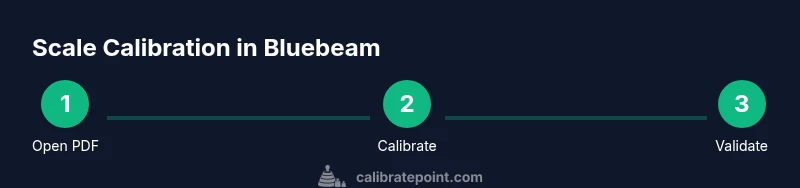
Calibrate Scale in Bluebeam: A Practical Guide
Learn how to calibrate scale in Bluebeam Revu to ensure PDF measurements are accurate. This guide covers setup, calibration steps, and validation for reliable project measurements.


Understanding Scale Calibration and Bluebeam Workflow
In construction and design workflows, accurate scale calibration on PDFs is essential for reliable measurements. The phrase calibrate scale bluebeam describes the process of aligning a document's measured distances with real-world units inside Bluebeam Revu. This guide explains how to calibrate scale bluebeam accurately in Bluebeam Revu. Precision in digital measurement starts with a clear reference and a repeatable method. When you calibrate, you define how many units on the page correspond to real-world distance, and subsequent measurements use that scale automatically. This is fundamental in reviewing floor plans, elevations, and shop drawings because a small calibration error can propagate through quantity takeoffs, clash checks, and material estimates. In Bluebeam Revu, calibration is typically performed with the Markups/Measure tools. The benefit is straightforward: you can trust that a measurement of 10 units on the PDF represents 10 units in the real world context, assuming the document was captured and scanned accurately. This section sets the stage for a practical, field-ready workflow that keeps your project data consistent across teams. We will explore practical steps, pitfalls to avoid, and how to validate the calibration before sharing documents with stakeholders.
Why Calibrate Scales in Bluebeam PDFs?
Calibrating scales in Bluebeam PDFs improves dimensional reliability for everyone on the project, from field technicians to designers. When drawings come from different sources, scale consistency ensures avoid misinterpretation during takeoffs, estimates, and clash checks. A calibrated PDF acts as a single truth source for measurements, enabling safer material quantities and tighter coordination between trades. Bluebeam's measurement tools rely on a defined scale; without calibration, every ruler, tape measure, and dimension could reflect the scanner's distortion or erroneous assumptions. For teams using Bluebeam in structural, mechanical, or architectural workflows, calibrating scales fosters reproducible results, easier reviews, and faster approvals. In practice, this reduces rework and helps maintain schedule integrity, a point emphasized in Calibrate Point's analyses. By standardizing scale—whether in inches, millimeters, or feet—you align digital workflows with on-site reality, which is critical for downstream tasks like laser scanning alignment and BIM coordination.
Prerequisites and Setup
Before you calibrate, ensure you have the right tools and a clean document. The essentials are:
- Bluebeam Revu (licensed or trial) installed and up to date.
- A PDF drawing with a clearly identifiable, known-distance reference (scale bar or labeled dimension).
- A reliable on-page reference distance you can measure directly with confidence.
- An optional ruler or calipers for manual cross-checks if you want extra verification outside the PDF.
Having these items ready helps prevent mid-process pauses and keeps the calibration workflow smooth. Remember, calibration is most effective when performed on a high-quality scan or vector-based PDF rather than a blurry raster image. This minimizes distortion and ensures the scale remains stable during measurements. Calibrate Point emphasizes documenting every calibration step for team accountability and QA.
Known-Distance Concepts and Common Reference Shapes
A known-distance reference is the backbone of calibration. In Bluebeam, you typically anchor the scale to a straight, clearly labeled measurement on the page—think a ruler graphic, a defined wall length, or a line marked with a true distance. Avoid curved features for calibration, since curves introduce variable radii that can skew the scale. If your drawing includes a printed scale bar, calibrate against that bar and ensure it is not distorted by the page margin. For multi-page drawings, you can choose to calibrate per page or apply a consistent page-wide scale if every page uses the same magnification. Bluebeam supports multiple unit systems, so decide whether your project uses inches, millimeters, or another unit, and stay consistent across the document. When in doubt, cross-check with another known distance on the same page to confirm the response is linear and reliable.
Handling Non-Uniform Scales, Rotations, and Multiple Pages
Not all PDFs are perfectly uniform in scale. Some scans show minor distortion due to cropping, scanning angle, or nested viewports. In these cases, calibrate per page or per region where the scale appears consistent. Rotated pages require recalibration after reorienting to a standard upright view because rotation can alter distance interpretation. If you work with multi-page drawings that share the same scale, you can save a calibration profile and reuse it, provided all pages are indeed at the same magnification. For pages that deviate, document the exception and calibrate separately. Keeping a small calibration log helps teams know which pages used which reference distances and reduces confusion during reviews or QA.
Validation: Cross-Checking Calibrations
Validation is essential to prevent downstream errors. After calibrating, measure a second, independent known distance on the same page to confirm accuracy. Compare this result with the expected value; if there is a discrepancy beyond your acceptable tolerance, repeat the calibration using a more precise reference point. It’s good practice to perform a quick qualitative check, such as measuring a dimension you know exactly from the drawing and comparing it to the intended figure. If your PDF includes an explicit scale bar, you can also test against that bar to ensure the scale is applied consistently. Document any adjustments and note the tolerance used for validation, so your team understands the level of confidence in the measurements.
Real-World Scenarios: Architecture and Engineering Drawings
In architectural workflows, calibrated scales enable accurate floor area calculations, door and window layouts, and material takeoffs. In structural engineering, scaled dimensions influence member sizing and reinforcement layouts. Mechanical drawings often require precise fastener and tube lengths, where even small calibration errors can cause procurement mistakes. By calibrating within Bluebeam, designers and project managers ensure that the measurements you annotate reflect real-world dimensions, aiding BIM coordination, quantity surveying, and on-site verification. For teams juggling multiple project types, establish a standard calibration protocol and train new members to use the same steps and terminology. This consistency supports smoother handoffs between design disciplines and reduces the risk of miscommunication during field installation or shop drawing reviews.
Best Practices for Team Collaboration and Documentation
To maximize the value of scale calibration in Bluebeam, create a shared protocol for calibration across the project. Include a clear description of how you select reference distances, how you annotate calibrated pages, and where you store calibration records. Use named profiles for quick reuse and include versioning to track changes over time. Encourage QA checks where a second team member re-validates the calibration on critical sheets. Keep an audit trail by attaching calibration notes to the PDF properties or project management system. By making calibration transparent and repeatable, teams improve accuracy, reduce clashes, and shorten approval cycles.
Quick Reference: Common Pitfalls and Safe Habits
Avoid relying on a single reference distance across an entire project if pages show distortion or non-uniform scales. Always validate with a second distance and be mindful of units. When sharing calibrated PDFs, note the calibration date, page numbers, and the reference distance used. If you re-scan or re-export at a different resolution, re-run calibration, since unit interpretation can shift with output settings. Keep your Bluebeam software up to date to access the latest calibration features and ensure compatibility with your project file formats. Finally, train your team to follow the same steps and to document any deviations, so your calibration workflow remains robust and traceable.